
Trusted by 1M+ users across 100 countries




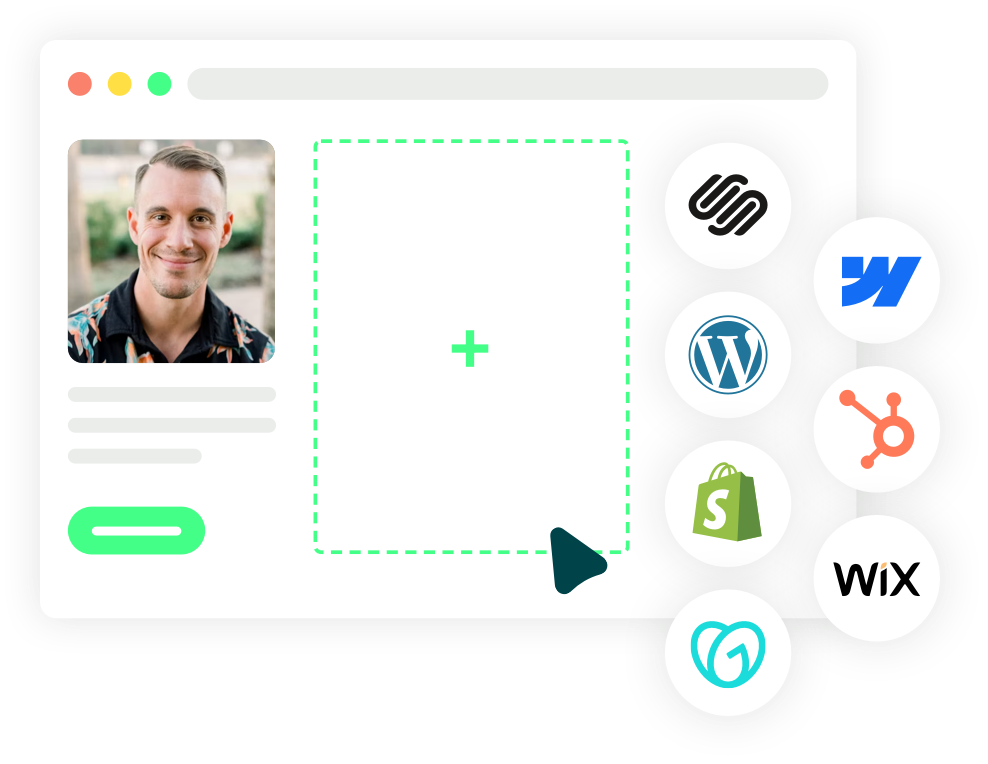
Compatible with all website builders
Integrate your YouCanBookMe scheduling tool into any website builder - including Squarespace, Webflow, Wordpress, Hubspot, Shopify, Wix, BigCommerce, GoDaddy, and more!
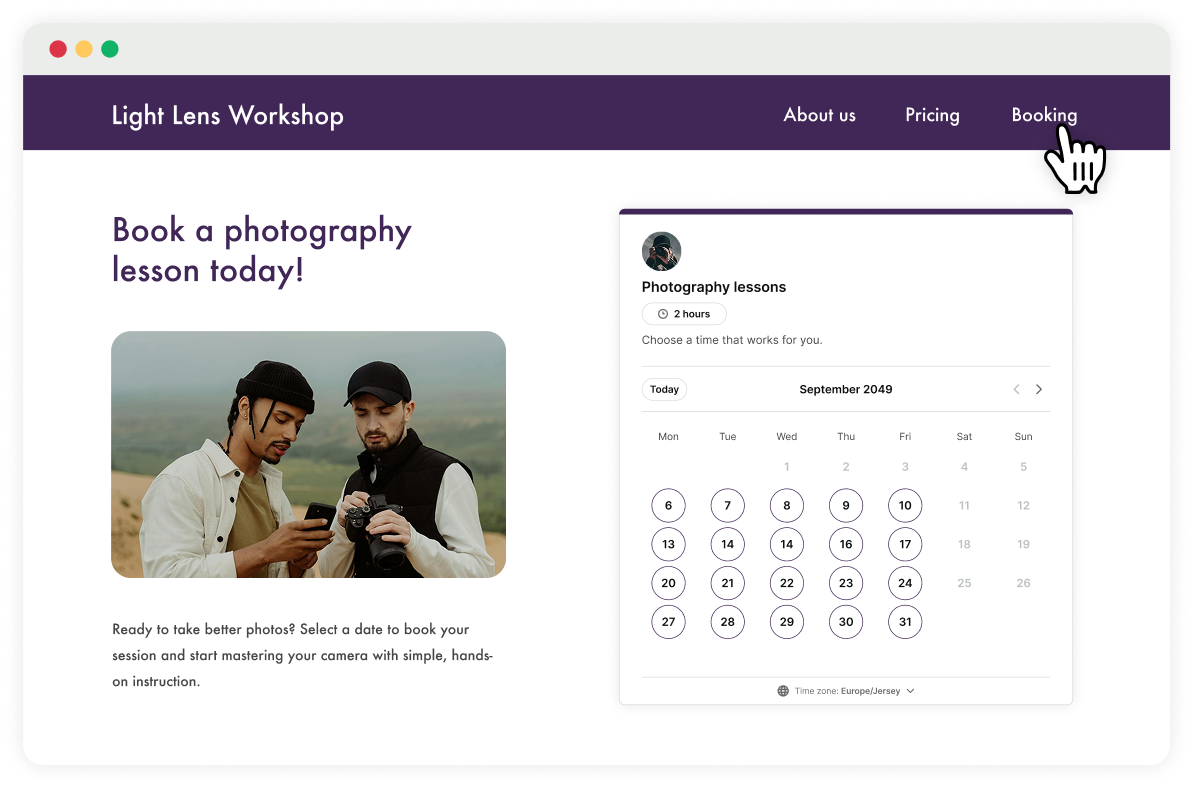
Get bookings while you sleep
Turn website visits into confirmed bookings—all on autopilot.
Embed your booking page and let people schedule right where they are. No back-and-forth, no waiting, no extra steps.
More ways to share your booking page
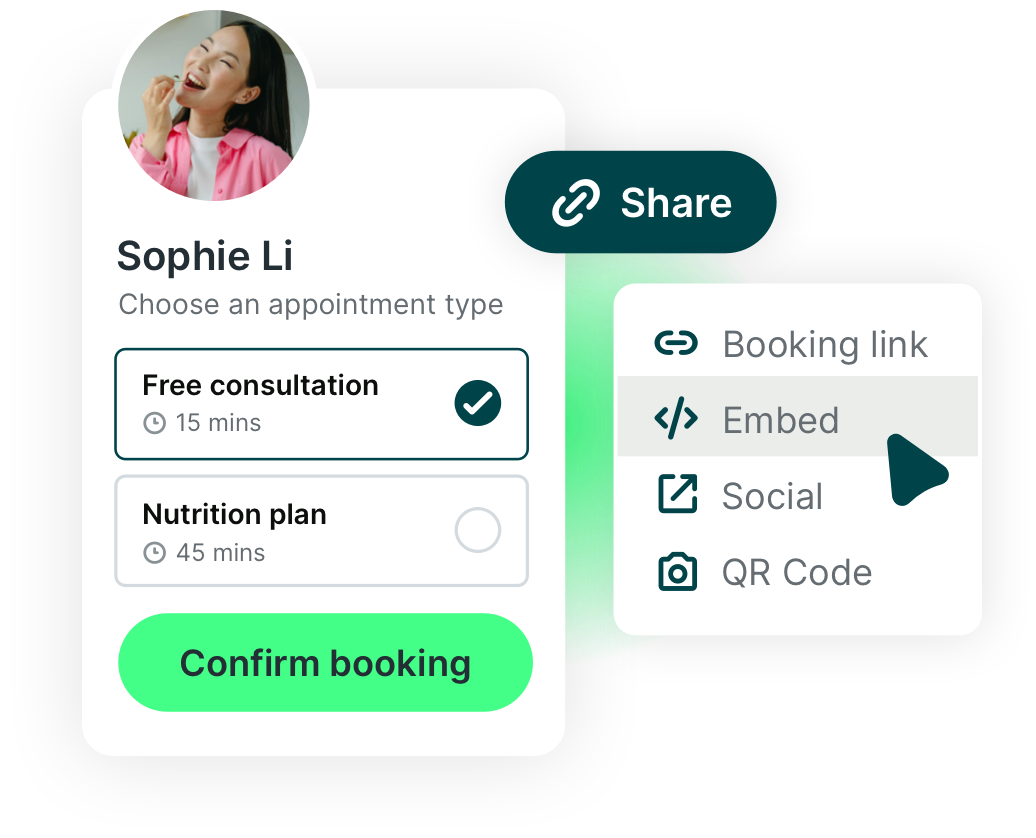
Make it easy for people to book with you, no matter where they find you.
- Copy & paste your link: Drop it into emails, DMs, newsletters, or social posts.
- Book directly from their inbox: Insert suggested times straight into emails using our Chrome extension.
- Let people book in the real world: Include a scannable QR code on business cards, brochures, or signage for fast, on-the-go scheduling.
Embed it your way
-
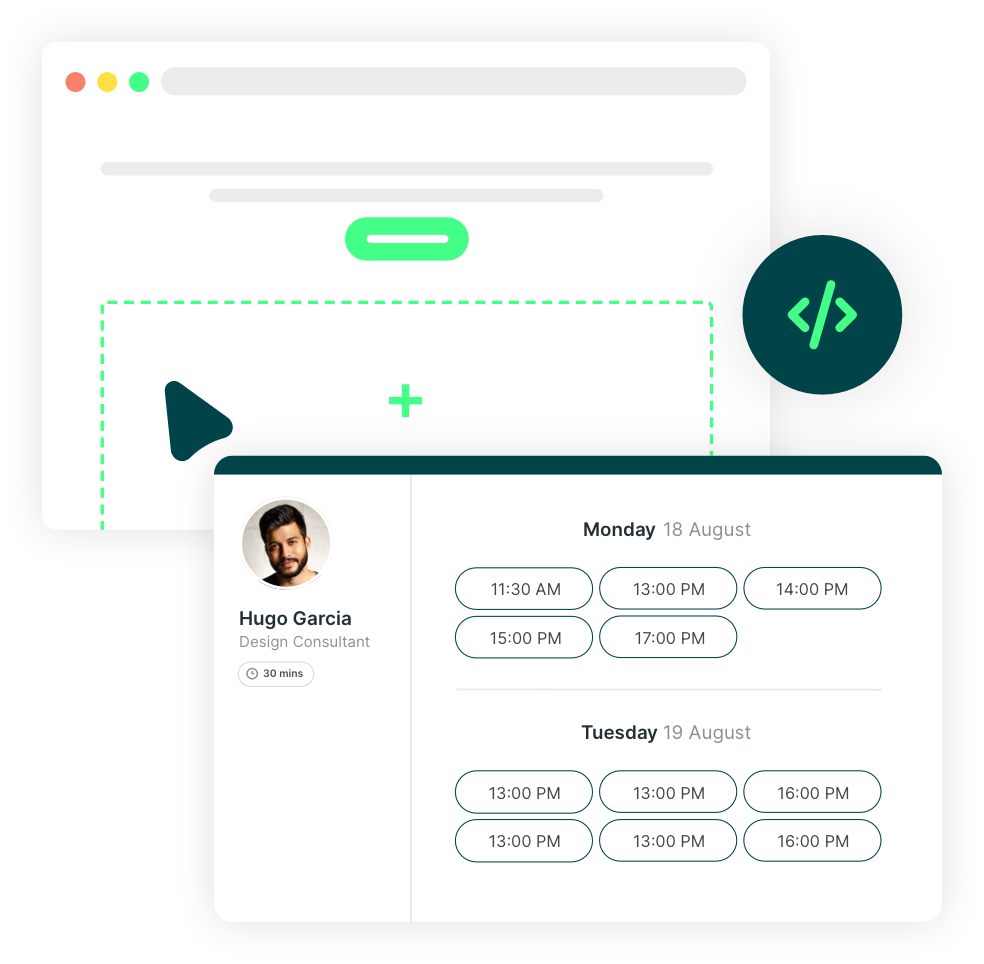
Inline embed
Your booking page sits directly on your website—fully visible and ready to book, without sending visitors elsewhere.

-
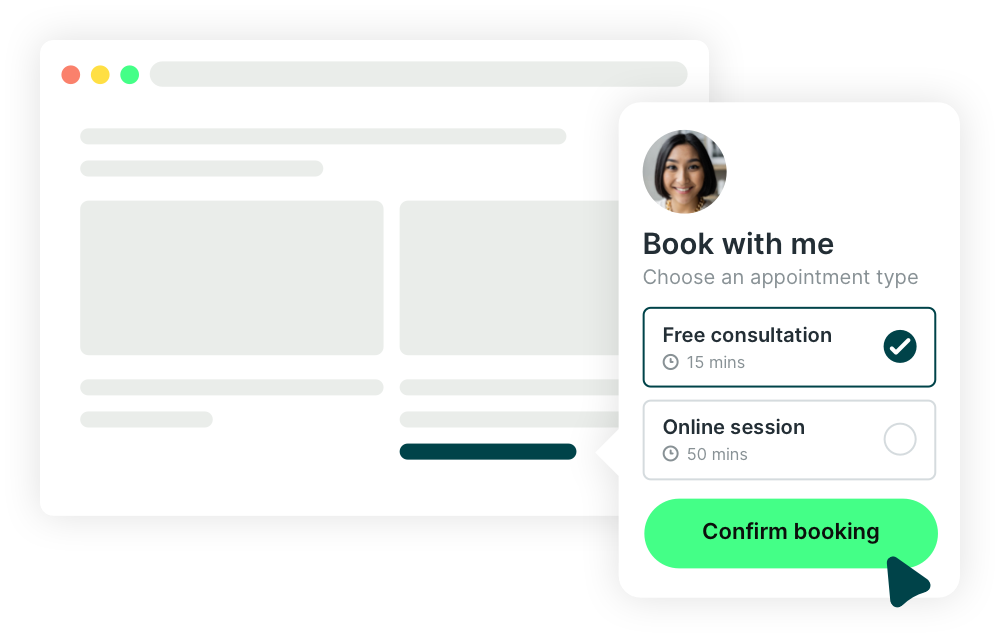
Inline link
A text link or button that opens your booking page in a clean pop-up, keeping visitors focused and on your site.
-
Floating button
A subtle, always-available button that follows visitors as they scroll—so booking is never out of reach.
.png?width=1267&height=922&name=FP_%20Embed%20-%20Floating%20button%20(1).png)
Trusted by professionals who want scheduling to just work
Hear how embedding YouCanBookMe fits into real websites and workflows. 👇
-
“We'd be losing maybe $4,000 - $6,000 a month if we didn't have YouCanBookMe. Specifically because of the SMS functionality, being able to embed it in our website, as well as the redirect functionality that sends people to a customized landing page.”
 Deepak ShuklaFounder, Pearl Lemon Leads
 -
“I use it all the time and recommend it to the people I work with. It’s the main call-to-action on my website—the very first button takes you straight to booking an appointment with me through YouCanBookMe.”
 Romana SiracusaFractional CMO
 -
“On my website, I’ve built in the option for people to have a free online consultation, chat about their ideas, and what they want to achieve from a photoshoot. They go ahead, book it, and it’s all scheduled.”
 Chris VaughanPhotographer
 -
“We embed YouCanBookMe on many of our pages. So when people are reading about wedding rings, watches, or other products and scroll down, they can book an appointment right away without having to contact us first.”
 Jordan GroeneveldManager, Jeweler van Dam
 -
“I have my booking page on my website in the top navigation under ‘Connect with me.’ I also include it in my email signature and in many of my templated emails—especially when the goal is to prompt action, like scheduling a call or getting pre-approved. I share it everywhere I can because playing phone tag is frustrating, inefficient, and a waste of time.”
 Brian MartucciFounder, Get Loans

 4.7 / 5 — Trustpilot


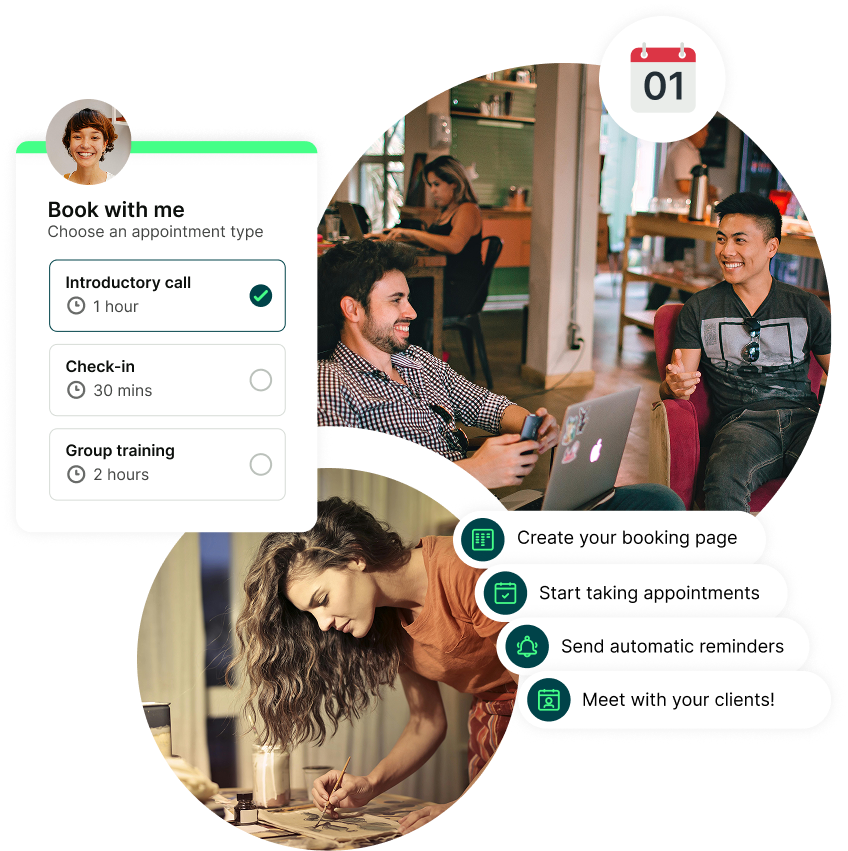
Get started today
Join thousands of coaches, consultants, and entrepreneurs who use YouCanBookMe to power their business. Get your first booking in a few minutes.

How do I embed my booking page onto my Squarespace site?
How do I embed my booking page onto my Squarespace site?
Embedding YouCanBookMe on your Squarespace site takes just a few clicks—and works on all plans, including the free plan.
- Copy the embed code from your YouCanBookMe booking page (choose the embed style you want).
- Open the Squarespace editor and click Add Block.
- Select Embed and click the pencil icon to edit it.
- Choose Code Snippet / Embed Data.
- Paste in your YouCanBookMe embed code and click Save.
That’s it—your booking page will appear directly on your Squarespace site and be ready for visitors to book.
How do I embed YouCanBookMe onto my WordPress site?
You can add your YouCanBookMe booking page or booking button to WordPress in just a few steps—and it works on all plans, including our free one.
- Copy the embed code from your YouCanBookMe booking page (choose the embed style you want).
- Open the WordPress editor and click the + icon to add a block.
- Select Custom HTML.
- Paste in your YouCanBookMe embed code.
- Click Update (or Publish) to save your changes.
Once published, your booking page will appear directly on your WordPress site and be ready for visitors to book.
How do I add my booking page onto my Leadpages site?
You can embed your YouCanBookMe booking page or button on any Leadpages page in just a few clicks—and it works on all YouCanBookMe plans, including the free one!
- Copy the embed code from your YouCanBookMe booking page (choose the embed style you want).
- Open the Leadpages editor and go to Widgets.
- Drag the HTML widget onto your page.
- Click the pencil icon to edit the widget.
- Paste in your YouCanBookMe embed code and click Save.
- Click Preview or Publish to make it live.
Your booking page or button will now appear on your Leadpages page, ready for visitors to book.
How do I embed my booking page onto my Podia site?
You can add your YouCanBookMe booking page to a Podia site in just a few steps—and it works on all plans, including our free one.
- Copy your booking page link from YouCanBookMe.
- Open the Podia editor and add a Text section (or edit an existing one).
- In the text editor, type / and select Embed.
- Paste your booking page link and click Insert.
- Click Publish, then view your site.
That’s all! Your booking page will now appear directly on your Podia site, ready for people to book.