

Make booking easier for everyone
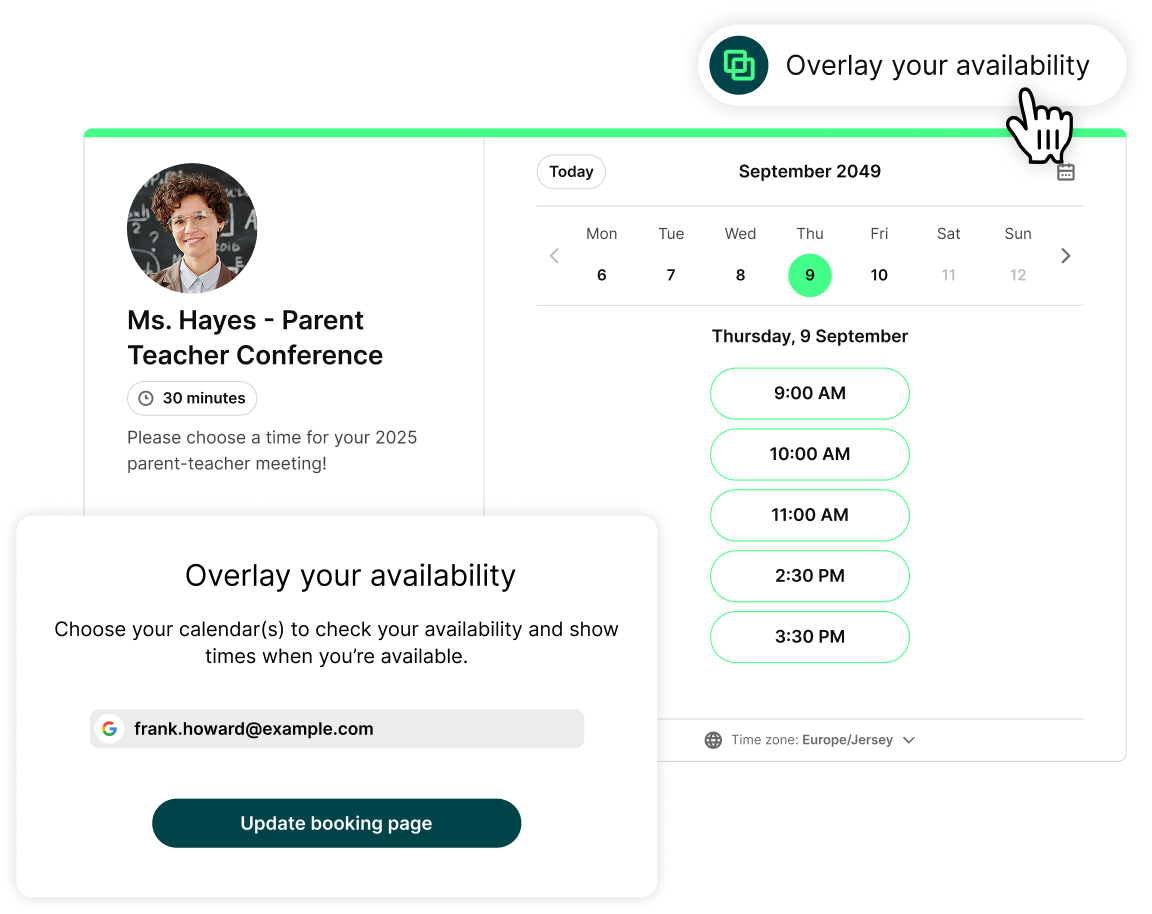
Ever tried booking time with someone and wondered, “Am I actually free then?” Calendar Overlay removes the guesswork.
Bookers can connect their Google or Microsoft calendar—or link via YouCanBookMe or Calendly—to instantly see times that work for both of you.
No tab switching. No comparing calendars. Just clear, confident choices.
Stop double-bookings before they happen
Your calendar should protect your time, not create more work.
By syncing up to 10 personal and professional calendars, YCBM automatically checks everything you already have going on—meetings, time off, and real-life commitments—before anyone books.
Real-time availability your bookers can trust
Your booking page always reflects what’s actually open. No old time slots, manual adjustments, or frustrating reschedules.
Two-way calendar sync handles the details automatically, updating availability in real time as bookings are made or schedules shift.
Manage your time directly from your calendar
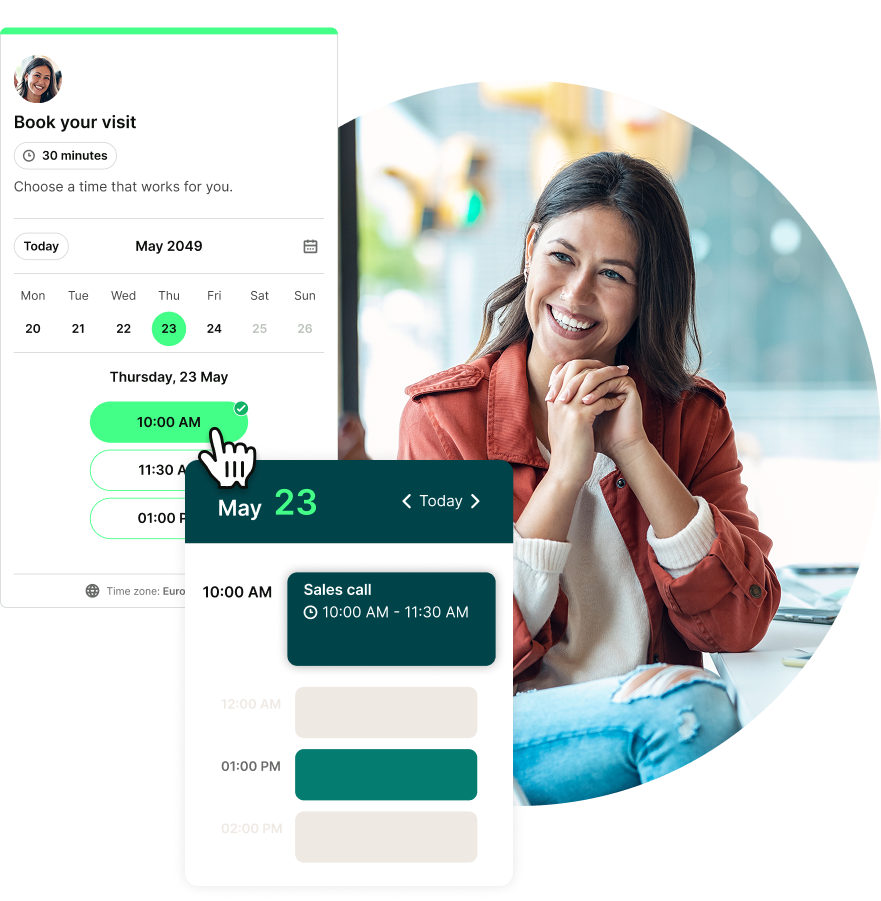
Plans change—and your availability should keep up. Control what’s bookable straight from your synced calendar, without logging into YouCanBookMe.
Block time, free up a slot, or adjust a single day’s schedule, and your booking page updates instantly.

The easiest way to sync all your calendars

Google Calendar
Your calendar keeps itself up to date. Busy slots stay off-limits, new bookings appear right away, and your personal events stay private.
.svg.png?width=1920&height=1370&name=Microsoft_Outlook_logo_(2024%E2%80%932025).svg.png)
Outlook Calendar
Work seamlessly across Outlook and Microsoft 365. Availability updates in real time, bookings land straight on your calendar, and conflicts are handled before they happen.

Apple Calendar
Keep personal and professional plans in step. Sync via iCloud so existing events block availability and new bookings show up exactly where you expect them.
Loved by professionals with full calendars
Founders, consultants, and teams use YouCanBookMe to build scheduling that works around real life—not rigid rules. Want in?
-
“The integration with Google Calendar brings in the bookings from YCBM straight into our diary, complete with the customer’s information, what they'd like to do, and their job description."
 Stan FedinFounder, FITnFIX
 -
“It works with Google Calendar, which is what we use. And it makes everything automated and so much easier than having to worry about receiving text messages or calls to schedule people in.” - , Founder
 David JakovacCo-Founder, Altitude Performance and Health
 -
“YouCanBookMe is so customizable and adjustable that we can really make it look like us.”
 Hannes MerisaariChief Customer Officer, Lyyti
 -
"I love the way that I can customize it. I love that I can have multiple calendars. I can create a calendar just for a very specific group of people if I want to."
 Melissa GeorgeCEO, InvestHER Fiduciary Solutions
 -
“If you and I email back and forth a few times to set something up for next Tuesday, there’s a good chance it won’t actually make it onto my calendar. That’s why I tell everyone to just use YouCanBookMe, it puts the booking exactly where it needs to go.”
 Jon BlankFounder, The CPR Guy
 -
“Because we have such a diverse team with different hours, and some people working part-time while others work full-time, it’s just very convenient for them to be able to control their availability themselves from their calendar in a few clicks.”
 Mart SiemerinkHead of Support, SafariBookings
Get started today
Join thousands of coaches, consultants, and entrepreneurs who use YouCanBookMe to power their business. Get your first booking in a few minutes.


 4.7 / 5 — Trustpilot


FAQs
Which calendars can I link my YouCanBookMe account to?

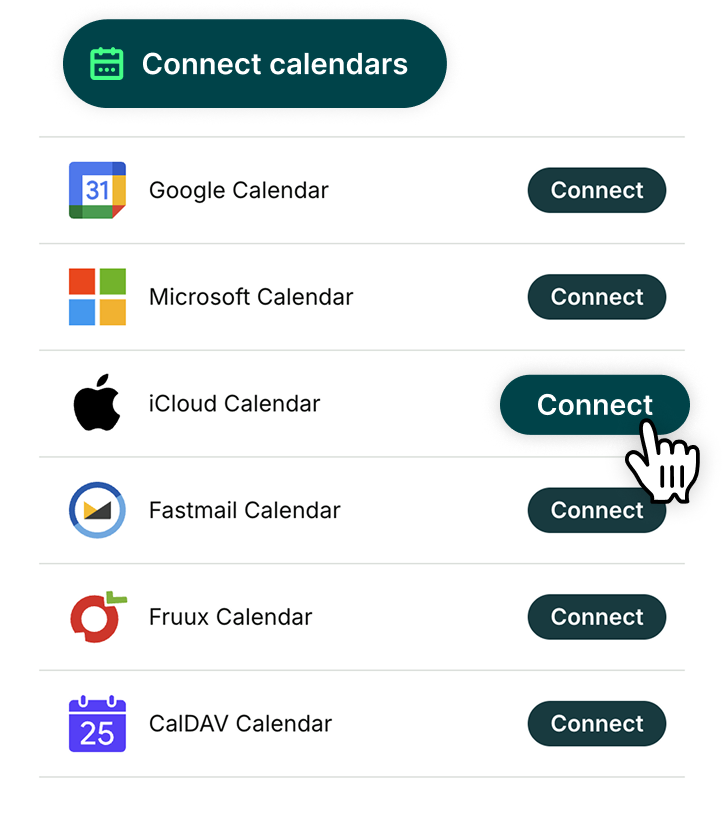
YouCanBookMe’s calendar sync app connects with Google, Microsoft (Outlook/Microsoft 365), iCloud, Fastmail, Fruux, and CalDav calendars so you can manage availability across all the calendars you already use.
How many calendars can I link my YCBM account to?
YouCanBookMe lets you link up to 10 connected calendars, depending on the plan you choose. This makes it easy to sync work, personal, and shared calendars in one place. Explore pricing options.
How quickly does YCBM sync with my calendar?
Calendar updates happen automatically and continuously. With real-time calendar synchronization, new bookings, changes, and busy events are reflected instantly so your availability stays accurate.
How do I get my calendar to sync with YouCanBookMe?
You can add or manage calendar integrations at any time from your account settings.
To connect a calendar:
- Log into your YouCanBookMe account
- Click the smiley face icon or your profile photo in the top-right corner and select My account
- Choose Integrations from the menu on the left
- Click Connect next to the calendar you want to link
- Enter your credentials and follow the prompts to complete the setup!
Once connected, your calendar will start syncing automatically—keeping availability accurate without any manual work.
If I change the time of an event in my calendar, will YCBM keep up with the changes?
Yes. If plans change, YouCanBookMe keeps everything in sync.
You can reschedule using the links in your booking emails—but if you update the event directly in your Google or Outlook calendar, YouCanBookMe will automatically adjust to the new date and time.
Before sending any reminder or follow-up email (or SMS), YouCanBookMe checks your calendar to confirm the booking details are still correct. If something has changed, it pauses the notification and reschedules it for the updated time, so messages are always sent at the right moment.
Can you sync two calendars together?
YouCanBookMe doesn’t merge calendars into one, but it does sync availability across multiple calendars. It checks availability across all connected calendars before showing bookable times, then adds each new booking to your calendars—so conflicts are avoided and you’re never double-booked.
How is my calendar data protected?
Your data is protected using enterprise-grade security and privacy standards. We meet key industry requirements, including:
- SOC 2 Type II compliance
- ISO/IEC 27001:2022 certification
- Full GDPR compliance with a dedicated Data Protection Officer
All data is encrypted in transit using TLS 1.2 and at rest using AES-256 through AWS. Access is tightly controlled using identity-based permissions and the principle of least privilege. You can access our privacy policy to learn more.