
How to Build a Website with ChatGPT That Takes Bookings

Create your free booking page
Did you know your next business website could start with a ChatGPT prompt? Describe what you need, refine it with a little feedback, and embed your YouCanBookMe (YCBM) booking page so clients can book straight from your site.
In this article, I’ll quickly walk you through the setup and show you three real businesses already using ChatGPT and YouCanBookMe to turn website visitors into bookings.
Alright, let’s get your website up and running. You can build it, tweak the design, and get it online through a conversation with ChatGPT. Here’s where to start:
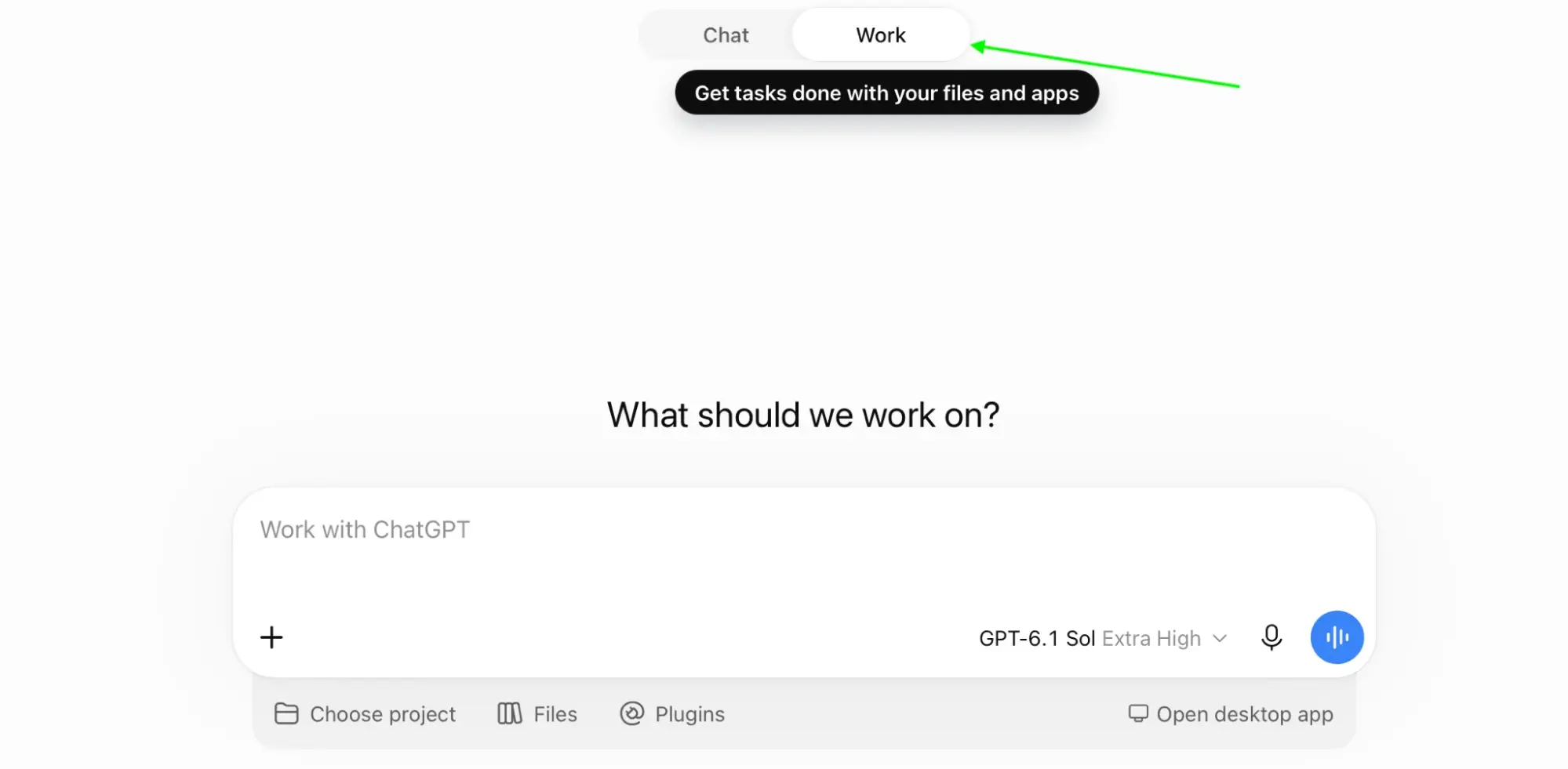
1. Describe your website. Open ChatGPT, switch to Work, and describe the site you want, including the word “website” in your prompt or mentioning @Sites.
Here’s a prompt you can use to generate a basic site: 👇
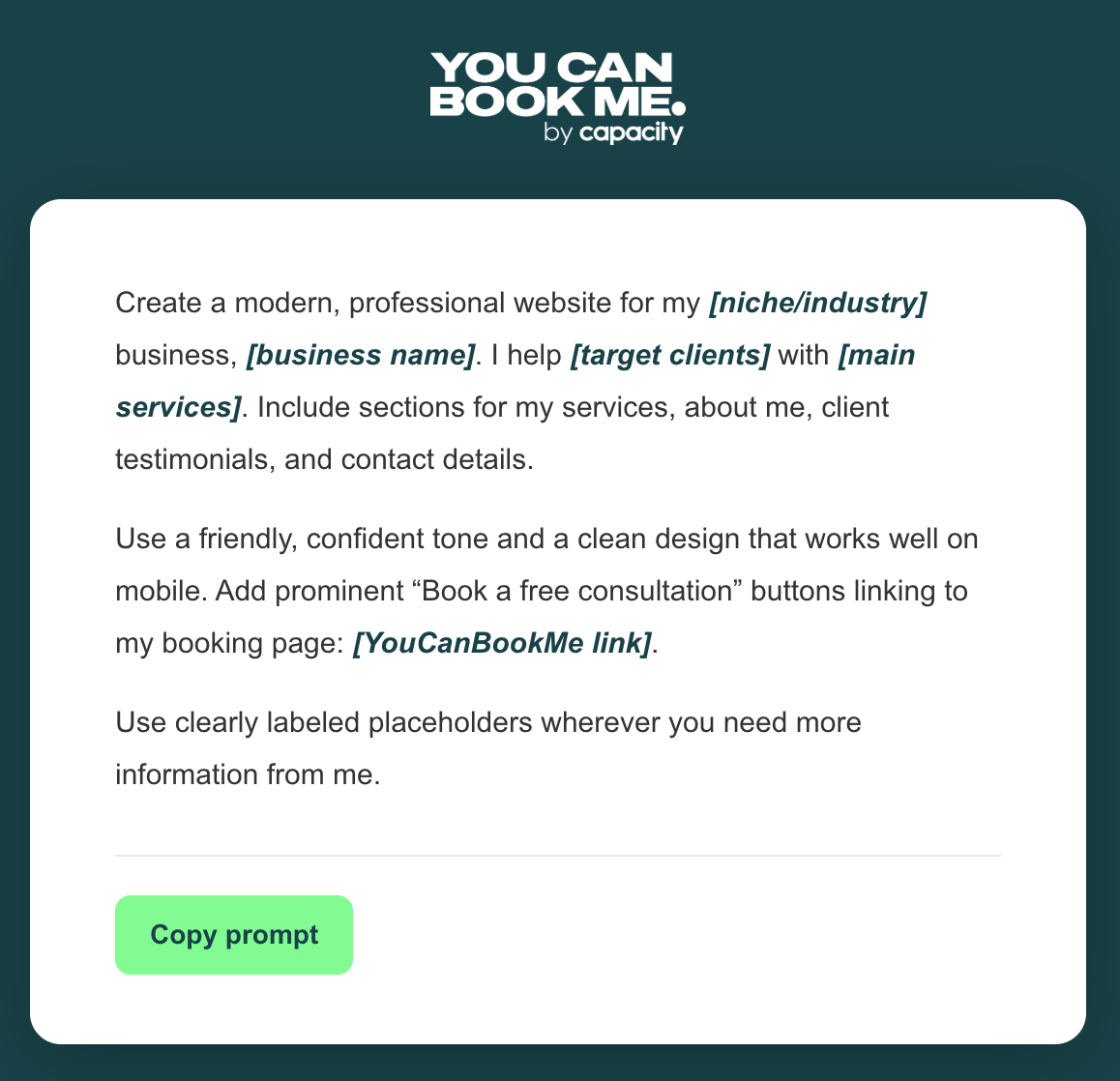
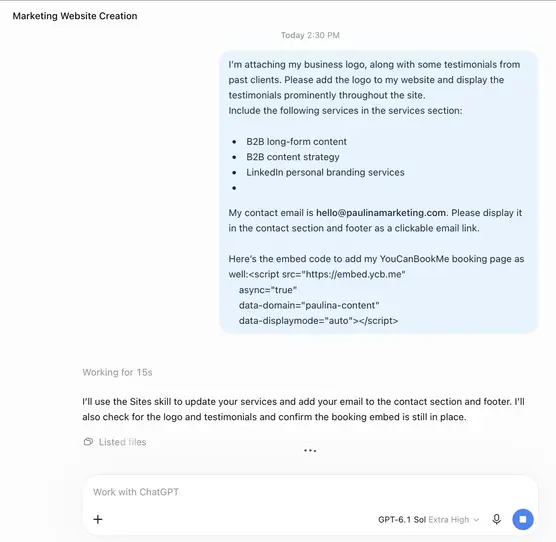
2. Add your content. Share your services, prices, logo, photos, and contact details, plus your YouCanBookMe booking link so ChatGPT can connect your “Book now” buttons.
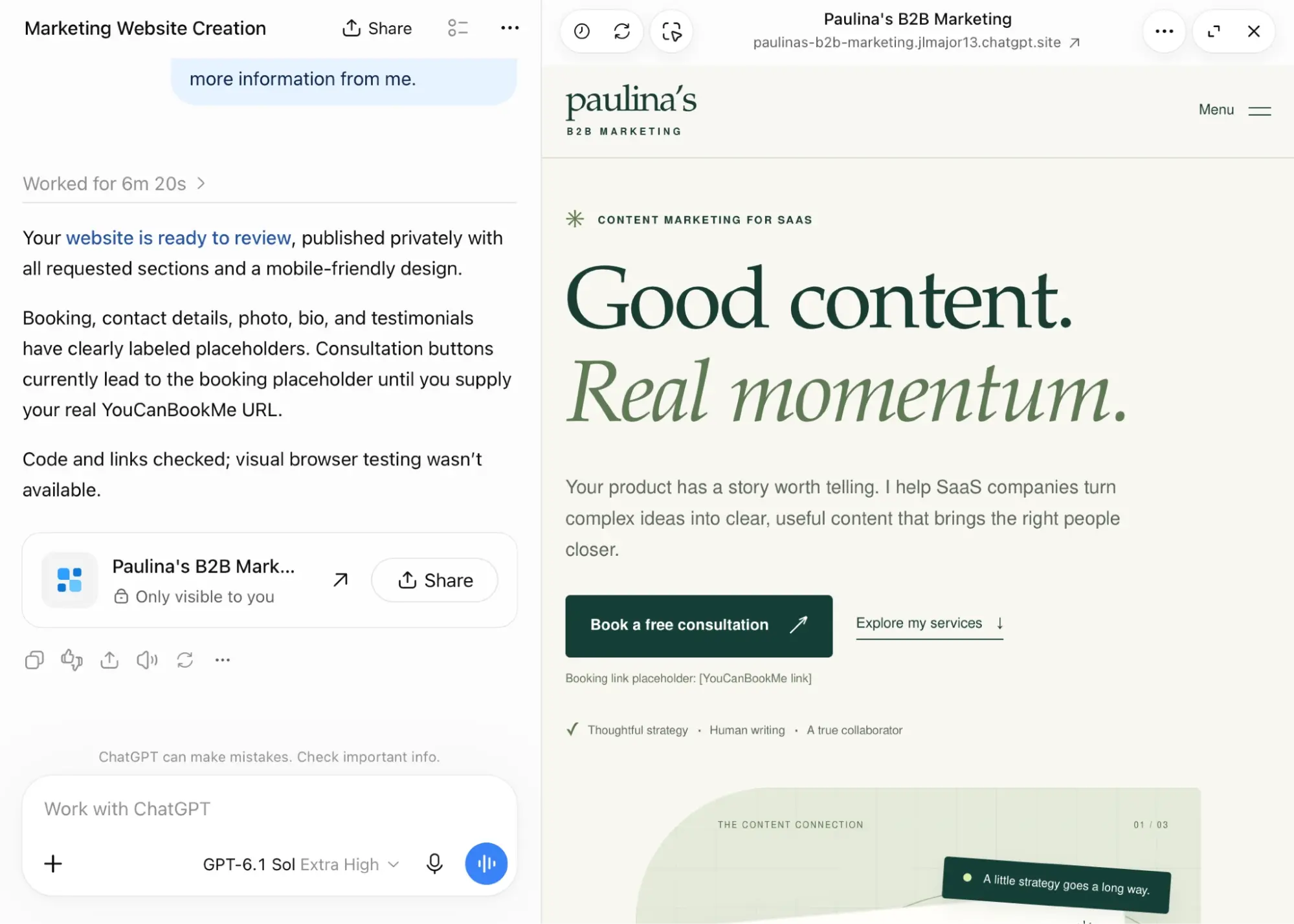
3. Review and refine. Explore the preview, check the content and buttons, and ask ChatGPT for changes to the design or wording until you’re happy.
4. Publish and share. Click the three dots at the top to publish your site and make it publicly accessible. Then check the live URL before sharing it with clients.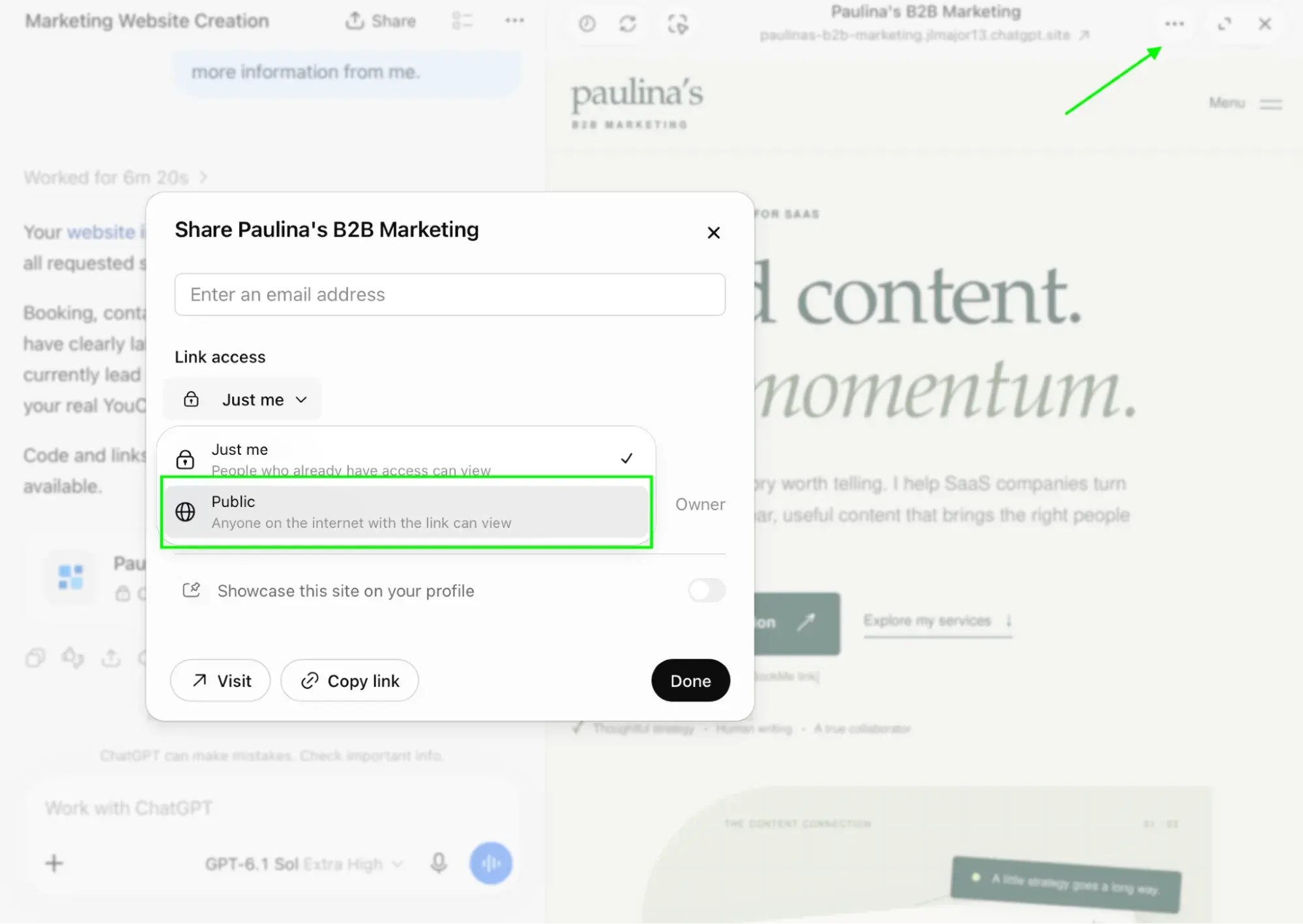
You can embed your booking page on any YouCanBookMe plan, including the free one. Open your booking page in YouCanBookMe, click Share, then Embed, and choose the type of embed you want to use:
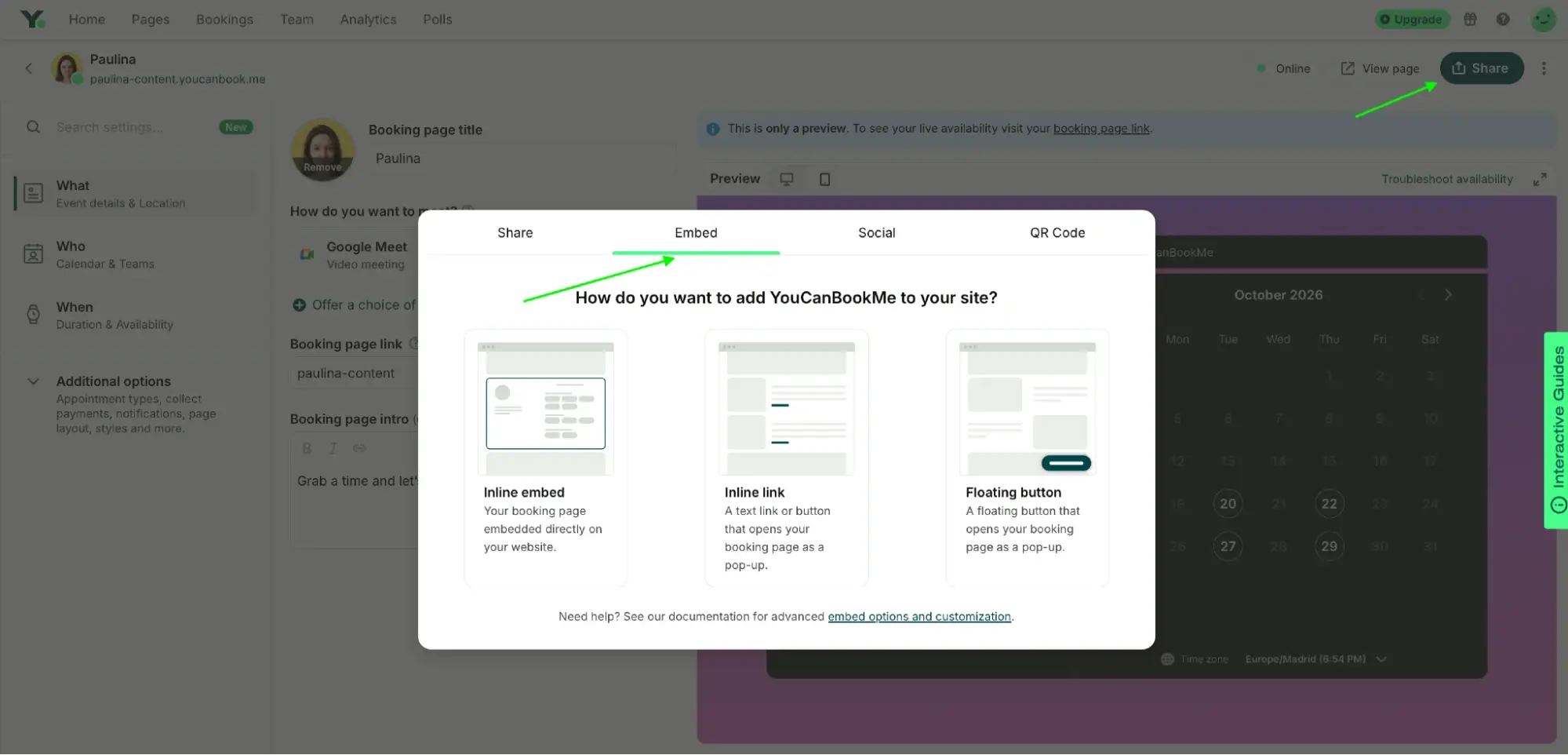
- Inline embed: Display your booking page directly on your website.
- Inline link: Add a link or button that opens your booking page in a pop-up.
- Floating button: Keep a booking button visible as visitors scroll.
Copy the embed code, paste it into your ChatGPT conversation, and ask ChatGPT to add it where you want it. Check the preview, then publish the update.
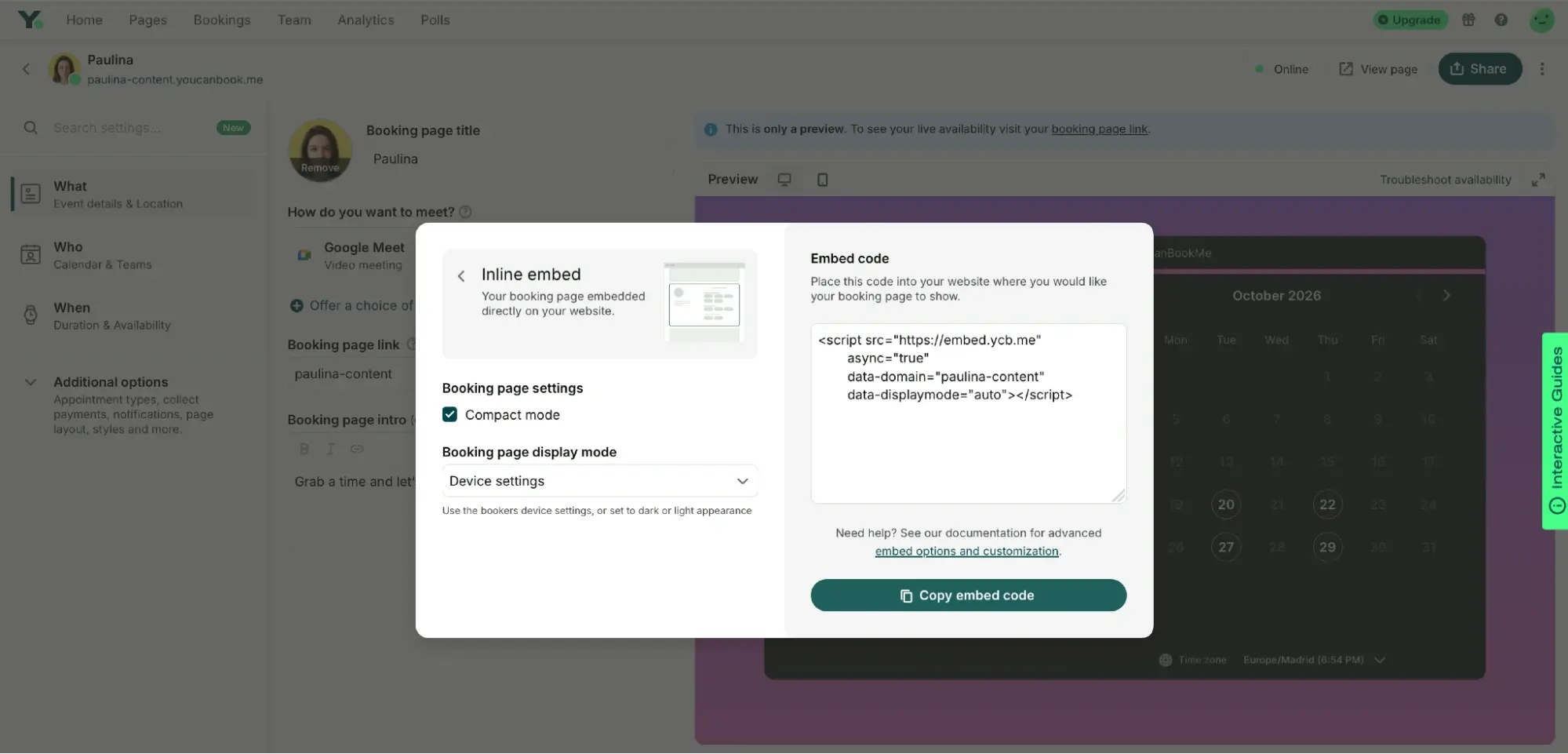
Our step-by-step guide to adding YouCanBookMe to any website covers the options in more detail.
Now it’s time for a little inspiration! These three businesses have paired their ChatGPT websites with YouCanBookMe, giving visitors a way to book a wellness session, arrange a consultation, or start a conversation about their next trip.
Take a look below and borrow a few ideas for your own site.
The first example comes from Canton Light Wellness, a guided light-session studio in Tulsa. We absolutely loved the website’s design, from the deep red color palette to the glowing light imagery.
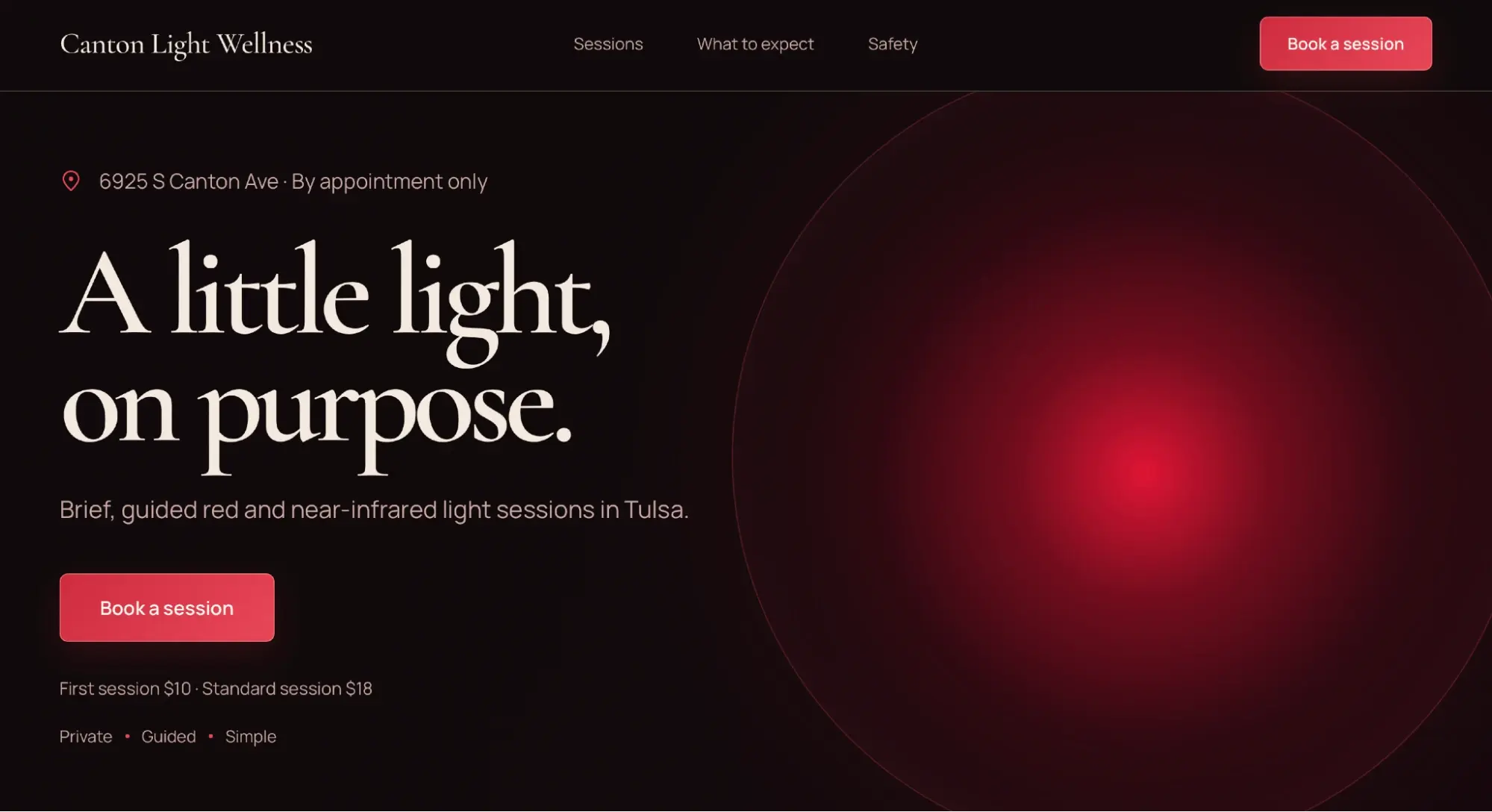
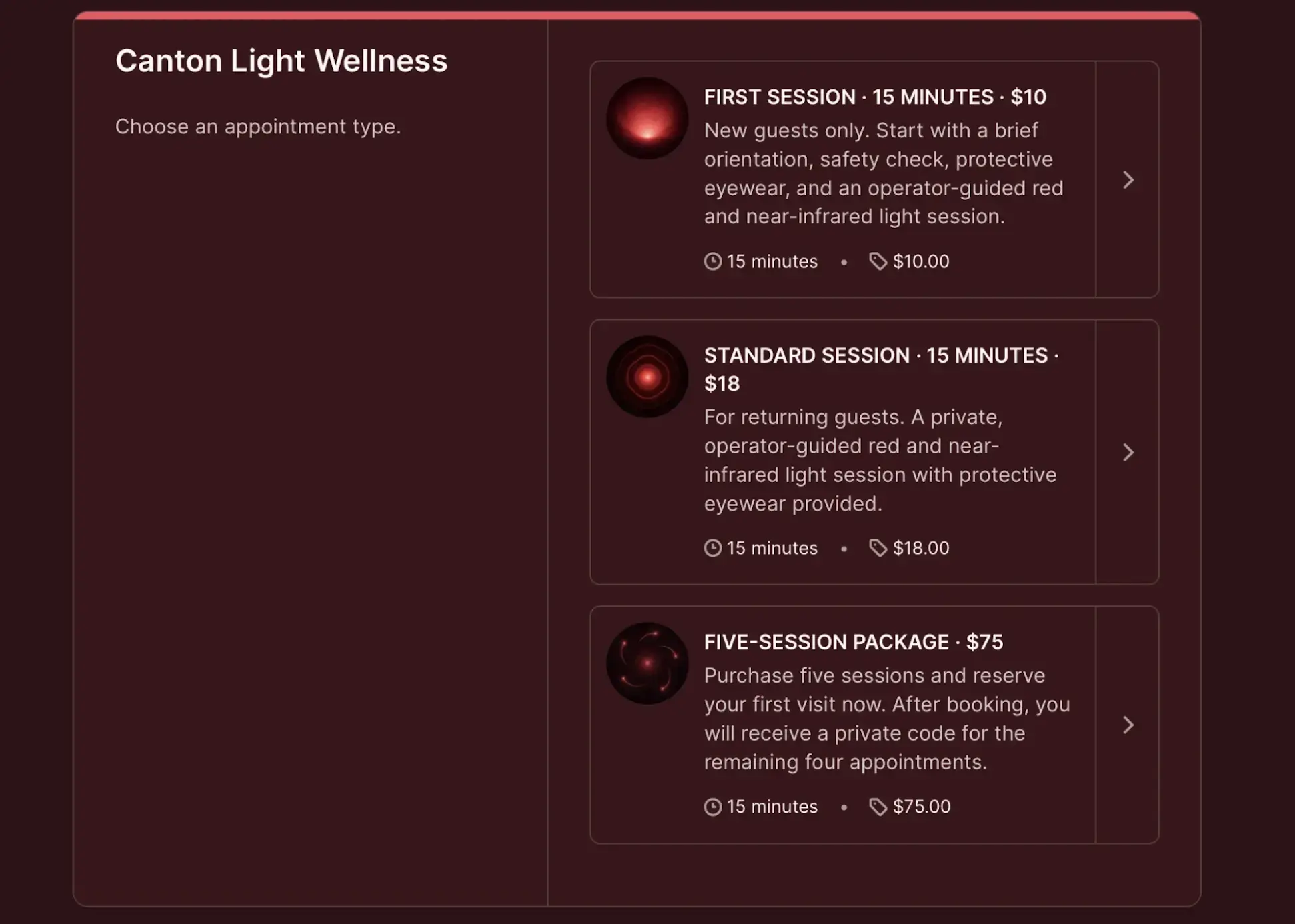
They chose to add a prominent “Book a session” button that leads directly to their scheduling page, where visitors can choose a session, pick a time, and pay at booking. As you can see below, they’ve carried their website branding through to the booking page, so everything looks seamless.
Next up is Dmitry Lazebnyi, whose private practice offers online consultations through a website available in Russian and Ukrainian.
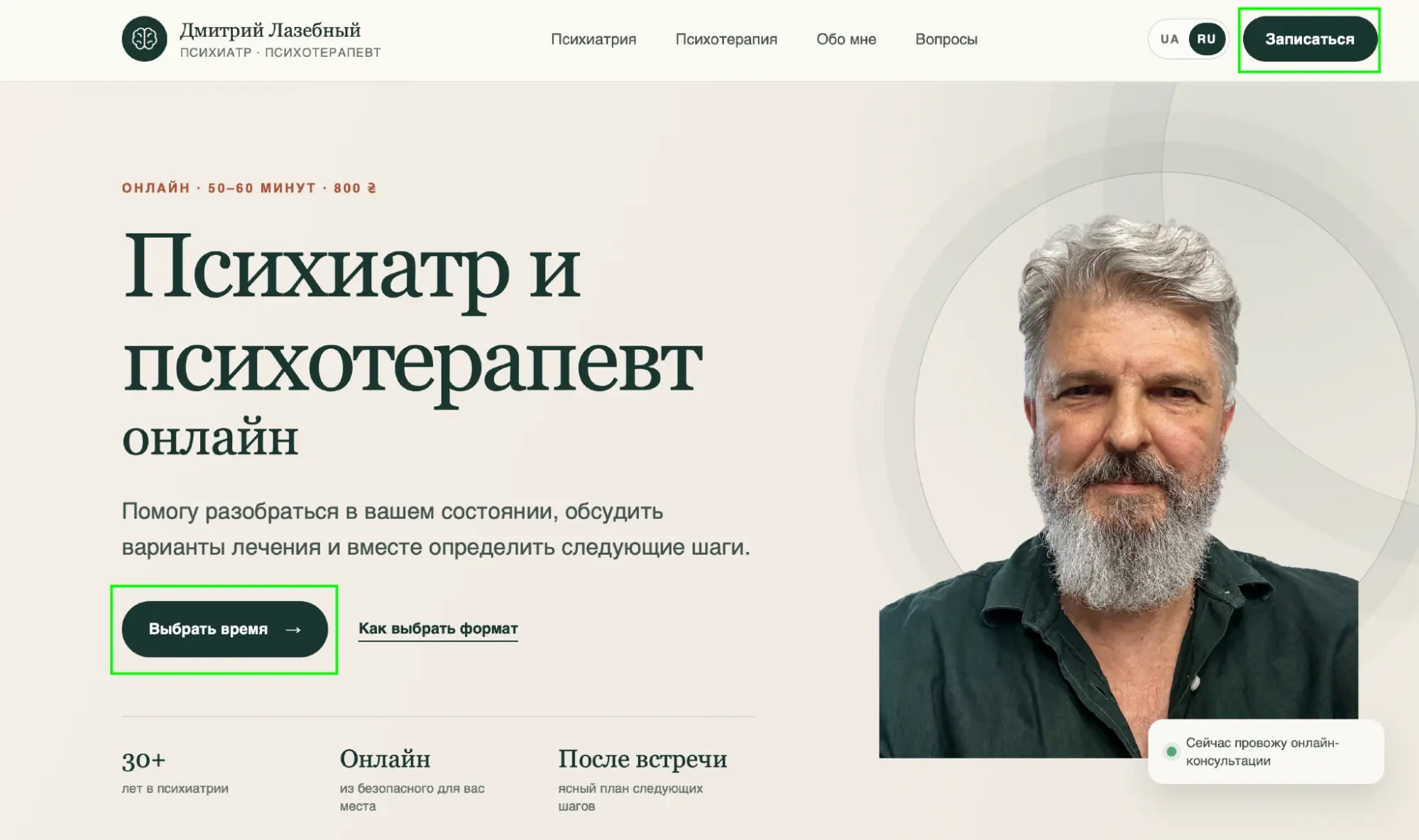
The Russian-language homepage includes “Book an appointment” and “Choose a time” buttons.
Booking buttons appear in the header and throughout the page, taking visitors directly to his YCBM booking page whenever they’re ready to schedule.
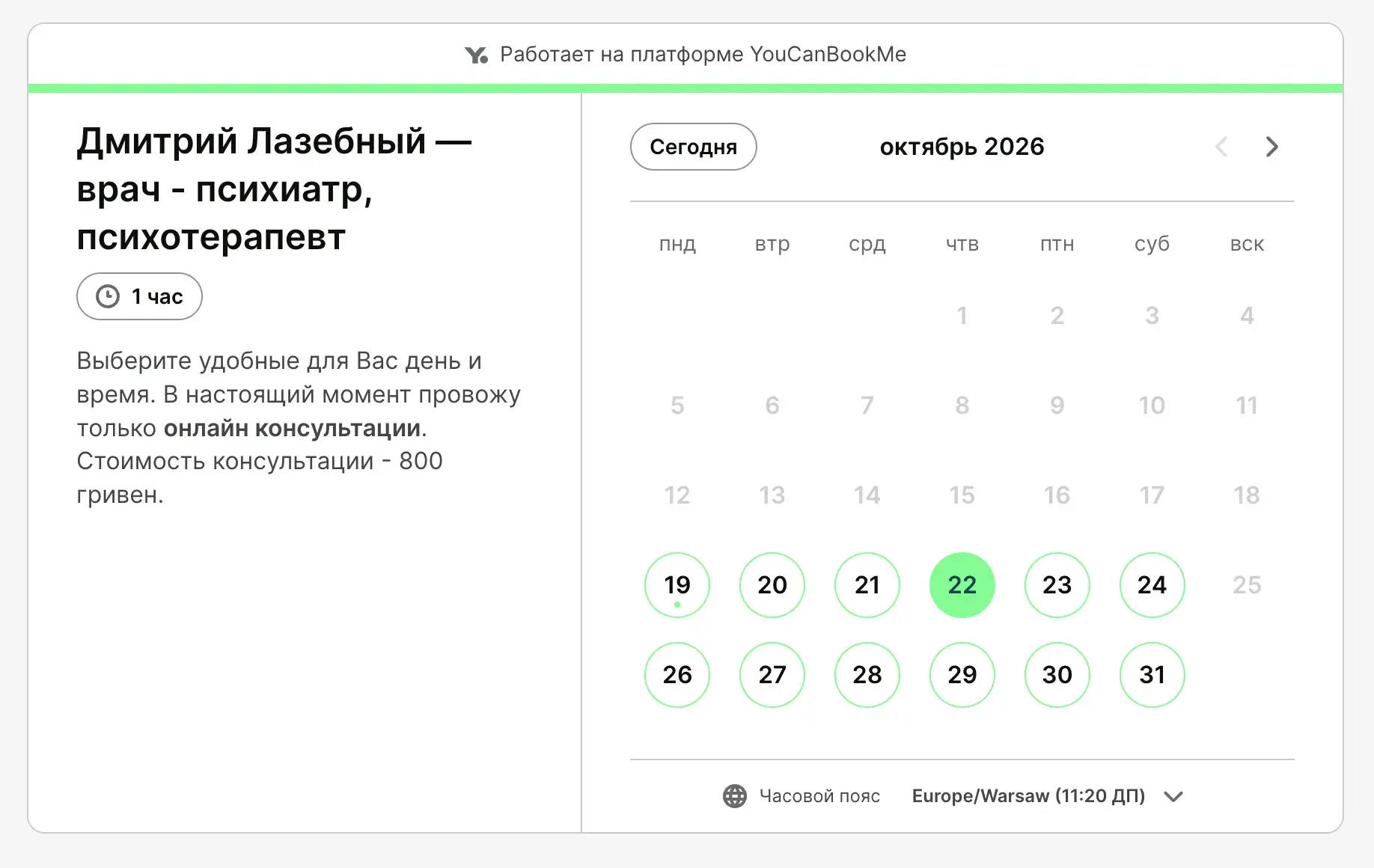
The booking page is titled “Dmitry Lazebny – Psychiatrist and Psychotherapist” and explains that all consultations take place online and cost 800 Ukrainian hryvnias.
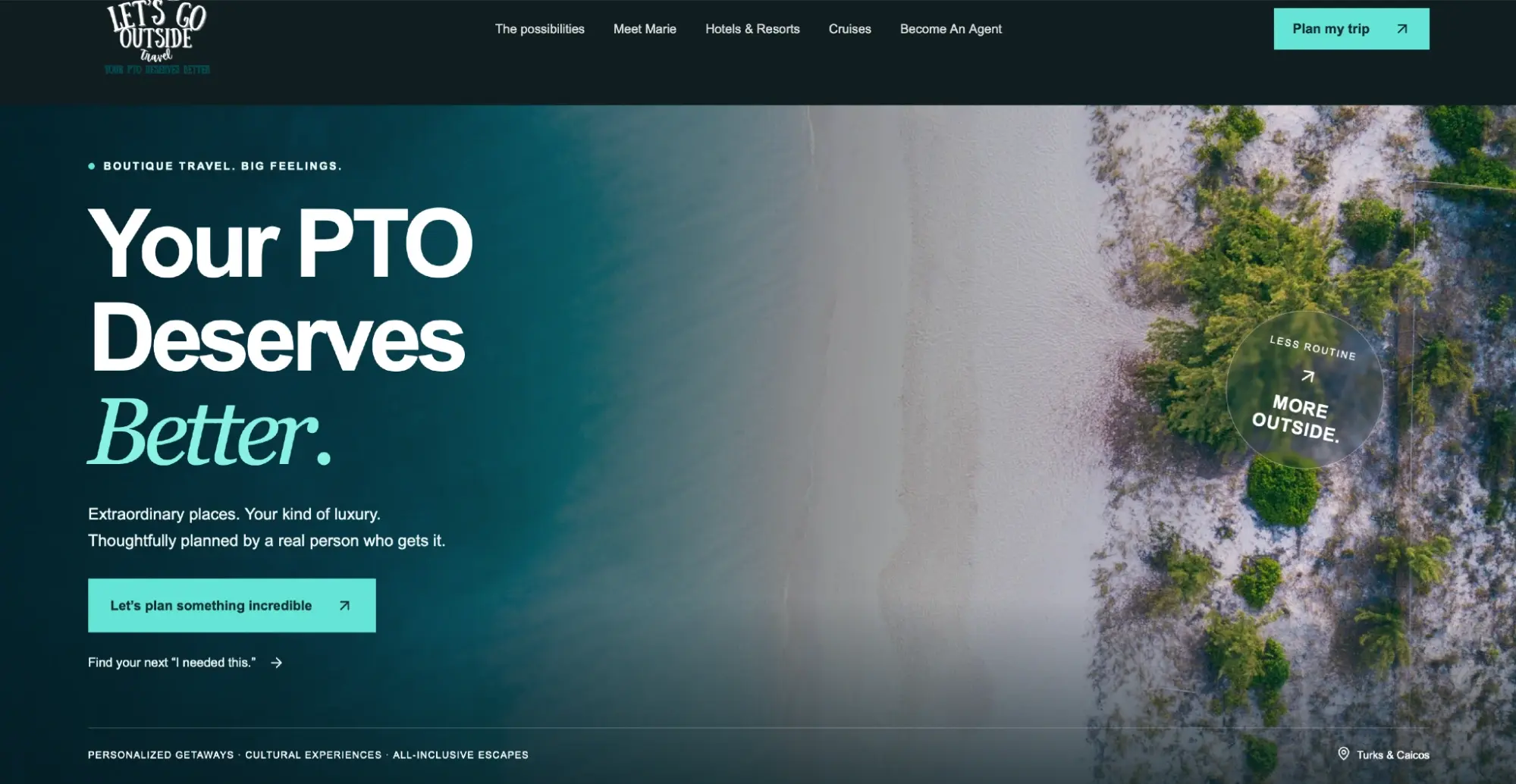
Our final example is Let’s Go Outside Travel, a boutique travel planner whose beach photography and “Your PTO Deserves Better” headline immediately put us in vacation mode. Marie’s “Plan my trip” button and calls to action throughout the site lead to her booking page, where potential clients can schedule a first consultation about their trip.
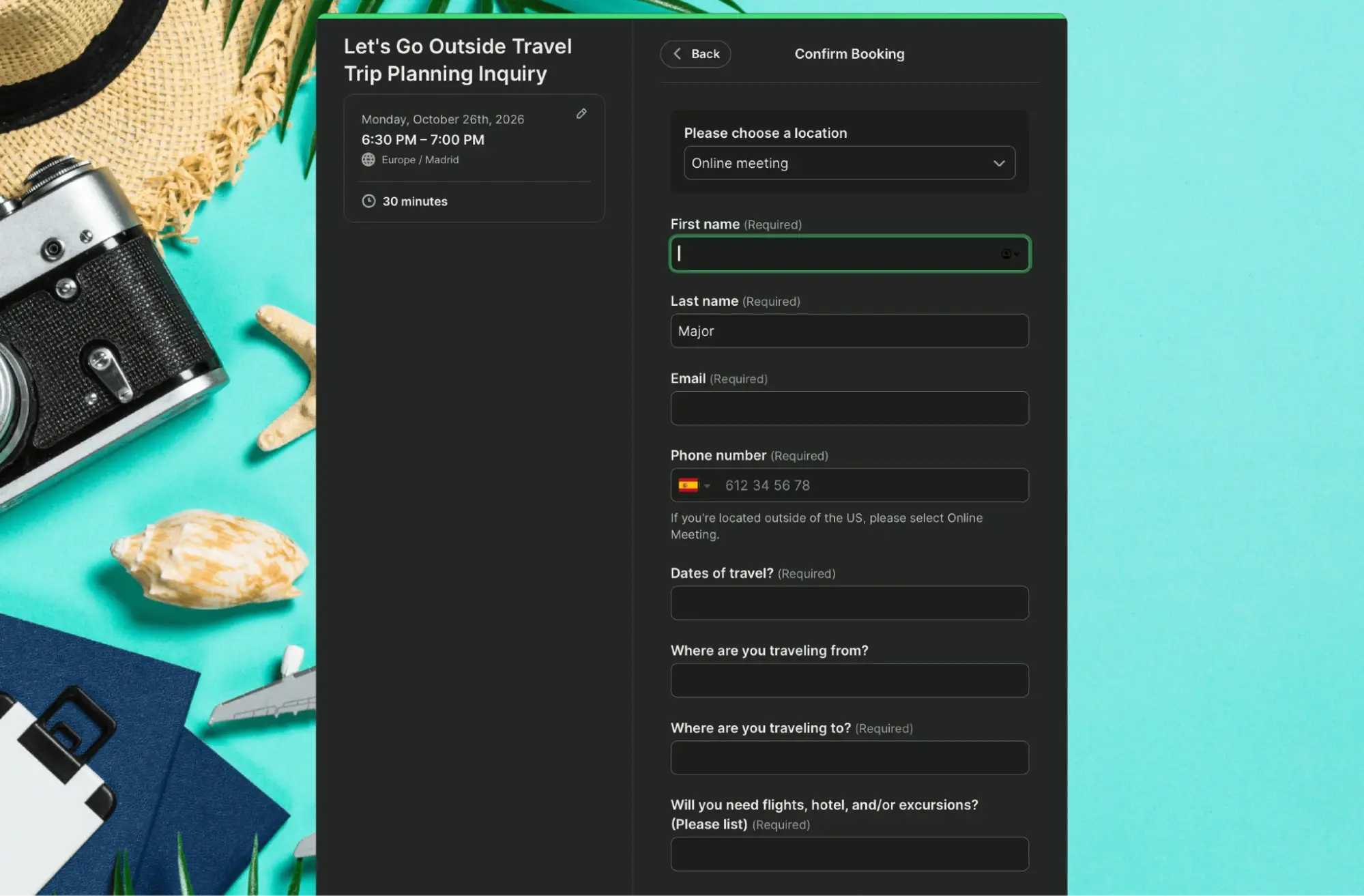
We also loved the detailed booking form, which asks about travel dates, departure points, destinations, and help with flights, hotels, or excursions, giving Marie useful context before the conversation even begins.
ChatGPT can help you build a website that feels like your business, and YouCanBookMe gives visitors an easy way to book you. A win-win!
If you’re feeling inspired, create a free booking page and embed it on your site. We’d love to see what you put together. 😍

Written by
Paulina Major
Paulina Major is a freelance B2B content writer who has spent the last two years deep in the world of scheduling — writing about booking best practices, time management, and the tools that help small businesses run more efficiently. She writes from experience: as a solopreneur managing her own clients and calendar, she lives the challenges her readers are trying to solve.
Get started today
Join thousands of coaches, consultants, and entrepreneurs who use YouCanBookMe to power their business. Get your first booking in a few minutes.


 4.7 / 5 — Trustpilot

