
Microsoft Teams Calendar: How to Create and Share One


Create your free booking page
Microsoft Teams includes built-in calendar tools, but creating and sharing one isn’t always as straightforward as it should be. When your team is juggling meetings across Teams, Outlook, and other tools, it’s easy for schedules to get messy and availability to become unclear.
If you’re looking to create a Teams calendar, share availability, or build a shared team schedule, you first need to understand how Teams connects to Outlook and how channel calendars work. Once you know the structure, setting up a shared calendar becomes much easier.
In this article, we’ll teach you:
- How Teams calendar syncs with Outlook
- How to create a shared calendar in Microsoft Teams
- When to use scheduling software for more control
Before creating a shared schedule, it’s important to understand how the Teams calendar works inside Microsoft Teams.
The calendar inside Teams isn’t a separate system. It’s directly connected to Microsoft Outlook through Microsoft 365.
This means:
- Meetings created in Teams appear in Outlook automatically
- Outlook events sync instantly to Teams
- Calendar permissions are managed through Outlook
- You don’t need to manually sync anything
If you’re logged into Teams using your Microsoft 365 work account, your calendar is already connected!
Before you create a shared Teams calendar, you need to decide which type of calendar makes the most sense for your team.
Microsoft Teams doesn’t just offer one shared calendar option. Instead, it gives you two main experiences: your built-in personal calendar and channel-based calendars. Each serves a different purpose—and understanding the distinction prevents confusion later.
Let’s break them down.
Personal calendar
Your personal calendar is what you see when you click the Calendar tab in Teams.
It’s directly connected to Outlook and tied to your work email address. Any meeting you schedule in Teams appears in Outlook—and vice versa.
With your personal calendar, you can:
- View meetings by Work Day, Week, or Month
- Schedule meetings and invite attendees
- Use Scheduling Assistant to check availability
- Share your calendar with specific colleagues
- Adjust permissions and visibility settings
This calendar is best for managing your own schedule and collaborating across teams. If a meeting involves multiple departments or external attendees, it’ll live here.
Because it syncs automatically with Outlook, this is your primary source of truth for availability.
Channel calendar
A channel calendar lives inside a specific Team channel and is designed for group visibility.
Instead of centering around one person’s availability, it centers around a project, department, or working group.
Channel calendars:
- Are visible to all members of that channel
- Automatically notify the channel when events are created
- Keep project meetings organized in one place
- Sync events back to each member’s Outlook calendar
For example, a sales team might use a channel calendar to track pipeline review meetings, while a product team might use one for sprint planning.
Turn your Outlook calendar into a booking page
Instead of manually scheduling meetings in Teams, let people book time with you automatically. YouCanBookMe syncs with Outlook so your availability stays accurate while meetings schedule themselves.


If you’re trying to find your Teams calendar inside Microsoft Teams, it’s usually just a couple of clicks away.
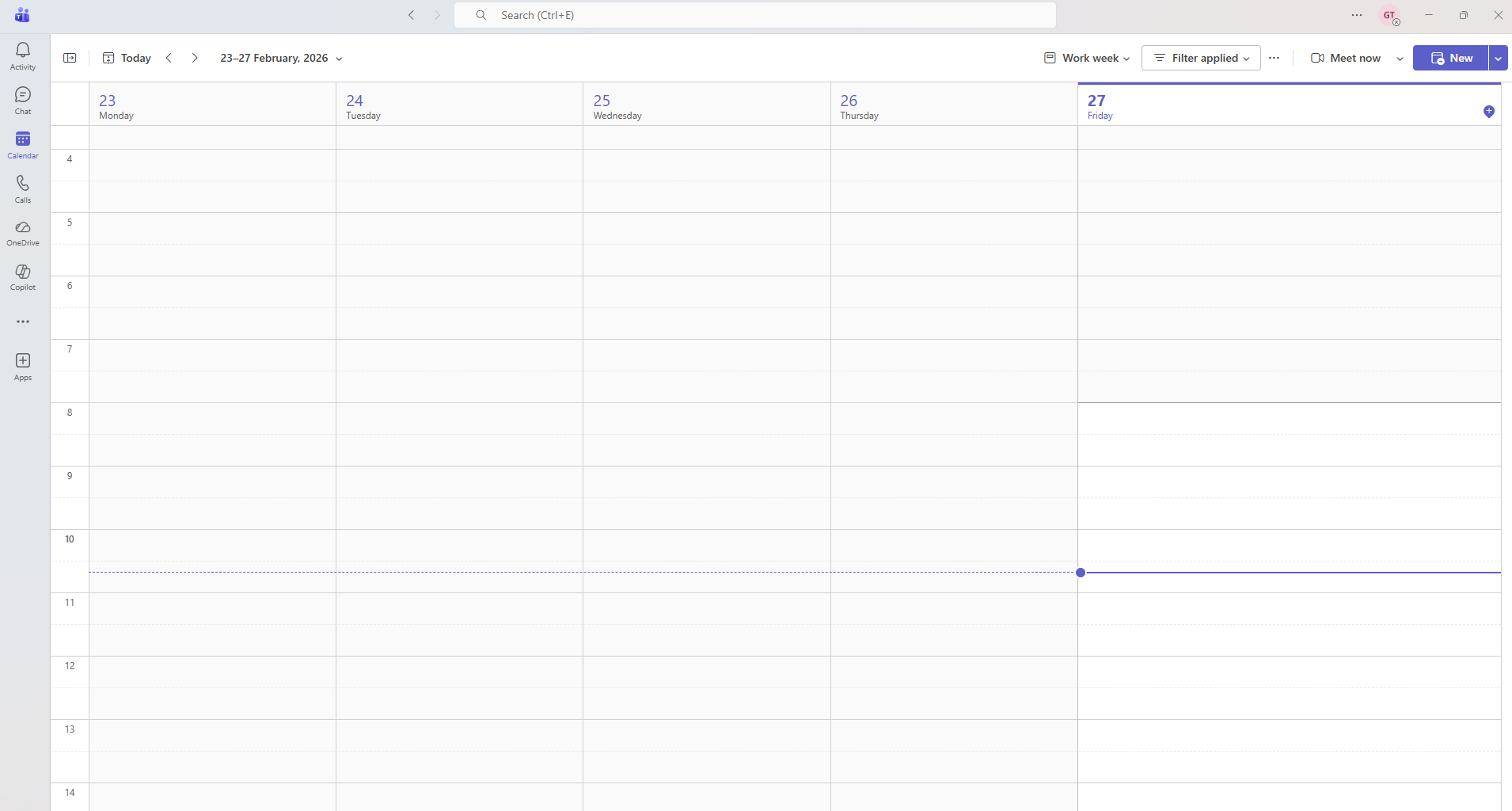
On the left-hand sidebar in Microsoft Teams, look for the Calendar icon (it looks like a small calendar grid). Click it to open your calendar view.
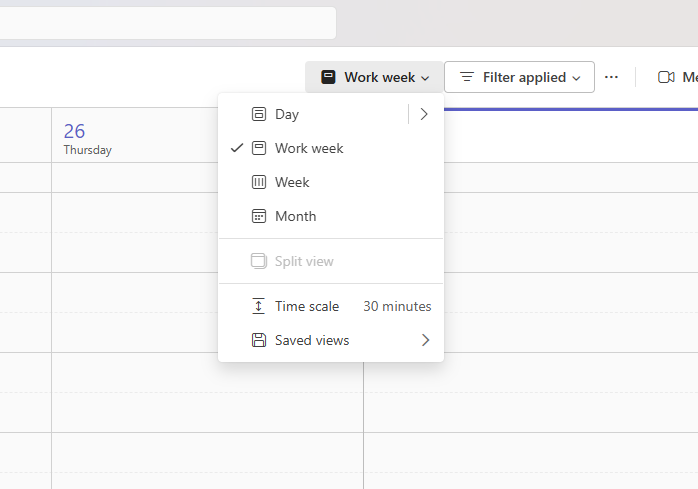
Once inside, you can switch between several views using the dropdown in the top-right corner:
- Day: Shows a single day’s schedule in hourly blocks.
- Work week: The default view. Shows Monday–Friday with time slots.
- Week: Shows all seven days, including weekends.
- Month: Shows the full month.
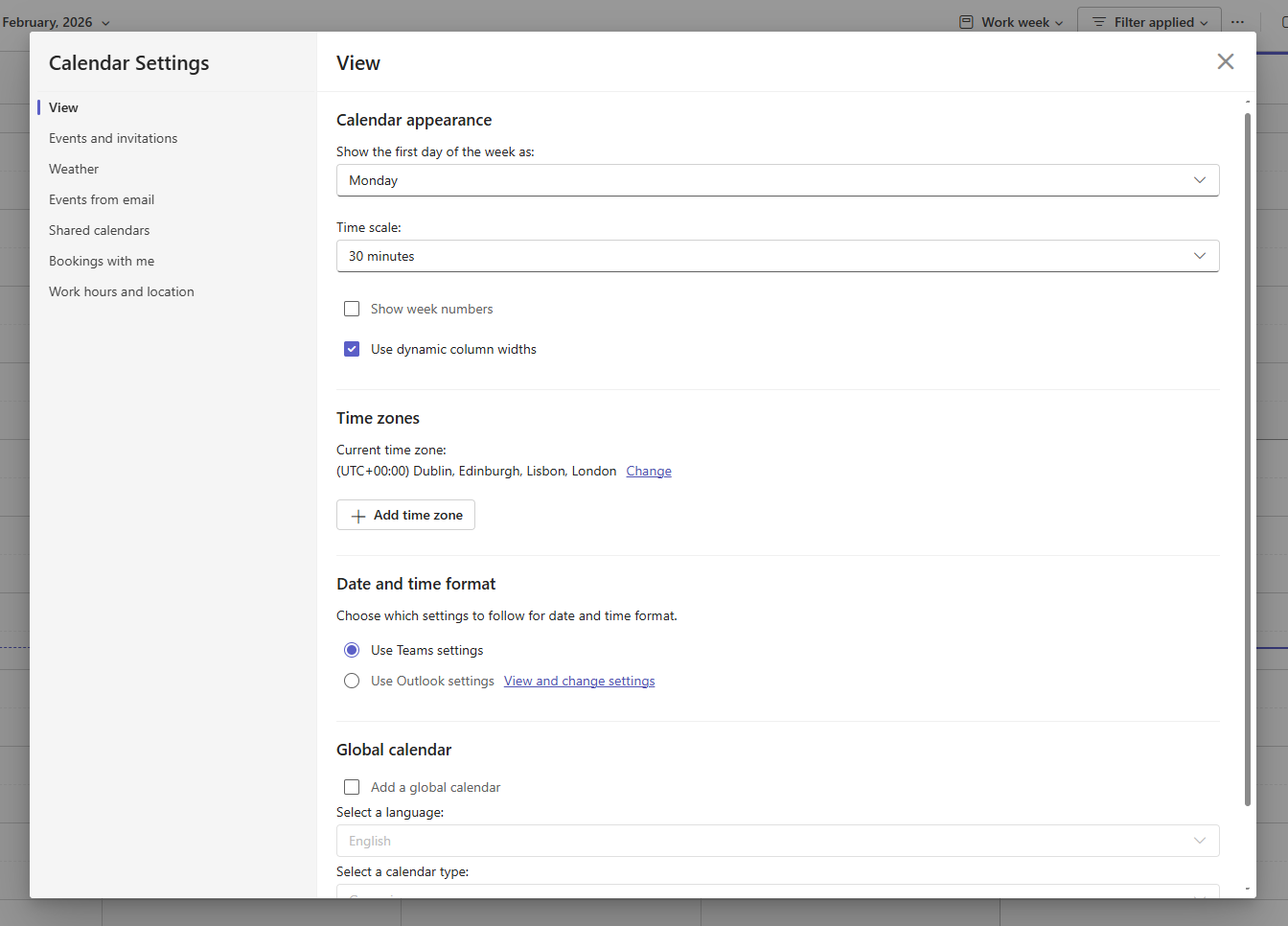
To adjust time zones, working hours, or notification preferences, go to your Teams settings (click your profile picture, then Calendar Settings). You can set your working hours, so teammates know when you’re typically available, as well as things like time zones, date & time format, among other settings.
Creating a meeting in Teams is simple: click New event in the top-right of your Calendar view, fill in the details (title, date, time, attendees), and hit Send. Attendees receive a calendar invite that shows up in both Teams and Outlook.
Want to share your Teams/Outlook calendar with a colleague? Here’s the quick version: in Outlook, go to Calendar > Share > Add People, enter the person’s email, choose their permission level (view only or full edit), and click Share. They’ll receive a meeting invitation to view your calendar.
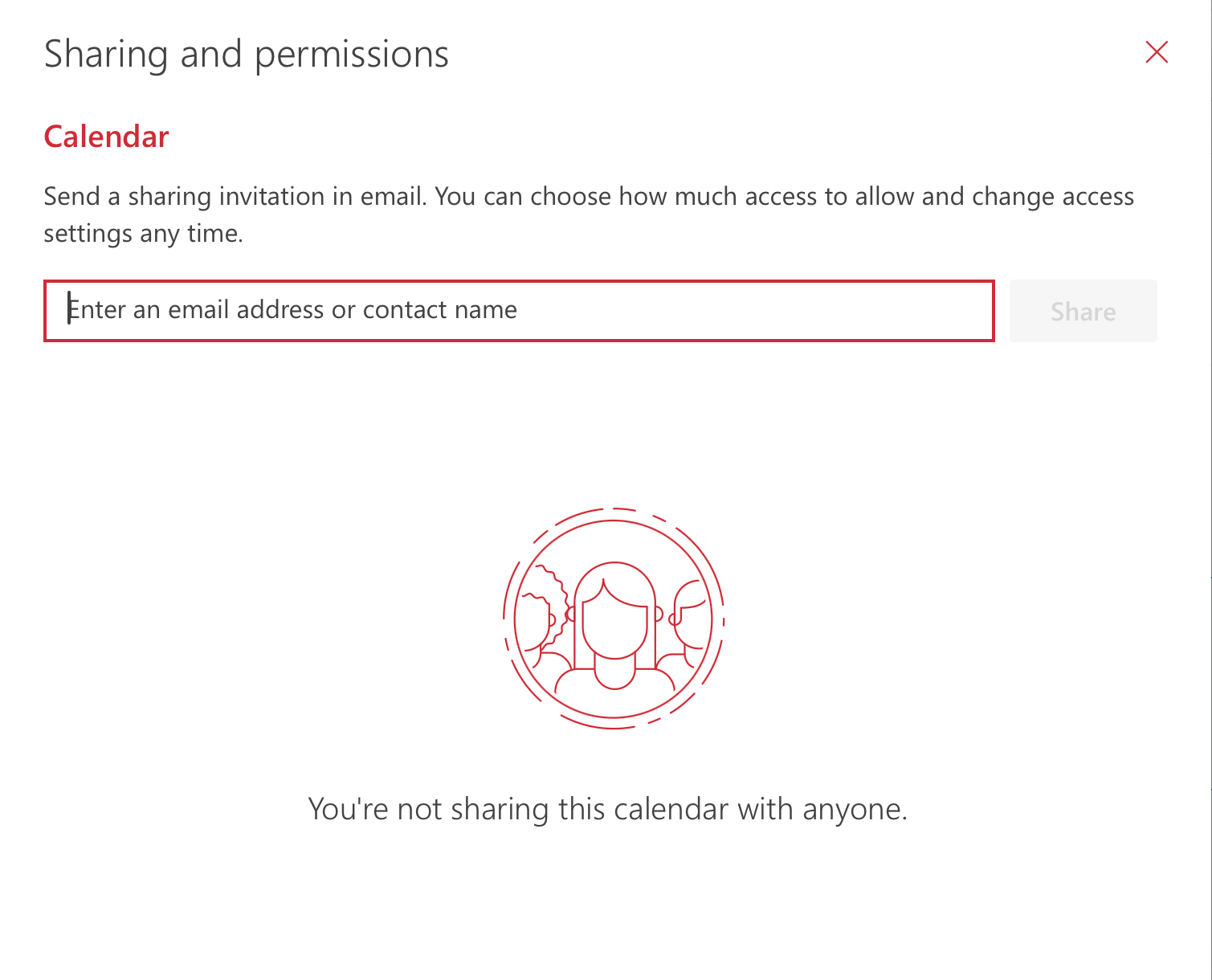
👉 For the full step-by-step walkthrough with pictures, check out our detailed guide on how to share your Outlook calendar.
Creating a shared calendar is fairly straightforward. Here are the steps:
Step 1: Open Microsoft Teams. Launch the Teams desktop or web app and sign in with your Microsoft 365 account.
Step 2: Select Your Team and Channel. In the left navigation pane, select the team where you want the shared calendar. Then choose the specific channel where it will be added. If needed, create a new team first and add the members who require access.
Step 3: Add the Channel Calendar App. At the top of the channel, click the + button to add a new tab. In the search bar, type Channel Calendar and select it from the results. Click Add.
Step 4: Name your Calendar. Give your calendar a name (for example, "Team Schedule") and click Save. The calendar will now appear as a tab at the top of your channel.
Step 5: Start Using the Calendar: All members of the channel can automatically view and add events—no additional sharing step is needed. Events added here will also appear in the team's group calendar in Outlook.
The native Teams calendar is great for visibility. But when it comes to actually scheduling with people outside your team (or even across your team), it has real limits. That’s where YouCanBookMe (YCBM) comes in.
Built for teams that take scheduling seriously, YCBM sits on top of your Microsoft Outlook calendar and handles the back-and-forth automatically—while also respecting the time you’ve blocked for real life, like focus time, admin, or a school pickup. You can also connect additional calendars from Outlook, Google, or Apple, so your full schedule is taken into account, whether it’s work meetings or personal commitments.
And if your meetings happen in Teams, YCBM makes that part effortless too—it can automatically create a unique Microsoft Teams meeting link for every booking and add it straight into the calendar event, so there’s no manual setup or copy-pasting links. The link is also included in confirmation emails and reminders, so clients and team members can join with one click.
A few other standout features for teams:
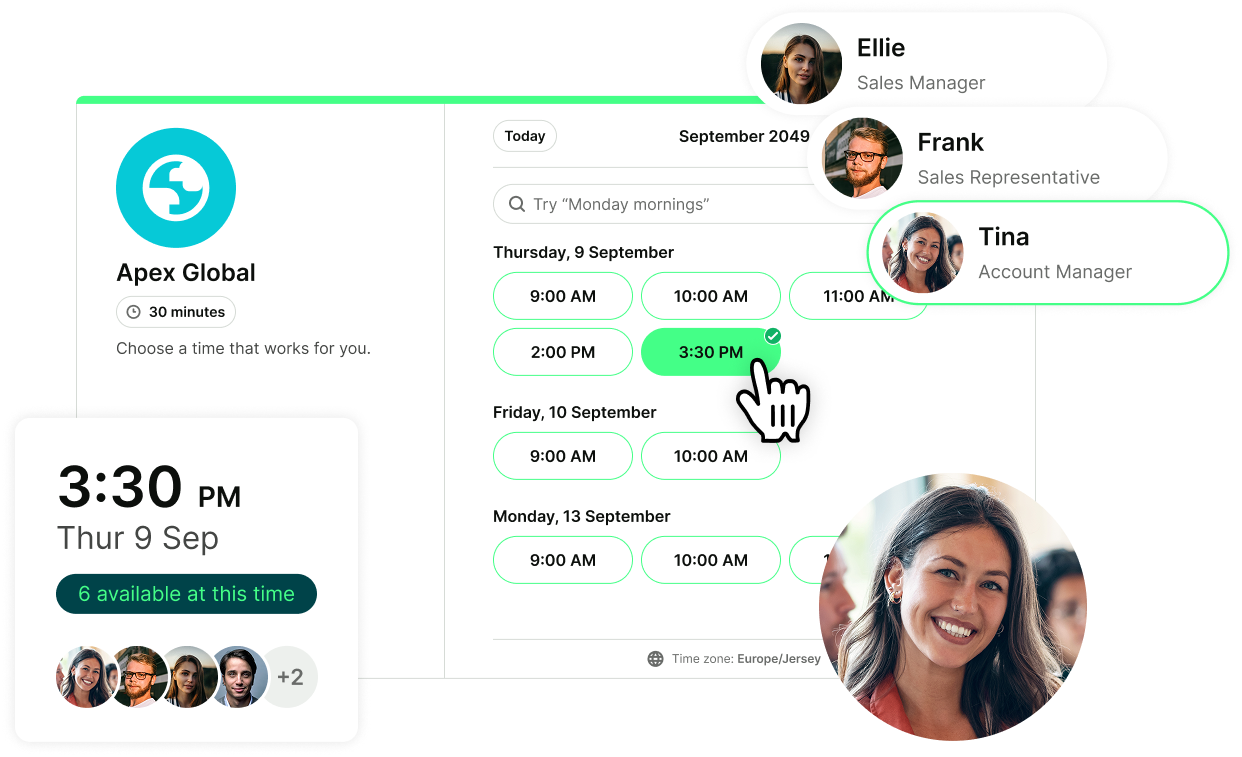
- Team member selection: Let clients or colleagues choose which team member they want to meet with, based on real-time availability.
- Pooled availability: Show combined open slots across your whole team, so bookers can find a time that works without you having to coordinate manually.
- Round-robin scheduling: Distribute incoming bookings automatically across your team. No more manually assigning meetings.
- Meeting polls: Propose several possible meeting times and let participants vote on what works best. YCBM collects responses in one place, suggests the best slot, and books the meeting for you.
Pearl Lemon Leads, a global B2B lead generation agency, used YouCanBookMe to streamline their inbound booking process and grew leads by 25% as a result. When scheduling gets easier, conversion gets better.
Ready to try it? Sign up for free today!
FAQs
Is Teams calendar separate from Outlook calendar?

Teams calendar isn’t a separate calendar system from Outlook. Microsoft’s newer Teams calendar experience integrates the Outlook calendar directly into Teams, aiming to give you “a single, cohesive calendar experience” with more feature parity between the two apps.
What that means in practice: when you schedule a meeting in Teams, it shows up in Outlook, and Outlook events show up in Teams because they’re working off the same underlying calendar data. Differences you notice are usually about the interface (how you view and manage events) or features rolling out (for example, expanded settings, multiple time zones, and additional views appearing in the new Teams calendar).
How to check someone’s calendar on Teams?
In Microsoft Teams, you can check someone’s availability using the Scheduling Assistant when creating a meeting.
- Open Calendar in Microsoft Teams.
- Click New meeting and add attendees.
- Select Scheduling Assistant (or Scheduler) in the meeting details.
The scheduler grid will show each attendee’s schedule. Shaded areas indicate when someone is busy or has another meeting, while unshaded areas show when they’re available, helping you find a time that works for everyone.
When you schedule a meeting in Teams, it also syncs with Outlook, so availability is based on the same shared calendar.
If you frequently schedule meetings and want to avoid manually comparing schedules, tools like YouCanBookMe can simplify the process. YouCanBookMe pulls real-time availability from connected calendars—including Outlook, Google, and Apple—so your full schedule is always taken into account. People can book available time slots directly, meetings are automatically added to calendars, and a Microsoft Teams meeting link can be created for each booking.
How do you access your calendar on Teams?
To access your Teams calendar, you just need to open it from the main Teams navigation.
- Open Microsoft Teams (desktop or web) and sign in.
- In the left-hand sidebar, click Calendar (the calendar icon).
- Use the view menu at the top to switch between Day, Work week, Week, or Month.
- To create a new meeting, click New event, add details and attendees, then Send.

Written by
Paulina Major
Paulina Major is a freelance B2B content writer with six years of experience. Since 2024, she has written 100+ articles on scheduling and personally tested and reviewed 30+ booking tools, helping small business owners choose software and simplify their booking processes. As a solopreneur managing her own clients and calendar, she brings firsthand experience to her advice on scheduling, time management, and running a business.
Get started today
Join thousands of coaches, consultants, and entrepreneurs who use YouCanBookMe to power their business. Get your first booking in a few minutes.


 4.7 / 5 — Trustpilot

