
How to Send a Calendar Invite with YouCanBookMe
-min.png?width=100&name=image%20(21)-min.png)
Create your free booking page
Scheduling a meeting shouldn’t take five emails. But somehow, it often does.
Between checking calendars, juggling time zones, and sending invites manually, a simple meeting can turn into a mini admin project. And when you’re booking meetings regularly—with clients, candidates, prospects, or even your own team—that back-and-forth adds up fast.
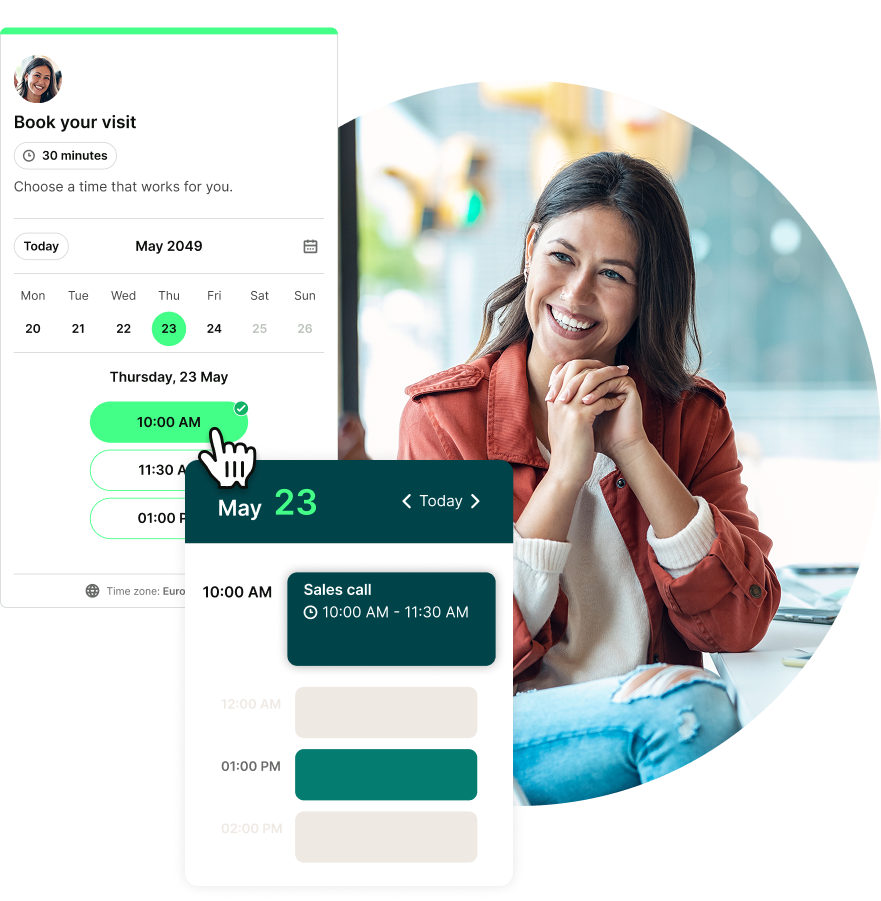
With YouCanBookMe (YCBM), scheduling becomes self-serve. You share your booking page. Your invitee sees your real-time availability, picks a time that works, and the meeting lands on both calendars automatically—complete with calendar invites, confirmation emails, and reminders.
In this guide, we’ll show you how to automate scheduling using YCBM, so meetings essentially book themselves.
👉 To follow along, make sure you create a YCBM account first!
Before anyone can book time with you, your booking page needs to know when you’re actually available—and when you’re not.
That’s where two-way calendar sync comes in.
When you connect your calendar:
- YCBM checks your existing events and blocks off busy times
- New bookings automatically appear on your calendar
- If something changes, your availability updates in real time
- Calendar invitations are automatically sent for every meeting scheduled through YCBM
YCBM integrates with the most commonly used calendars, including:
It also supports additional providers like Fastmail and CalDAV-based calendars.
You can even connect multiple calendars at once—for example, your work calendar in Outlook and personal calendar in Google—so your availability stays accurate across your entire schedule.
1. Log in to your YouCanBookMe account.
2. Click your profile icon in the top-right corner and select My Account.
3. In the left-hand menu, click Integrations.
4. Use the search bar to find your calendar provider (e.g., Google, Outlook, Apple).
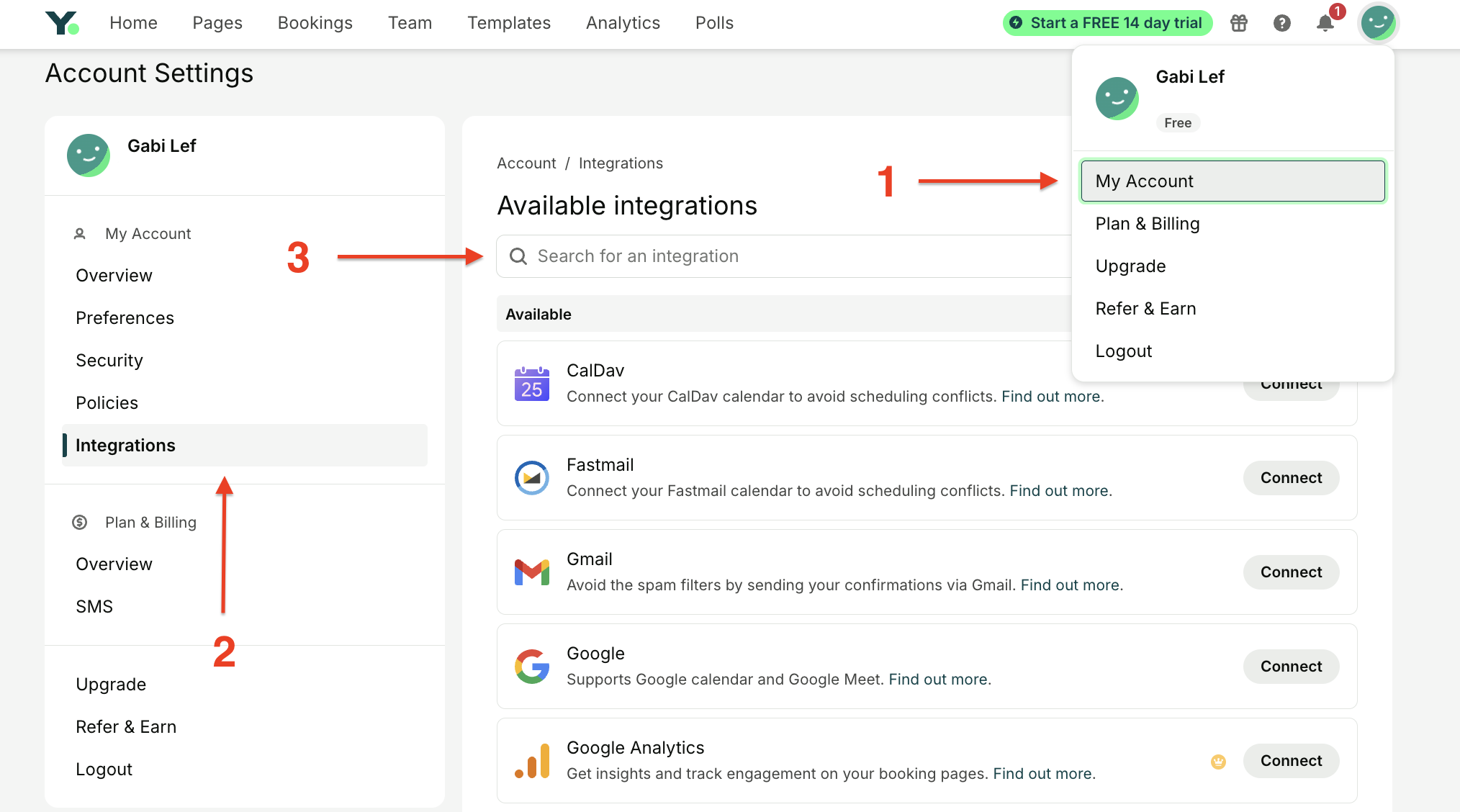
5. Click Connect next to your chosen calendar and follow the on-screen instructions!

Once your calendar is connected, your schedule becomes your oyster—fully customizable and entirely in your control.
At the simplest level, that means choosing the days and times you’re available. You can create a schedule that repeats daily, or customize different availability for different days. You can also use calendar-managed availability, which lets you set your schedule directly on your connected calendar without logging into YCBM.
For example, if you set your working hours in Google Calendar to be 9-5 every weekday, YCBM automatically reflects that availability on your booking page.
But YouCanBookMe goes far beyond the basics, letting you completely customize your schedule with features like:
-
Buffer time: Give yourself breathing room to prep, take notes, or simply avoid back-to-back meeting burnout. Automatically add buffer time between meetings—whether you want 5, 10, 15, or more minutes between bookings.
-
Maximum bookings per day: Cap how many meetings you take so your entire day doesn’t get swallowed by calls.
-
Minimum notice: Prevent last-minute meetings and make sure you have time to prepare.
-
Advance booking limits: Control how far into the future people can schedule, so you’re not locking in meetings six months out.
-
Meeting requests: Set bookings as tentative requests, then accept or reject them before they land on your calendar to ensure you only take the ones worth your time.
Your time. Your rules.
Create a booking page that works around your real workflow—not the other way around.

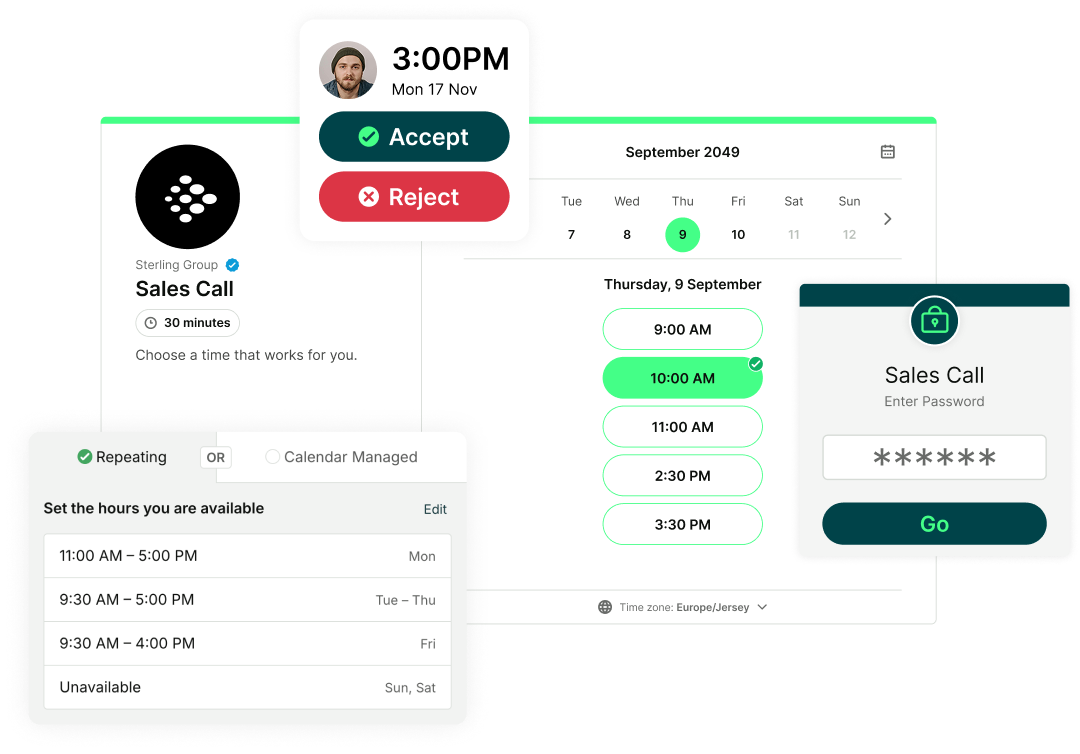
In YouCanBookMe, appointment types are the different services or meeting options you offer.
Instead of sharing one generic booking link with a vague “30-minute meeting,” you can create separate appointment types—like a 15-minute check-in call, a 60-minute paid consultation, a group workshop, or an internal team sync.
You can customize each appointment even further across:
- Duration (fixed or flexible)
- Location (Zoom, Google Meet, MS Teams, phone, in-person, or custom link)
- Price and payment settings
- Booking form questions
- Confirmation, reminder, and follow-up emails or SMS
- Assigned host or team distribution
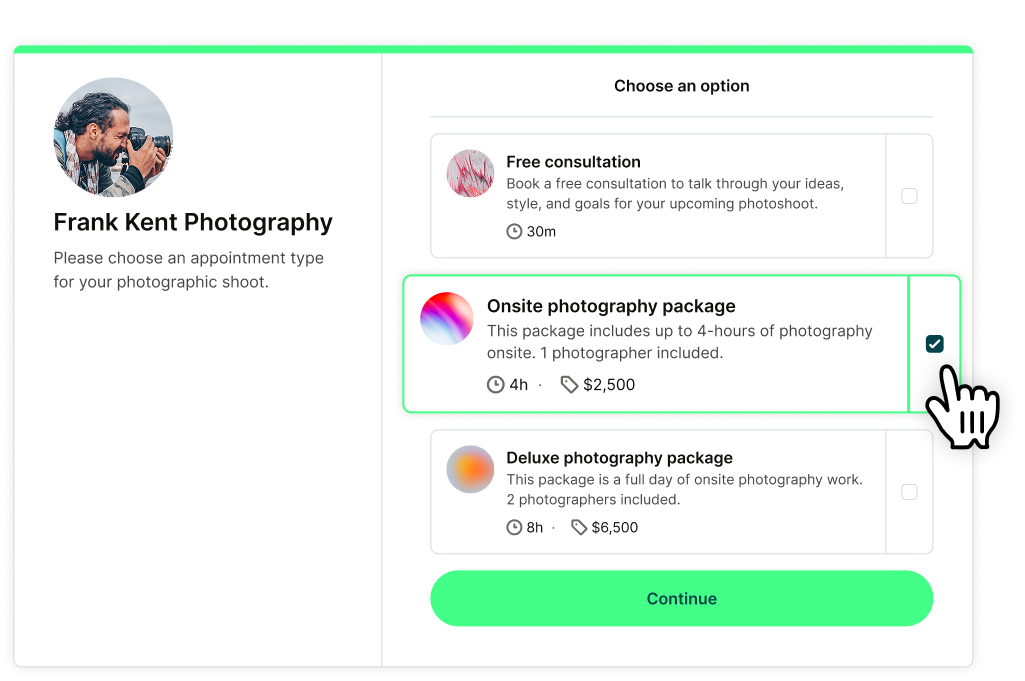
This means a discovery call doesn’t follow the same rules as a project planning session—and your booking page stays organized, clear, and tailored to what you actually offer.
Once someone books with you, you might wonder: how do you send the calendar invite? The answer is simple—you don’t have to! It’s sent automatically.
But instead of a basic “meeting” label, you control exactly what appears on that invite.
Your calendar invite automatically pulls in details from your booking page using shorthand codes—including the meeting name, duration, location or video link, and any custom information from the booking form.
You can also include cancel and reschedule links that take attendees back to your YCBM booking page, where they can choose a new time based on your live availability and scheduling rules. That means changes stay within your system, not your inbox.
Here are all the practical ways you can get more bookings onto your calendar with YCBM. 👇
Instead of asking, “What time works for you?” and cuing a slew of back-and-forth messages, say: “Here’s my booking page—grab a time that suits you.”
You can share your booking link in:
- Emails
- Your email signature
- LinkedIn messages
- DMs on Instagram, Slack, MS Teams, etc.
- Text messages
Essentially, pick the channels that drive the most bookings for your business!
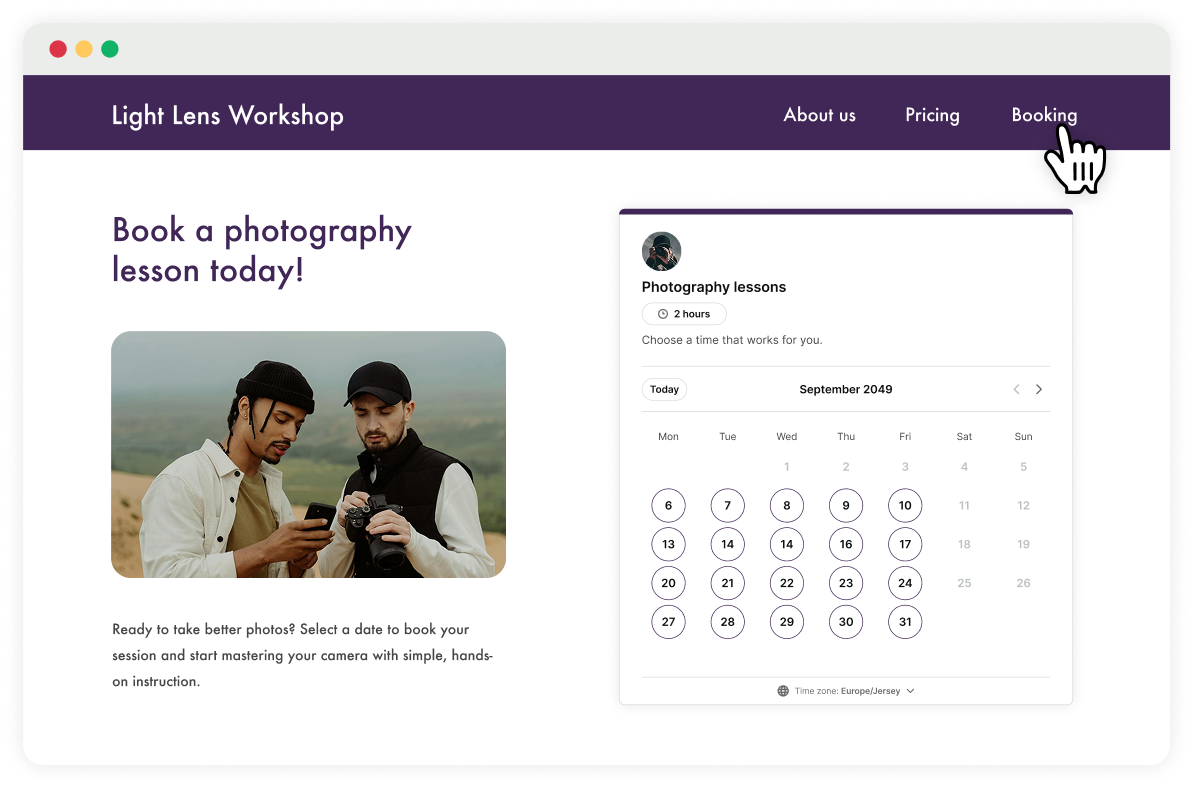
If someone is browsing your website, they’re already interested. Make it easy for them to take the next step by letting them book directly from your site.
You can:
- Add a static or floating “Book now” button that links to your scheduling page to your website’s top navigation menu
- Embed your full booking page, so visitors can see real-time availability and book without leaving your site
This removes friction and turns website visitors into confirmed meetings in just a few clicks.
Meeting people in person? Make it effortless for them to book time with you.
Generate a QR code linked to your booking page and add it to:
- Business cards
- Conference booths
- Flyers
- Event materials
- Signs
- Print ads
Instead of saying “email me,” they can scan, choose a time, and get a confirmed meeting invite on the spot.
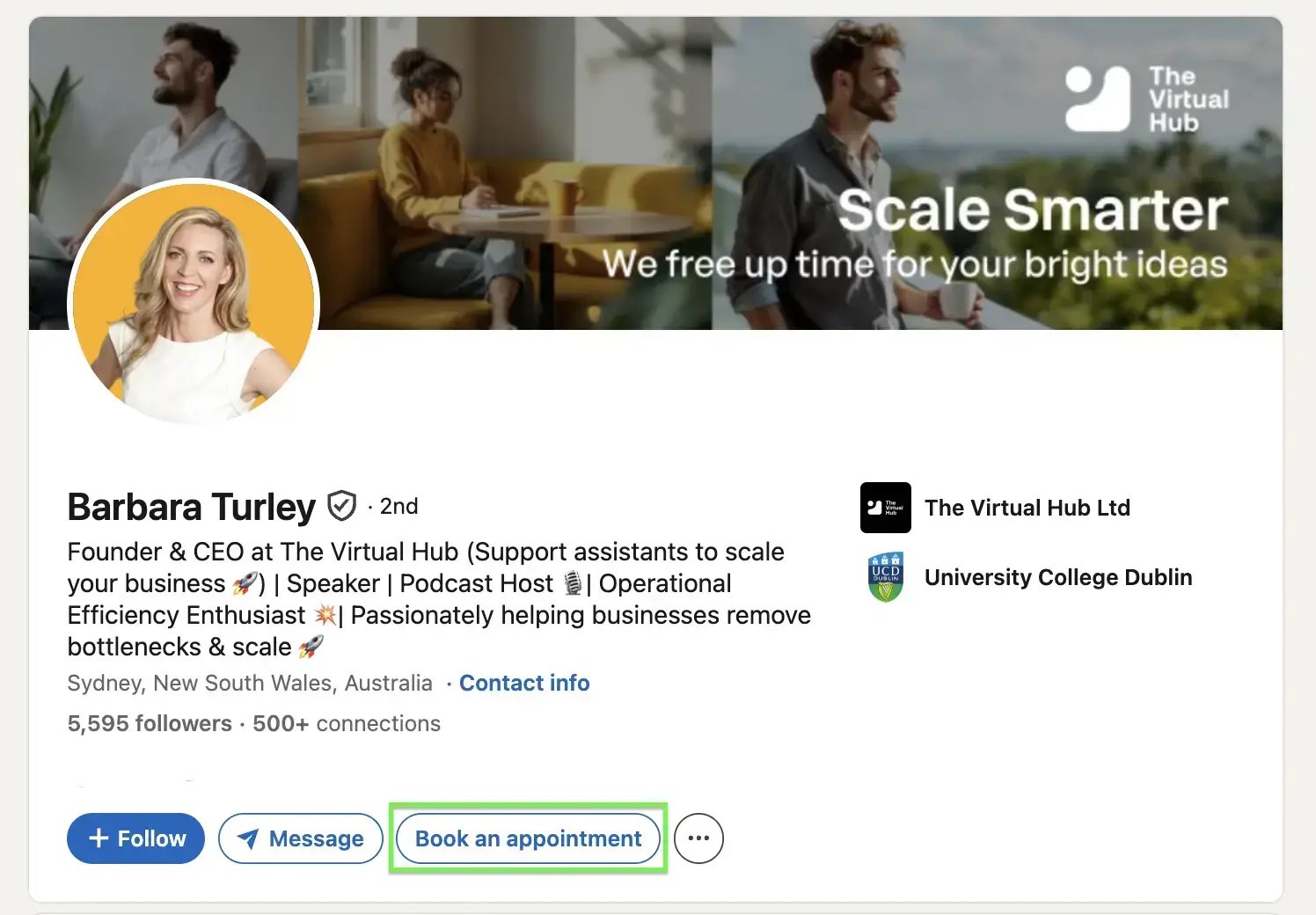
Your LinkedIn profile is already attracting traffic. Adding your booking link simply makes it actionable!
You can:
- Add it to your Featured section
- Include it in your About section
- Add it to your Contact info
- Reference it in posts
- And even add a “Book an appointment” button to your profile
|
💡 Pro tip: LinkedIn isn’t the only social platform that can drive bookings. Add your booking link to Instagram to make it just as easy for followers to schedule time with you. |
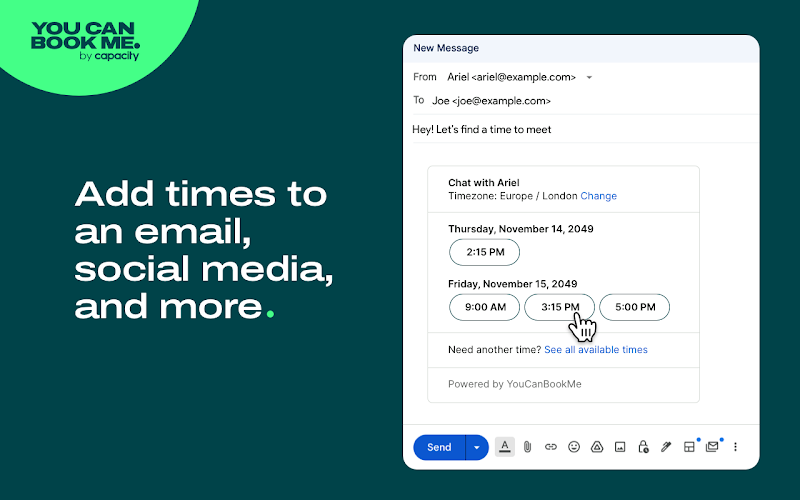
Sometimes you want to suggest specific times instead of sending someone to your full booking page—especially when you want to make things as quick and easy as possible.
YCBM’s Chrome extension lets you insert bookable time slots directly into your emails. Just click the YCBM Chrome extension icon, select your booking page, choose Suggest times, pick a few available options, and click “Copy.” Then paste them straight into your message.
Your recipient simply clicks the time that works, and the meeting is instantly confirmed.
|
💡 Pro tip: None of the suggested times work for your invitee? No problem. With YouCanBookMe’s calendar overlay feature, they can securely layer their own calendar on top of your booking page to instantly see which time slots work for both of you. |
YouCanBookMe handles the entire end-to-end booking flow for you, so once someone books, everything else runs automatically. Here’s how it works:
- Your invitee selects a time from your available slots.
- They fill in the required information on your booking form.
- Both of you instantly receive calendar invites, and the event syncs to your calendars.
- A confirmation email with all the meeting details is auto-sent.
- Meeting reminders go out before to reduce no-shows.
- After the meeting, a follow-up message can be sent automatically.
Stop managing meetings manually
From confirmation to reminders to follow-ups, YCBM handles every step—so you can focus on the meeting, not the admin.

Even with automation, it’s important to set things up clearly! Here’s a quick list of calendar invite etiquette you can reference when needed:
- Write clear meeting titles: Use specific, descriptive titles like “30-Min Strategy Call— Project X” instead of vague labels like “Call.”
- Include context in descriptions: Add the meeting agenda, call link, dial-in details, and any prep materials to reduce confusion and unnecessary back-and-forth.
- Invite the right people: Only include people who truly need to be part of the conversation.
- Send invites with enough notice: Give attendees time to prepare, especially for important discussions.
- Schedule reminders: Sending reminders 24 hours and 1 hour before the meeting is a strong starting point—and YCBM can schedule these for you automatically!
- Keep booking forms simple: Only ask for the information you truly need, so booking feels quick and frictionless.
- Account for time zones: When booking across regions, make sure times are clearly displayed in each attendee’s local time (YCBM handles time zone conversion automatically).
Let your calendar work for you
A calendar invite should take seconds to send, not 30 minutes to coordinate.
When your availability, confirmations, reminders, and follow-ups are all handled in one system, scheduling stops being a chore and starts running in the background.
With YouCanBookMe, you’re not just sending calendar invites—you’re creating a smooth booking experience that protects your time, reduces no-shows, and keeps your calendar organized automatically.
Set up your booking page once, share your link, and let your meetings take care of themselves.
FAQs
How do I send someone a calendar invitation?

The traditional way to send a calendar invitation is to manually create an event in Google, Outlook, or Apple Calendar and add your recipient’s email address. But that still requires you to agree on a time first.
With YouCanBookMe, you can skip the back-and-forth. Simply share your booking page, let the other person choose a time from your real-time availability, and the calendar invite is automatically sent to both of you—complete with all the meeting details.
How do I prevent double-bookings?
Double-bookings usually happen when your availability isn’t synced in real time.
To prevent this, connect your calendar to a scheduling tool with two-way sync, like YouCanBookMe (YCBM). YCBM checks your existing events and blocks off busy times automatically. When someone books, the meeting is instantly added and blocked off in your calendar—so the same time slot can’t be booked twice.
As long as your calendar is connected, your availability stays accurate and up to date!
Will people see my entire calendar?
No. People will only see the time slots you choose to make available.
YouCanBookMe checks your connected calendar to see when you’re busy, but it never shows the details of your events to bookers. They simply see available time slots—not your personal meetings, event titles, or private information.
Your calendar remains private while your availability stays accurate.
-min.png)
Written by
Gabriela Łaba
Gabriela is Editor-in-Chief at YouCanBookMe and a SaaS copy and content writer with over a decade of experience. Since 2021, she’s written 100+ articles on scheduling, personally tested and compared 38 booking tools, and helped businesses make sense of scheduling, automation, and productivity.
Get started today
Join thousands of coaches, consultants, and entrepreneurs who use YouCanBookMe to power their business. Get your first booking in a few minutes.


 4.7 / 5 — Trustpilot

