
Top 10 Scheduling Questions from LLMs, Answered


Create your free booking page
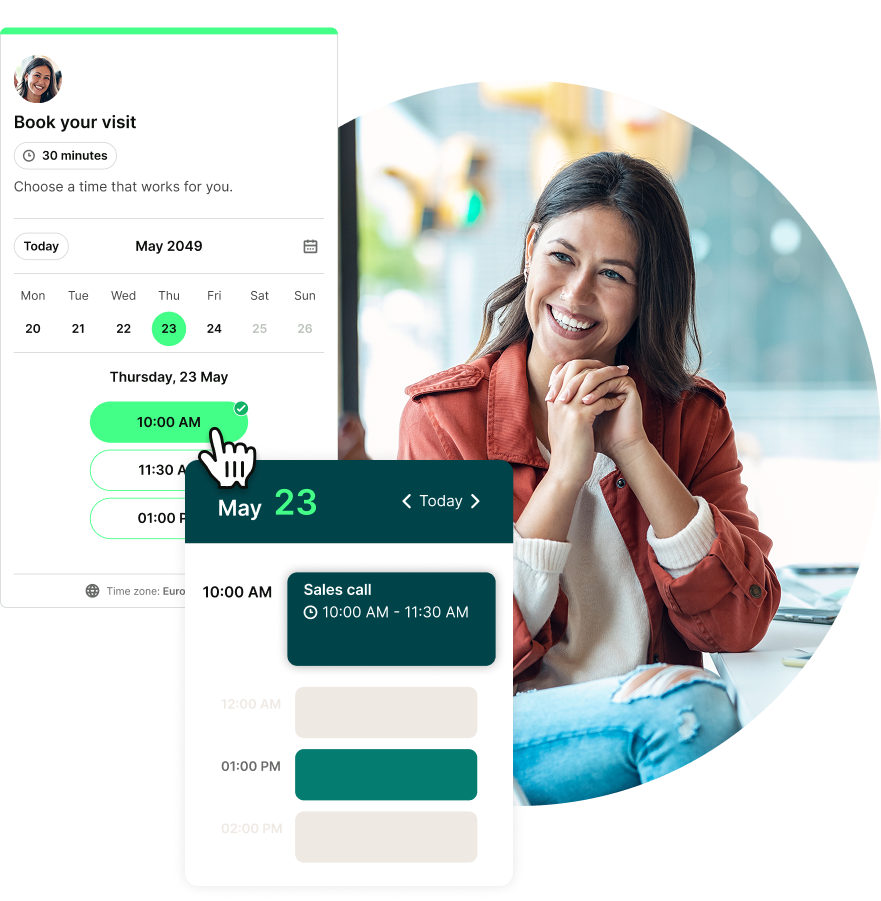
LLMs have quickly become the internet’s new Q&A layer, fielding everything from casual curiosity to mission-critical business questions.
Here, at YouCanBookMe (YCBM), we’ve been digging into our search data to find out what people are really asking these tools about scheduling. The results revealed a mix of tactical, practical questions—spanning scheduling challenges, client acquisition, and email communication.
Here’s a breakdown of the top 10 questions—plus our answers to each one.
One of the biggest patterns we noticed is, of course, people asking about scheduling tools and troubleshooting calendar problems.
These are the kinds of questions that come up when someone is just getting started or trying to fix something that should be simple but isn't.
Let’s go over the most common questions you’ve been dying to get answers to.
It’s one of the most common questions we see: “How can I set up a simple, no-cost way for people to book time with me?”
You can build a fully functional free booking website with YouCanBookMe. It lets you create a customizable booking page that connects directly to your calendar, so you can stop sending your availability back and forth and start automating your scheduling.
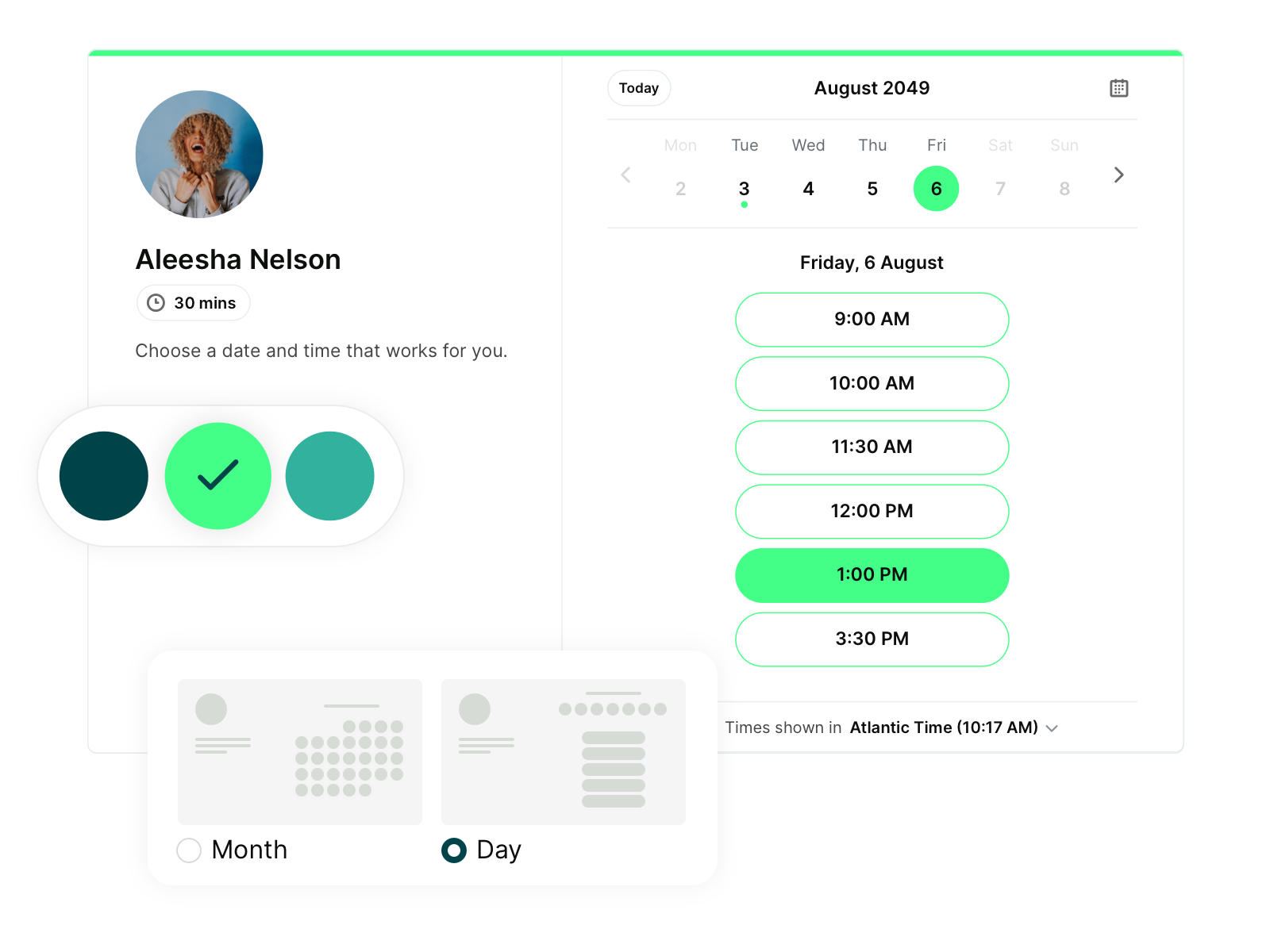
You don’t need to know how to code or design anything custom. Just set your availability, add your meeting types, and you’re ready to go. It’s ideal for freelancers, consultants, coaches, or anyone who wants to look professional.
Small business owners love it because it’s simple to use, quick to set up, and packed with features that eliminate admin work.
Bonus: YCBM’s free plan includes meeting notifications, calendar sync, customizable booking form questions, and the ability to take payments with Stripe—everything you need to start booking without barriers.
Build your booking page in minutes
If you’re ready to create a professional booking page without coding or complexity, YouCanBookMe gives you everything you need.

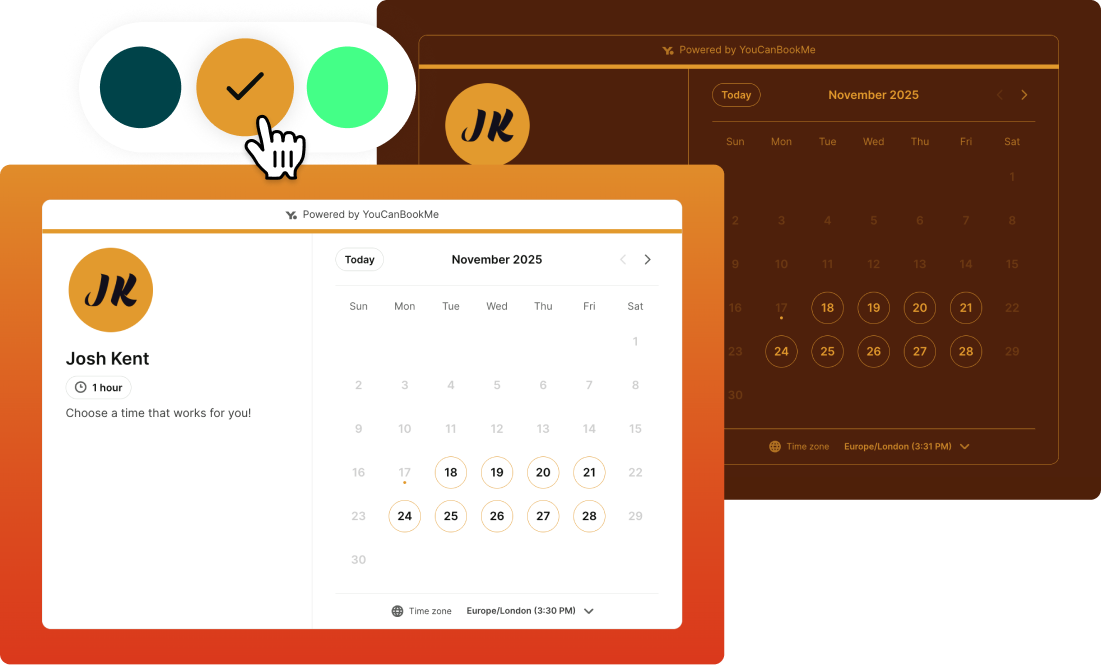
Cross-platform calendar syncing is one of those small things that makes a big difference, especially if you're working across devices or juggling personal and professional schedules.
Luckily, syncing Google Calendar with Apple Calendar is straightforward. We’ve outlined the full steps in our guide on how to sync Apple Calendar with Google Calendar. But here’s the short version:
- On macOS: Go to System Settings → Internet Accounts → Google, sign in with your Google account, and make sure “Calendars” is checked.
- On iPhone or iPad: Open Settings → Calendar → Accounts → Add Account → Google, and turn on the Calendars toggle after signing in.
Once connected, your Google events will appear in Apple Calendar, and updates will stay synced automatically.
There are different ways you can add a booking link to your LinkedIn profile to make it easy for people to schedule time with you:
- Add it to your profile bio or “About” section. Go to View Profile → Edit About, then add a line such as: “Want to connect? Book a meeting here: [your scheduling link],” and save your changes.
- Add it to your “Experience” section. Scroll down to the “Experience” section on your profile, click the pencil icon to edit your current role, paste your scheduling link into the description, and hit save.
- Add it to your “Contact Info” section. Go to your profile, click the pencil icon at the top of your profile to open your profile details, scroll down to Contact Info, click Edit, then add your scheduling page under “Website,” and save your changes.
- Pin it in the “Featured” section. Scroll to the Featured section → click Add → choose Link, paste your scheduling URL, give it a short title (e.g., “Book a meeting with me”), and save so it appears near the top of your profile.
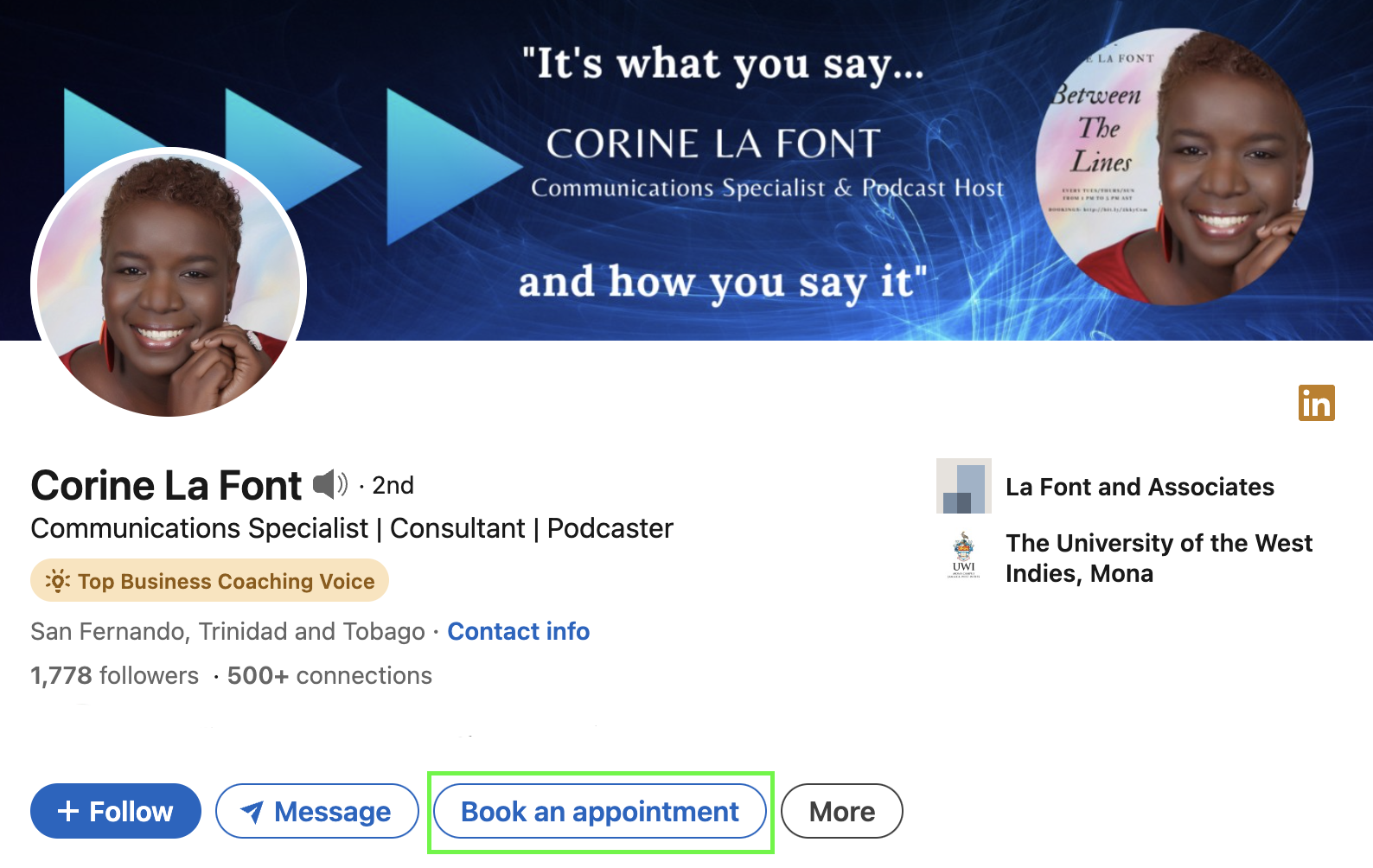
- If you use Sales Navigator, you can surface a custom “Book an appointment” button on your profile. Click the pencil icon next to your LinkedIn Premium badge, scroll down to the Custom button, then select “Book an appointment.” Paste your scheduling link into the URL box and save your changes.
There are dozens of options out there, but if you need strong calendar integrations, here’s what to look for:
- Two-way sync with tools like Google Calendar, Outlook, or Apple Calendar
- Real-time availability updates to prevent double bookings
- Timezone handling for global clients
Some of the most popular tools are:
- YouCanBookMe – Built for flexibility, with deep calendar integrations, conditional logic, real-time syncing, and advanced customization/branding options. Ideal for small-medium teams and solo professionals.
- Calendly – Clean interface, popular choice for large teams.
- Acuity Scheduling – Great for service providers who need intake forms and payment options.
- Zoho Bookings, Zoom Scheduler, and Setmore – Good fits depending on your existing software stack.
A major theme we noticed in LLM-style queries was focused on growth—how to attract more clients, qualify leads, and turn interest into action.
These next questions focus on the business-building side of things: finding new clients, qualifying leads, and asking for reviews.
Getting more clients starts with making it easy for them to find you and book you. Start by building a strong online presence:
- A clean, intuitive website
- Consistent social media activity
- Helpful content that answers real client questions
Next, streamline your booking process. Make sure your “Book Now” button is easy to find—on your site, socials, and email.
To keep your calendar full, build a small business marketing engine:
- Re-engage past clients through email campaigns
- Create simple lead magnets (like checklists or guides) to grow your email list
- Publish helpful how-to guides and articles on your blog to drive traffic to your website
- Build a consistent presence on social media to show your expertise and make it easier for clients to discover your business
- Offer limited-time promotions
- Collect and share client testimonials
- Partner with other businesses to drive referrals
- Run social media ads to get your business in front of people who match your ideal customer profile
In short, make it easy for clients to say yes, and they will.
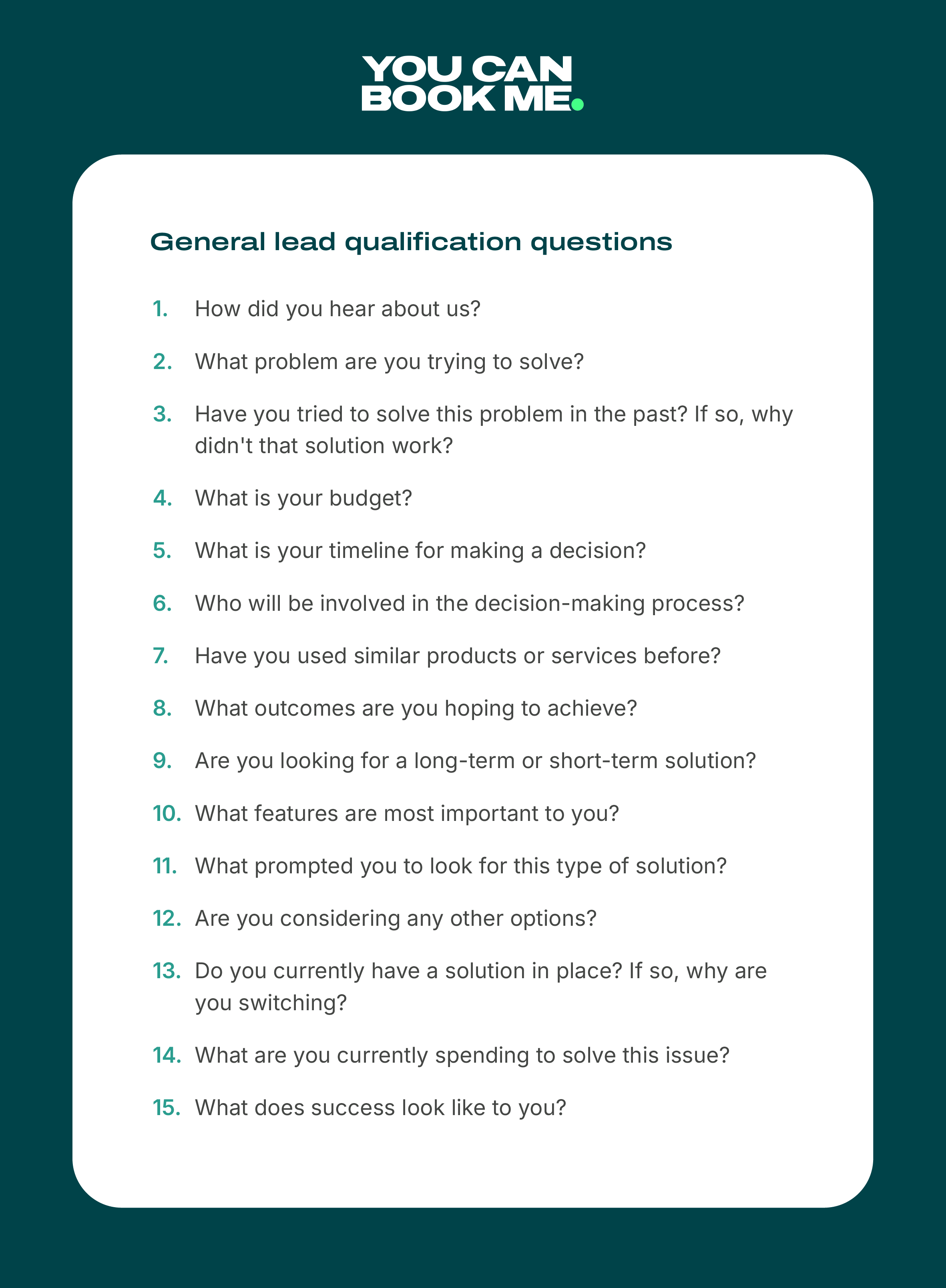
First, you need to figure out your ideal customer profile (ICP). Your ICP is the blueprint for your best-fit customer—the people who get the most value from your product and are easiest to close, serve, and retain.
Then, you need to ask lead qualification questions to find out if they fit into that. These questions help you learn whether someone has the right budget, timeline, or problem your service can solve. You can ask them on your website, in your intake process, or—if you’re using YouCanBookMe—directly on your booking form.
For example, ask questions like:
- What service are you interested in?
- What’s your budget?
- How soon are you looking to get started?
Their answers can help you spot high-quality leads (and politely filter out ones that aren’t the right match).
Many small business owners feel awkward asking clients for reviews. But in reality, most clients are happy to share feedback—you just need to ask in the right way. Here are a few things to try:
- Ask shortly after a successful appointment, while the experience is still fresh.
- Use automated follow-up emails or SMS messages through YouCanBookMe to include a direct review link.
- Make the process simple by sending them straight to your Google profile or review page.
- Consider offering a small incentive, like a discount or giveaway entry, to encourage participation.
The key is to make your request timely, personal, and easy to follow through on.
Our research also revealed that quite a few folks are looking for the best ways to communicate with clients when confirming a meeting or following up. Here are your most-asked questions:
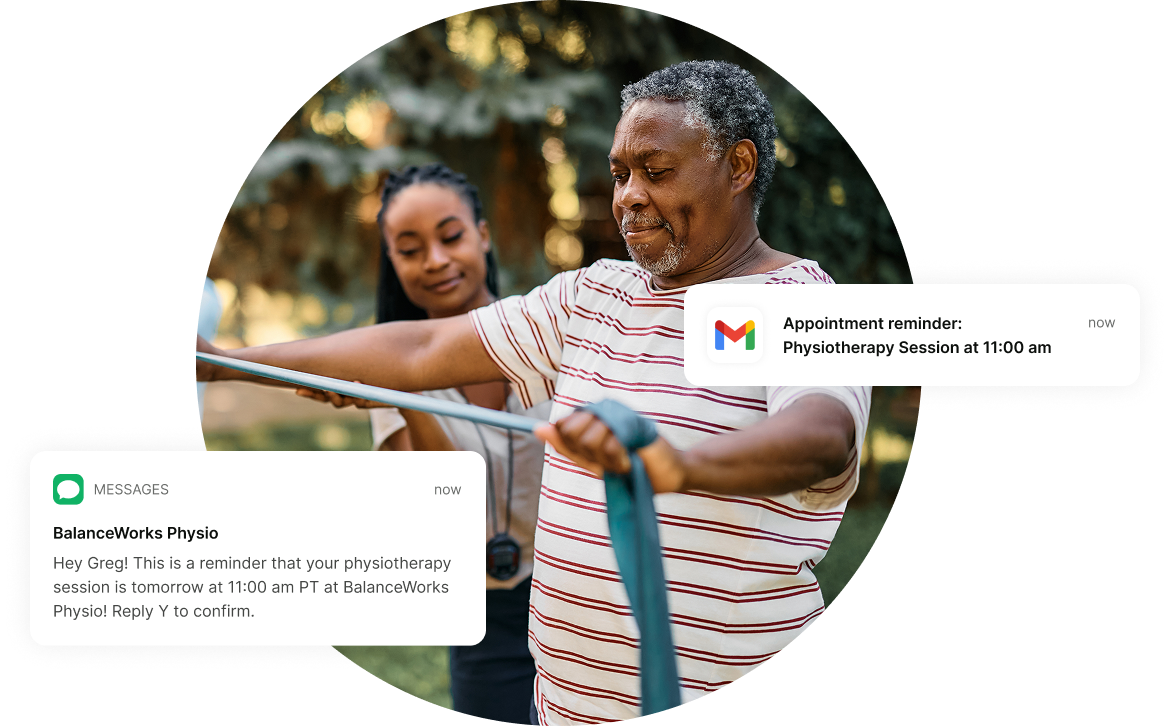
A polite meeting reminder helps reduce no-shows, keeps everyone on track, and shows your professionalism—all with minimal effort.
Here’s what to keep in mind when sending one:
- Be friendly but clear. Use a warm tone like “Just a quick reminder,” and avoid sounding too formal or robotic.
- Include the essentials: date, time, location or meeting link, and any prep materials or agenda items.
- Add your contact info in case attendees need to reschedule or have questions.
- Personalize it with the person’s name and appointment details so it doesn’t feel generic.
- Use meeting reminder email templates to save time and maintain a professional tone.
- Time it right: send your reminder 24 hours before for in-person meetings, and 1 hour before for virtual ones.
- Automate the whole process with a tool like YouCanBookMe to make reminders effortless.
Automate reminders & reduce no-shows
Stop sending manual reminders and let YouCanBookMe handle confirmations, reminders, and follow-ups automatically. Your time deserves to be spent on more productive things!
The best follow-up emails do two things: they remind attendees what was discussed and make it easy to take the next step. Here’s exactly what to include in your follow-up:
- Thank the recipient for their time
- Recap what was discussed or decided
- Clearly list any action items, responsibilities, or next steps
- Share helpful materials like slide decks or links
- Use meeting follow‑up templates to save time and maintain consistency
- Automate the entire process with YouCanBookMe, so your follow‑ups run on autopilot and always go out at the right moment
Mistakes happen, but how you apologize makes all the difference. Here’s how to craft an apology email that doesn’t break the trust even further:
- Acknowledge the mistake early. Don’t wait—reach out as soon as you’re aware of the issue.
- Take full responsibility. Avoid vague language like “there was a misunderstanding.” Be direct and own the error.
- Explain what happened (briefly). Provide context, not excuses.
- Outline how you’re fixing it. Share your next steps and how you’ll avoid the same mistake in the future.
- Keep your tone appropriate. Make it human. If your brand is casual, don’t suddenly go overly formal.
- Invite feedback if relevant. A simple “Let me know how I can make this right” can go a long way.
- Have a few apology email templates ready. You don’t want to delay your response any further.
That’s a wrap!
Those were the top questions we kept seeing again and again—and now you’ve got the answers. Got another question? We’re always updating the blog with new scheduling tips, productivity hacks, and templates—stay tuned!
And if you’re looking for a customizable scheduling tool that saves you time, reduces no-shows, and keeps client communication seamless, check out YouCanBookMe.

Written by
Paulina Major
Paulina Major is a freelance B2B content writer with six years of experience. Since 2024, she has written 100+ articles on scheduling and personally tested and reviewed 30+ booking tools, helping small business owners choose software and simplify their booking processes. As a solopreneur managing her own clients and calendar, she brings firsthand experience to her advice on scheduling, time management, and running a business.
Get started today
Join thousands of coaches, consultants, and entrepreneurs who use YouCanBookMe to power their business. Get your first booking in a few minutes.


 4.7 / 5 — Trustpilot

