
6 Best Free Online Calendars in 2026: Top Picks Compared

Create your free booking page
An online calendar is often the backbone of how your business runs day to day.
A client books a meeting with you? That goes into your calendar.
Need to block time for admin work, catching up on emails, or doing some marketing for your small business? That goes into your calendar, too.
Your calendar is where all your meetings, events, and tasks live. At a bare minimum, you need a calendar tool that lets you create and manage events, set reminders, share your availability, and stay in sync across devices. Some calendars also double as lightweight scheduling apps, allowing you to share availability and book meetings in just a few clicks instead of long email threads.
If you haven’t found your perfect calendar yet, we’ve put together a roundup of the six best free online calendars for different needs. We’ll compare key features, pros and cons, and pricing, though all of them offer free plans.
Not all online calendars are built the same. Before choosing one, it’s worth understanding which features are actually important for you and which ones just add complexity.
Here are the key things to look for.
- Core functionality: At a minimum, your calendar should handle the basics reliably. That includes creating and editing events, setting reminders, managing recurring meetings, and switching between day, week, and month views. The interface should feel intuitive, so you are not fighting your calendar every day.
- Sharing and collaboration: A good online calendar makes it easy to share your schedule with others, whether that’s teammates, clients, or family members. Look for clear permission settings and the ability to view or combine multiple calendars without creating scheduling conflicts.
- Calendar syncing: If you use more than one calendar, syncing is essential. Two-way sync ensures updates made in one calendar automatically appear everywhere else, helping you avoid double bookings and manual updates.
- Integrations and compatibility: Your calendar should work well with the tools you already use, such as email, video conferencing, account management software, or scheduling tools. Strong integrations reduce context switching and keep your workflow connected.
- Customizations: Custom views, color coding, and availability rules can make a big difference in how manageable your schedule feels.
- Smart features: Features like automatic time zone detection, buffer times between meetings, and availability logic can quietly save hours over time. These are especially useful if you work with clients or teams across different locations.
- Privacy and controls: Your calendar often contains sensitive information, so security matters. Look for clear privacy controls, data protection standards, and the ability to control who can see what on your calendar.
To be honest, there are quite a few calendars out there. Finding the right one depends on how you work and who you share your time with.
Here are the best online calendars available on the market, each designed to support different needs, workflows, and priorities.
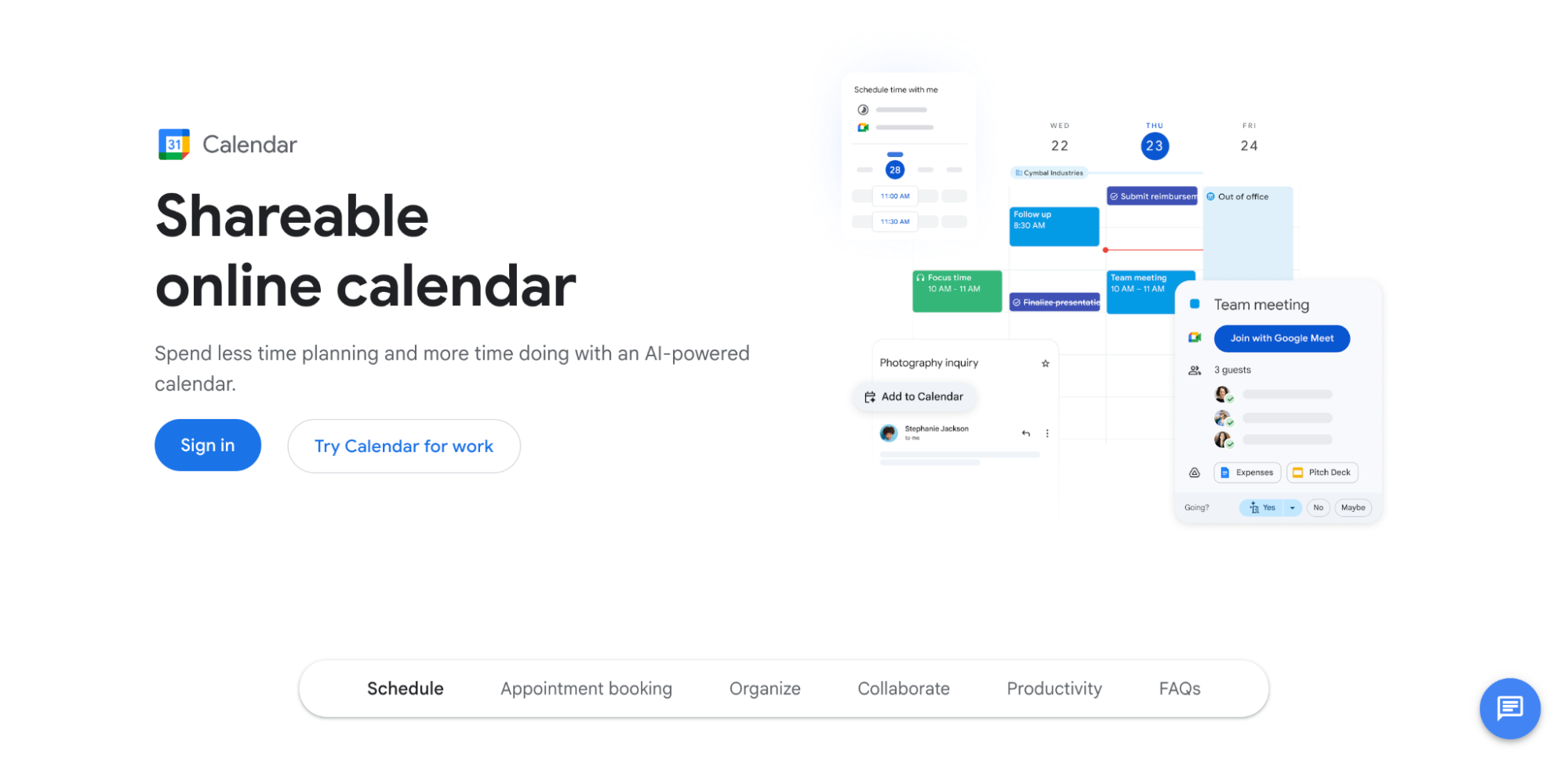
If you’re looking for a reliable calendar that handles all the basics well, Google Calendar is a solid choice. And if your business already relies on Google Workspace for email, meetings, and file sharing, it makes even more sense to use Google Calendar.
With Google Calendar, you can easily manage events, set reminders, and share your calendar with clients or collaborators. While it covers the basics effectively, it offers limited customization and works best when your workflow stays within Google’s ecosystem.
If you want to get more out of Google Calendar, you can easily connect it with YouCanBookMe. That way, you get not just a calendar, but also a scheduling assistant to automate your bookings.
I have been using Google Calendar for both my personal life and business needs for over a decade. I use it daily and couldn't imagine life without it. Google Calendar keeps my life and head organized, ensuring I don't miss due dates, deadlines, or engagements and commitments.”
– Jessica R.
Google Calendar pros & cons
Pros |
Cons |
|
|
Core features
- Event creation with reminders and recurring schedules: Create one-time or repeating events and get automatic reminders so nothing slips through the cracks.
- Calendar sharing with permission controls: Share your Google Calendar with clients or collaborators and control who can view details or make changes.
- Automatic event detection from email: Flights, hotel bookings, and reservations sent to Gmail can be automatically added to your calendar, saving manual entry time.
- Built-in appointment booking pages: Workspace users can create simple booking pages inside Google Calendar so others can book time based on real availability.
- Automatic syncing across devices: Changes update instantly across web and mobile, keeping your schedule consistent everywhere.
| 💡 Want to make the most out of Google Calendar? Check out Google Calendar productivity tips to organize your meetings and tasks more effectively. |
Pricing
Google Calendar is free with a standard Google account. Appointment scheduling and advanced features are available through Google Workspace plans, starting at $7 per user per month when billed annually.
Sync your favorite calendars
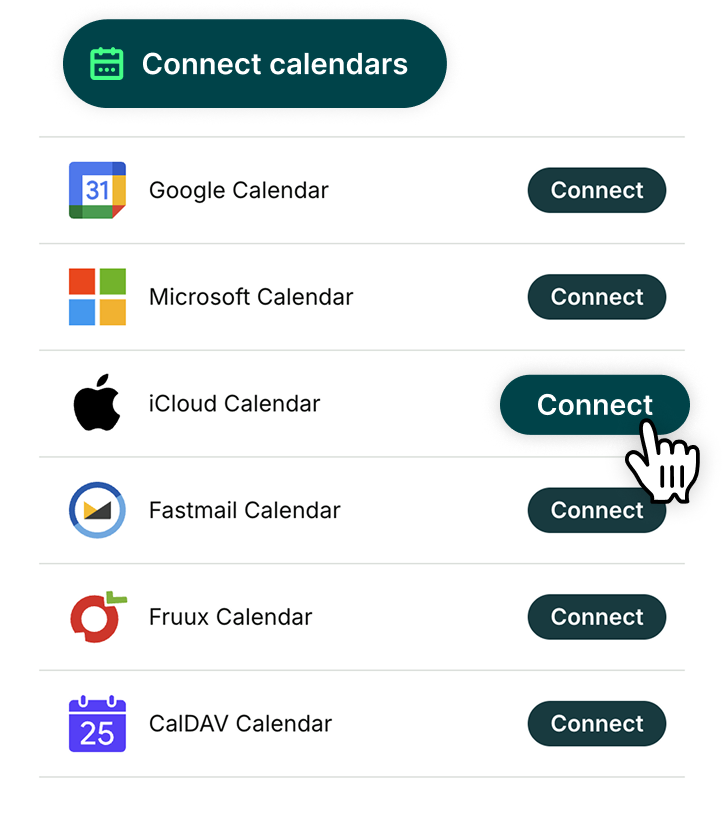
Whether Google, Outlook, or iCloud, connect your calendars with YouCanBookMe to let clients book time, avoid double bookings, and automate meeting confirmations and reminders.

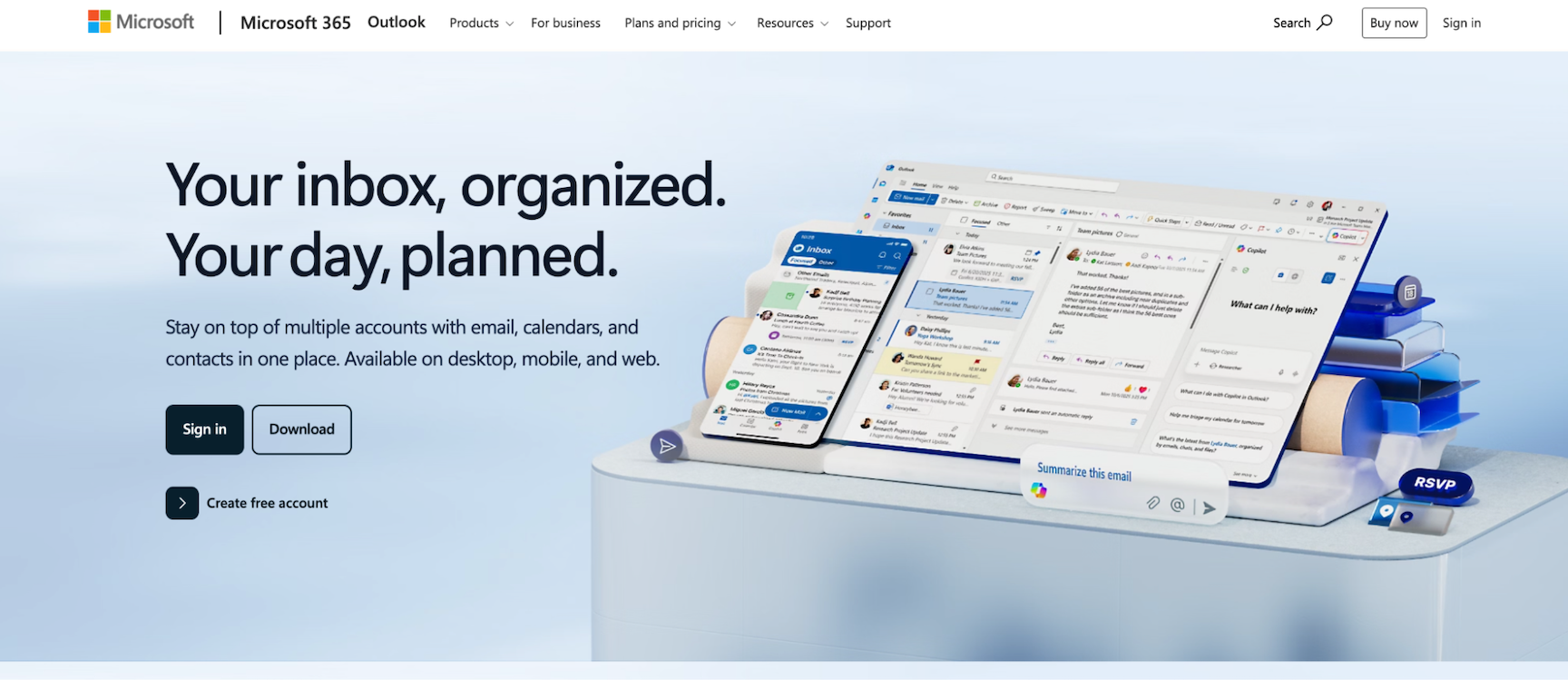
If your business already runs on Microsoft tools, Outlook Calendar is a natural fit. It’s designed to keep email, calendars, contacts, and tasks in one place, making it easier to plan your day without jumping between apps. With Outlook Calendar, you can manage multiple calendars, schedule meetings, and share your calendar directly from your inbox.
Just like Google Calendar, Outlook integrates with YouCanBookMe to simplify and automate your scheduling.
I really like how Outlook brings everything together in one place: emails, calendar, contacts, and tasks. The interface feels clean and easy to navigate, and I love how I can schedule meetings directly from my inbox without switching apps.”
Outlook Calendar pros & cons
Pros |
Cons |
|
|
Core features
- Event creation with reminders and recurring schedules: Create one-time or repeating events and receive meeting reminders to stay on track.
- Calendar sharing with permission controls: Share Outlook calendars with clients or collaborators and control visibility and editing access.
- Multiple calendar management: View work, personal, and shared calendars together in a single interface.
- Built-in video meeting support: Add Microsoft Teams meetings to events with one click for easy virtual collaboration.
- Automatic syncing across devices: Keep your schedule updated across desktop, web, and mobile apps.
Pricing
Outlook Calendar is free with an Outlook.com account, including web and mobile access. More advanced features are available with Microsoft 365 subscriptions, starting at $6 per user per month (billed annually).
A loyal Apple user through and through? Then it makes perfect sense to use Apple Calendar for your schedule.
Apple Calendar comes preinstalled across iPhone, iPad, Mac, and Apple Watch, making it an easy choice if your workflow already lives inside the Apple ecosystem. It lets you manage events, set alerts, and combine calendars from multiple accounts in one place. You can even connect your Apple Calendar to other calendars, like Google Calendar, for near-instant updates.
Want to take it even further? Consider syncing your Apple Calendar with YouCanBookMe, so you never get double-booked!
I use iCal because the reminders app integration is terrific. I color code my calendar according to family members, and I also color coordinate reminders/tasks according to them as well.”
Apple Calendar pros & cons
Pros |
Cons |
|
|
Core features
- Event creation with alerts and recurring schedules: Create appointments, meetings, and repeating events with notifications so you stay on track.
- Calendar sharing with permission controls: Share iCloud calendars with colleagues, clients, or family members and control who can view or edit events.
- Multiple calendar account support: View calendars from iCloud, Google, Exchange, and more in one unified schedule.
- Location and travel-time alerts: Get notified when it’s time to leave for an event based on your location.
Pricing
Apple Calendar is completely free and included with Apple devices. It works with a free iCloud account and does not require a paid subscription, though it is best experienced within the Apple ecosystem.
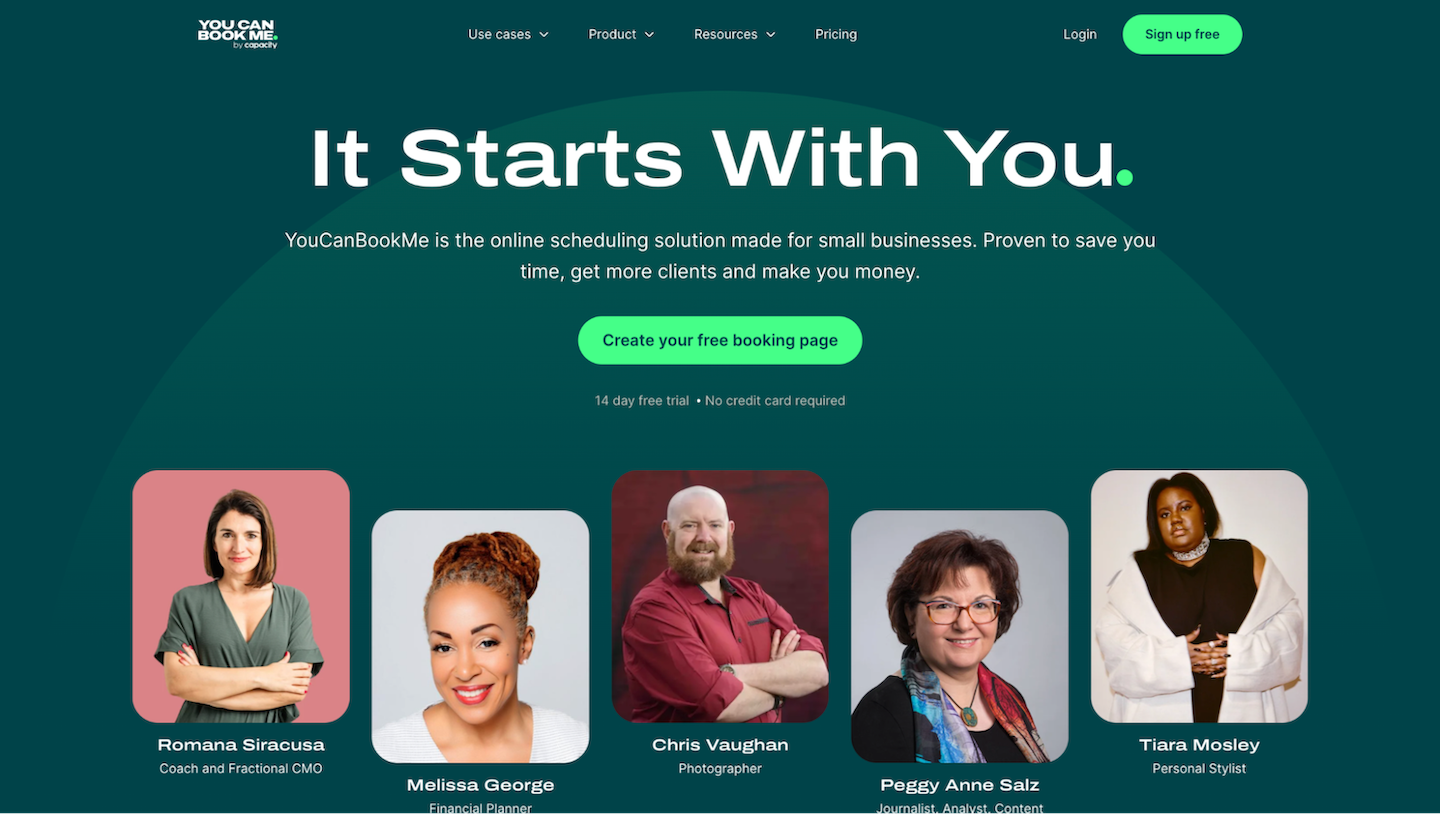
YouCanBookMe (YCBM) is a scheduling tool that makes it easy to manage your availability, share booking options, and get meetings booked without back-and-forth emails.
You simply connect your calendar—whether that’s Google, Outlook, Apple, or Fastmail—set your availability rules, and share a scheduling link wherever you want. Bookers can instantly choose from times that actually work for you, and real-time calendar syncing helps prevent double bookings. With flexible controls and built-in automation, YCBM gives you more control over your time while creating a smooth, professional booking experience.
Years of service from a brilliant product, very intuitive, including taking clients payments, saves so much time. I now have time for a G&T in the evening instead of wrestling with timetables and reminders. The automatic links to Zoom, Teams and Google Meet, mean being able to accommodate clients preferences. On the odd occasion I have asked for advice, response has been prompt and efficient.”
YCBM pros and cons
Pros |
Cons |
|
|
Core features
- Advanced availability controls: Set booking limits, buffer times, minimum and maximum notice, and request-only meetings to protect your time.
- Video conferencing integrations: Automatically add Zoom, Google Meet, or Microsoft Teams links to bookings so meetings are ready to go without manual setup.
- Time zone detection: Automatically detects each participant’s time zone so everyone sees the correct dates and times without manual conversion.
- Automated notifications and workflows: Send meeting confirmations, reminders, and follow-ups via email or SMS, all fully customizable.
- Meeting analytics: Uncover the data behind your bookings to understand your top-performing booking pages, cancellation, reschedule, and no-show trends, and revenue generated from bookings.
- Payments at booking: Collect payments upfront using Stripe, including Apple Pay, Google Pay, and major credit and debit cards. Plus, generate unique promo codes with expiration dates and usage limits.
Pricing
YouCanBookMe offers a generous free plan that includes one calendar connection, one booking page, customizable availability, booking form questions, and confirmation emails.
If you need more advanced features like connecting multiple calendars, creating multiple booking pages, setting booking limits and buffer times, automating reminders and follow-ups, tracking no-shows, or managing team scheduling, paid plans start at $8.10 per month (billed annually).
YouCanBookMe makes your calendar better
A regular calendar shows when you’re busy. YCBM actively manages your availability, bookings, and reminders, so meetings happen without coordination or double bookings.

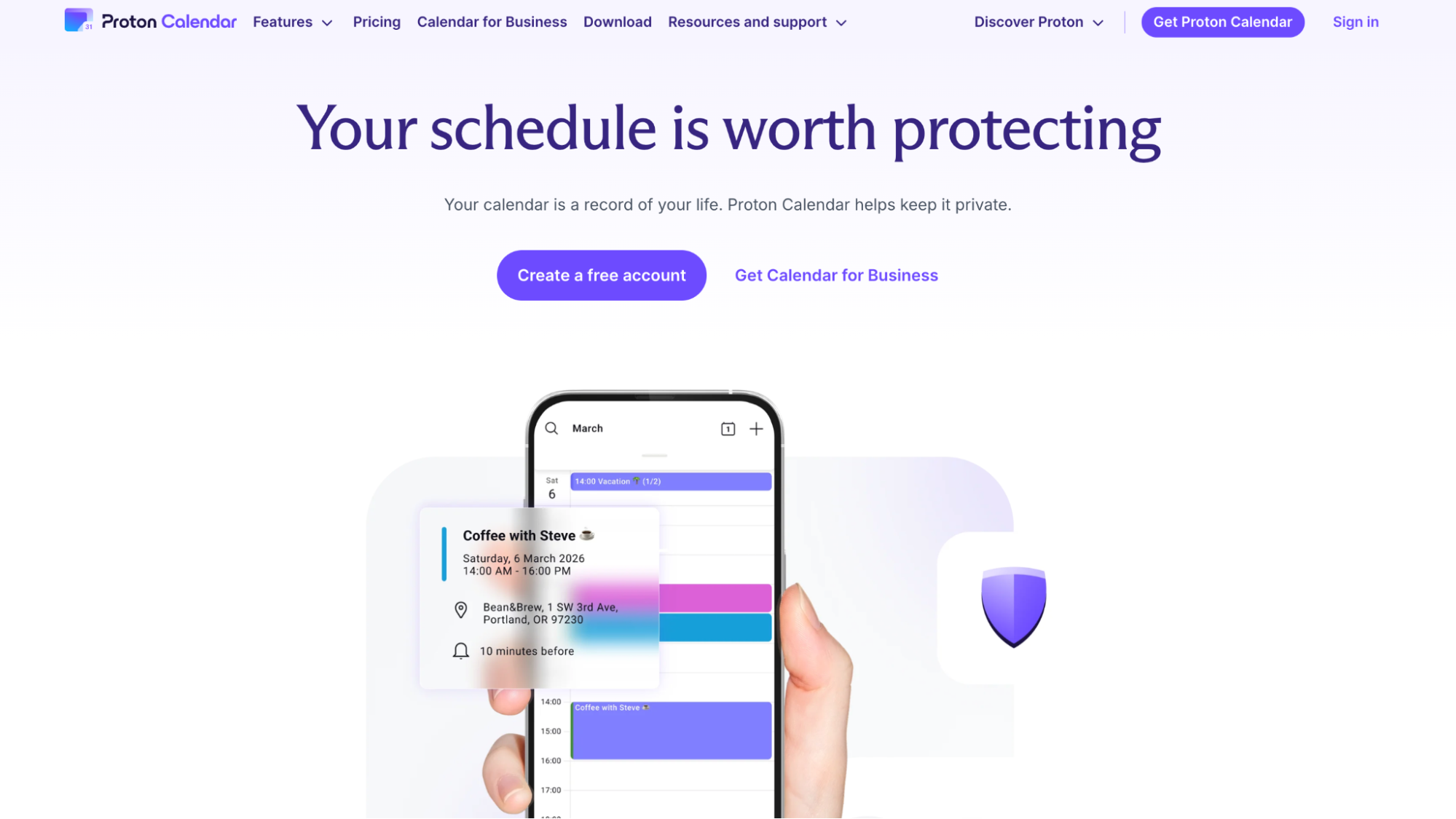
If privacy is non-negotiable for you, Proton Calendar is built with that exact mindset.
Proton Calendar treats your schedule as sensitive personal data, protecting all events with end-to-end encryption so even Proton cannot see your event details. Based in Switzerland and governed by strict Swiss privacy laws, it’s a strong alternative to mainstream calendars for businesses and anyone who wants a calendar without tracking or data exploitation.
I've been using the Proton Calendar for a year or so. It's functional, although very basic in comparison with Google Calendar, but I'm willing to accept that for the privacy of end-to-end encryption.”
Proton Calendar pros & cons
Pros |
Cons |
|
|
Core features
- End-to-end encrypted events: Event titles, descriptions, locations, and invitees are fully encrypted by default.
- Secure calendar sharing: Share calendars while keeping data protected and private.
- Cross-calendar compatibility: Receive and send meeting invitations to users on other calendar platforms securely.
- Proton Mail integration: Add events directly from your inbox and send encrypted invitations without switching apps.
Pricing
Proton Calendar is free to use and comes included with Proton Mail. You can upgrade, though, to paid Proton plans if you want to unlock more storage and advanced features, such as a custom email domain. The entry-level paid plan starts from $4.99 per month (billed annually).
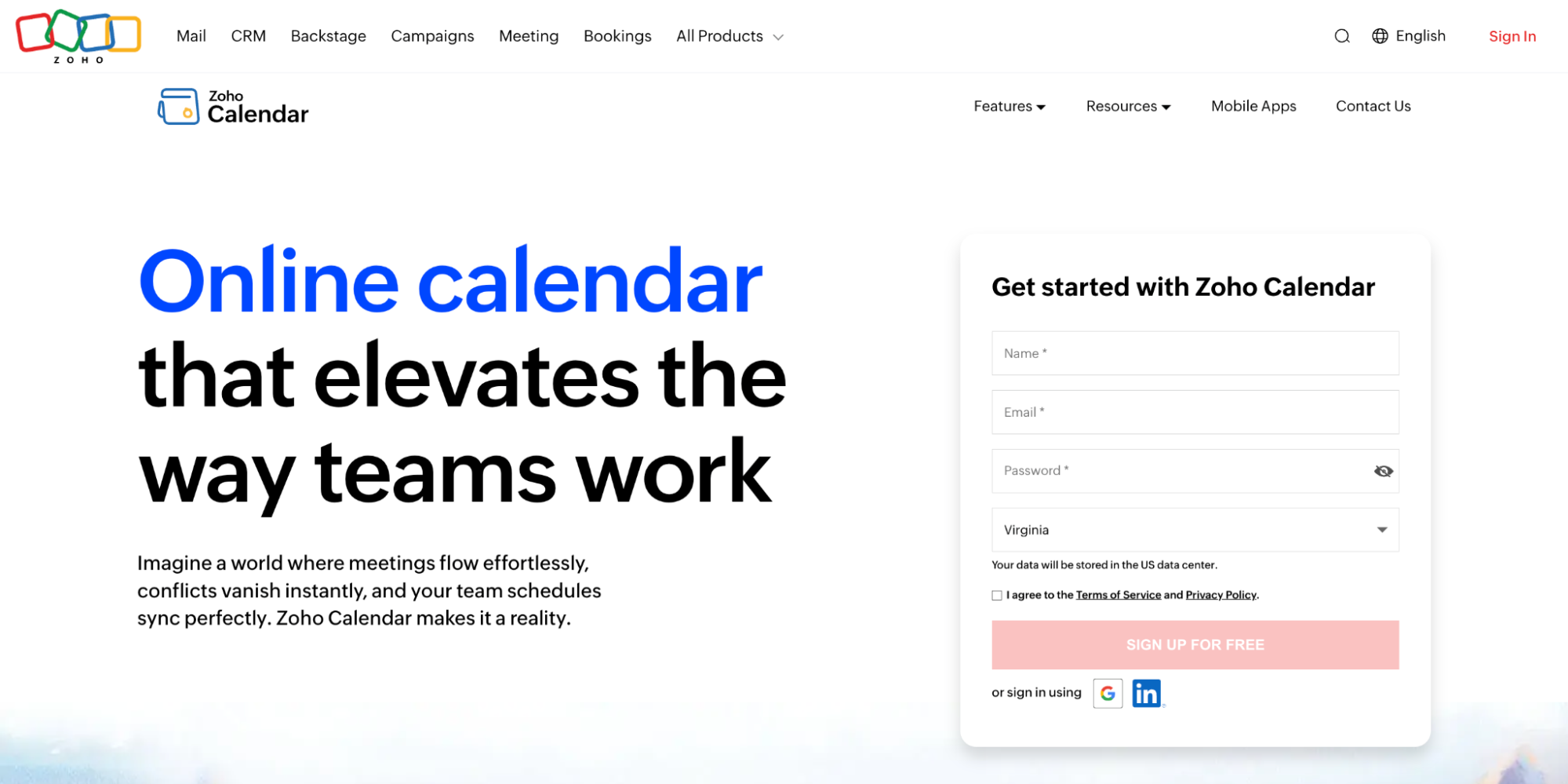
Zoho Calendar makes the most sense for small business owners already working within the Zoho ecosystem.
Zoho Calendar is an online business calendar designed to help teams and solo owners manage events, appointments, and shared schedules in one place. It supports cross-platform syncing, team calendars, and basic appointment scheduling, but it works best when paired with other Zoho tools rather than used as a standalone calendar.
The app offers event scheduling and task reminders, making it easy to remember important dates and tasks.”
– Balaji A.
Zoho Calendar pros & cons
Pros |
Cons |
|
|
Core features
- Multiple calendar views and themes: Switch between day, week, month, or agenda views and customize with light or dark themes.
- Team calendars and resource booking: Manage group calendars and book shared resources like rooms or equipment.
- Cross-platform calendar syncing: Sync calendars across Windows, macOS, iOS, and Android, as well as Google and Outlook.
- Smart event creation and reminders: Use natural language input, drag-and-drop rescheduling, and custom reminders to stay on track.
Pricing
Zoho Calendar is free to use as a standalone app. It’s also included by default with Zoho Mail and other Zoho Workplace plans.
What calendar are you picking?
At the end of the day, your calendar should make work easier, not create more back-and-forth. Whether you need something simple to track events or a smarter way to let clients book time, the right tool depends on how you work.
For small business owners who book meetings regularly, YouCanBookMe goes beyond a standard calendar. It adds automation, availability rules, and a professional booking experience on top of the calendar of your choice.
Frequently Asked Questions
Are free online calendars secure enough for business use?

Yes, many free online calendars offer strong baseline security that’s suitable for business use, including encrypted data transmission, secure login methods, and permission settings to control who can view or edit your schedule.
However, the level of protection varies by provider. Free plans may have fewer advanced security features compared with paid business plans, and some still collect metadata for analytics. For most everyday scheduling needs, free calendars provide adequate safety, but businesses handling highly sensitive information should review privacy policies and consider paid options with enhanced security guarantees.
Which free calendar works best for client bookings and appointments?
For client bookings and appointments, YouCanBookMe stands out among free options because it goes beyond just showing availability. While typical calendars show when you’re busy, YouCanBookMe lets clients pick times that actually fit your schedule via shareable booking links. It automatically syncs with your calendar to prevent double bookings, allows you to add buffer times, and sends meeting confirmations and reminders—all without back-and-forth emails.
Even on the free plan, you get customizable availability rules and one booking page, making it ideal for service-based business owners who want a professional, automated scheduling experience without paying upfront.
What’s the difference between an online calendar and a scheduling tool?
An online calendar is where you keep track of your time. It shows your meetings, events, and tasks so you know what your day or week looks like. You usually add events yourself or invite others to them.
On the other hand, a scheduling tool is designed to let other people book time with you. Instead of emailing back and forth, you share a link, and the tool shows bookers only the times that work for you. It automatically creates the meeting, sends meeting confirmations and reminders, and updates your calendar for you.

Written by
Paulina Major
Paulina Major is a freelance B2B content writer who has spent the last two years deep in the world of scheduling — writing about booking best practices, time management, and the tools that help small businesses run more efficiently. She writes from experience: as a solopreneur managing her own clients and calendar, she lives the challenges her readers are trying to solve.
Get started today
Join thousands of coaches, consultants, and entrepreneurs who use YouCanBookMe to power their business. Get your first booking in a few minutes.


 4.7 / 5 — Trustpilot

