
How to Set Up a Stripe Account and Connect It to Your Booking Page
-min.png?width=100&name=image%20(21)-min.png)
Create your free booking page
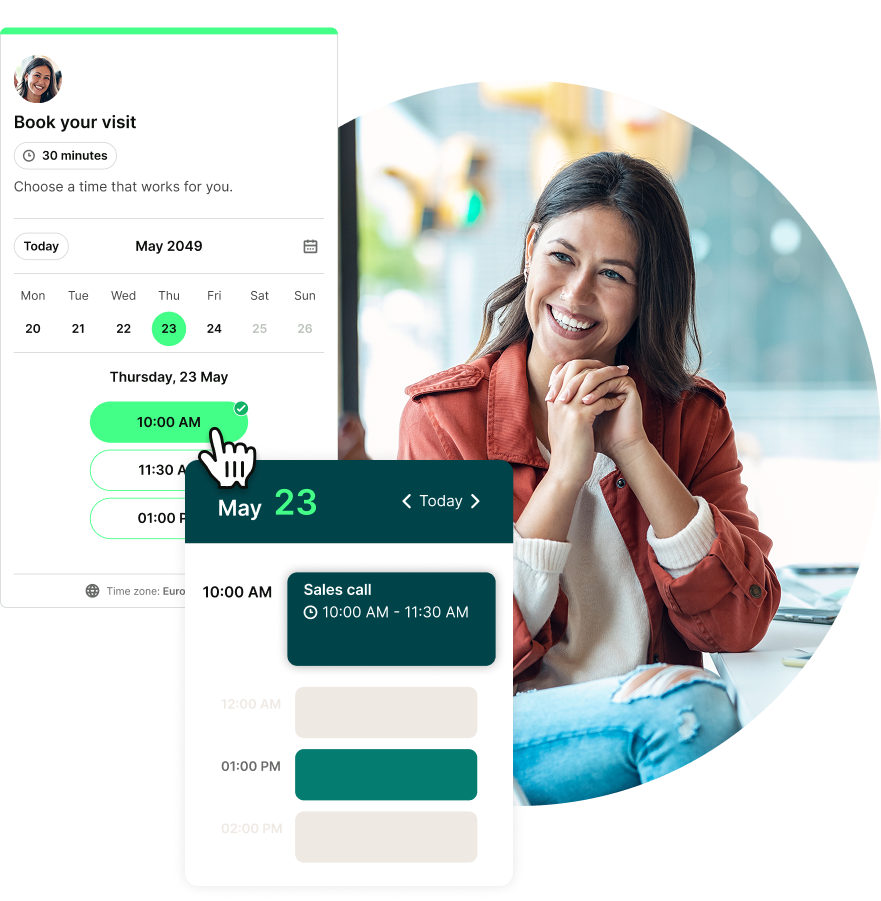
You know taking payments upfront is a smart move for your business. But figuring out how to set up a Stripe account, especially when money, bank details, and business verification are involved, can feel daunting with a capital D. So it becomes yet another project you put off for another day.
Well, that day is here! And believe it or not, getting started with Stripe is much simpler than you might think. And once you've connected it to YouCanBookMe, clients can book an appointment, pay securely, and receive their confirmation, all in one go.
In this easy-to-follow (I promise) guide, I’ll walk you through creating your Stripe account, connecting it to YouCanBookMe, and turning on payments for bookings. Let’s get you paid!
Stripe is an online payment processing platform that lets businesses and solopreneurs securely accept payments from customers.
When you connect Stripe to YouCanBookMe, you can take payments directly from your booking page. Your clients choose a time, pay by card, Apple Pay, or Google Pay, and they're booked!
First, some good news: creating a Stripe account is completely free.
There are no setup or monthly subscription fees for Stripe's standard payment processing. Instead, Stripe takes a small fee from each successful transaction.
In the US, the standard fee for domestic card payments is 2.9% + $0.30 per transaction.
Let’s put that into perspective 👉 here’s what happens when someone books a $100 appointment through a YouCanBookMe booking page and pays with Stripe:
That's $95.80 from a $100 appointment, without having to follow up with an invoice or chase down a payment.
Just keep in mind that Stripe's fees vary by country, card type, and currency. For example, US businesses pay an additional 1.5% for international cards and 1% when currency conversion is required. You can find the latest rates on Stripe's official pricing page.
Before you create an account, make sure Stripe supports businesses where you live and work.
Stripe operates in dozens of countries, including the US, UK, Canada, Australia, and many European countries. Check Stripe's global availability page to see whether you can sign up.
💸 One important tip: Make sure you choose the correct business country when registering! Stripe doesn't let you change your business's country after you activate your account. You'd need to create a new account instead.
You know what's more frustrating than filling out a form? Getting halfway through it and realizing you need a document that's buried somewhere deep in your inbox.
Here’s what to prep before you get started:
- A YouCanBookMe account: Any plan will do, including Free! You’ll also need a booking page where you want to start accepting payments.
- Your business details: Your business name, address, phone number, and a short description of what you do.
- Your business type: For example, a sole proprietor, individual, partnership, or registered company.
- Your personal details: Stripe may need your legal name, date of birth, address, and identification documents to verify your identity. Be sure to have buffer time in this process as identity verification can sometimes take a few days to complete.
- Your bank account details: This is where Stripe will send your payments.
- Your customer-facing business name: The name you want clients to recognize when they see your business on their bank or card statements.
👉 Don't worry if you're a freelancer, coach, or consultant without a large registered company. Stripe supports different business structures, including sole proprietors in eligible countries.
And one more thing: Stripe's requirements vary depending on where you live and how your business operates, so you might be asked for additional info. I’ve listed the things most commonly needed above, but for a more thorough, region-specific list, see Stripe's official setup guide.
Ready to get started? We're going to do this through YouCanBookMe, so you can get your Stripe account set up and connected to your booking page in one go.

First things first, you'll need a YouCanBookMe account. If you already have one, lucky you! Skip ahead to the next step.
If not, you can sign up for free (no credit card required). Getting started takes just a couple of minutes. 👇
- Create your YouCanBookMe account. Follow the signup prompts and connect your calendar so YouCanBookMe knows when you're available.
- Create your first booking page. The moment you create an account, interactive prompts will guide you through creating your page.
Now that your booking page is ready, let's get the payment side of things sorted.
- From your YouCanBookMe dashboard, click Edit under your booking page.
- Select Additional options, then Collect payments in the sidebar.
- Click the big Set booking prices and collect payments button.
- Turn on the Calculate prices and take payments toggle.
- Choose your currency and set the price you want to charge for bookings.
- Click Save all changes at the bottom of the page.
- Finally, click Take payments for your bookings. This will open Stripe, where you can create your account.


Once you enter your email address and click Continue, it's time to set up your Stripe account.
Welcome to Stripe! First, let's get your account created and secured. Just two things to do here:
- Create your login. Enter your email address and choose a secure password.
- Set up two-step authentication. Follow Stripe's prompts to add an extra layer of security to your account.
One important thing: Once you've set up two-step authentication, Stripe will give you an emergency backup code. Make sure you save it somewhere safe! You'll need it if you ever lose access to your usual authentication method.
Now Stripe needs to know who's behind the account. This is where things get a little more official, but don't worry, it's mostly information you already know by heart.
On the Verify your personal details screen, you'll be asked for:
- Your legal name: Enter your name exactly as it appears on your government-issued documents.
- Your email address: Make sure it's correct and accessible.
- Your date of birth: Enter your full date of birth.
- Your home address: Add your residential address, not just your business address. Your identification number: If you're based in the US, Stripe may ask for your Social Security number (SSN) or Individual Taxpayer Identification Number (ITIN).
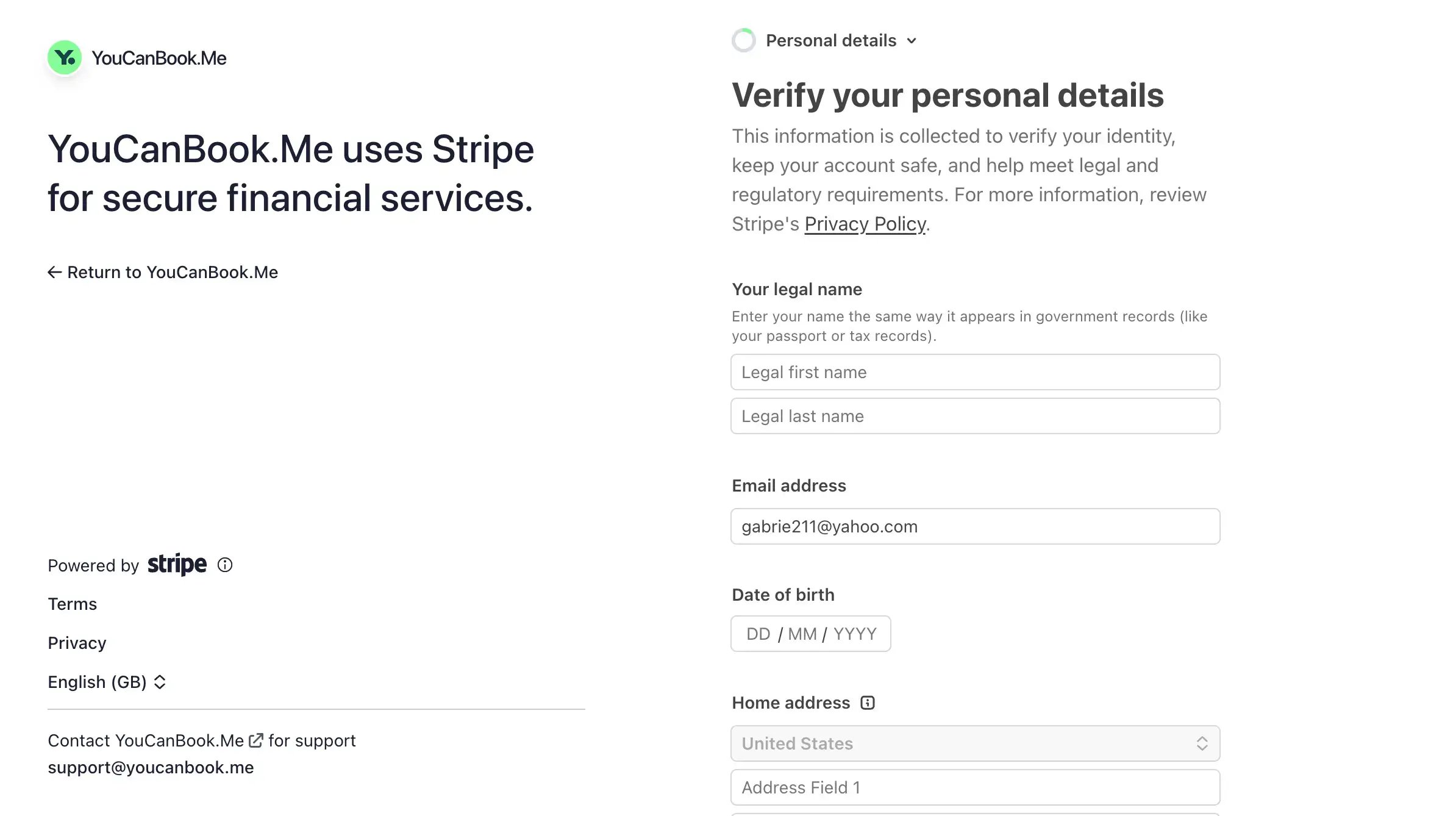
I know we're all a little hesitant to share our personal details online (and rightly so), but Stripe isn't asking just to be nosy. Like all payment processors, it needs to verify your identity to meet financial regulations and help prevent fraud.
The exact information you'll need to provide depends on your country and business structure. Stripe may also ask for additional documentation, such as a government-issued ID, if it can't verify your identity automatically. For more information, check out Stripe's identity verification guide.
Next, Stripe needs to understand what your business does and what you're charging customers for. Depending on your business type and the information you've already provided, Stripe may ask for:
- Your business structure: For example, an individual, sole proprietorship, partnership, or registered company.
- Your business name and address: The legal details associated with your business.
- Your business website: A website or online presence where customers can learn about the services you offer.
- A description of your business: A short explanation of what you sell.
- Your customer-facing details: Your business name and contact information, which customers may see on receipts or bank statements.
Don't overthink your business description. If you're a career coach, for example, something like "One-on-one career coaching, resume reviews, and interview preparation" is much more helpful than a paragraph full of business jargon.
You've told Stripe who you are, now you need to tell it where to send your money!
When prompted, enter your bank information. Depending on your country, that might include your account number, routing number, IBAN, or other banking details. Remember to double-check everything before continuing. One wrong digit is all it takes to cause a payment delay, and nobody wants that. 🙅
When does Stripe actually pay you?
Good question! Just because a client pays for a booking today doesn't necessarily mean the money lands in your bank account right away.
Stripe uses a payout schedule to transfer your available funds. Depending on your account and location, you can generally choose an automatic schedule, such as daily, weekly, or monthly.
One thing to be aware of: your first payout usually takes longer. Stripe typically schedules it to complete within 7–14 days of your first successful live payment, although timing varies based on your country, industry, and risk profile.
If you want more details, you can check out Stripe's guide to payouts and payout schedules.
You're on the home stretch! 🎉
Once you've provided the information Stripe needs, you'll have an opportunity to review your details and complete the setup process.
Before submitting, triple-check that:
- Your personal and business information is correct.
- Your bank account details are accurate.
- Your customer-facing business name is recognizable.
- You've completed any additional verification requests.
Follow Stripe's prompts to submit your information and accept the relevant terms. And that's the main setup process done!
Stripe will let you know if it needs anything else to verify your account. Sometimes additional documentation is required, so keep an eye on your Stripe Dashboard and inbox. And if you can’t accept payments right away, don’t panic, Stripe may still be verifying your details.
Once your account is ready, it's time to head back to YouCanBookMe.
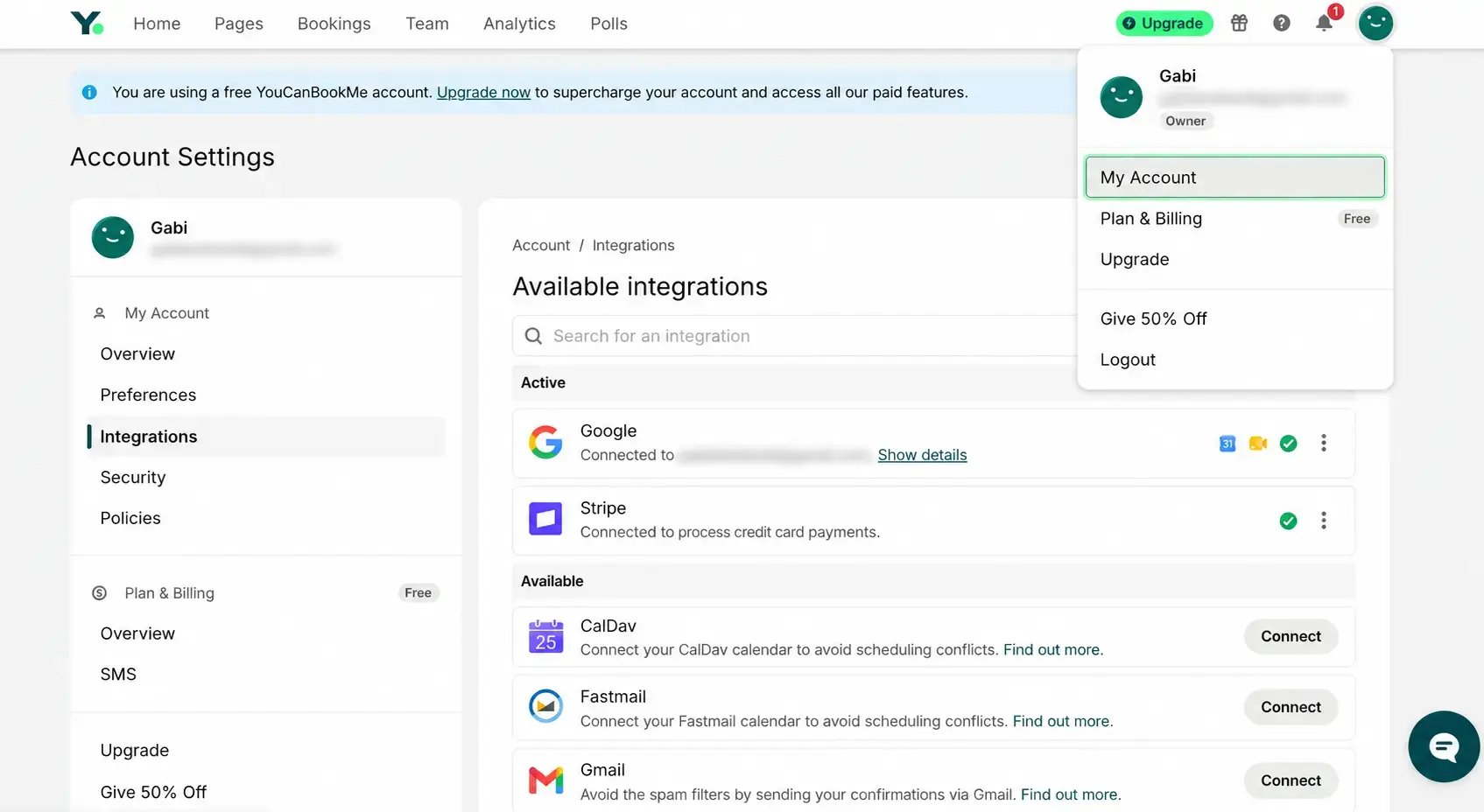
You're almost ready to get paid! Let's make sure everything is connected and working as it should. After completing Stripe's onboarding process, return to your YouCanBookMe account.
Here’s what to check: Go to My Account and click Integrations in the left-hand menu, and check that Stripe is listed in the Active section of your Available integrations.
And now for one final check: test your booking page.
YouCanBookMe doesn't currently support a sandbox environment for testing Stripe payments, so the best way to check everything is working is to make a small, real booking using your own card.
Open your booking page as a client would, select an appointment, and complete the payment process.
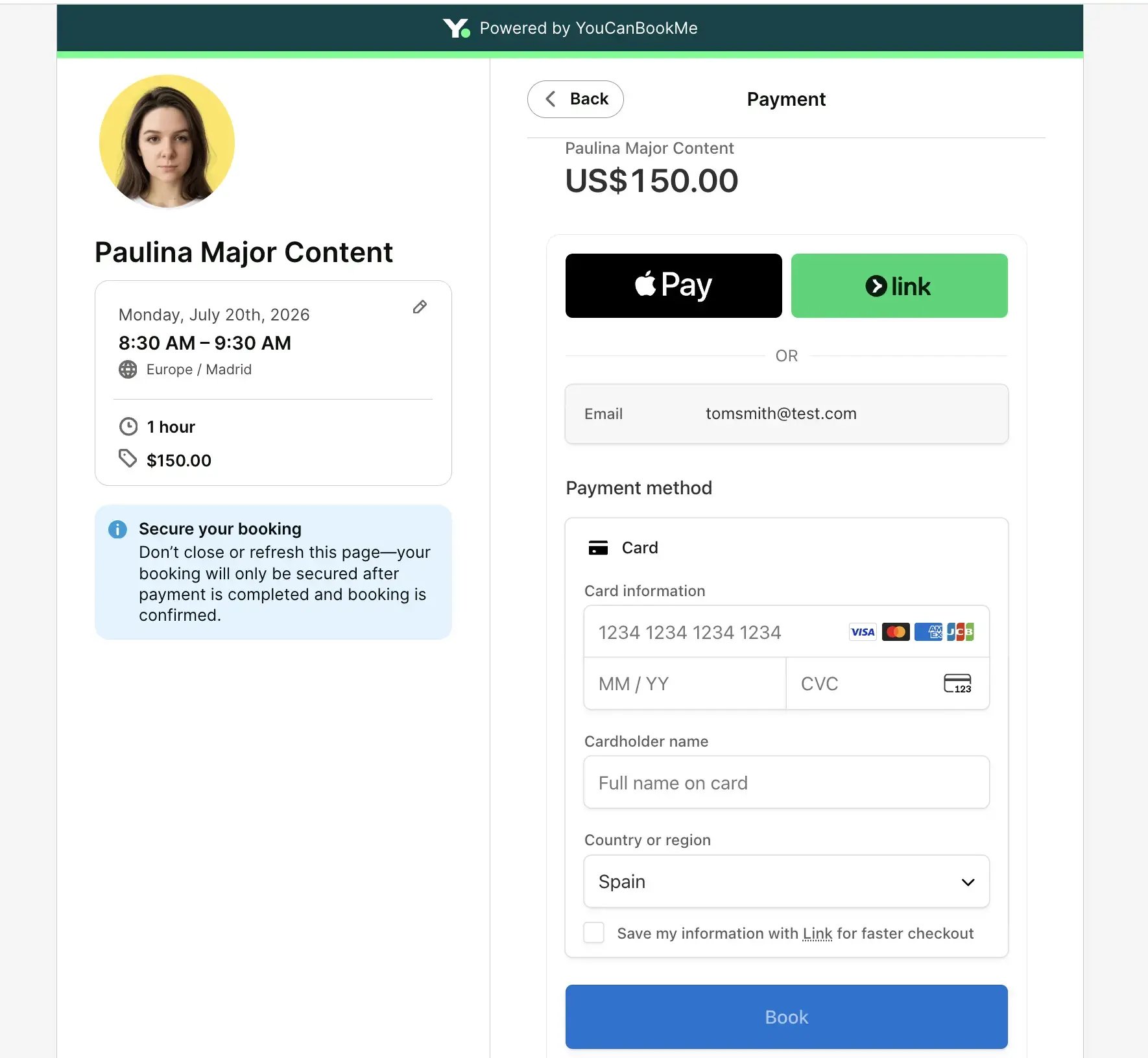
Once you've paid, check that:
- Your booking appears in your calendar.
- Your payment appears in your Stripe Dashboard.
- Your booking confirmation arrives as expected.
You can then refund yourself through Stripe, although some transaction fees will not be returned.
And that's it. Your Stripe account is set up, connected to YouCanBookMe, and you’re now ready to take payments right at booking. 🎉
Already have Stripe set up and just want to connect it to your YouCanBookMe account? No problem!
- Log in to your YouCanBookMe account.
- Go to Account > Integrations.
- Type in Stripe in the search bar under Available Integrations.
- Click the option to connect it.
- Log in with your Stripe account credentials.
- Follow the prompts to authorize YouCanBookMe to connect to your Stripe account.
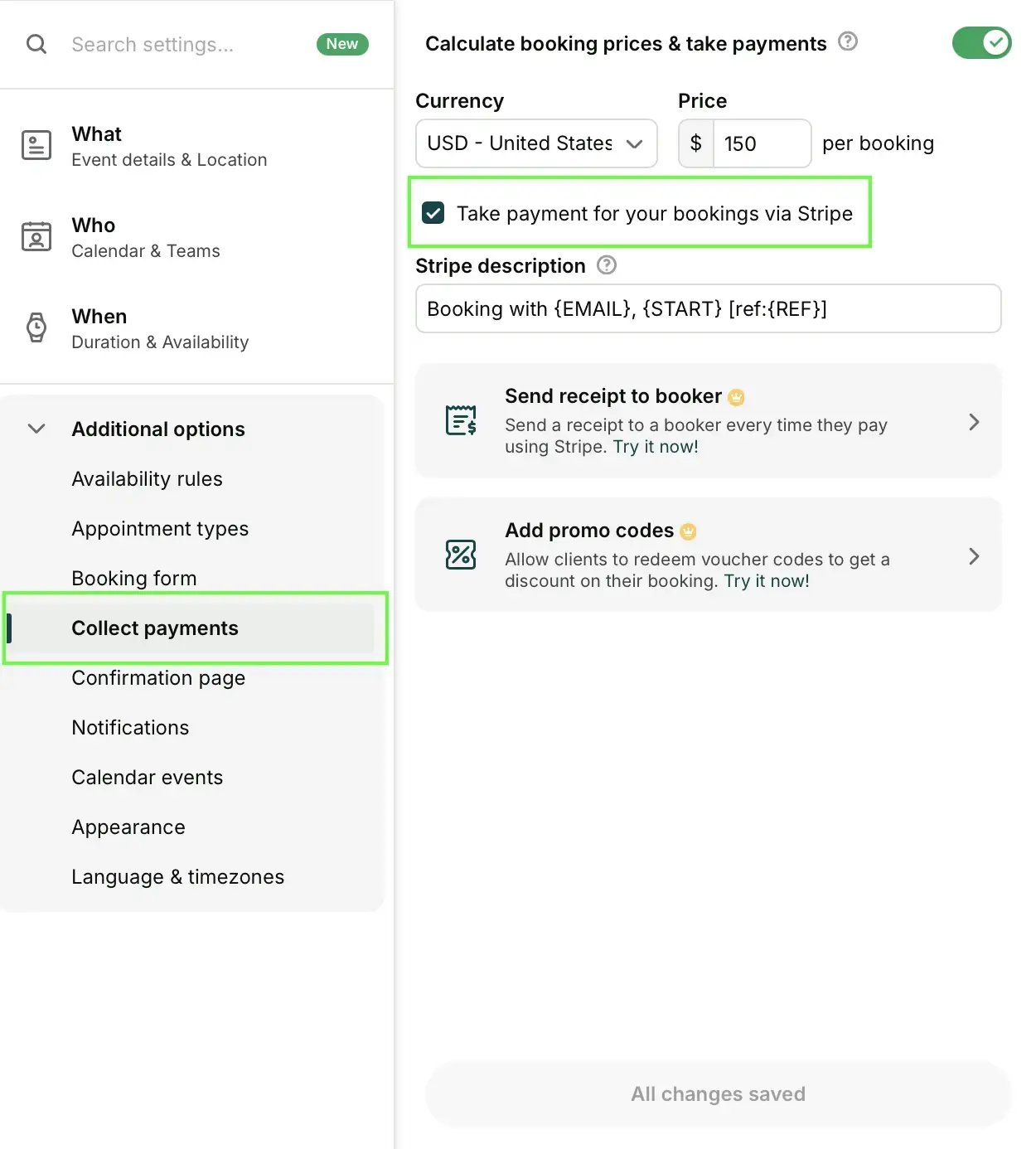
- From your YouCanBookMe dashboard, click Edit under your booking page.
- Select Additional options, then Collect payments in the sidebar.
- Toggle payments On.
- Set your currency and your price.
- Check “Take payment for your bookings via Stripe” to add the payment step to your booking form (without this, clients see the price but aren't asked to pay!)
- Bonus: From here, you can also enable automatic receipts to be sent to your customers and add promo codes to attract new clients or reward loyal ones.
Before you share your booking link with customers, here are a few useful things to know about your YCBM + Stripe set up:
- Clients must pay before their booking is confirmed. If a payment fails, the appointment won't be confirmed and the time slot remains available. Yep, that means no unpaid bookings clogging up your calendar!
- Your clients can pay by card or digital wallet. Credit and debit cards are supported, Google Pay is enabled automatically, and you can turn on Apple Pay in your Stripe payment settings.
- Transaction fees still apply. You'll pay Stripe's processing fees plus YouCanBookMe's 1% transaction fee.
- Refunds happen in Stripe. If you need to refund a canceled appointment, find the transaction in your Stripe Dashboard and issue the refund there.
- You can use payments on any YouCanBookMe plan. The integration works on Free, Individual, Professional, and Team plans.
- Charge different prices for different services. With appointment types, you can offer both a $75 coaching session alongside a $200 strategy consultation on the same booking page. You can also offer paid extras, like a personalized plan or workbook, with zero-length appointments.
- Sell session packages. Offering a five session coaching package or a block of consultations? Collect payment upfront, then set up promotional codes to let clients book their included sessions without paying again. You can even limit how many times a code can be used, restrict it to a specific customer, and set an expiration date.
We've covered how to set up a Stripe account and connect it to YouCanBookMe. But the bigger question is: Why should you ask clients to pay when they book instead of afterwards?
If you've ever sent a third "just checking in on that invoice" email, or sat through an empty appointment slot because a client didn’t show, you probably already know the answer.
Taking payments upfront isn't just about getting paid sooner. It's about protecting the valuable time you've set aside for your clients and making your income a little more predictable.
And yes, there are two small transaction fees to pay, but preventing even one costly no-show could more than cover those fees and might even make your YouCanBookMe subscription pay for itself if you're on a paid plan!
- Clients have something to lose. Booking a free appointment is easy. Paying for one? That's a commitment. When someone has already invested money in a session, they have a stronger reason to show up.

- Attract clients who are ready to commit. Charging for consultations can help distinguish serious prospects from people who aren't quite ready to invest. It's not a guarantee against cancellations, but it sets a clear expectation.
- Make your cancellation policy easier to enforce. Instead of trying to collect a no-show fee after an appointment, you've already received the payment or deposit. You can then decide whether to refund it based on your cancellation terms.
- Protect your calendar from unpaid appointments. YouCanBookMe only confirms paid bookings after Stripe processes the payment successfully. If someone doesn't complete checkout, they don't reserve your time. Simple as that.
For leadership coach Hervé Da Costa, taking payments upfront is just part of how he runs his business:
If you really want a short session with me, you click the link, you pay on Stripe, and then I do the best job I can. Clients can pay directly through YouCanBookMe. Do I really need to say anything more? We're getting paid, and their appointment is secured."
Here’s what that looks like from the client's side. 👇


Fewer no-shows are great. But accepting payments at booking also makes your day-to-day business easier to manage. Here’s how:
- You know which appointments are already paid for. Instead of looking at a packed calendar and wondering how many clients still owe you money, you know your confirmed bookings have already been paid for.
- You can say goodbye to invoice chasing. No more sending payment reminders after a session or wondering when a client will settle their bill. Clients pay when they book, and Stripe transfers the money to your bank according to your payout schedule.
- You protect yourself from expensive missed appointments. Let's say you charge $150 per session and have three no-shows each week. That's $450 in potential lost revenue every week, or a whopping $23,400 a year. Collecting payments or deposits upfront helps protect that revenue.
- You can accept payments from international clients. YouCanBookMe supports more than 135 currencies through Stripe, so you're not limited to charging in your local currency. Just choose the currency for your booking page and let Stripe handle the payment processing.

Founder of Still Tinnitus
- You can charge more for your most valuable time. Maybe you're happy to offer a free 15-minute introductory call, but an in-depth 90-minute strategy session deserves a price tag. With YouCanBookMe, you can offer both on one booking page and only require payment for the premium service.
- You give clients a more professional experience. Your clients don't need to juggle booking links, separate invoices, and payment emails. They simply choose a service, pick a time, pay, and get on with their day.
Ready to get paid?
Remember that Stripe setup project you were putting off for another day? Well, now you know exactly how to tackle it. 💪
And you don't have to change everything right away. Start by turning on payments for one appointment type, see how it goes, and expand from there.
Ready to give it a go? Get started with YouCanBookMe for free and make it easy for clients to book and pay in one step.
FAQ
Do I need a registered business to use Stripe?

No, you don’t need a registered company to create a Stripe account. Individuals, freelancers, and sole proprietors can also sign up, depending on their country and business structure.
Not sure which category you fall into? Stripe has a helpful guide on choosing the right business type.
Is a Stripe account free to set up?
Yes! Creating a Stripe account is free, with no setup fees or monthly subscription fees for standard payment processing. You'll only pay processing fees when you accept payments. You can check the rates for your country on Stripe's pricing page.
How long does Stripe approval take?
In most cases, Stripe account approval is almost instant, and you can start accepting payments right away. However, some accounts need extra verification, which can take longer. If Stripe needs anything else, it'll let you know through your Dashboard or by email. You can read more about Stripe's approval process here.
Does YouCanBookMe charge extra for Stripe payments?
Can I use Stripe with a free YouCanBookMe plan?
Yes, the Stripe integration is available on every YouCanBookMe plan, including Free. You don't need to upgrade to start accepting payments, although Stripe's processing fees and YouCanBookMe's 1% transaction fee still apply.
Can I refund a client through Stripe?
Yes, you can issue full or partial refunds directly from your Stripe Dashboard. Just remember that canceling an appointment in YouCanBookMe won't automatically refund your client. You'll need to handle that separately in Stripe.
Is Stripe available in my country?
Stripe is available in dozens of countries, including the US, UK, Canada, Australia, and much of Europe. Check Stripe's global availability page to see whether you can create an account where you live.
Can I take a deposit instead of the full payment?
Yes. Simply set your booking price to the deposit amount. For example, you could charge a $50 deposit for a $150 consultation, then collect the remaining $100 separately later.
-min.png)
Written by
Gabriela Łaba
Gabriela is Editor-in-Chief at YouCanBookMe and a SaaS copy and content writer with over a decade of experience. Since 2021, she’s written 100+ articles on scheduling, personally tested and compared 38 booking tools, and helped businesses make sense of scheduling, automation, and productivity.
Get started today
Join thousands of coaches, consultants, and entrepreneurs who use YouCanBookMe to power their business. Get your first booking in a few minutes.


 4.7 / 5 — Trustpilot

