
How to Get Paid for Bookings with YouCanBookMe + Stripe

Create your free booking page
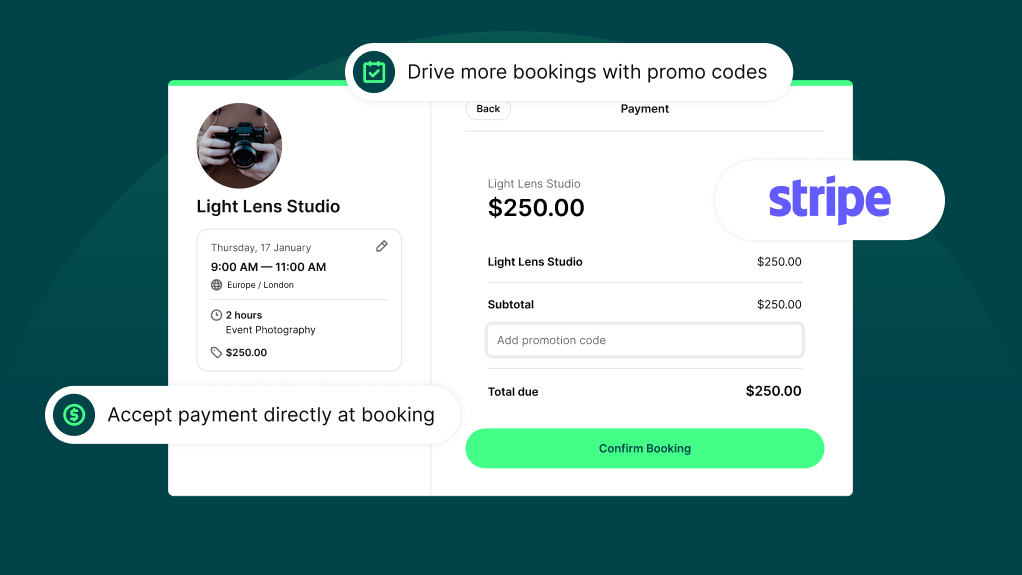
If you've connected Stripe to YouCanBookMe's online scheduling tool, set a price, and stopped there, you're using about a third of the integration! We get it—most businesses just want a simple way to take payments, and while that works, there's a lot more you can do with YouCanBookMe's Stripe integration.
You can:
- Offer session packages
- Set different prices for different services
- Add promo codes and discounts
- Let clients pay in seconds with Apple Pay or Google Pay
In this guide, we'll show you how to set up the integration if you haven't already, plus everything you can do with it to make more money directly from your booking page.
Setting up a Stripe integration takes just a few minutes. Here's the full walkthrough:👇
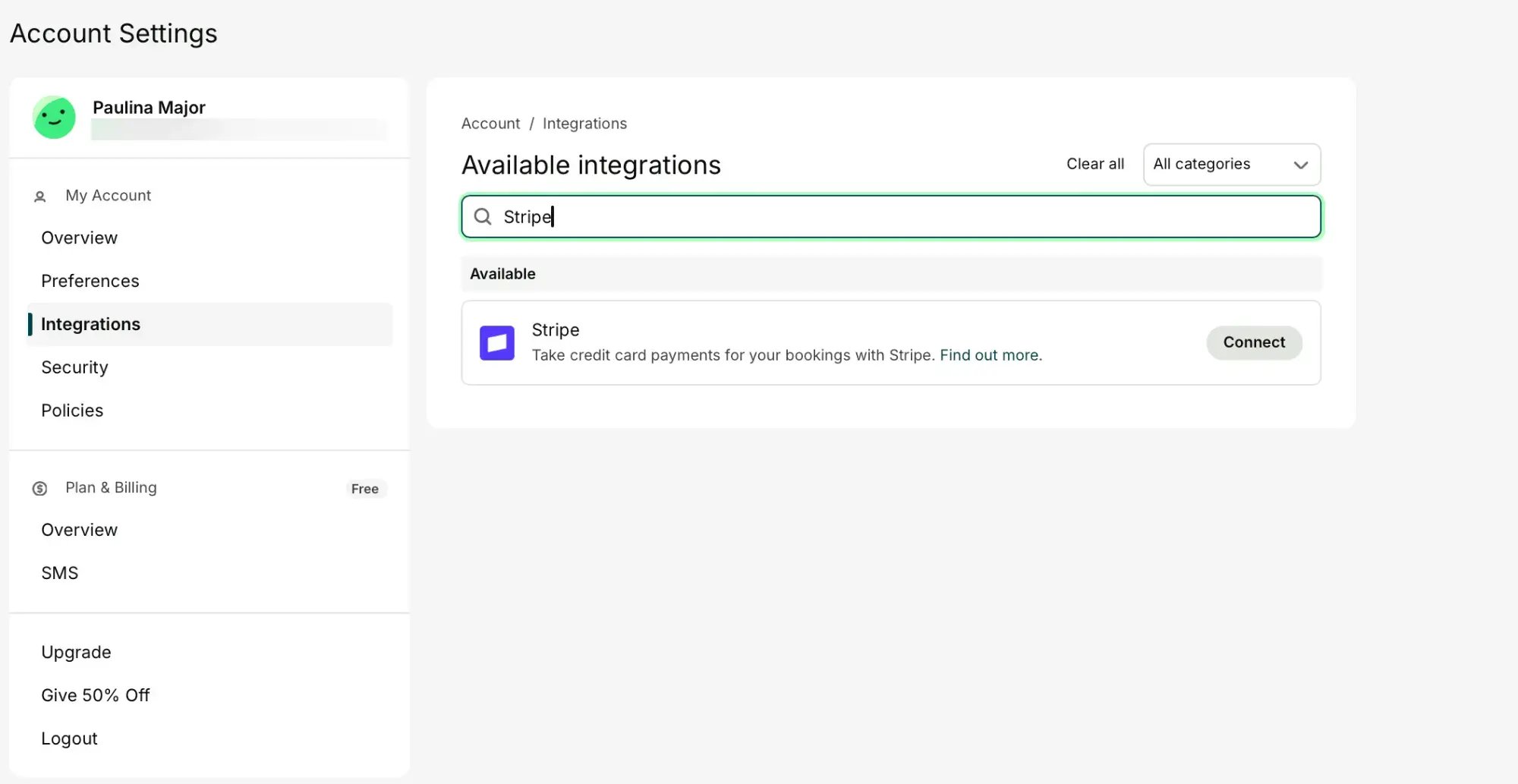
Go to Account Settings > Integrations and select Stripe. If you already have a Stripe account, log in and connect it. If you're new to Stripe, you'll be prompted on how to set up a Stripe account and authorize YouCanBookMe to access it.
One thing to check first: Stripe availability varies by country. You can see the full list of supported countries on Stripe's global availability page.
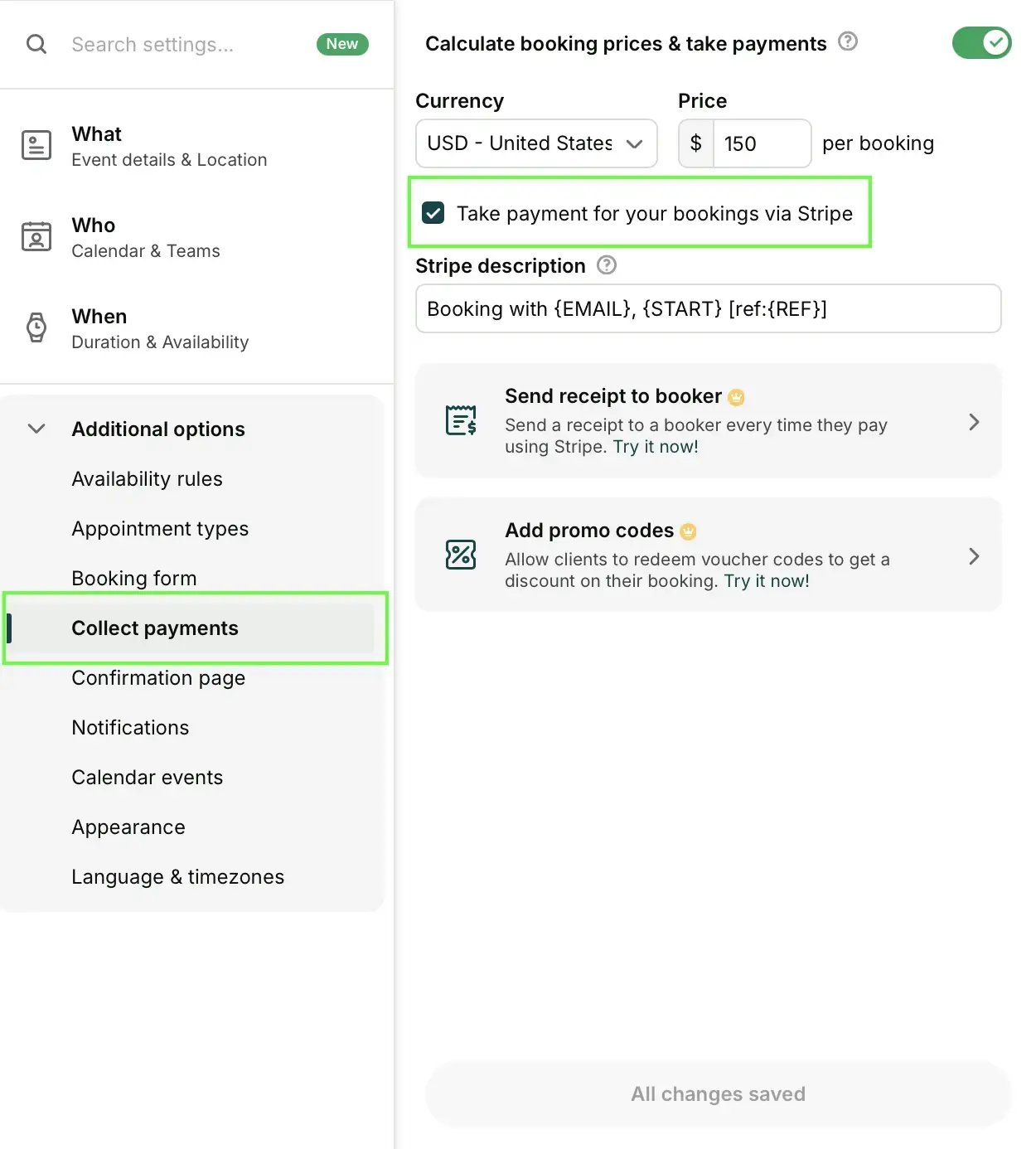
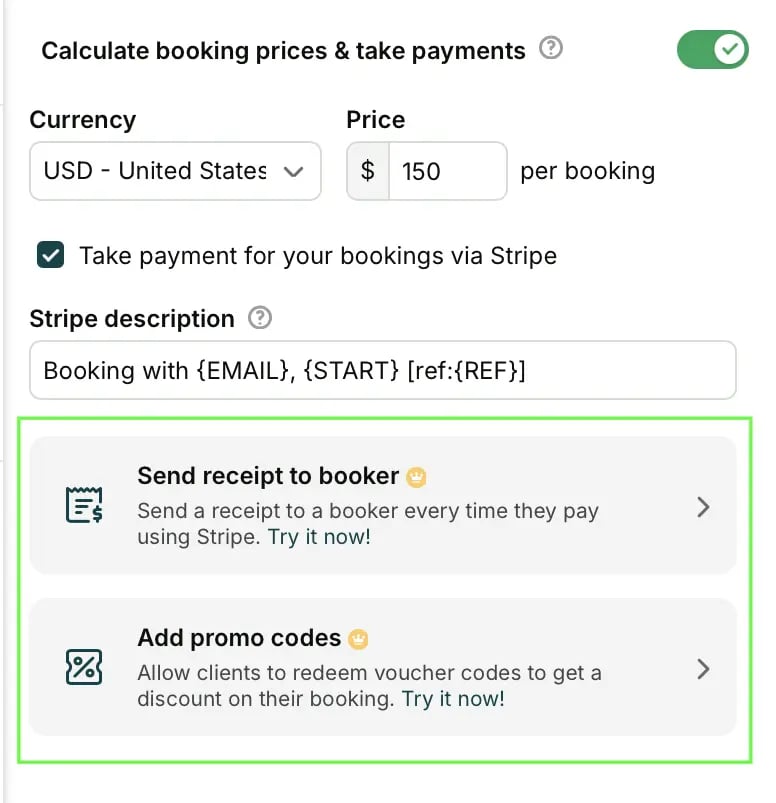
- Toggle payments On
- Set your currency
- Set your price, either per booking slot or per appointment type
- Check Take payment for your bookings via Stripe to add the payment step to your booking form (without this, clients see the price but aren't asked to pay)
Google Pay is enabled automatically. To offer Apple Pay, switch it on in your Stripe payment settings. One caveat worth knowing: if your booking page is embedded in your website, clients on Safari 16 or earlier won't see the Apple Pay option. It works on non-embedded pages for all Safari versions.
A few settings worth dialing in before you go live:
- Stripe description: Customize how each payment appears in your Stripe Dashboard and on statements. You can use shorthand codes to pull in details from the booking form, so payments are easy to identify by appointment type, team member, or client.
- Receipt: Turn on Send receipt to booker if you want every client to get a payment receipt automatically sent to the email they entered on your booking form.
- Promo codes: Enable this to let clients redeem discount codes at checkout (more on this below).
❗ One thing to know: payment must clear before the booking is confirmed. It means every appointment on your calendar is already paid for, and a failed payment never blocks a time slot.
There's no sandbox environment for the Stripe integration, so the way to test it is the direct way: make a booking on your own page, pay with your own card, and check that everything works as it’s supposed to. Then refund yourself via the Stripe Dashboard.
Now, let's explore a few different ways you can use the integration!
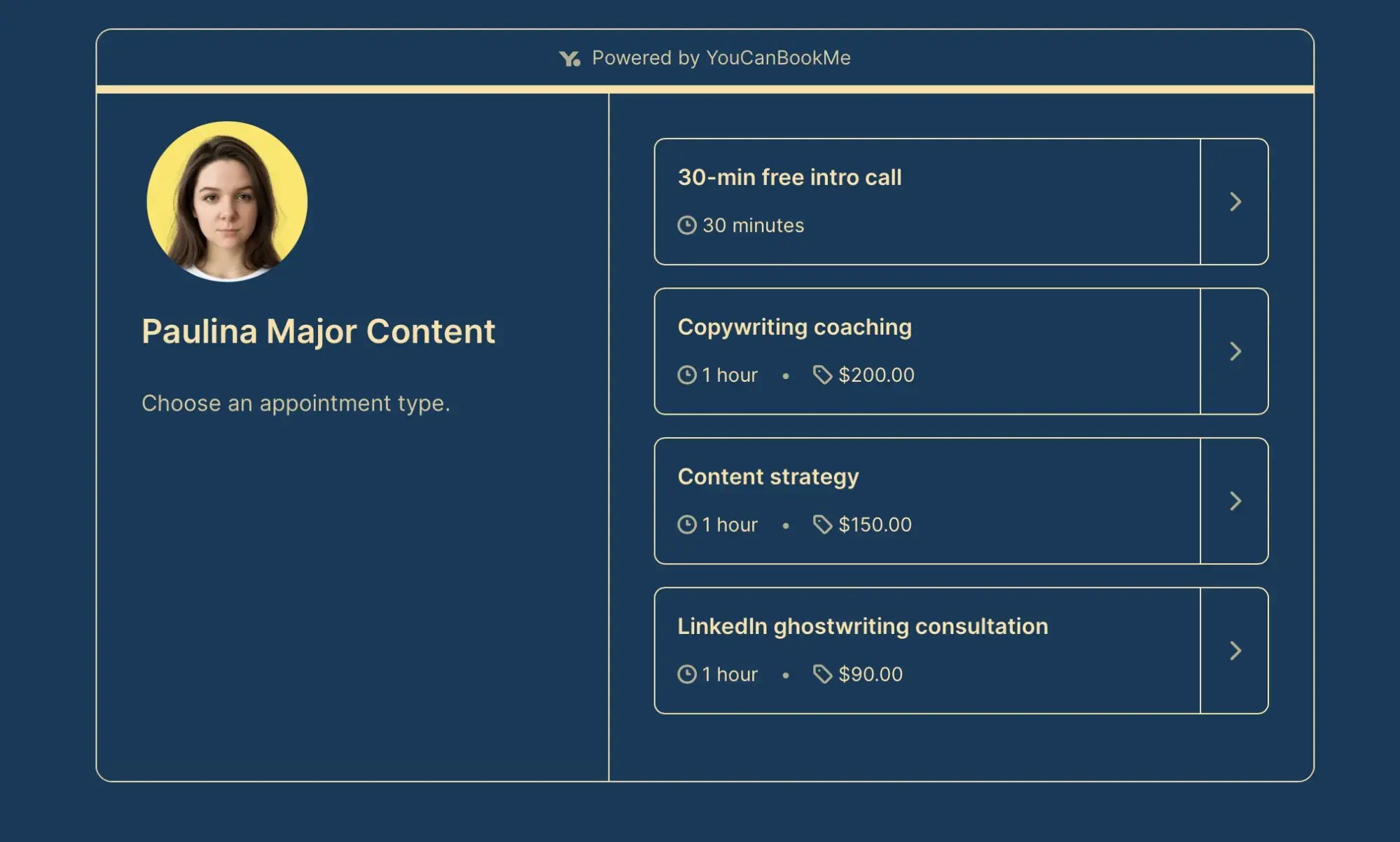
One of the best things about the integration is that you don’t have to charge a flat rate. With YCBM’s appointment types, each service on your booking page can have its own price, such as a free discovery call alongside a paid 90-minute strategy call.
Set the price directly for each appointment type under Times & Availability > Appointment Types. If you price a service at $0, clients skip the payment step entirely for that option. For the appointments you want to charge for, simply enter the amount.
If you sell blocks of sessions (for example, five coaching calls or a package of consultations), YouCanBookMe can work with Stripe to support that workflow. The typical setup looks like this:
- Collect payment for the package upfront through Stripe
- Send your client a private booking link
- Let them use that link to book their included sessions over time
This approach works particularly well for coaching packages and anyone offering retainer-style services or ongoing group sessions.
If you want to automate the process of sending the private booking link after payment or managing package access, you'll need to use a Zapier + YCBM workflow or another automation. Otherwise, you can handle these steps manually.
You can also use Stripe Promotion Codes to manage packages directly through your YCBM booking page. After a client pays upfront for a set number of sessions, create a promotion code in Stripe that gives them a 100% discount. Limit the code to the number of sessions included in their package and add an expiration date if needed.
Send the code to the client along with your booking link. Each time they schedule one of their included sessions, they enter the code at checkout and pay nothing further. Stripe records each redemption, making it easy to see how many sessions they have used and how many remain. You can create a unique code for each client or use one code for multiple customers.
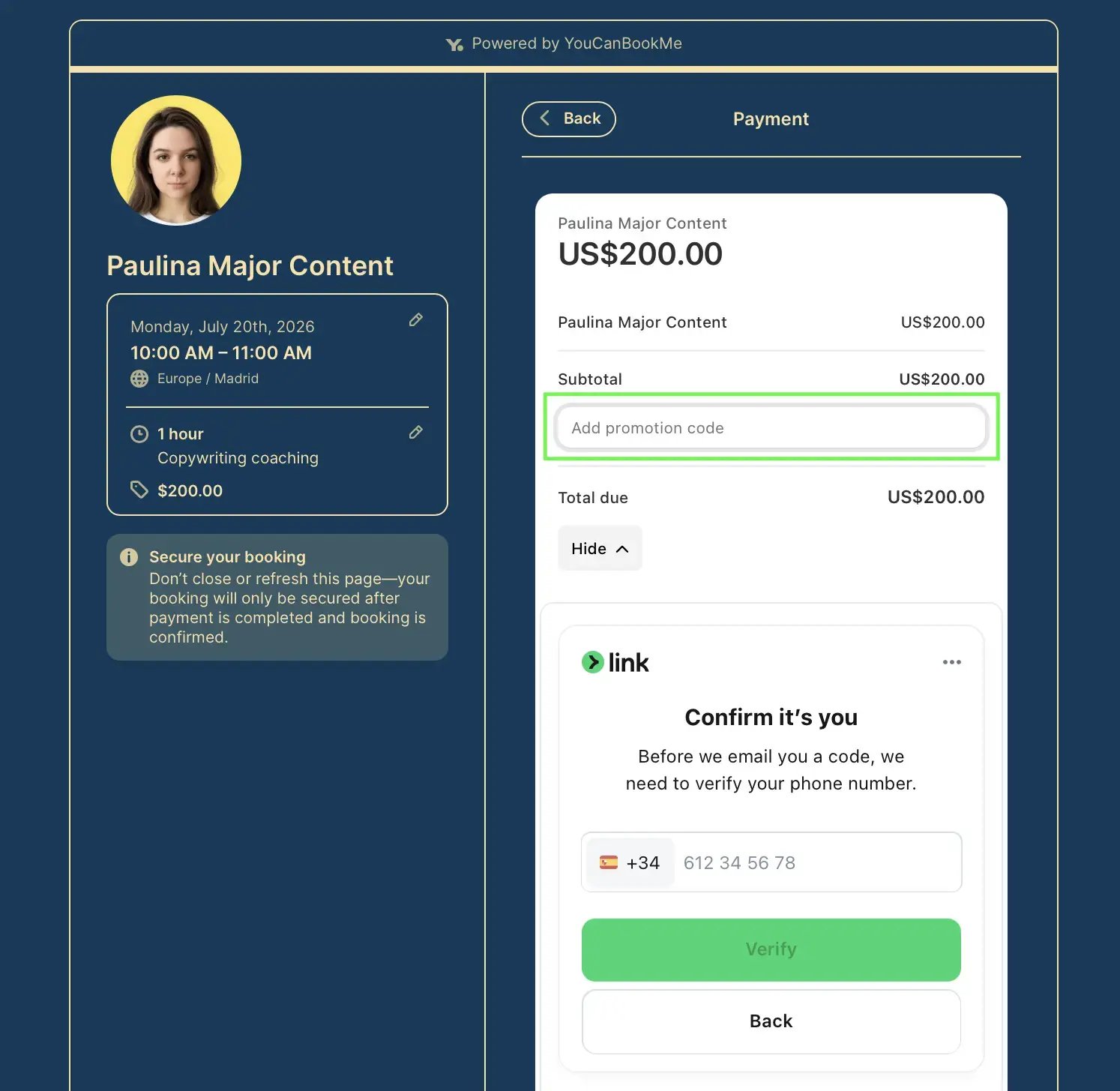
Another useful feature of YCBM's Stripe integration is the ability to offer promo codes and discounts. You can create both coupons and promotion codes directly in your Stripe Dashboard, where you can set the discount amount, redemption limits, and expiration dates.
A few ways to use them:
- Returning client discounts to reward loyalty
- Launch offers when you introduce a new service
- Referral codes so existing clients can send you new ones
- Campaign vouchers for time-limited promotions
During checkout, clients simply click "Add a code", enter a valid promotion code, and Stripe automatically applies the discount before charging their payment method.
If you work with clients around the world, this is where the Stripe integration really shines. YouCanBookMe supports payments in more than 135 currencies through Stripe, making it easy to serve an international client base.
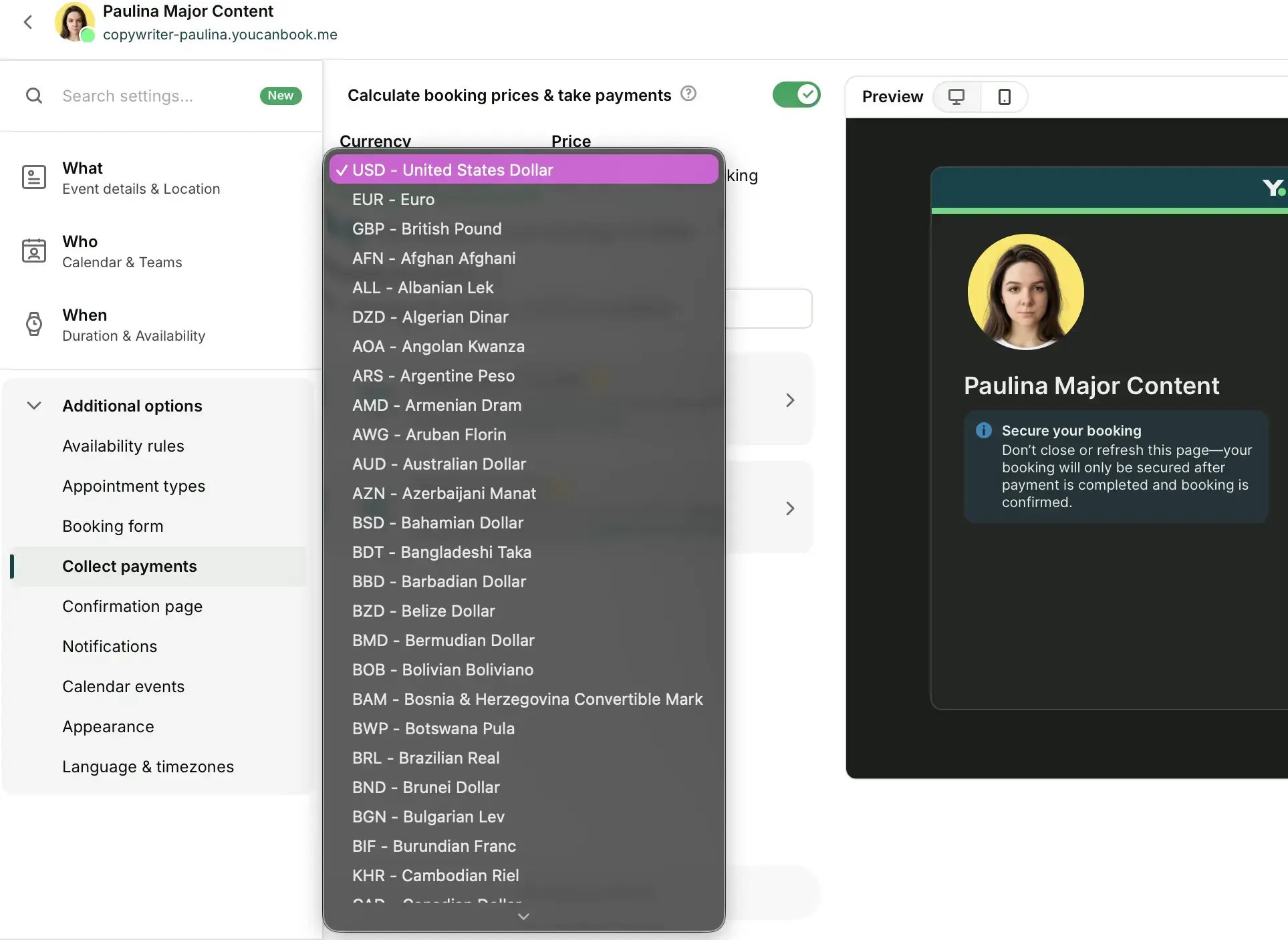
You set the currency for each booking page, so you're in complete control of how each service is priced. For example, if you're a career coach in London, you can charge U.S. clients in U.S. dollars or create separate booking pages priced in GBP and EUR.
The best part? There's nothing extra for you to configure. You don't need a different payment gateway for every country or any region-specific setup. Your client simply books in the currency you've chosen, pays with their card or digital wallet, and Stripe takes care of the payment processing behind the scenes.

From your client's perspective, the booking process is simple and familiar. They open your booking page, choose a time that works for them, complete your booking form, and pay for the appointment using their preferred payment method.
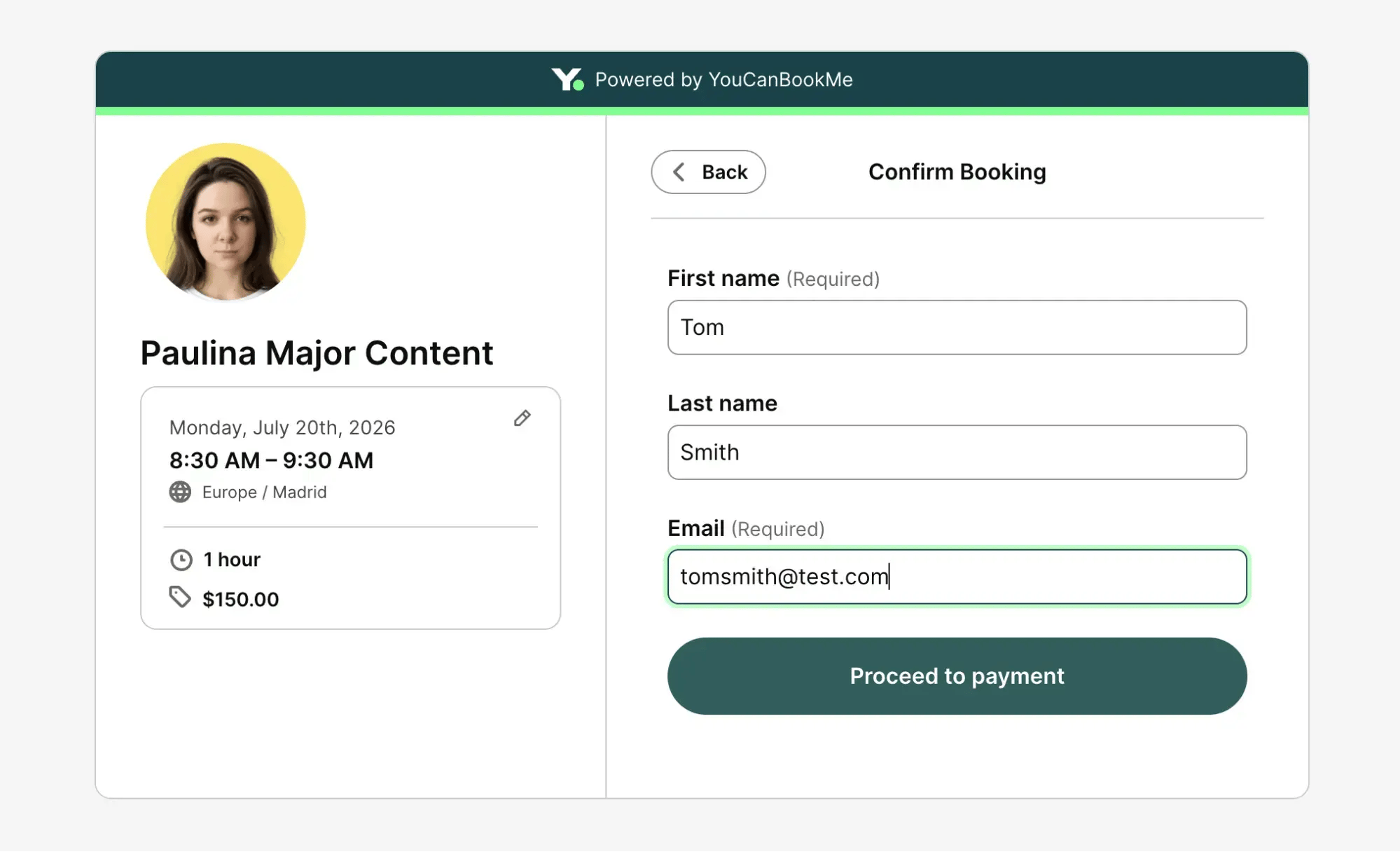
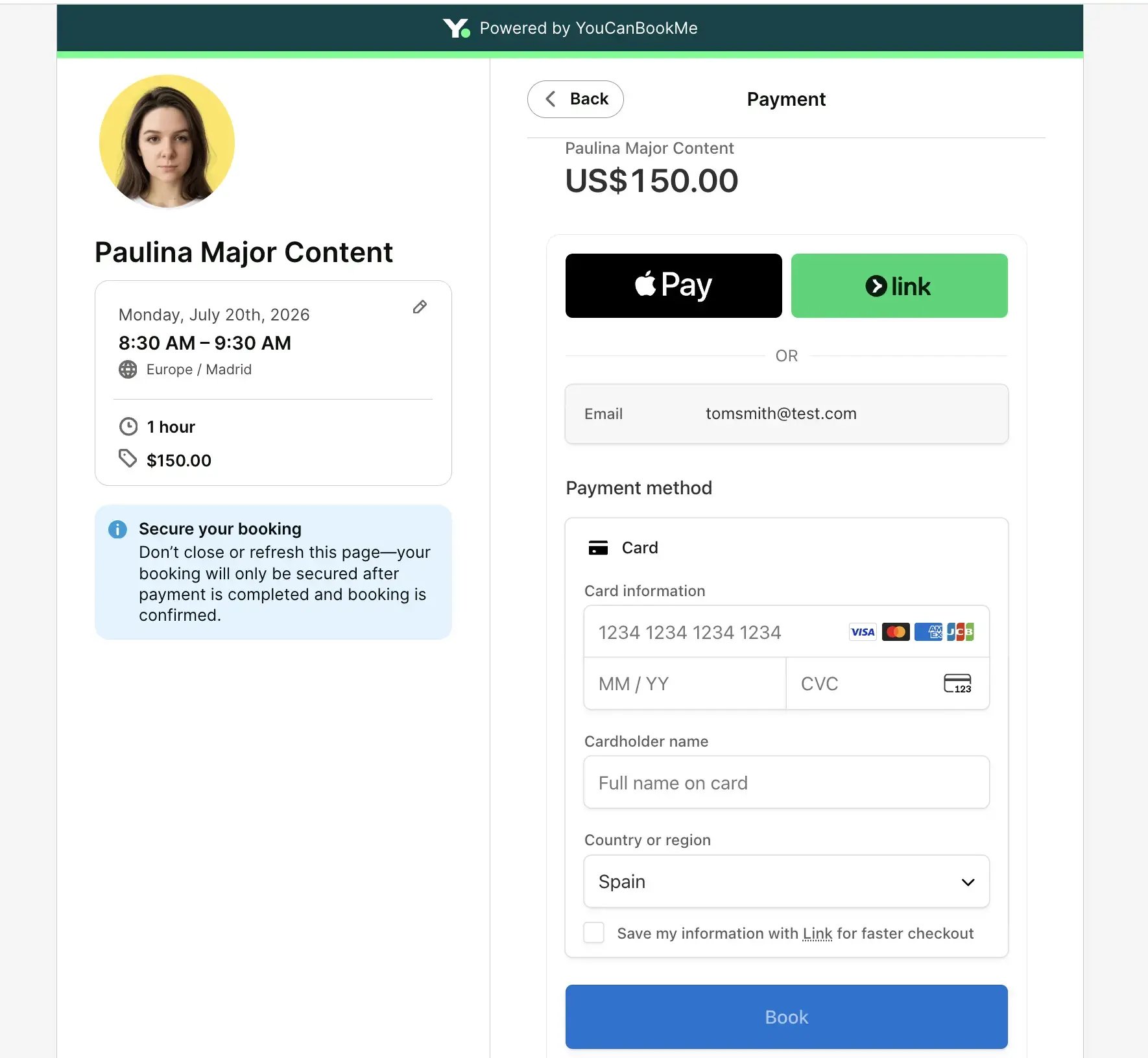
Once the payment is successful, the booking is confirmed automatically, and both you and your client receive a confirmation email.
If a payment doesn't go through, the booking isn't confirmed. The time slot remains available, your calendar stays accurate, and you don't have to worry about unpaid appointments taking up valuable space in your schedule.
Beyond the payment process itself, there's an even bigger benefit: clients who pay upfront are far more likely to show up for their appointment.

Founder, The Business Book Strategist
Asking for a payment at the time of booking creates a stronger commitment, helping reduce no-shows while protecting your time and your revenue.
As you've seen throughout this guide, the YouCanBookMe + Stripe integration does far more than simply process payments. It helps you build a smoother booking experience with upfront payments, fewer no-shows, flexible pricing, discounts, and support for clients in 135+ currencies.
If you've already connected Stripe but only use it to collect payments, try enabling one new feature this week. Whether it's appointment-specific pricing, promo codes, or session packages, small changes can make your booking page work much harder for your business. And if you haven't connected Stripe yet, getting started only takes a few minutes.
FAQs
Does YCBM charge a fee on Stripe payments?

Yes. Payments processed through your booking pages include Stripe’s standard regional transaction fees plus a 1% YouCanBookMe transaction fee.
Can I issue refunds to clients?
Refunds are handled through your Stripe Dashboard rather than within YCBM. If you or your customer cancels a booking, you simply need to issue a refund directly from your Stripe account.
Can I charge a deposit instead of the full amount?
Yes but not natively. YCBM charges the full amount you set at the time of booking. If you'd like to take a deposit instead, a common workaround is to set the booking price to your deposit amount and collect the remaining balance separately.
What payment methods does Stripe support via YCBM?
Clients can pay by credit or debit card, Apple Pay, or Google Pay. Google Pay is enabled automatically, while Apple Pay can be switched on in your Stripe payment settings.
Can I use Stripe if I'm not in the US?
Yes. Stripe is available in 50+ countries and regions, so you don't need to be based in the US to use the integration. As long as your business is located in a supported country, you can connect your Stripe account to YCBM and accept payments from customers around the world.

Written by
Paulina Major
Paulina Major is a freelance B2B content writer with six years of experience. Since 2024, she has written 100+ articles on scheduling and personally tested and reviewed 30+ booking tools, helping small business owners choose software and simplify their booking processes. As a solopreneur managing her own clients and calendar, she brings firsthand experience to her advice on scheduling, time management, and running a business.
Get started today
Join thousands of coaches, consultants, and entrepreneurs who use YouCanBookMe to power their business. Get your first booking in a few minutes.


 4.7 / 5 — Trustpilot

