
How to Use YouCanBookMe to Schedule Interviews in 6 Easy Steps

Create your free booking page
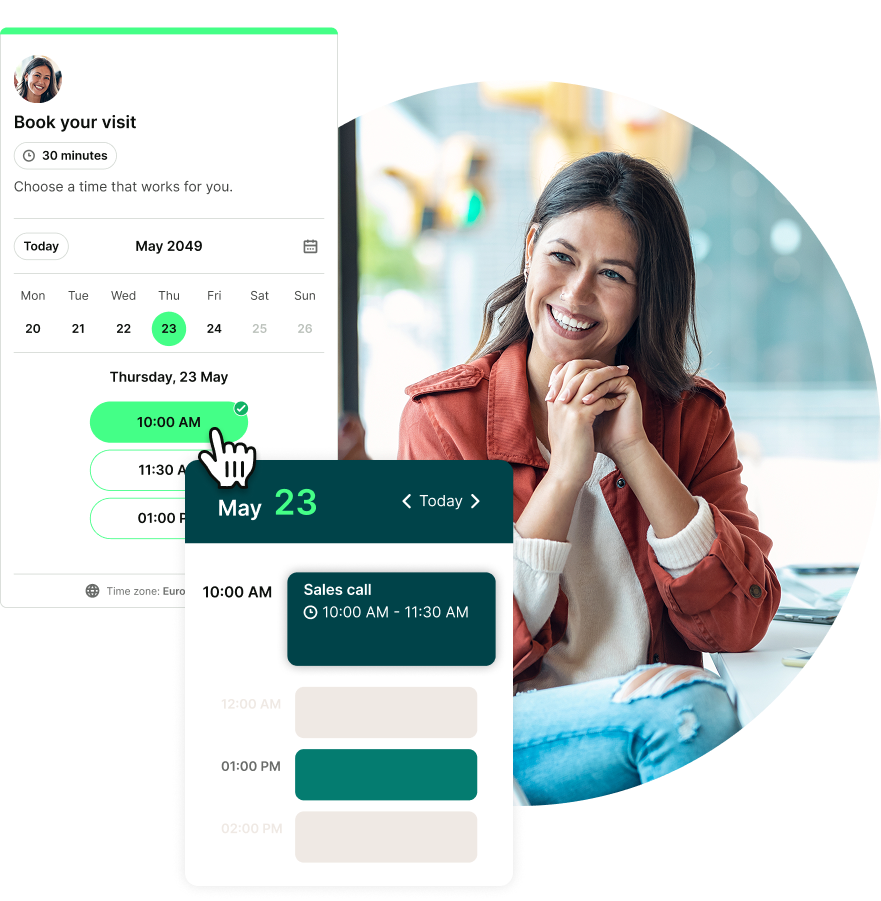
Without using an interview scheduler, booking interviews with candidates can turn into a surprisingly long email thread. You find a time that works for the candidate and the hiring manager, only to learn that one panelist is out that afternoon. By the time you find another opening, the meeting room is taken. 🙄
In GoodTime’s 2026 Hiring Insights Report, 35% of HR and recruiting leaders at large U.S. companies cited delays among their most common interview scheduling bottlenecks, while 32% pointed to cancellations or rescheduling and 31% to hiring manager availability.
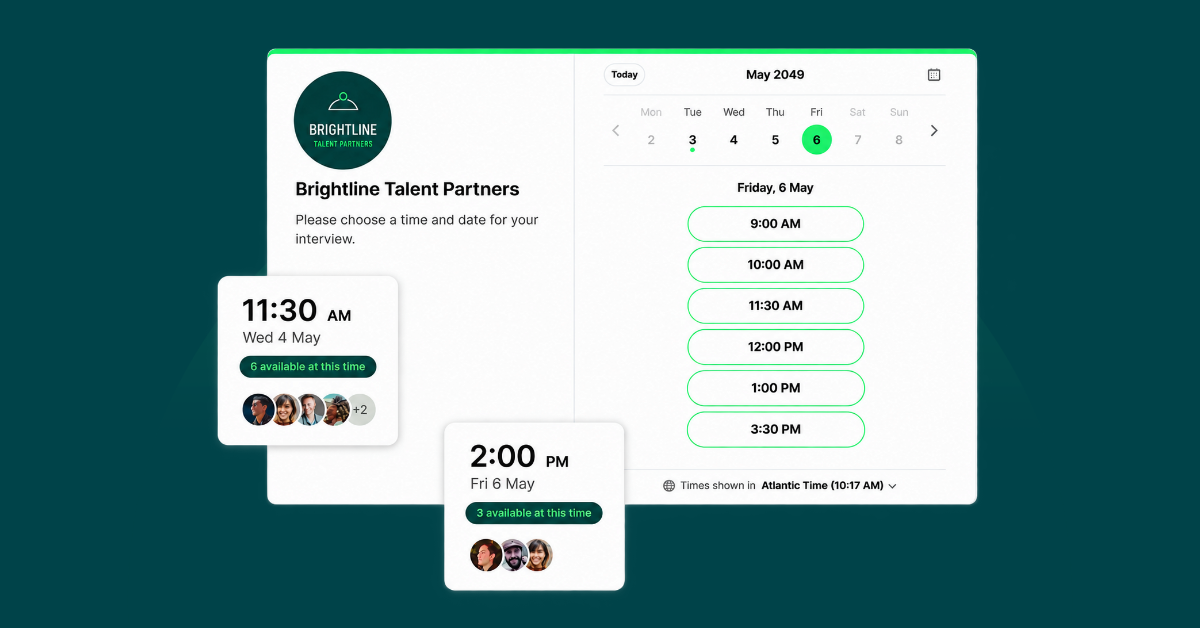
With the YouCanBookMe (YCBM) interview scheduler, you can avoid many of these issues by sharing a booking link that shows candidates only the times when all their interviewers are available, so they can choose a slot that works for them.
In this guide, I’ll walk you through the full setup in YouCanBookMe. You’ll learn how to:
- Set up booking pages for one-on-one screening calls and panel interviews
- Reserve a meeting room for in-person interview rounds
- Share your booking link with candidates
- Automate interview confirmations and reminders
Scheduling interviews with YouCanBookMe is easy. You simply need to connect your calendar, set your interview hours, and share a booking link so candidates can pick a time that works for them.
The same setup works for panel interviews. When you connect each panelist’s calendar, candidates see only the times everyone is free, and each panelist gets a calendar invitation once someone books.
A basic booking page is the starting point for scheduling interviews in YouCanBookMe. I’ll show you how to set one up for a screening call. You can follow the same steps for each later round, with a separate link to share with candidates at each stage.
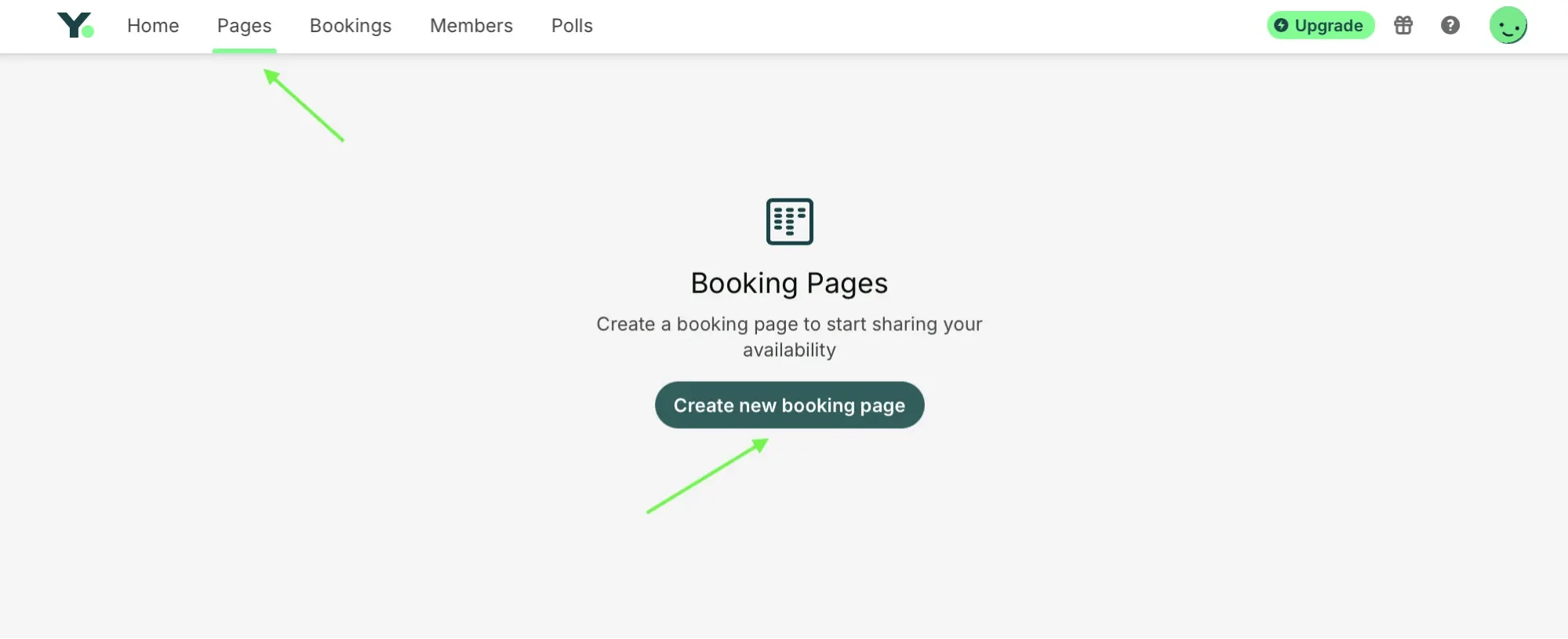
To get started, open Pages on your dashboard and click Create new booking page. Then follow the steps below to set the interview length, choose where you’ll meet, and decide when candidates can book.
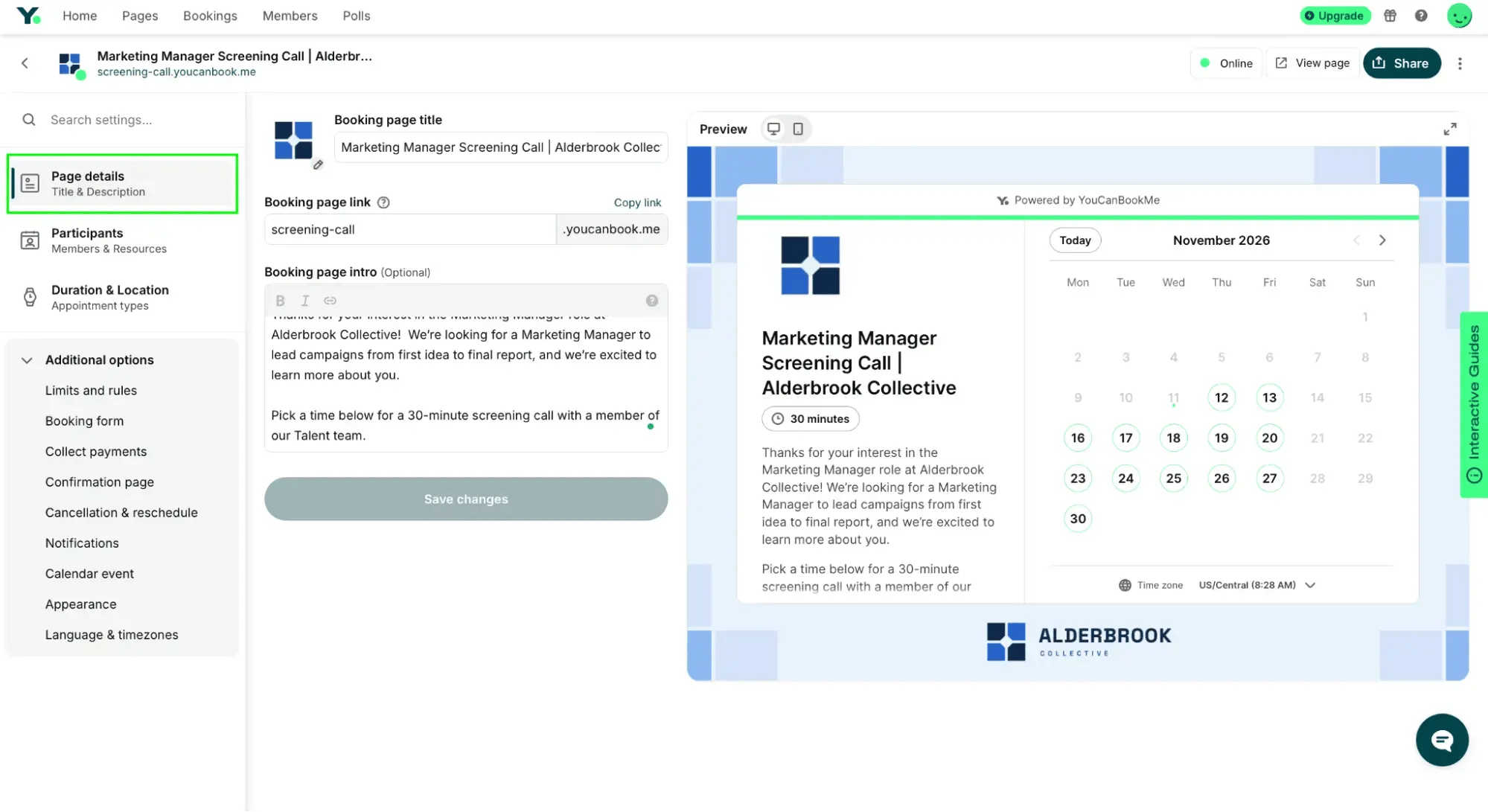
Once you’ve created the page, open Page details and give it a title that includes the role and interview stage, such as “Marketing Manager Screening Call.” Use the page intro to tell candidates who they’ll meet and what you’ll cover.
Next, choose how long you’d like your screening call to last. You can set any duration that works for you, but we’ll use 30 minutes for this example. Click Duration & Location, name the appointment type “Screening call”, select 30 min. under When do your meetings start?, and save your changes.
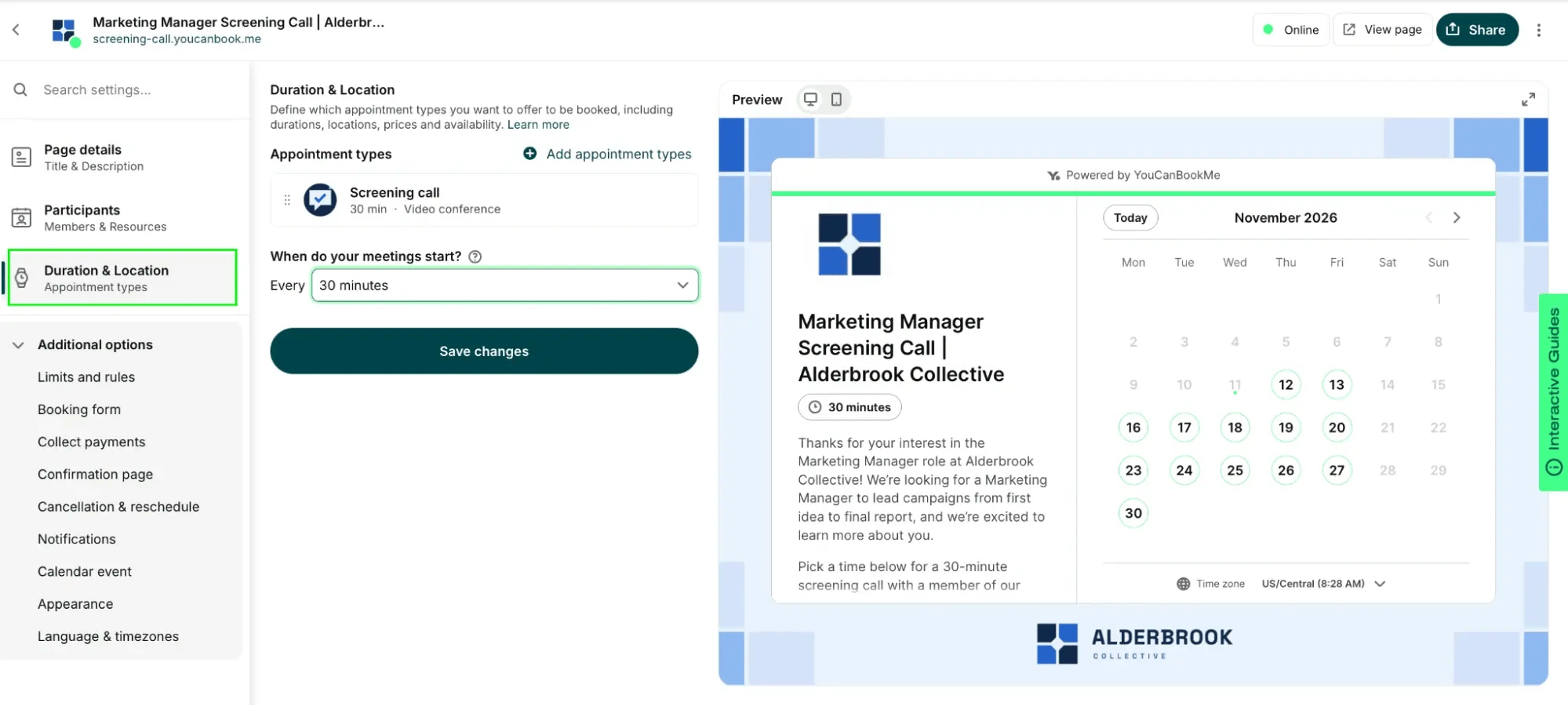
While you’re editing the appointment type, choose where you’ll meet. Select Preferred video conference to use Zoom, Google Meet, or Microsoft Teams from your profile.
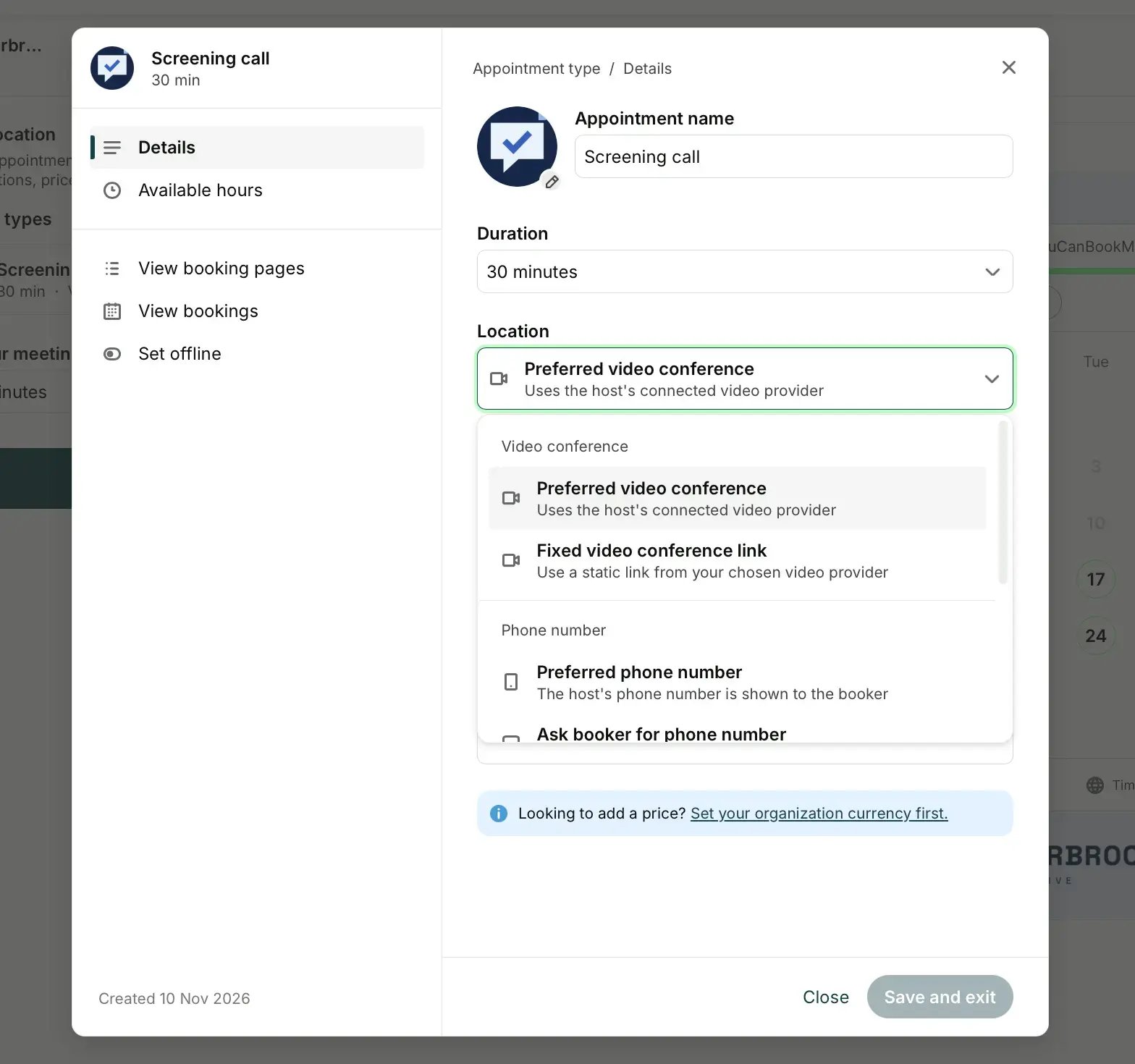
Once you’ve connected your video conferencing tool, YouCanBookMe generates a unique link for each interview. If you’re meeting in person, choose Fixed address from the drop-down menu and enter the office address.
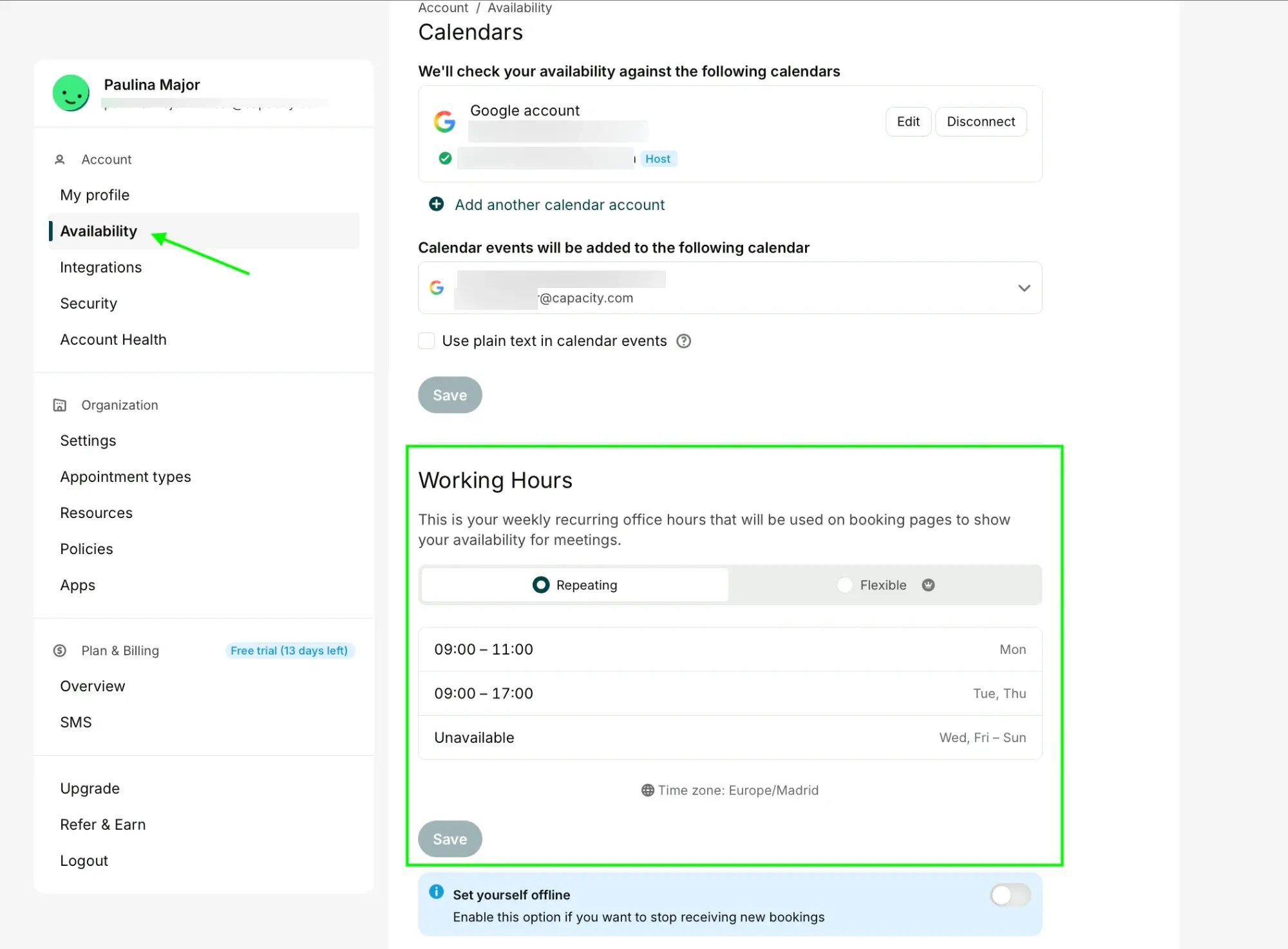
Now decide when candidates can book. Under Account → Availability → Working Hours, set the days and times you’re available. If you only take screening calls on certain afternoons, restrict the hours on that appointment type.
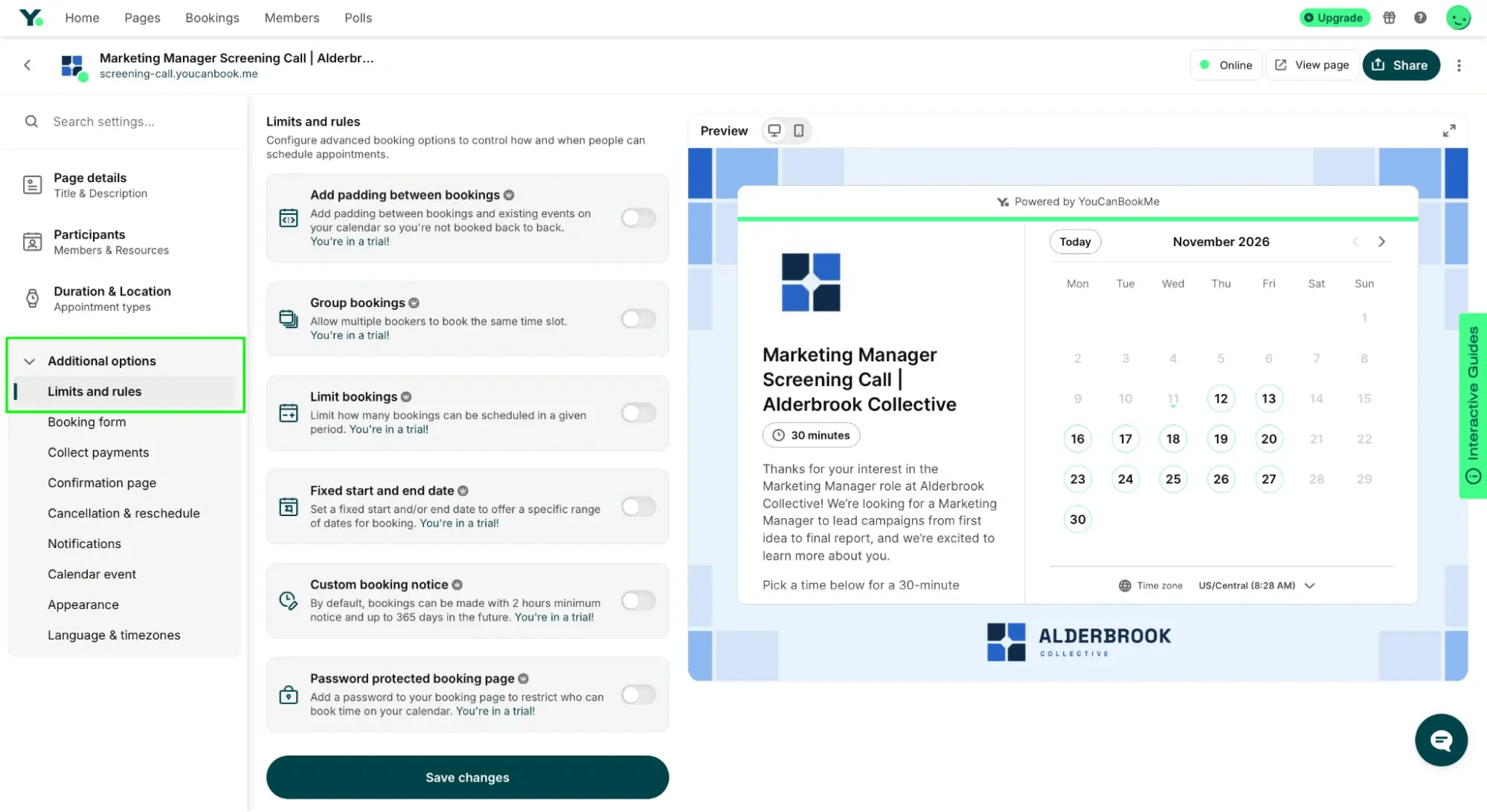
Back in the booking page editor, you’ll find a wide range of additional settings. Open Additional options → Limits and rules.
You can, for example, use Fixed start and end date to show openings for the next 30 days and Custom booking notice to give yourself time to prepare. Many recruiters also like to Add padding between bookings so a call that runs long doesn’t cut into the next one.
If you’re still deciding on interview lengths, buffers, or booking rules, our guide to interview scheduling best practices can help you plan your setup.
Once your booking page is ready, choose the setup that fits the round you’re scheduling. If your hiring process includes both screening calls and panels, set up each one on its own page.
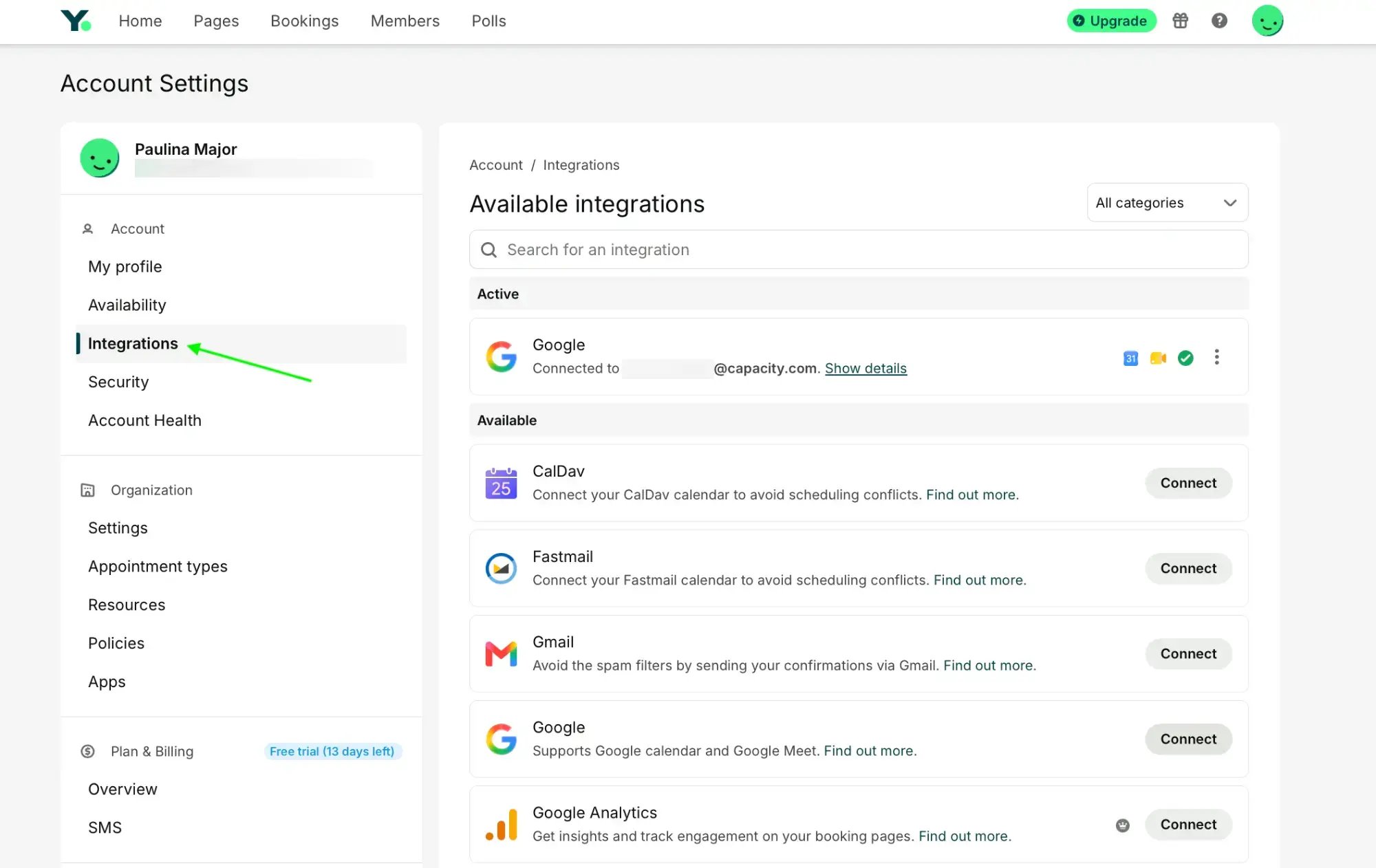
Have the interviewer connect their calendar under User Profile → Integrations. YouCanBookMe blocks busy times on interviewers’ calendars automatically, so candidates only see slots they can take.
If several recruiters share screening calls, use a team booking page to show openings across the team. With YCBM’s round-robin scheduler, you can assign each call to an available recruiter automatically.

A panel needs everyone to be free at the same time. On the Team plan, you can set up your booking page to check all the panelists’ calendars before showing candidates a time.
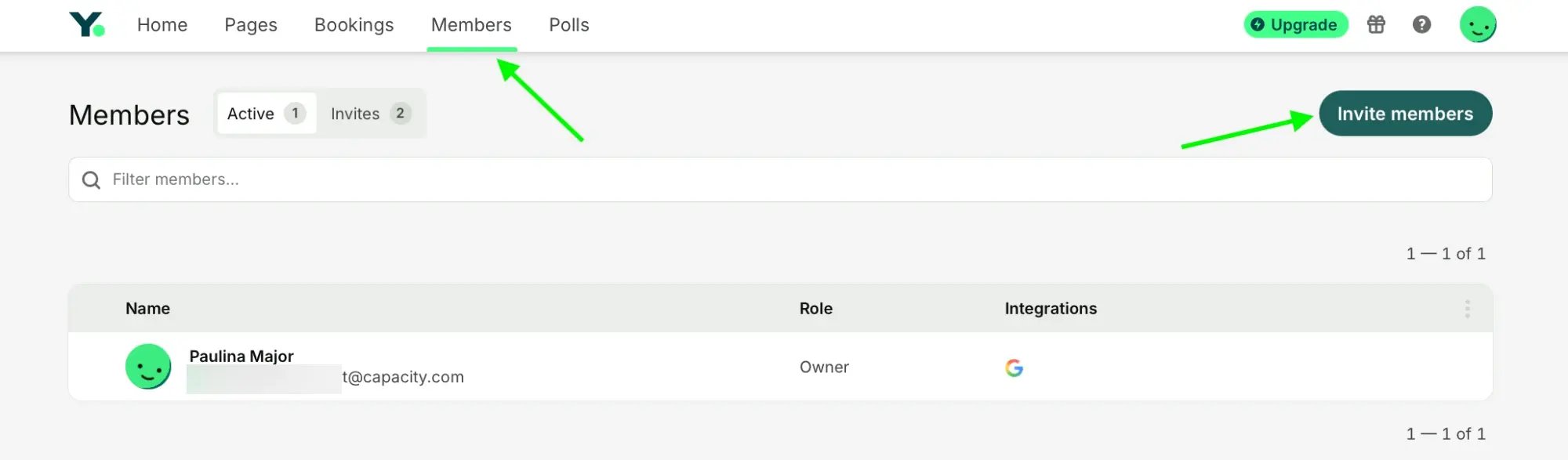
1. Have each panelist connect their calendar in their user profile. If someone is new to your YouCanBookMe account, invite them under Members first. YCBM comes with a handy admin dashboard, so you can decide how much access each Member has.
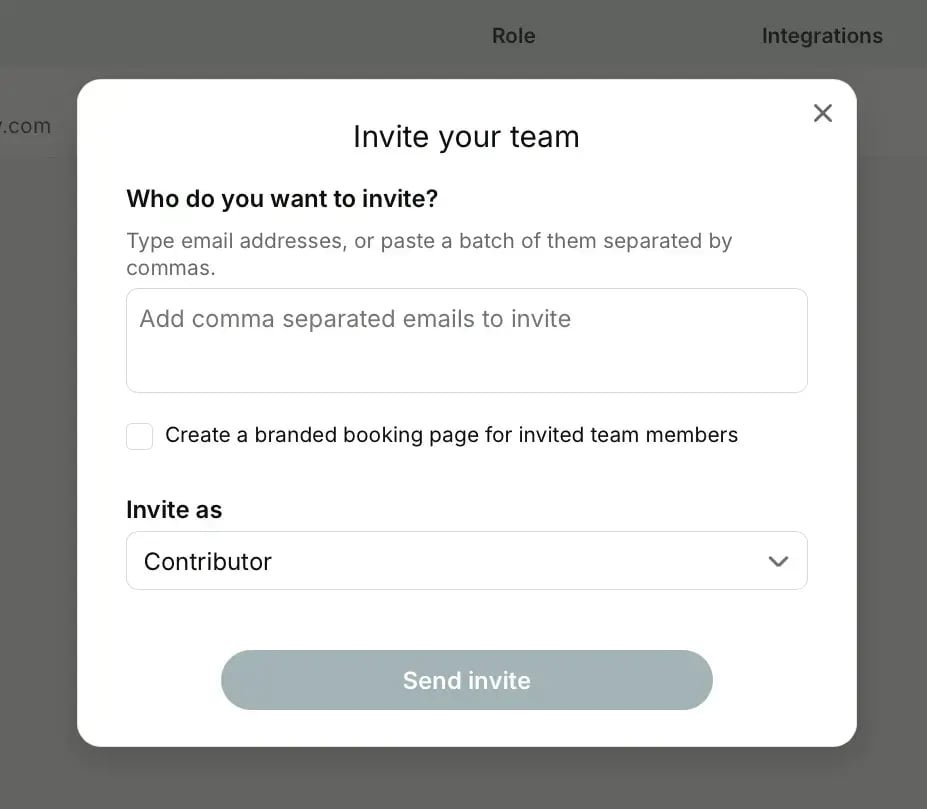
2. Once they’ve accepted the invite, open Participants on your panel interview page and add everyone who needs to attend to the same collection.


3. Open the collection’s three-dot menu, select Edit Collection, and set Member allocation to All Members Required. Save your changes.


When a candidate books, the interview goes on the host’s calendar, and the candidate and other panelists receive calendar invitations. You can also list each interviewer’s name and role in the confirmation email so candidates know who they’ll meet.
If you conduct in-person interviews or run virtual panels where you need a physical room for the interviewers to sit together, you can book the room through YouCanBookMe, too.
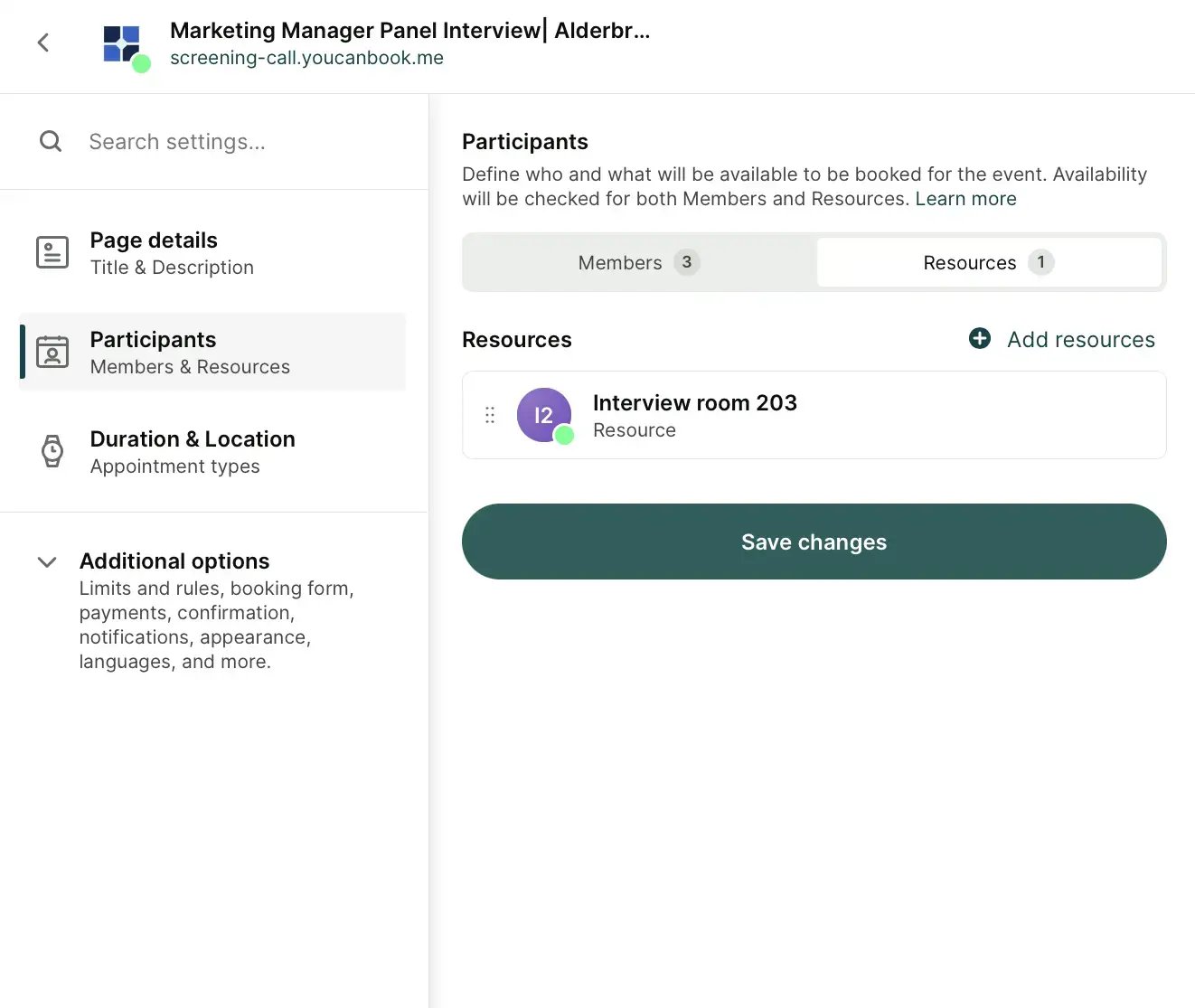
With YCBM’s room booking software, you connect a separate calendar for each of your meeting rooms. It tracks the room’s reservations just as an interviewer’s calendar tracks their meetings. Candidates only see times when both the room and the panel are free.
Create the room under Participants (Members & Resources) and link its calendar.
Once a candidate books a slot, YouCanBookMe automatically sends them a confirmation email with the details they need to join. This includes the room details and address for an in-person interview, or the video call link if they’re joining remotely.
Once your booking pages are ready to go, copy the link for the round you’re inviting candidates to and add it to your interview invitation email. Use clear link text like Choose a time for your screening call, so candidates know what to do next.


If your applicant tracking system (ATS) sends an automated email when you move someone to the screening stage, add the link to that email template. You can also put it in your application confirmation if everyone who applies is invited to book a screening call.
Once your booking page is ready, use Notifications to automate the messages candidates receive before and after their interview.
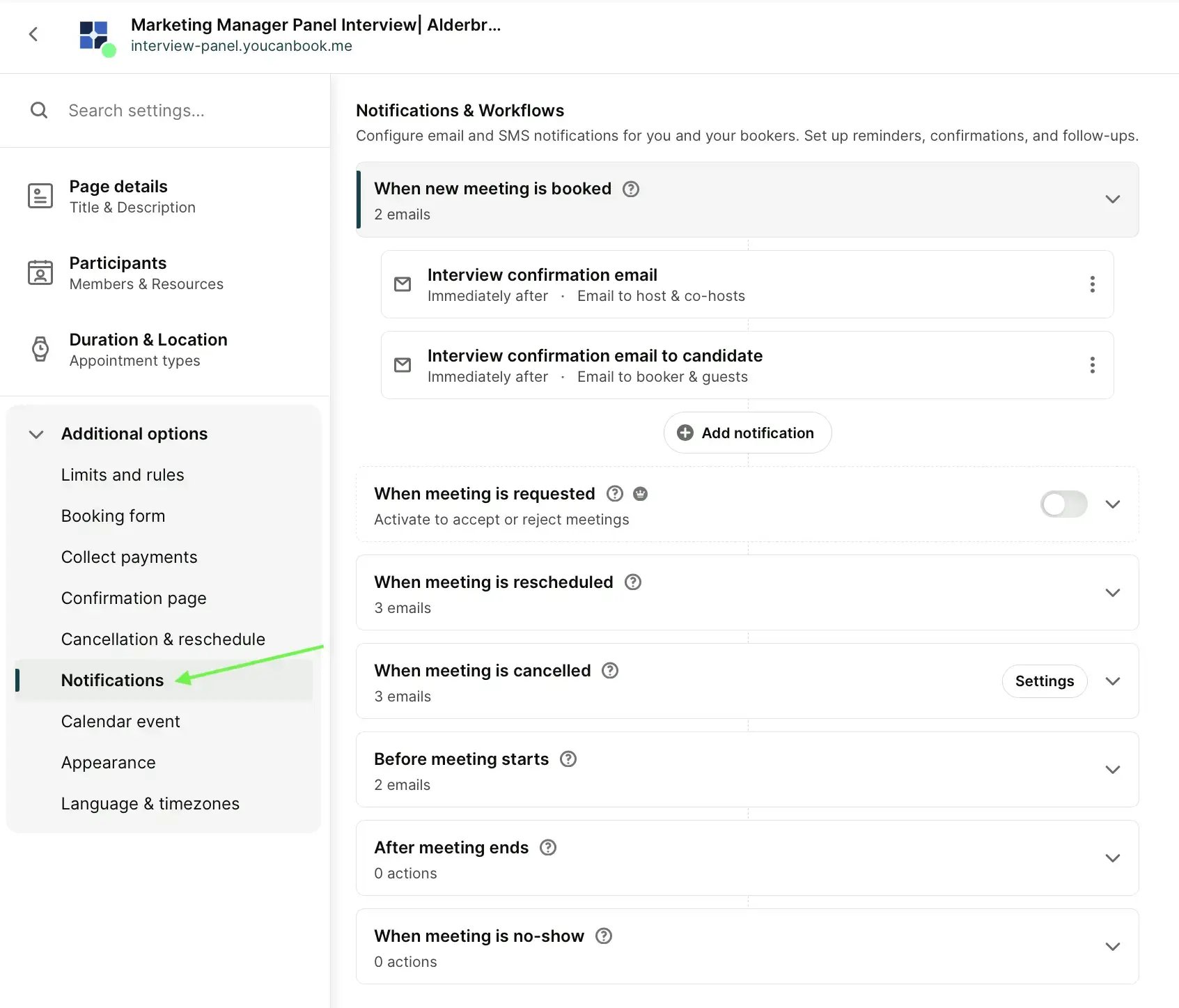
Set up the interview confirmation email first. Include:
- Date
- Time
- Address or video link
- Duration
- Agenda
- A link to company information
- A contact for questions
If it’s a panel interview, include each interviewer’s name and role.
Here’s a simple panel interview confirmation email template you can use: 👇
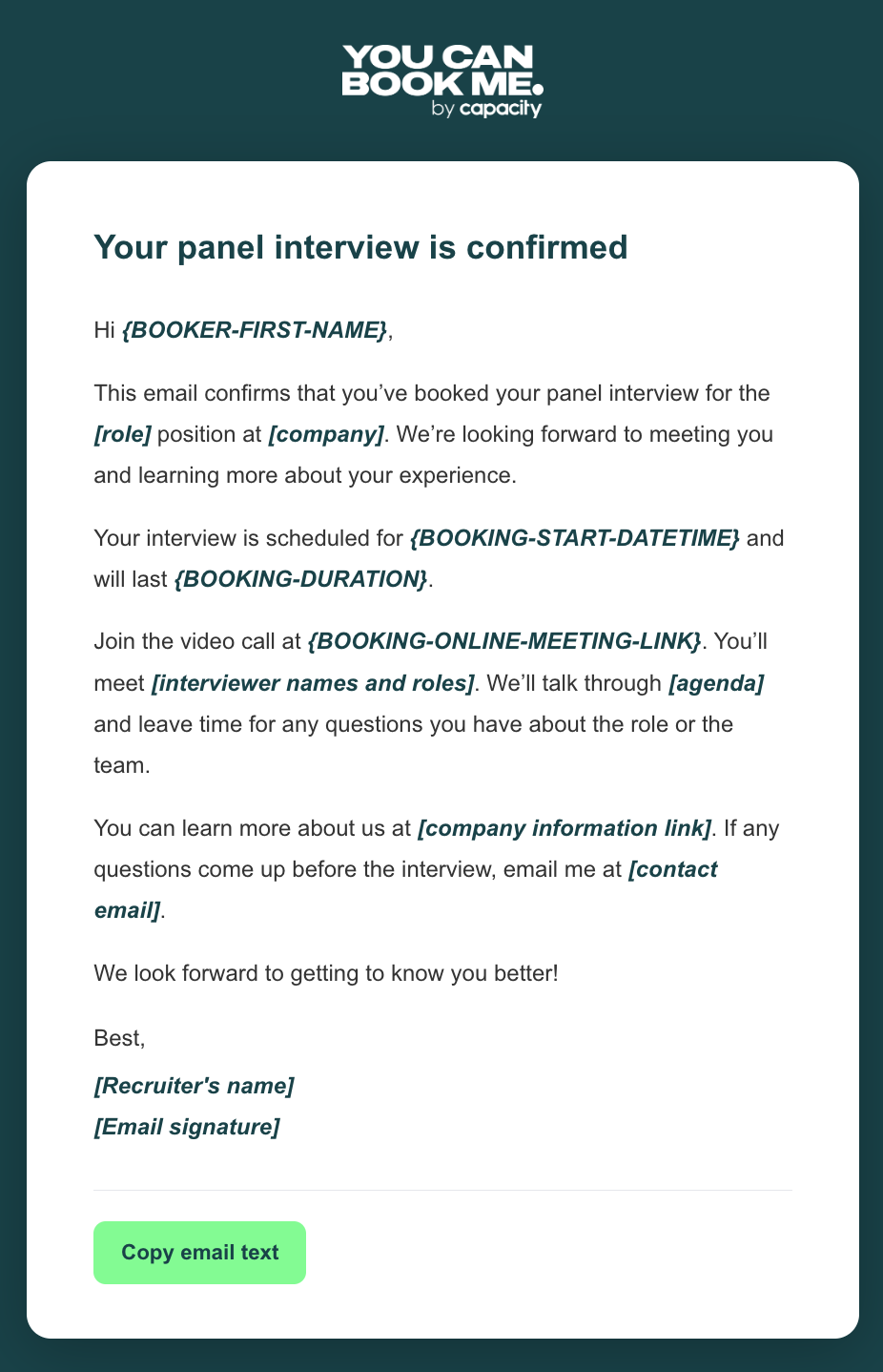

Your panel interview is confirmed
Hi {BOOKER-FIRST-NAME},
This email confirms that you've booked your panel interview for the [role] position at [company]. We're looking forward to meeting you and learning more about your experience.
Your interview is scheduled for {BOOKING-START-DATETIME} and will last {BOOKING-DURATION}.
Join the video call at {BOOKING-ONLINE-MEETING-LINK}. You'll meet [interviewer names and roles]. We'll talk through [agenda] and leave time for any questions you have about the role or the team.
You can learn more about us at [company information link]. If any questions come up before the interview, email me at [contact email].
We look forward to getting to know you better!
Best,
[Recruiter's name]
[Email signature]
❗Note: YouCanBookMe automatically replaces shorthand codes in curly braces, like {BOOKER-FIRST-NAME}, with the candidate’s booking details. Fill in the placeholders in square brackets before using the template.
Here’s how the confirmation message comes through on the candidate's side.👇
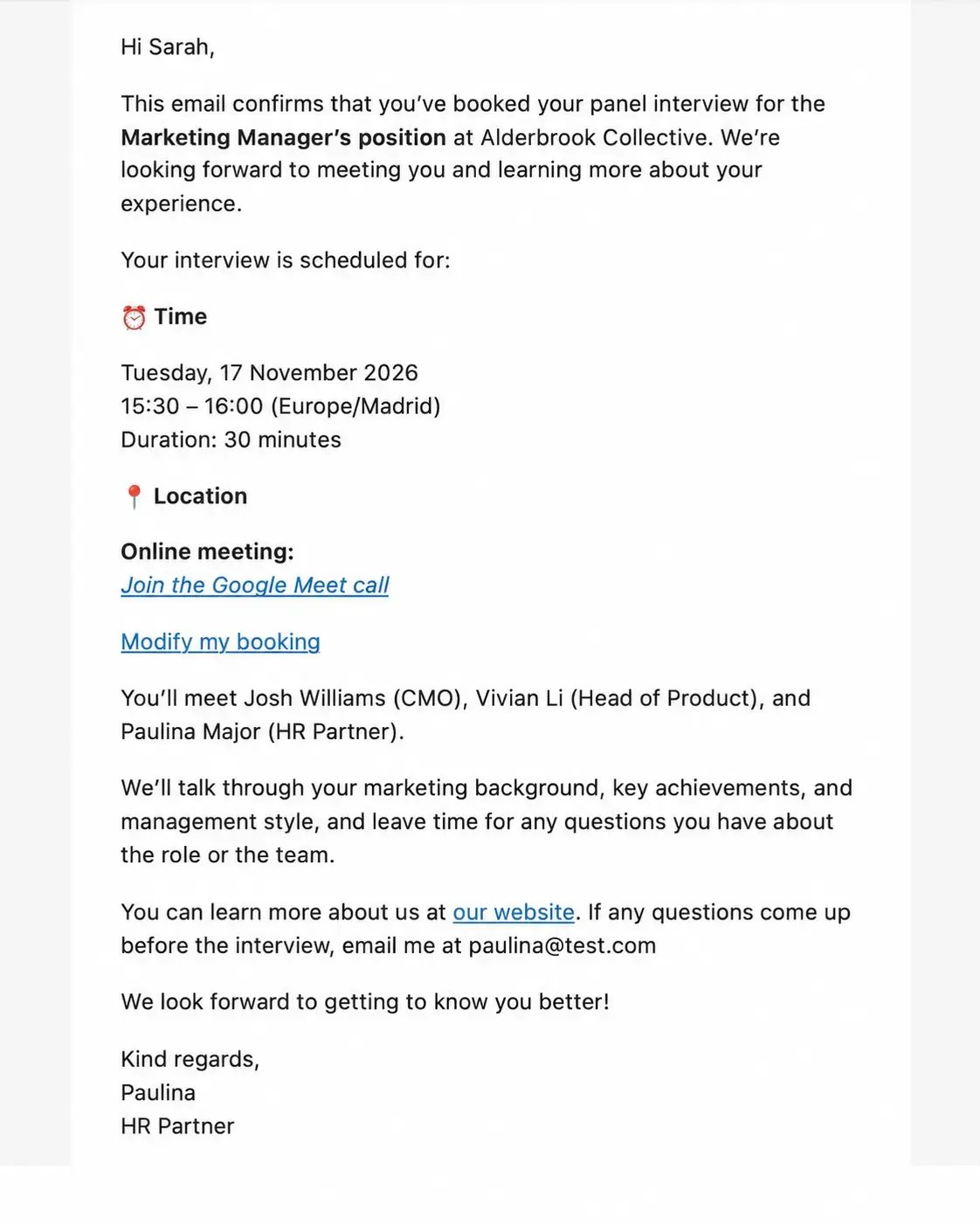
Once the interview is booked, you can schedule an email or SMS reminder under Notifications as well.
If the interview is virtual, send the reminder about an hour before it starts and include the video link so candidates have it handy. If you’re meeting in person, send it the day before or that morning so they have time to plan their trip. Include the office address and any check-in instructions.
With YCBM, you can also schedule a follow-up email to go out after the interview. It can be as simple as thanking candidates for their time and letting them know when they can expect an update.
Once you’ve decided who’s moving forward, you can set up a separate follow-up email for those candidates. Include the next round’s calendar scheduling link so they can choose a time.
Mark Hewitt, founder of the Hewitt Group, relies on YCBM to help his team follow up after shadow interviews:
They automatically get a link from us after they’ve attended, allowing them to rebook to come back on specific days or times that we offer.”
Plans change. Luckily, every YouCanBookMe confirmation email includes a Modify my booking link by default.
Candidates can use it to cancel their interview or reschedule to a new time, all within the limits you set. For example, you can prevent last-minute changes by requiring candidates to reschedule at least 24 hours before their interview. When they reschedule, YCBM updates the calendar invite for everyone on it, including panelists.

Mark Hewitt
Founder, Hewitt Group
Make scheduling the easiest part of the interview
Scheduling interviews doesn’t have to be complicated. Once you’ve set up your booking page, send candidates the link and let them choose a time that works for everyone. From there, let YCBM handle interview confirmations, reminders, and follow-ups.
From the candidate’s perspective, they can self-schedule their own interview without going back and forth over email. On your end, that means less time comparing calendars and chasing interviewers for their availability.
If you’d like to see how it works in practice, try YouCanBookMe for free and set up a booking page for your next interview.
FAQ
Can I schedule panel interviews with YouCanBookMe?

Absolutely. Panel interview scheduling is available on YouCanBookMe’s Team plan. You simply need to connect each panelist’s calendar, add them to the same collection on your booking page, and select All Members Required. Candidates will then see only the times when everyone is free, and each panelist will receive a calendar invitation once an interview is booked.
Can I book a meeting room for in-person interviews?
Yes. With YouCanBookMe’s room and resource scheduling, you can connect a meeting room’s calendar to your booking page. Candidates then see only the times when both the interviewers and the room are free, so you can reserve the space as part of one interview booking flow.
Can candidates reschedule or cancel on their own?
Yes. YouCanBookMe’s confirmation emails include a Modify my booking link by default. Candidates can use it to cancel their interview or choose another available time, all within the limits you set. For example, you can require candidates to make changes at least 24 hours before their interview. When they reschedule, YouCanBookMe updates the calendar invitation for everyone included, including panelists.
Does YCBM work with Zoom, Google Meet, and Microsoft Teams?
Yes. YouCanBookMe works with Zoom, Google Meet, and Microsoft Teams. Connect your preferred video conferencing tool and select it as the interview location on your booking page. YouCanBookMe then generates a unique meeting link for each interview and includes it in the candidate’s confirmation email.
Which YCBM plan do I need for panel interviews?
You’ll need the Team plan to schedule panel interviews that require all interviewers to attend. This lets you combine panelists’ availability on one booking page, so candidates can choose a time that works for everyone.

Written by
Paulina Major
Paulina Major is a freelance B2B content writer with six years of experience. Since 2024, she has written 100+ articles on scheduling and personally tested and reviewed 30+ booking tools, helping small business owners choose software and simplify their booking processes. As a solopreneur managing her own clients and calendar, she brings firsthand experience to her advice on scheduling, time management, and running a business.
Get started today
Join thousands of teams, businesses, and institutions that use YouCanBookMe to power their scheduling. Set up your booking page in minutes.


 4.7 / 5 — Trustpilot

