
How to Set Up a Conference Booking Page with YouCanBookMe

Create your free booking page
Once your company confirms it’s attending a conference, the practical planning begins. There are flights and hotels to arrange, booth materials to prepare, and a conference booking page to set up.
Getting that page ready early gives you a link to include in your pre-event outreach and the campaigns promoting your attendance. It also takes care of details that are easy to lose track of during a busy conference: collecting attendee information, keeping your team’s (and booths') availability up to date, and sending reminders before each meeting.
In this guide, we’ll walk you through setting up your YouCanBookMe (YCBM) booking page so it’s ready to take bookings before and during the conference.
Let’s jump right in!
Alright, so how do you actually set up your conference booking page with YouCanBookMe? In this section, we’ll walk through the settings that help you schedule meetings before the actual event, book walk-up attendees on the day, and set your page to close automatically when the conference ends.
Use this checklist 👇 as you set it up, then follow the steps below for each setting.
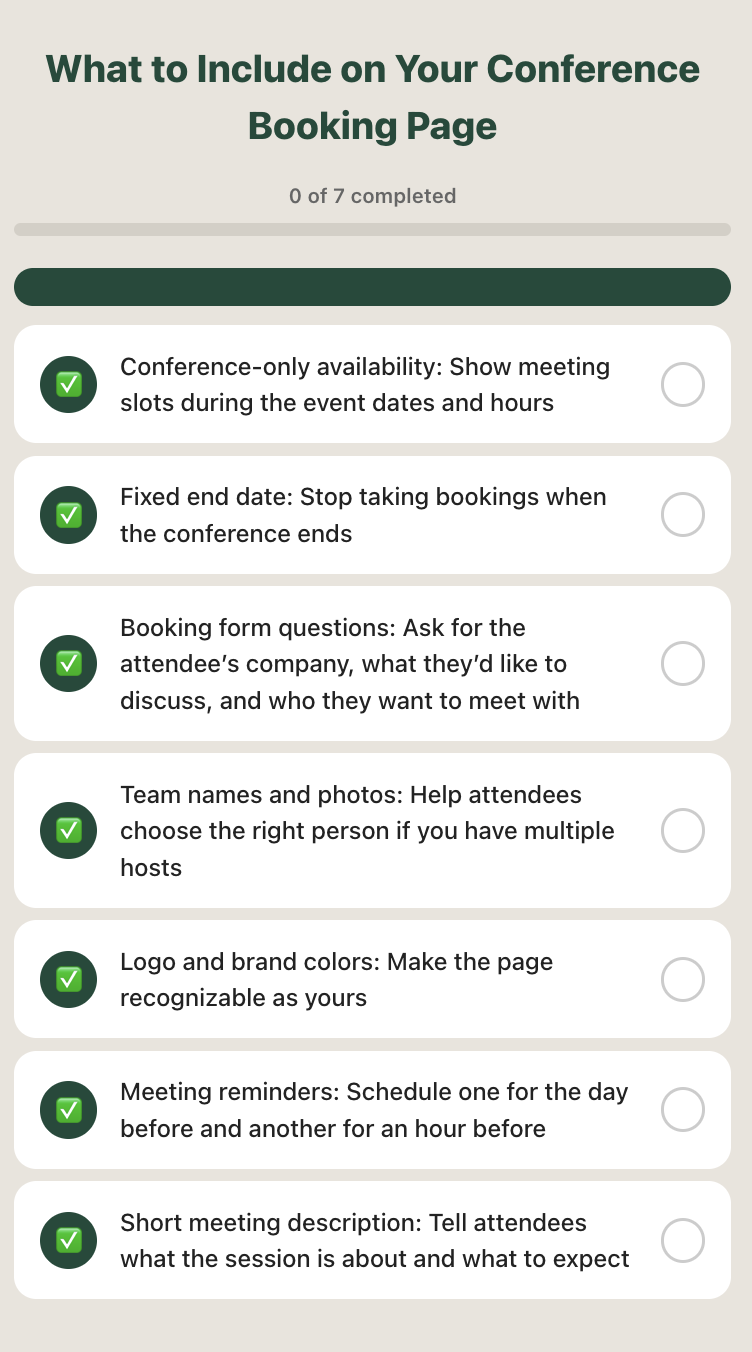
The first step in setting up your conference booking page is configuring your availability around the event. If your booth is open from 10 a.m. to 5 p.m., attendees shouldn’t see a 9 a.m. slot while your team is still setting up.
Here’s how to set up your availability window:
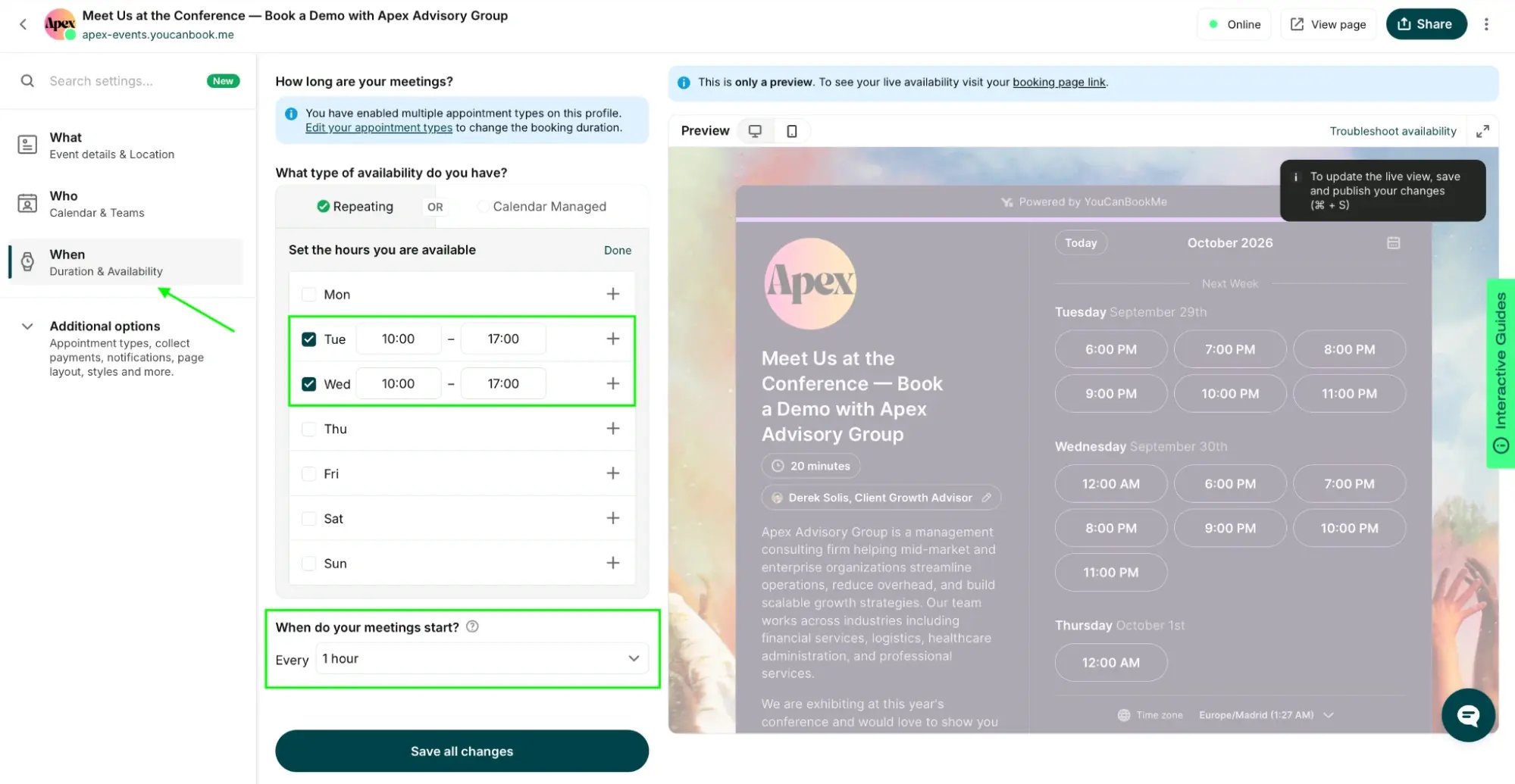
- Open your booking page settings and select When.
- Under What type of availability do you have?, select Repeating.
- Check the days of the week your conference takes place and enter the hours you want to offer meetings on each day.
- Under When do your meetings start?, choose how often a new slot begins, such as every 30 minutes, every hour, or at a custom interval.
- Click Save all changes.
Setting your daily availability is just one part of the setup. You also need to limit your booking page to the conference’s exact dates. Otherwise, someone returning to a scheduling link in an old email could find a page that still looks active and shows slots for an event that’s already finished.
That’s exactly what Ben Waring, Director of Global PR and Communications at RSA Conference, did. He set a fixed end date so the booking page would close when the conference ended.
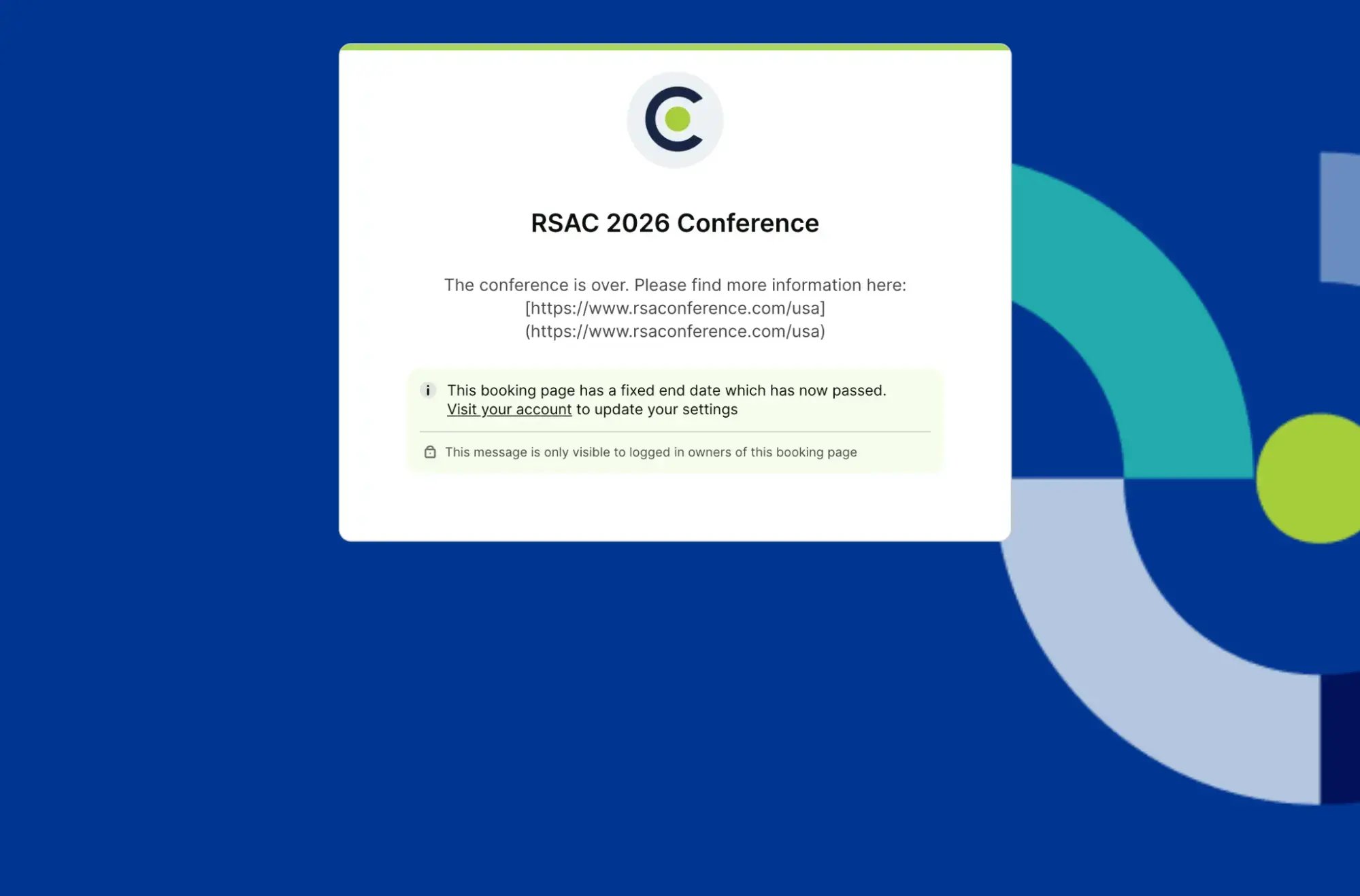
Here’s how you can do it, too:
1. In your booking page settings, open Additional options and select Availability rules.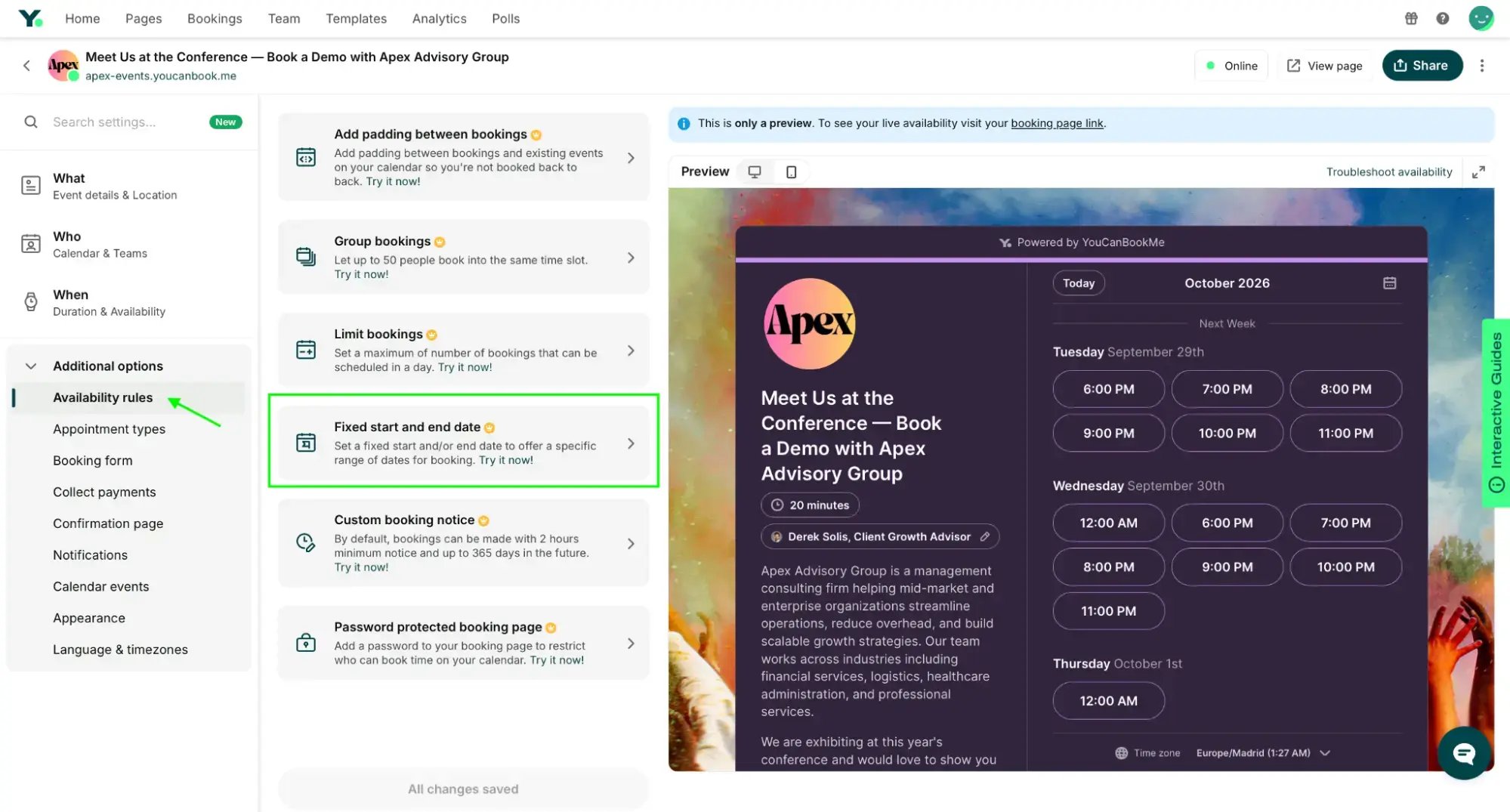
2. Select Fixed start and end date.
3. Enter the first and last dates on which you’ll offer conference meetings.
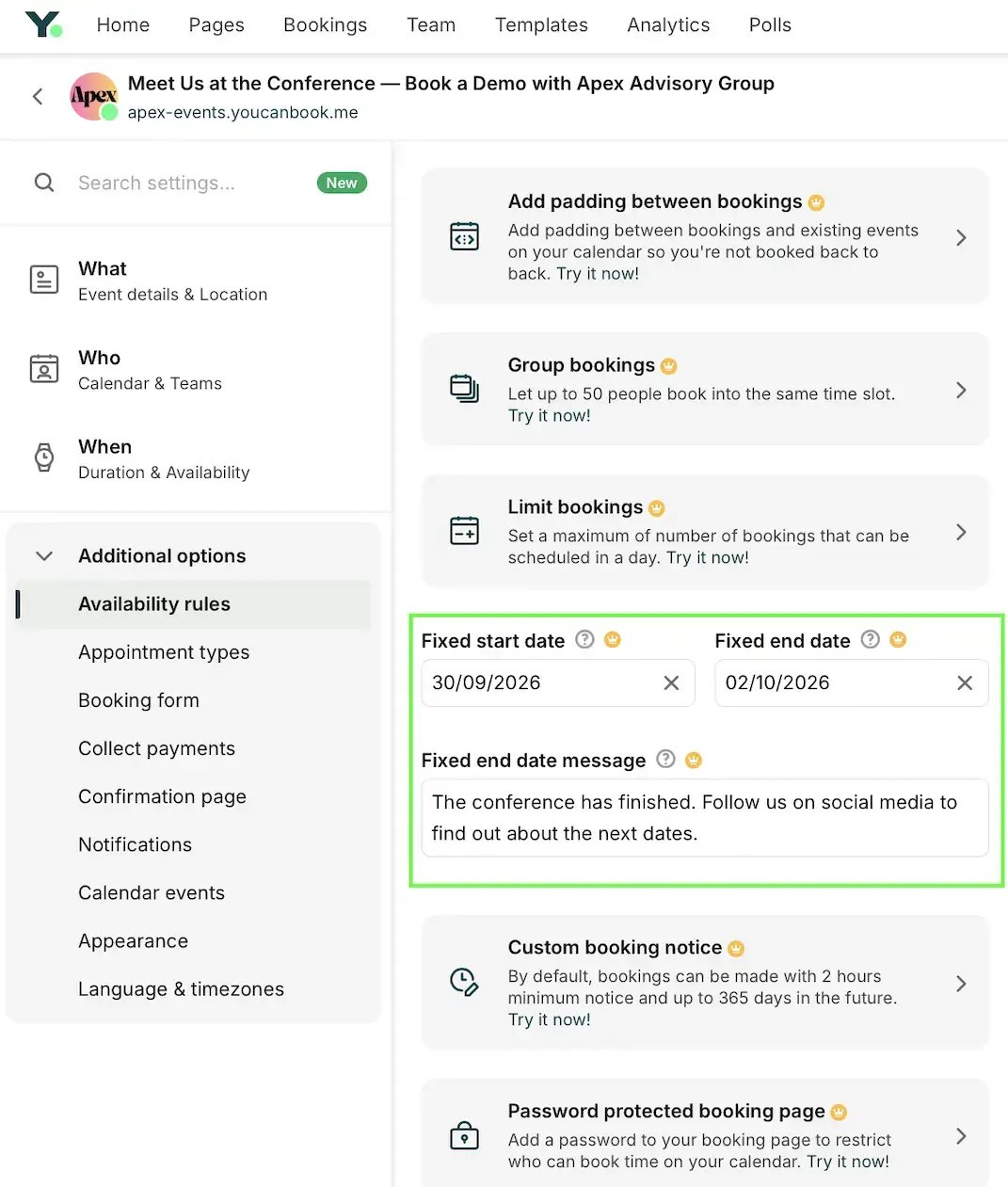
4. Add a Fixed end date message to let visitors know the event has finished. You can direct them to your website or give them another way to get in touch.
5. Click Save all changes.
After the end date, anyone who opens the old link will see your message instead of an active conference calendar.
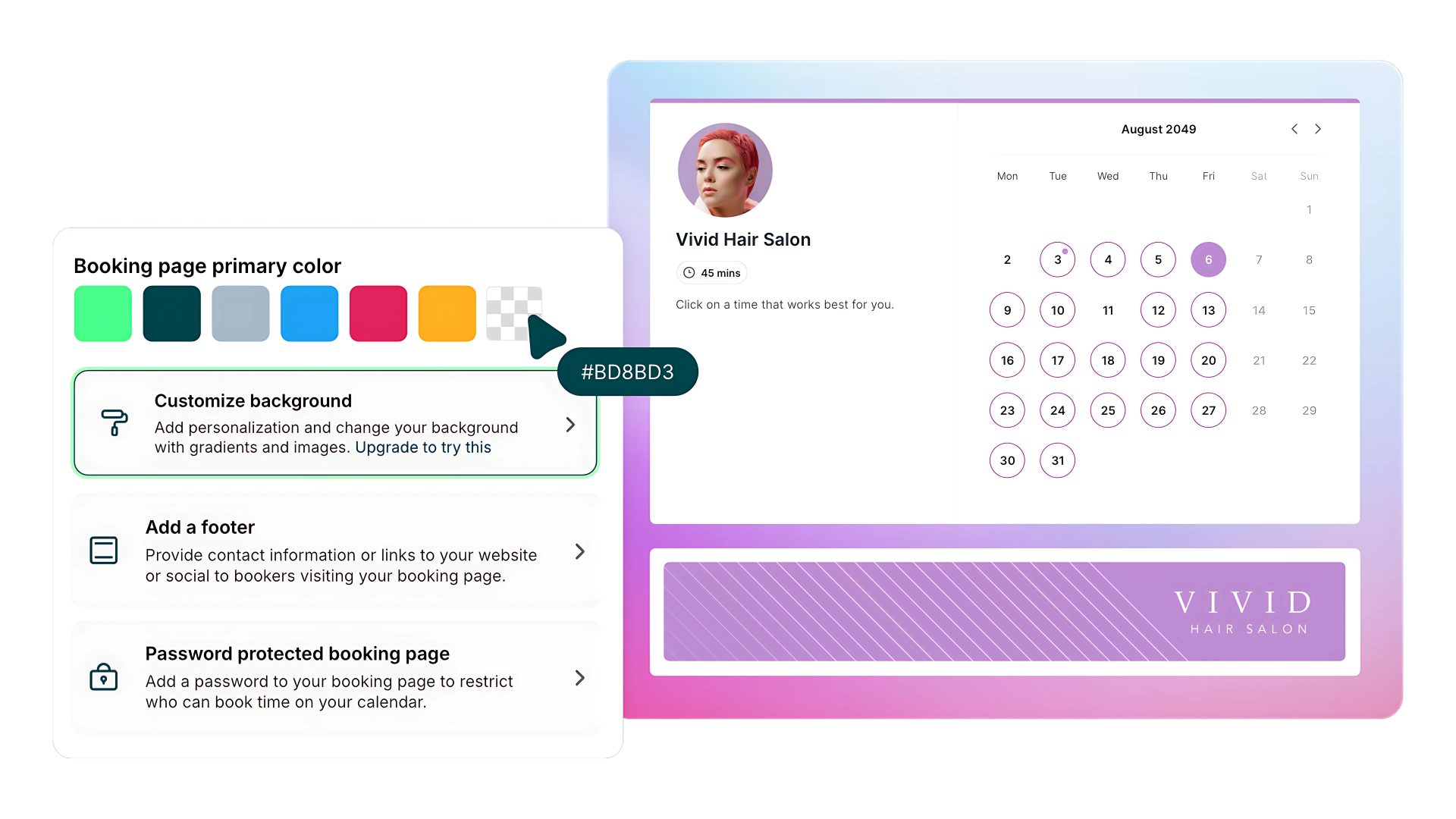
Someone opening your conference link should know right away that they’ve reached the right place. Your logo, colors, and background can make the booking page feel like part of your event.
Ben shared that RSAC’s media team heard positive feedback from journalists who recognized the conference branding on its page.

Director of Global PR and Communications, RSA Conference
Luckily, YouCanBookMe gives you plenty of ways to customize your page. Here’s how to give it a look that fits your brand and event:
1. In your booking page settings, click Additional options on the left, then select Appearance.
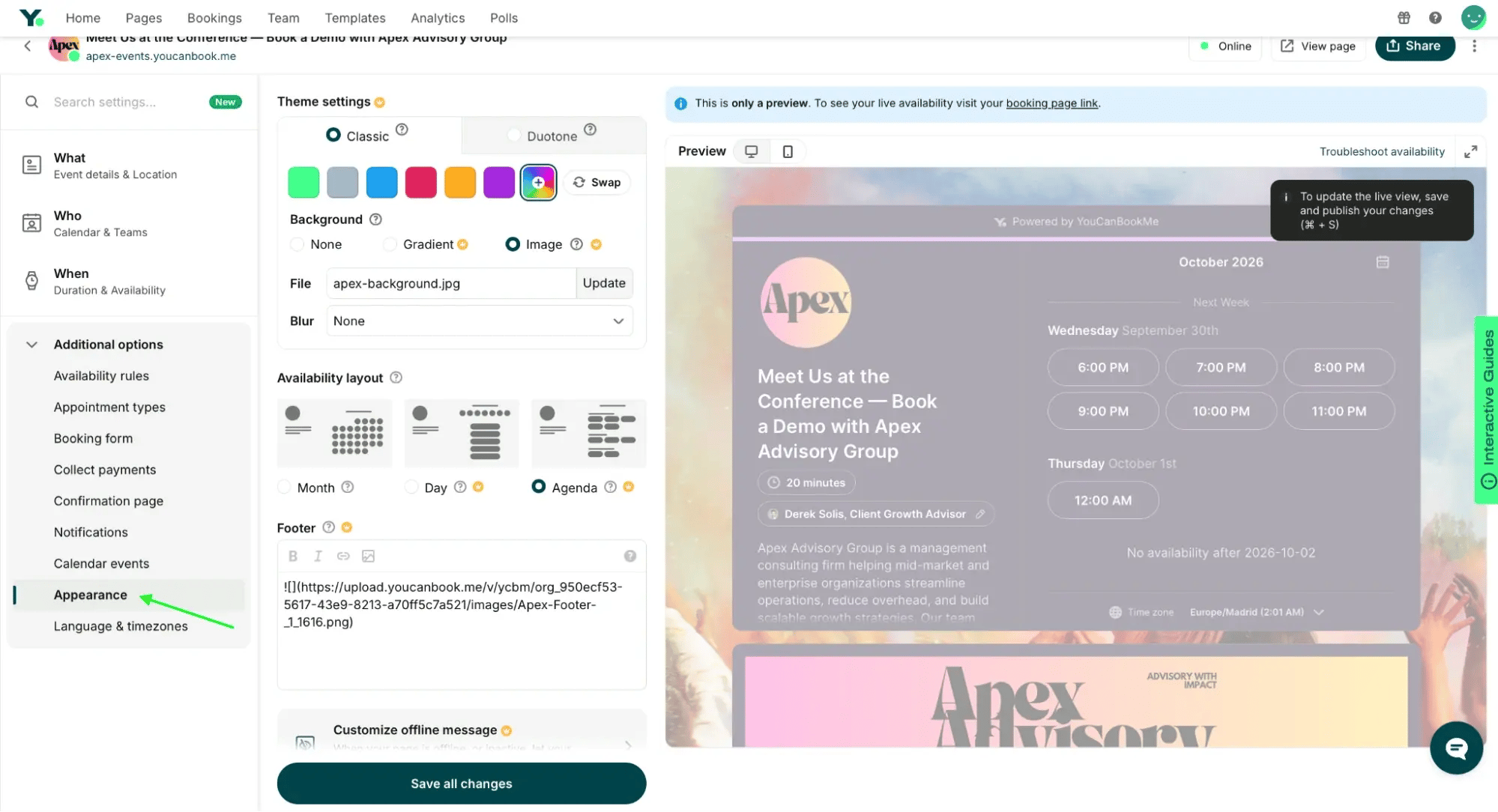
2. Under Theme settings, choose a preset or custom color and add a gradient or background image. You can also pick a Month, Day, or Agenda availability layout and add a footer image or text, such as your booth location or a link to the event website, among other things.
3. Once you’re happy with how your page looks, check the preview on desktop and mobile, then click Save all changes.
Ready to build your branded conference booking page?
Set up a page for your event, add session details, and get your link ready to share before the conference begins.

Another thing to consider when setting up your conference page is what you’d like to know before each meeting.
Booking form questions can capture an attendee’s company, job title, and reason for booking, giving you a chance to tailor both the session and your follow-up emails after the conference. This is especially useful for sales teams running product demos because knowing the attendee’s role and interests helps the rep focus on the features most relevant to them.
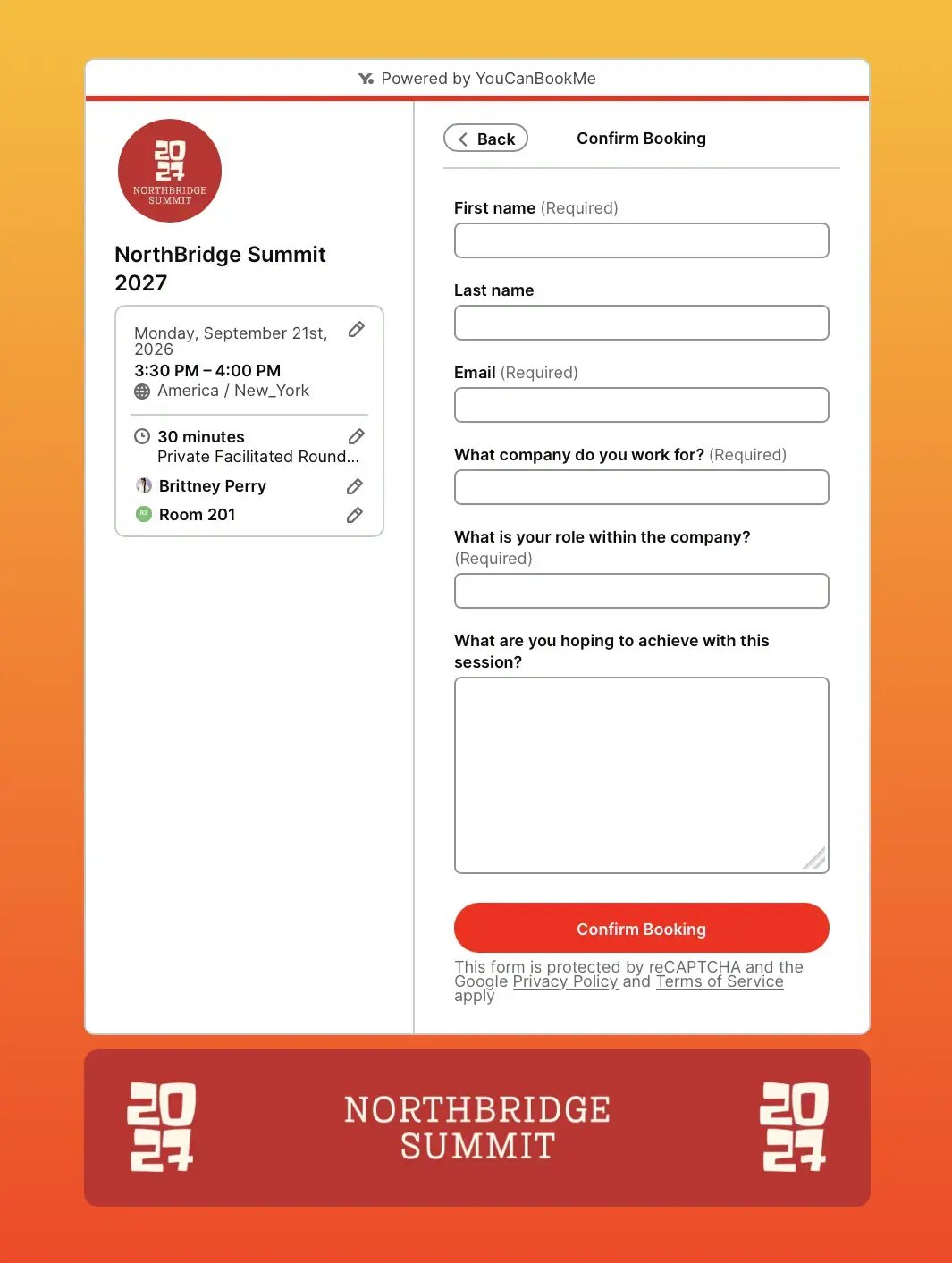
To set up your booking form questions, you’ll need to:
1. Open your booking page settings, click Additional options on the left, and select Booking form.
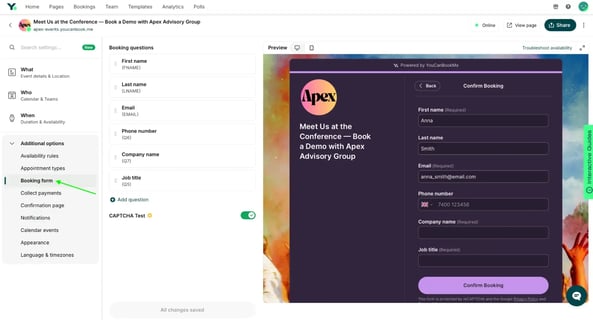
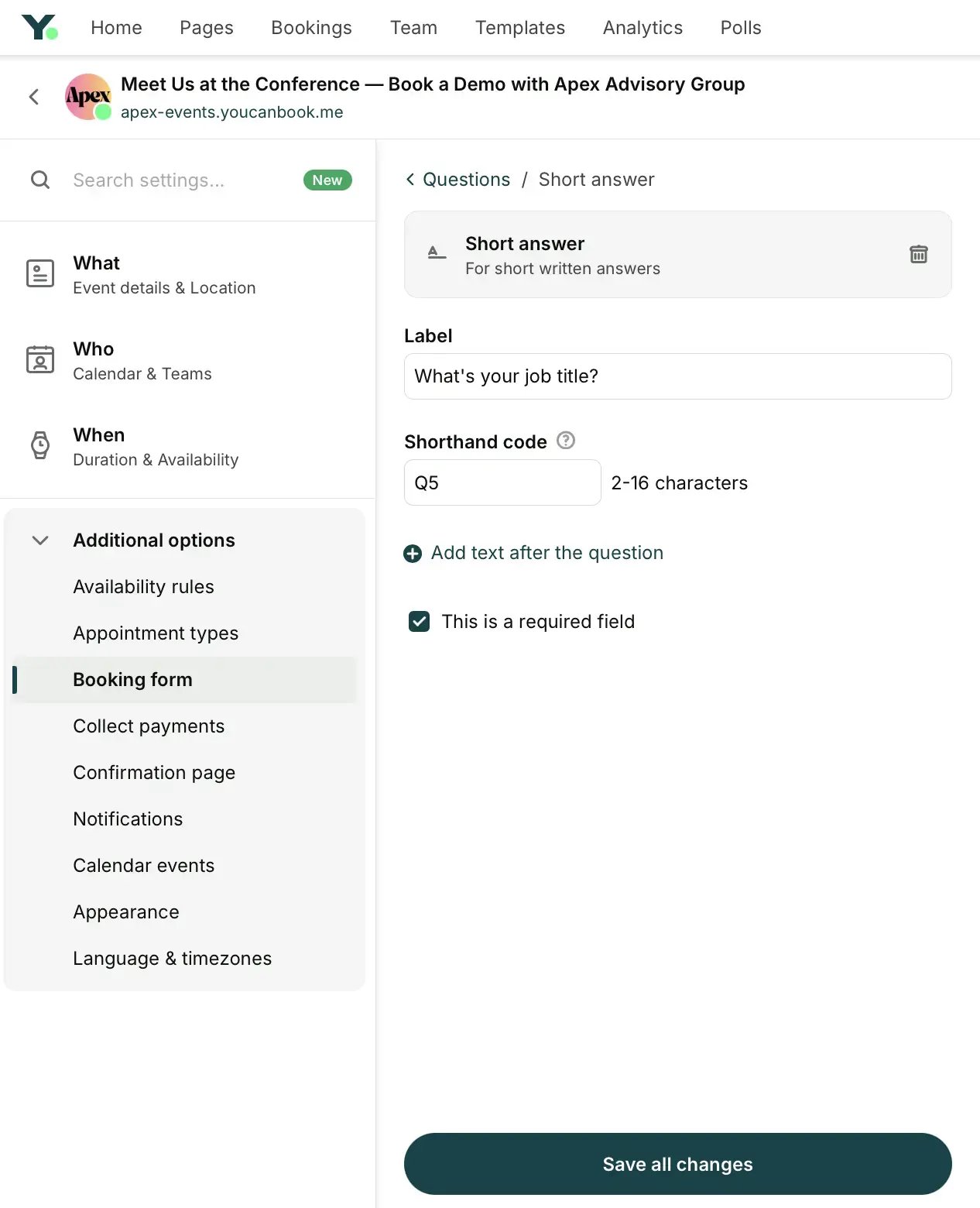
2. Click Add question to ask attendees to answer a few questions beyond their name and email address.
Conference attendees move between sessions, booths, and meetings all day, so it’s always a wise strategy to send them a meeting reminder. Ideally, one should go out the day before, and another an hour before the session to help them get to the right booth or meeting room. RSAC used this exact timing for its media meetings.
To set up meeting reminders (both email and text message):
1. In your booking page settings, open Additional options → Notifications.
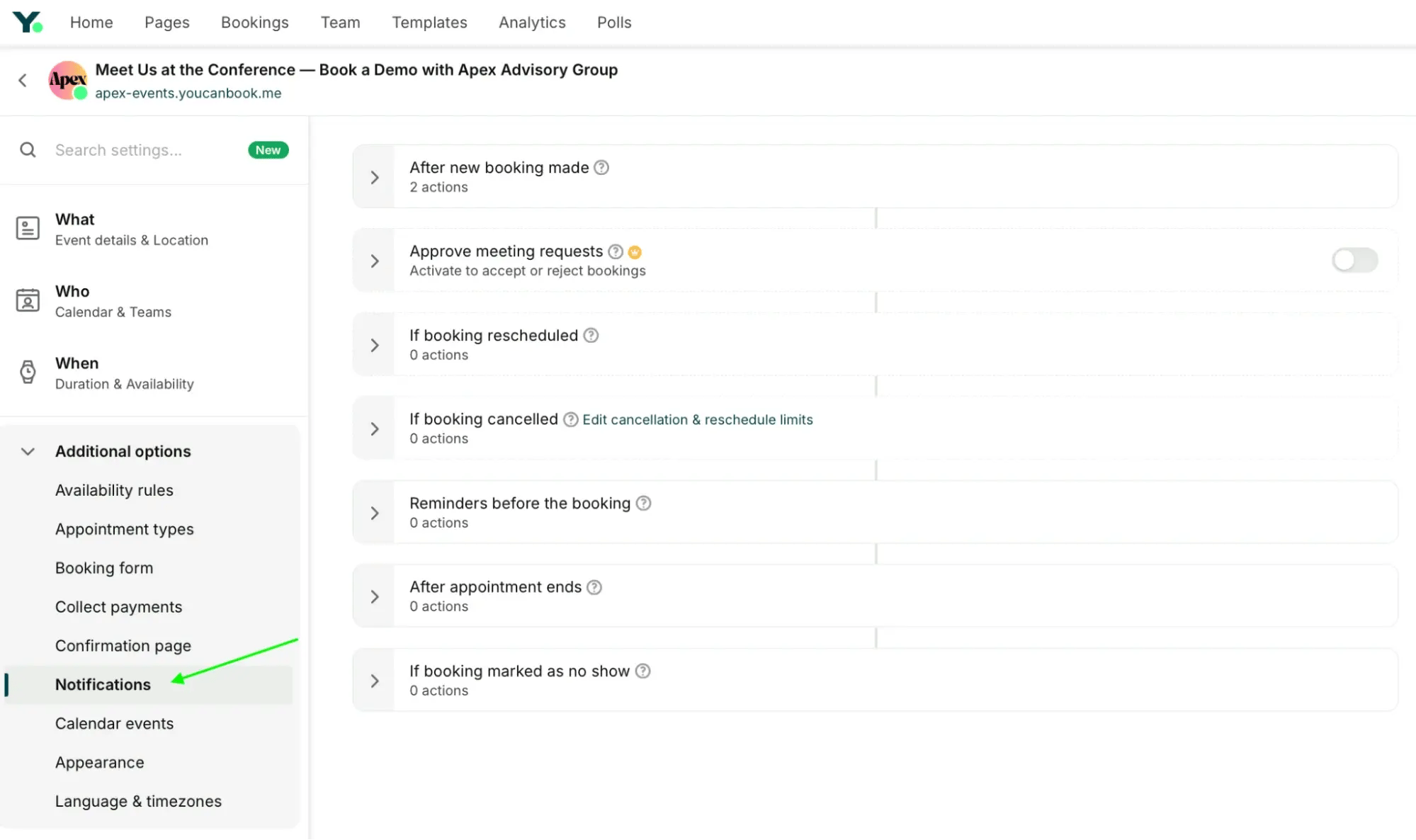
2. Expand Reminders before the booking and select Reminder email to booker.
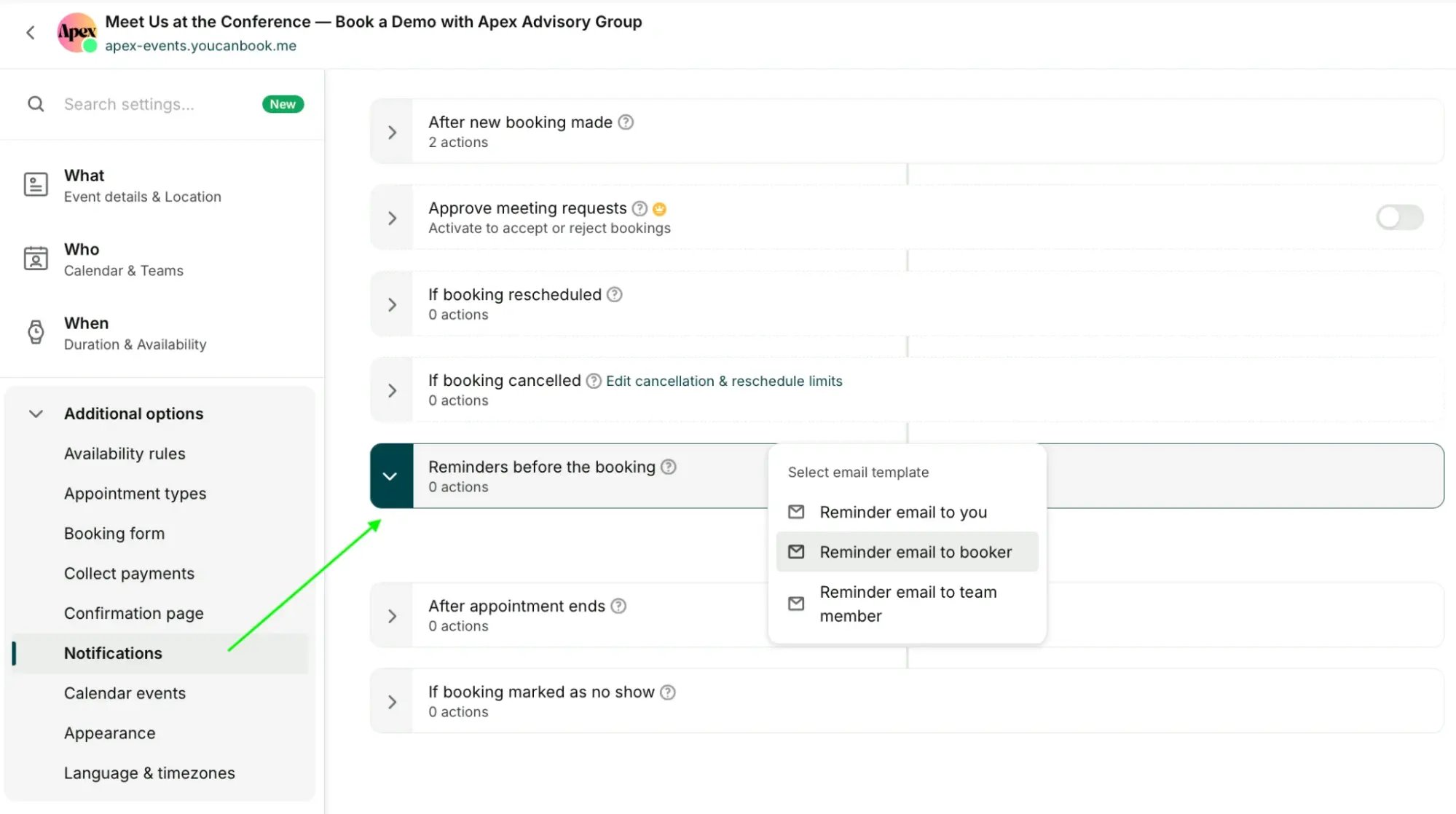
3. Set the first email to send 24 hours before the session starts.
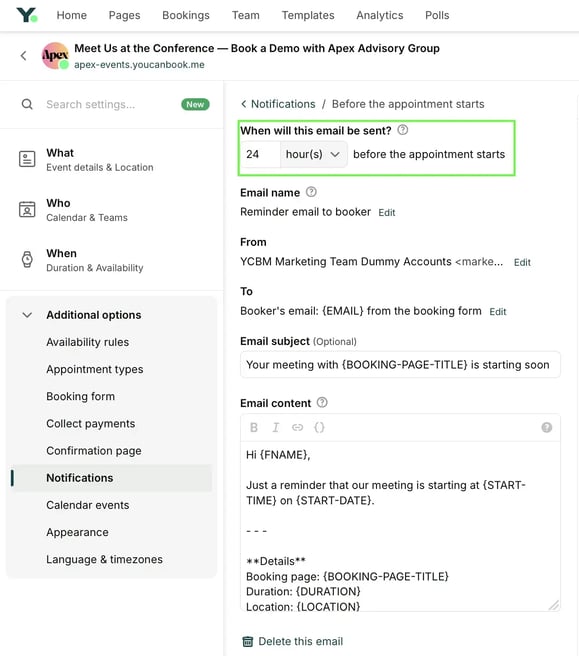
4. Repeat the process for the second reminder, except this time, set it to send 1 hour before the appointment starts. Keep this one brief, with the booth or room location easy to spot.
5. Save your changes.
Once your page is ready, click Share in the top-right corner of your booking page settings and copy the link. Test it yourself to make sure it all works before you send it to people.
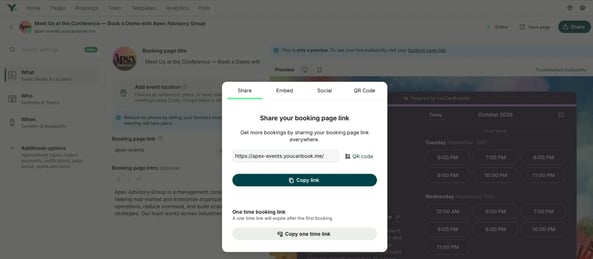
When it comes to sharing your booking page link, you can add it to your email signature, conference invitations, relevant LinkedIn messages and posts, and other pre-event outreach.
YouCanBookMe offers several ways to share your booking page, including:
- One-time links for individual invitations that expire after the first booking.
- Website embeds that display the page inline or open it from a link or floating button.
- Social sharing for promoting the page through your channels.
- QR codes for printed materials and booth signage.
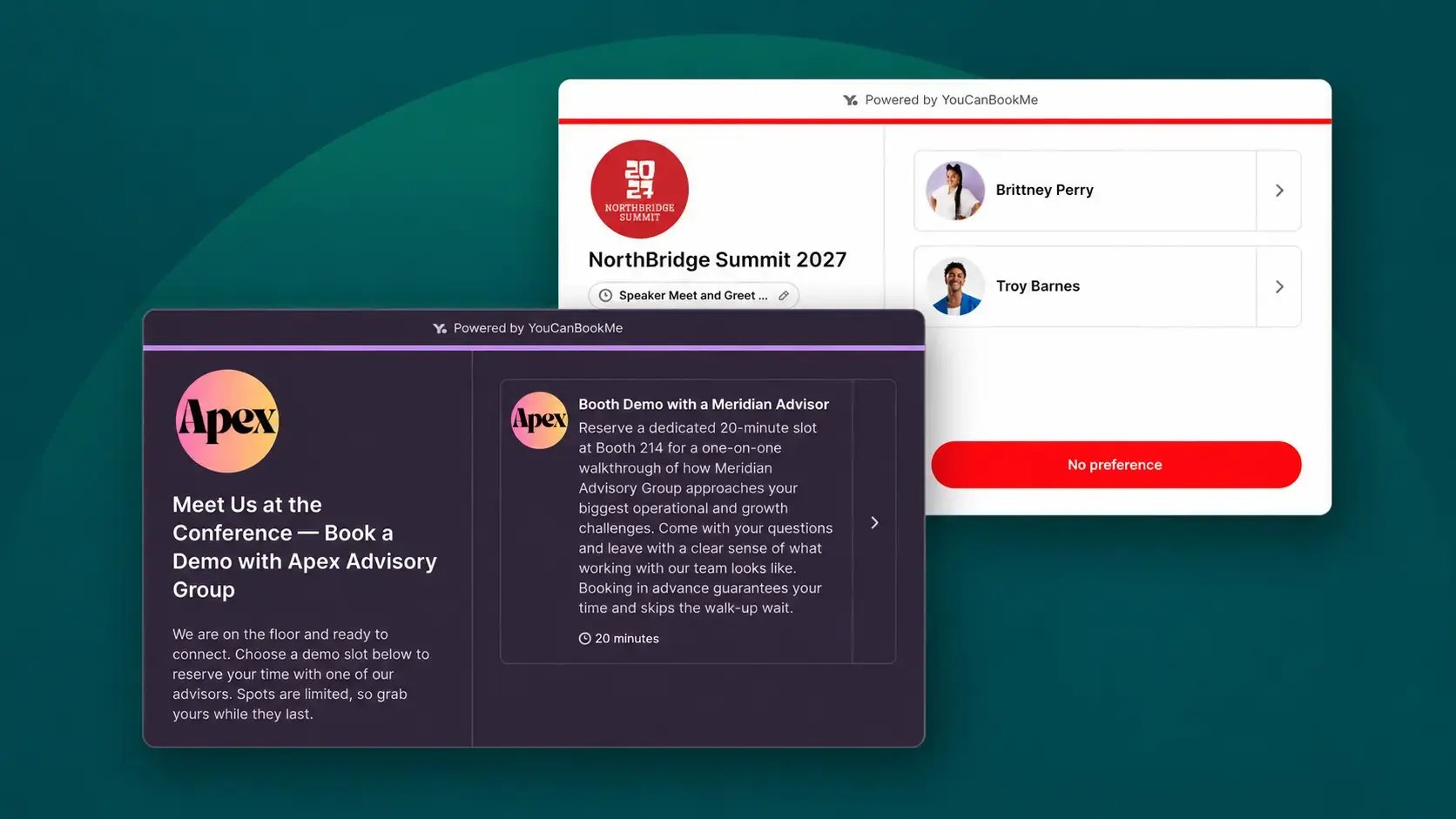
If several people will take meetings at the conference, help attendees see who they can meet. Include team members’ names, headshots, and short role descriptions to make it easier to choose the right person and find them at the event.
Here’s how to do it:
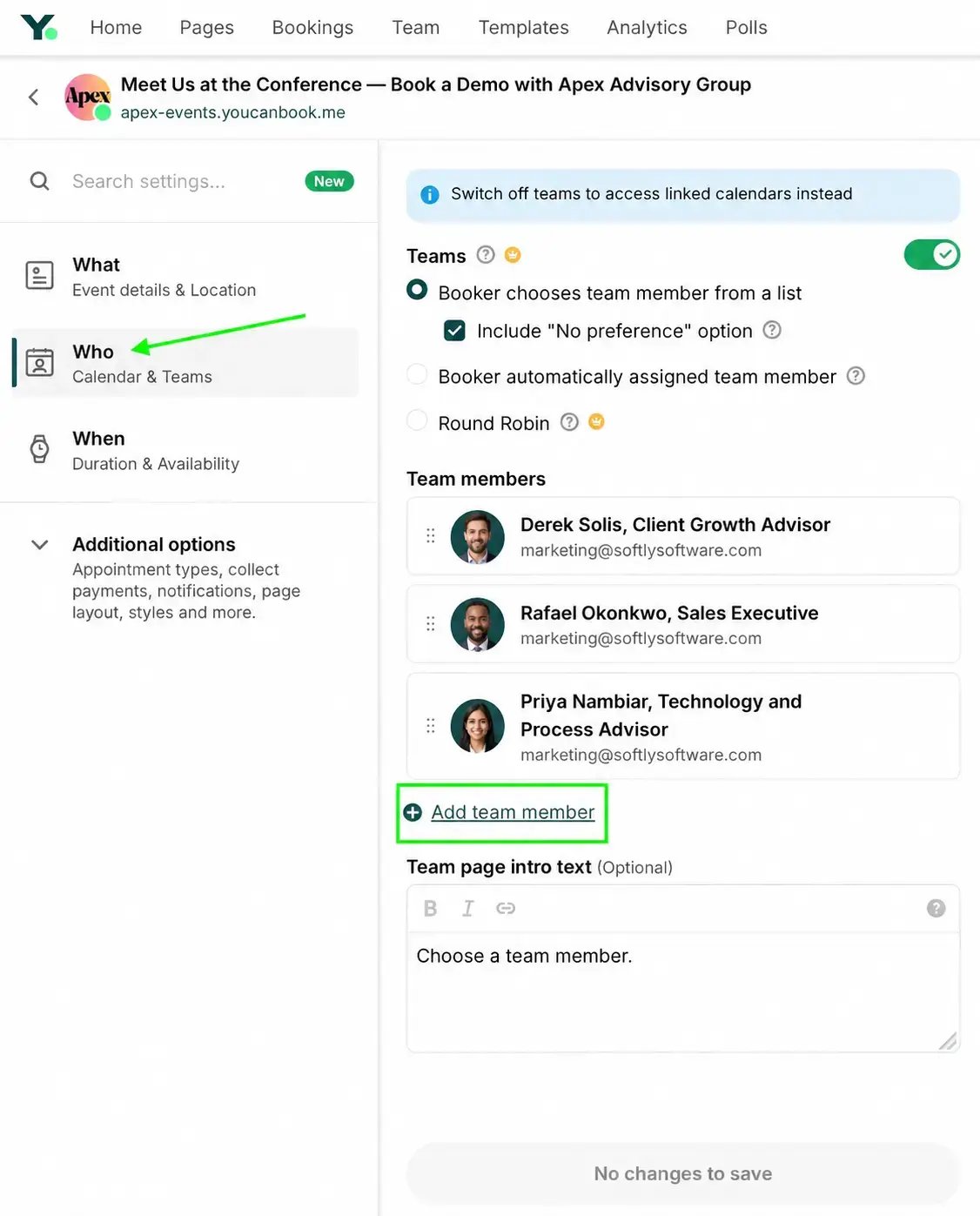
1. In your booking page settings, open Who and switch on Teams.
2. Click Add team member.
3. Choose how bookings should be assigned. Attendees can choose a team member from a list, with an optional No preference choice, or you can have YouCanBookMe assign someone automatically or use round robin.
4. Add a short Team page intro text to explain who attendees should choose, then save your changes.
This step is for teams managing more than one meeting space. If all your conference meetings happen at a single booth, you can skip it. But if you have several rooms, pods, or cubes, YouCanBookMe can assign an available space when someone books, without asking the attendee to choose one.
Simply set up each room as a bookable resource with its own calendar, then let YCBM assign an available room when someone books. The room can be included in the meeting details so everyone knows where to go.
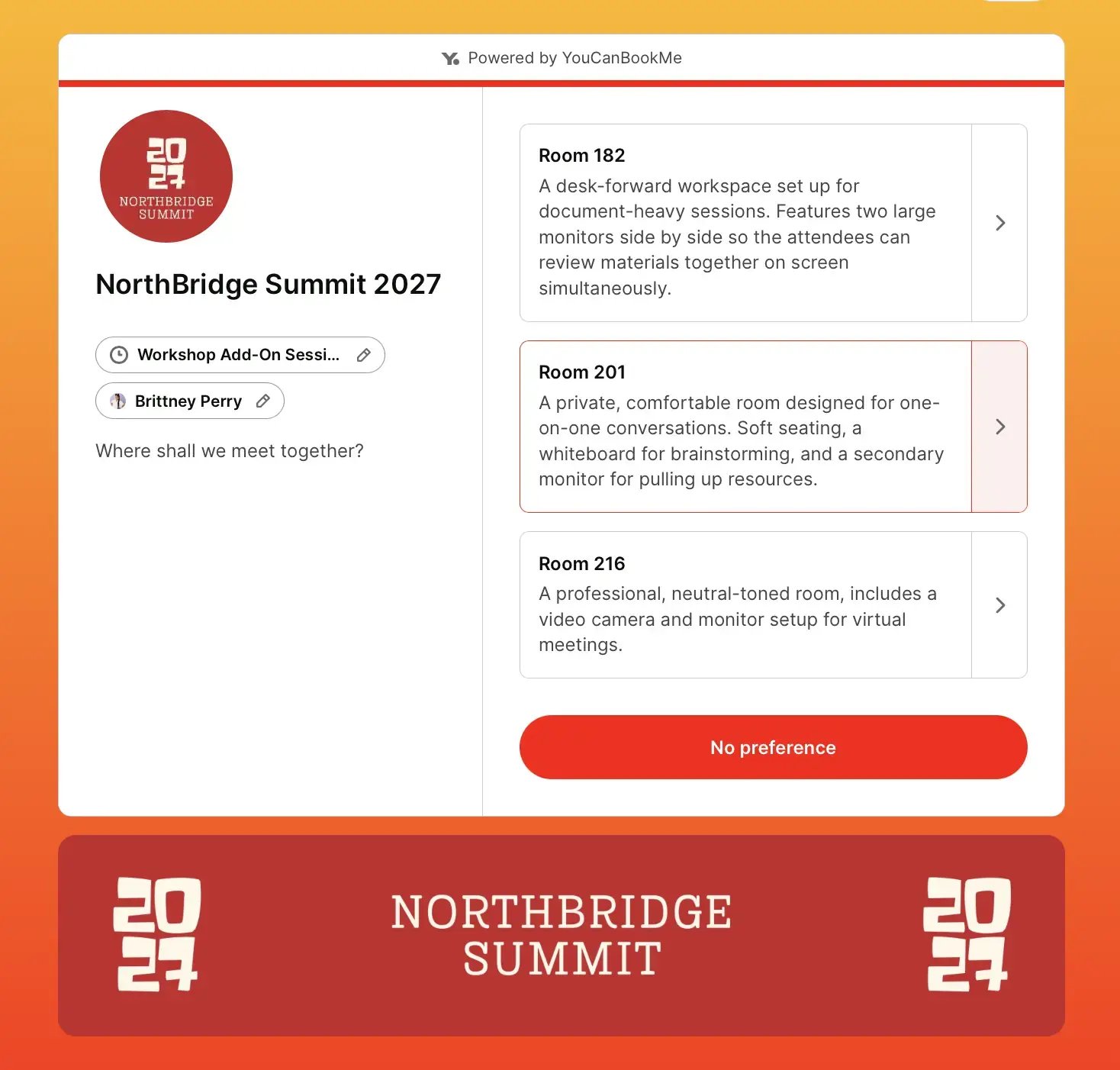
That’s how RSAC managed its 18 private meeting cubes. Media guests entered who they were meeting with, while YouCanBookMe handled the room assignment.
Director of Global PR and Communications, RSA Conference
Whether you have two booths or 10, this setup can handle room allocation behind the scenes for you.
Some conference meetings need more than one person from your team. A demo might require both a sales rep and a product specialist. A press interview might need an executive and a PR rep. When that happens, you need a booking option that checks everyone’s availability before offering a time.
With YouCanBookMe’s Collections feature, you can bring the right team members into a single booking without coordinating everyone’s schedules yourself. For meetings that require multiple people, your conference booking page will only show times when both the necessary team members are available. Attendees can choose the meeting they need and book it in one place, while your team makes sure the right people are present.
A conference booking page can help any team that needs to make time for conversations during a busy event. Here are three ways to use one:
Share your booking page in pre-conference emails and LinkedIn outreach so prospects can schedule a discovery meeting or catch-up while you’re both at the event. Your reps can arrive with meetings already on the calendar instead of starting from zero on day one.
RSAC used YouCanBookMe to coordinate more than 500 media meetings across 18 rooms during its four-day conference. Its branded, mobile-friendly page let journalists book a time while the system assigned an available room. As a result of using YCBM, their bookings rose 20% from the previous year, and those meetings generated around 1,000 pieces of media coverage.
If you’re running a user conference, many attendees are already your customers. Give them a way to book a short, in-person session with your support or customer success team to solve a problem or learn how to get more from your product. If you have a new feature coming, you can also offer power users an early walkthrough.
Your booking page is ready, and you’ve shared it ahead of the conference—nice work! But what happens when someone stops by the booth and wants to schedule a meeting that day? Or when a booked attendee doesn’t show up?
We’ll share a few small tricks next that can help your team handle different on-the-day scenarios without losing track of the schedule.
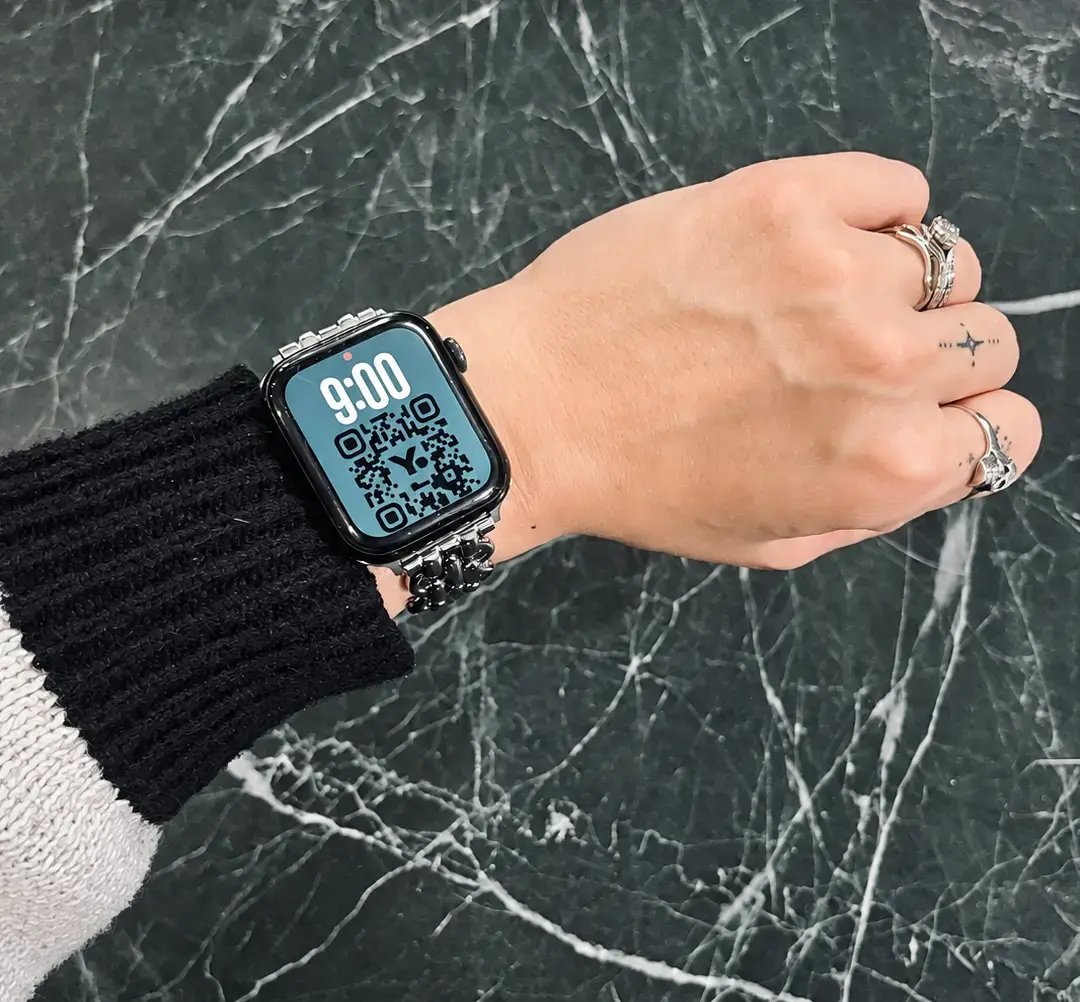
Give people a way to book while they’re standing at your booth. Add your booking page’s QR code to printed materials, booth signage, name badges, or pull-up banners. You could even put it on your watch face: someone scans it, picks a time, and you can carry on the conversation without reaching for a business card.
If someone walks up and wants to meet now, a team member can pull up the live booking page on a phone or laptop and book an available slot on their behalf. Enter the attendee’s details so they receive confirmation and any reminders. Make sure the booth team knows how to do this, even if most attendees book for themselves.
When you’ve set up separate calendars for your meeting rooms, YouCanBookMe checks which rooms and times are available. Once someone books a room, that time is no longer offered for the same space, completely eliminating double-bookings.
Something teams sometimes overlook is the time it takes to move between rooms or booths. If you need to walk between meetings, or a session might run over because attendees have follow-up questions, it’s worth building some buffer time into your schedule.
The day-before and hour-before reminders you set up earlier can help attendees keep track of meetings during a packed conference day. But if someone still doesn’t show up, mark them as a no-show in YCBM to trigger an automatic follow-up message. If there’s still conference availability, include a link so they can book another slot. If not, send them to your regular booking page so they can schedule a chat after the event.
By the time you arrive at the venue, you should know who you’re meeting, what they want to discuss, and where each conversation will happen. Your team should also have a simple way to book the people they meet on the floor.
YouCanBookMe helps you put that in place. You can set up and share a branded booking page before the event, use booking form questions to prepare for each meeting, and send reminders with the details attendees need on the day. If you’re coordinating multiple hosts or rooms, YCBM checks their availability and assigns an open space.
Sign up for free to make scheduling at your next conference so much smoother.
FAQs
Can I use a booking page for walk-up meetings at a trade show?

Absolutely. Put a QR code for your YouCanBookMe page on your booth signage or printed materials so visitors can scan it and pick a time while they’re standing there. If someone wants to meet later that day, they can see which slots are still open without going back and forth with your team.
You can also book on their behalf. Open the live page on your phone or laptop, choose an available time, and enter their details. They’ll get a confirmation and any reminders you’ve set up, just like someone who booked before the event.
What is a fixed end date on a booking page?
A fixed end date stops your page from taking new bookings after a date you choose. For example, if your conference ends on Friday, you can set the page to close after that date, even if someone opens the link weeks later from an old email or QR code. You can also add a message explaining that the event has finished and pointing visitors to your website or another way to get in touch.
Can multiple team members use the same conference booking page?
Yes. Add your team members to one page and let attendees choose who they’d like to meet, or have YouCanBookMe assign an available person. If a meeting needs several people from your team, YCBM’s Collections can check everyone’s availability and offer times that work for them all.

Written by
Paulina Major
Paulina Major is a freelance B2B content writer with six years of experience. Since 2024, she has written 100+ articles on scheduling and personally tested and reviewed 30+ booking tools, helping small business owners choose software and simplify their booking processes. As a solopreneur managing her own clients and calendar, she brings firsthand experience to her advice on scheduling, time management, and running a business.
Get started today
Join thousands of coaches, consultants, and entrepreneurs who use YouCanBookMe to power their business. Get your first booking in a few minutes.


 4.7 / 5 — Trustpilot

