
7 Booking Page Setups That Actually Fit How Schools Work
-min.png?width=100&name=image%20(21)-min.png)
Create your free booking page
America may run on Dunkin', but schools run on conversations (and Dunkin’). Conversations with students, parents, colleagues, applicants, and sometimes an entire line of people who all need your attention at once.
Often, the most frustrating part isn’t the meeting itself, but everything that has to happen before it reaches your calendar.
The emails. The phone calls. The “Does Tuesday work?” followed by “Actually, can we do Thursday?” followed by complete silence.
A basic booking page can already take a lot of that admin off your plate. Add a few thoughtful settings, and it becomes a complete scheduling workflow built around the exact type of meeting you need to organize.
Here are seven practical ways to use YouCanBookMe’s education scheduling software for some of the most common (and time-consuming!) scheduling tasks in schools and universities.
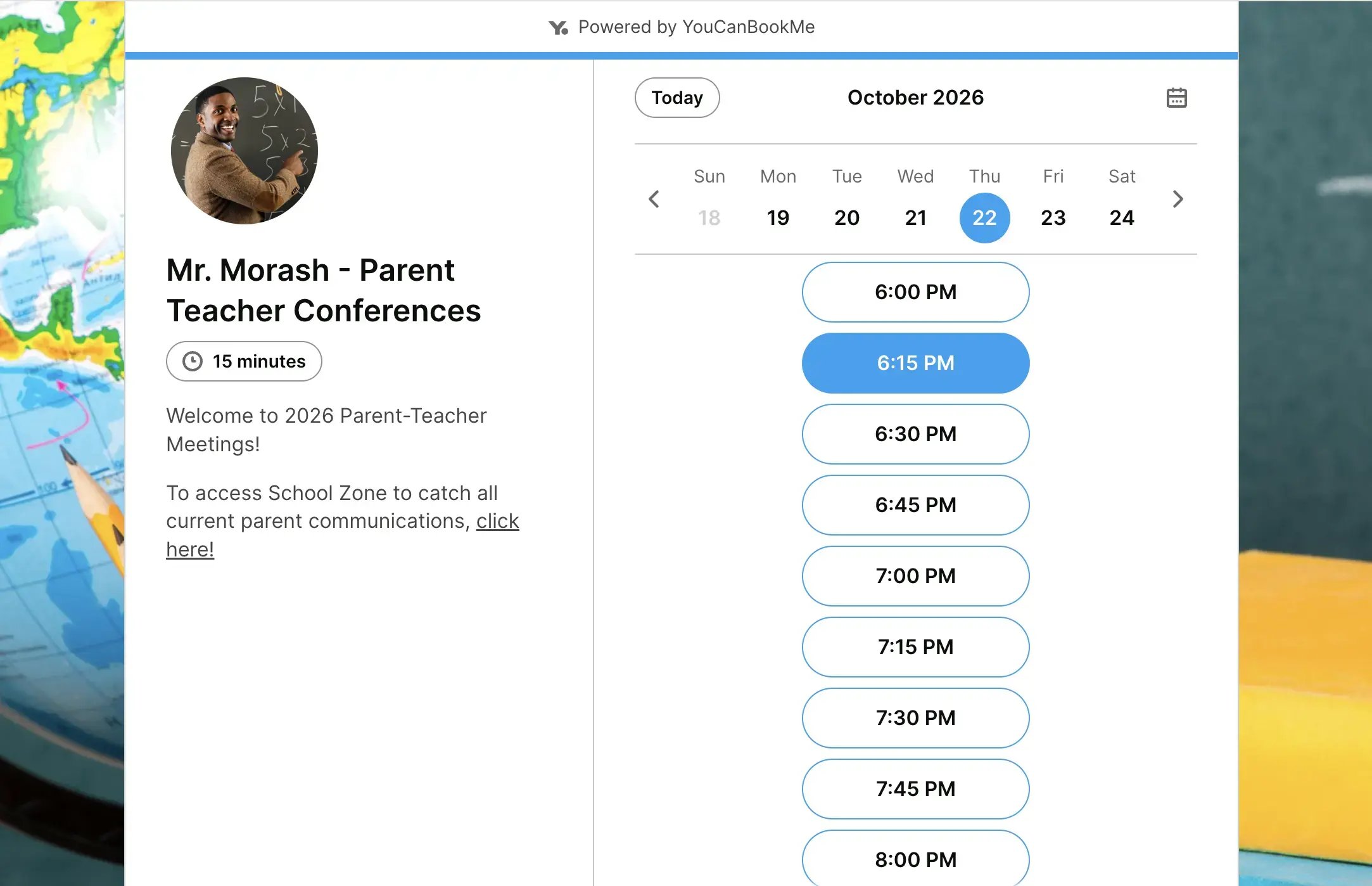
No more phone tag, endless unread emails, and crumpled sign-up sheets pulled from the bottom of backpacks. Instead, create a dedicated booking page for parent-teacher conferences, and simply send it to parents so they can see your availability, and pick a time slot themselves.
Set availability only for the conference window—for example, from 4 p.m. to 8 p.m. on two specific evenings. Use a fixed appointment length and include a small buffer time if discussions regularly run over, or to take notes or prepare for the next meeting without keeping a frustrated parent waiting.
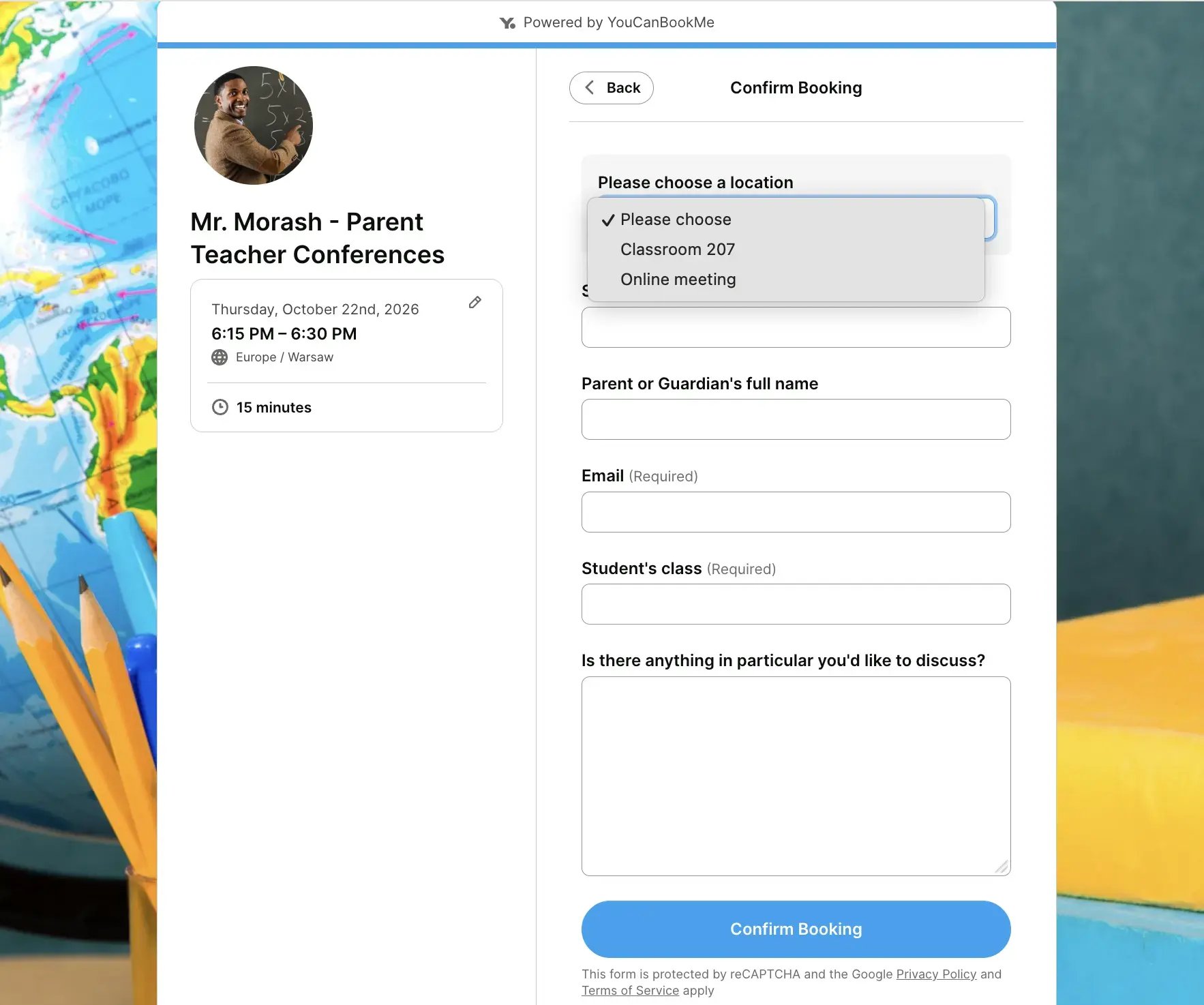
Your booking form could ask for:
- Parent or guardian name
- Student name
- Year group or class
- Topics they want to discuss
- In-person or virtual preference
- Accessibility requirements
That means you won’t walk into a 15-minute appointment with no idea what the parent wants to discuss. Their answers become a ready-made agenda, giving you time to pull up the right work, notes, or attendance records beforehand.
Use the confirmation email to share everything the parent needs to know, including where to go, how to join virtually (if applicable), how long the meeting will last, and what they should bring.
Finally, make the cancellation and rescheduling links easy to find! When a parent cancels early enough, the slot can open up for another family—while the limits you set prevent last-minute changes from disrupting your schedule.
|
➡️ In the middle of planning conference night? Get our full walkthrough on how to schedule parent-teacher conferences from start to finish. |
Traditional office hours mean sitting at your desk and waiting for a student to show up—sometimes to an empty room, sometimes to 15 anxious students all wanting help at once.
Scheduling appointments beforehand solves both problems and actually drives better student outcomes. Students get easy access to a dedicated time slot, and you can give each one exactly as long as they need.
To bring this to life, offer a few different appointment types on your booking page:
- 15-minute quick question
- 30-minute progress review
- 45-minute tutoring session
Or have one appointment type, but let students choose the duration they need, for example from 15-45 minutes. This helps students choose the right level of support and stops a small question from taking up a full hour.
Add a booking form question such as, “What would you like help with?” and ask the student to include the course, assignment, or topic so you can prepare for the meeting before instead of spending the first ten minutes figuring out what they need.
For enrolled students, consider password-protecting it or sharing the booking page only through your learning platform.


|
Pro tip: Let students choose the meeting format that works best for them, whether that’s virtual or in your office. For remote appointments, YouCanBookMe can automatically generate and send a video meeting link for every booking. |
For a one-to-one conversation, a standard booking page will usually do the job. Share your link, let them choose an available time, and skip the “what time are you free” back-and-forth.
For a meeting involving several colleagues, use a meeting poll to gather availability rather than asking everyone to reply with possible times.
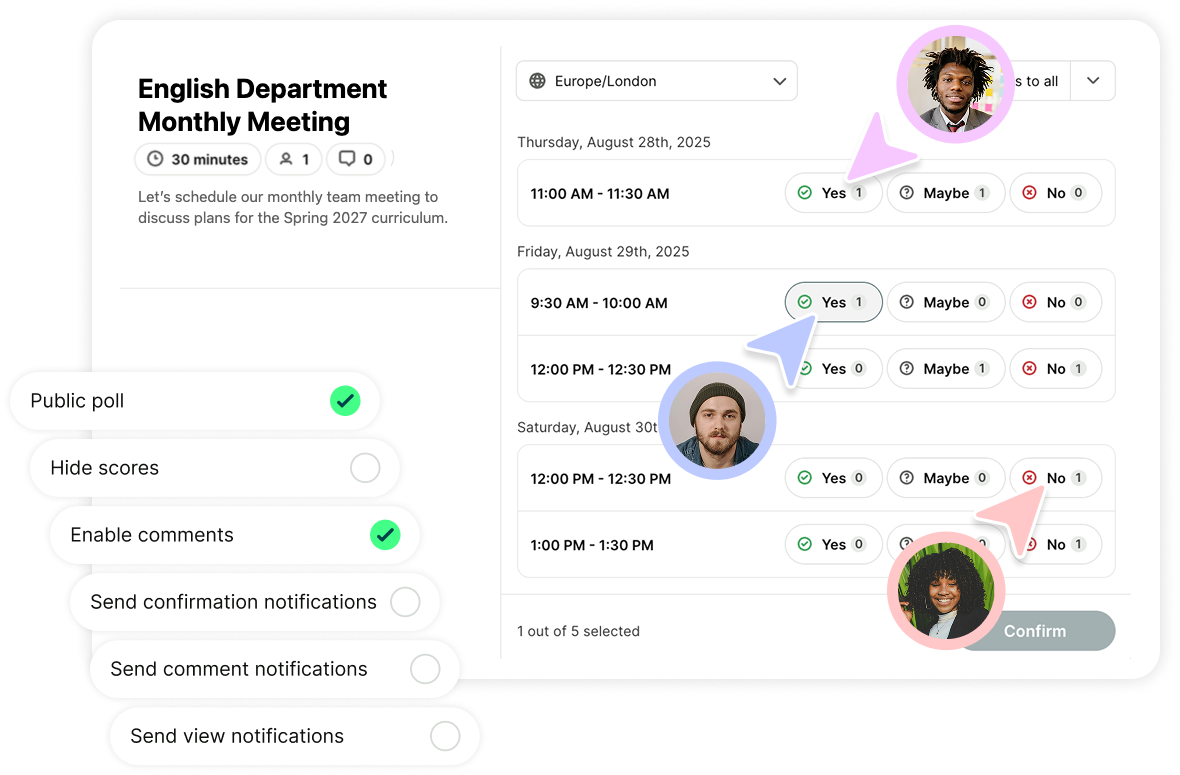
If several staff members can handle the same type of appointment, use round-robin scheduling. A student requesting IT help, for example, can receive the earliest available appointment across the support team rather than contacting each person separately.
You can also use group sessions for:
- Faculty training
- Curriculum workshops
- New-staff orientation
- Software onboarding
- Department briefings

By week three of registration season, most academic advisors have said the same things so many times they could recite them in their sleep. Course prerequisites. Financial aid deadlines. Study-abroad requirements. Graduation checks. The information doesn't change but the appointments keep coming anyway, one student at a time.
Group advising sessions fix this. Run one focused session, let students reserve individual places, and cover the same ground once instead of thirty times.
To set it up:
- Choose one focused topic
- Decide the maximum number of attendees
- Create a group booking slot
- Ask students for their program, year, and main question
- Let students book more than one spot if they want to sign up with a friend
- Share preparation materials in the confirmation
- Send at least one meeting reminder
- Include a one-to-one booking link in the follow-up for anyone who needs individual support


The booking form also lets you see what students are most concerned about before the session. You can adjust the agenda, prepare relevant examples, and make sure you address the questions that appear repeatedly. Think of it as getting questions in advance for your Q&A portion!

Admissions teams often need both individual and group scheduling.
Use one-to-one appointments for:
- Applicant interviews
- Portfolio reviews
- Financial-aid discussions
- International student consultations
Use group sessions for:
- Campus tours
- Open-day presentations
- Accommodation briefings
- Applicant question-and-answer sessions
Collect the applicant’s name, program, application number, number of guests, and accessibility requirements during booking.
For campus visit, include directions, parking information, the meeting point, expected duration, and anything attendees need to bring!


Schedule reminders for the day before the visit. Applicants already have plenty to think about, so a friendly message containing the essential details can prevent missed appointments and last-minute calls to the admissions office.
Whether you teach music, languages, art, or another specialist subject, a dedicated booking page makes it easier for students and parents to schedule lessons without a long back-and-forth.
Offer appointment types based on the lessons you provide, such as:
- 30-minute introductory lesson
- 45-minute standard lesson
- 60-minute advanced session
- Online or in-person lesson
Use the booking form to collect the student’s age, experience level, goals, and anything they would like to work on. This gives you useful context before the lesson and helps you tailor the session from the start.
You can also collect payment at the time of booking, set a minimum notice period to prevent last-minute appointments, and limit how close to the lesson someone can cancel or reschedule.

For students who book lessons regularly, create a private booking page that only they can access, with time slots set aside for their lessons.
You can make scheduling even easier by letting them compare your availability with their own calendar, like Amanda Cooley does in the example below. Once a student connects a Google or Microsoft calendar, YouCanBookMe highlights the times that work for both sides—so they can find a match in a few clicks instead of repeatedly switching between tabs.


Not every scheduling headache involves finding time with another person. Sometimes the challenge is simply making sure the right room or piece of equipment is actually free when someone needs it and that two people haven't claimed it at the same time.
Create a dedicated booking page for each shared resource, such as:
- Science labs
- Music practice rooms
- Recording studios
- Sports facilities
- Computer labs
- Meeting and study rooms
- Cameras, laptops, or other equipment
You can also require students to book a member of staff alongside the resource in the same booking flow—for example, a lab technician or teacher when a science lab needs supervision.
Use confirmation emails to share access instructions, safety rules, and anything the booker needs to do before or after the reservation. That means fewer double-bookings, less confusion, and no more chasing down who has the room, the equipment, or the key.
Build a booking workflow, not just a booking page
The best education scheduling tools don’t simply show people when you’re free. They guide them toward the right appointment, collect the information you need, send the important details, and take care of reminders, cancellations, and rescheduling.
The easiest place to start? Pick the scheduling task that causes the biggest headache right now.
That might be parent-teacher conference week, a permanently crowded advising inbox, or office hours that nobody attends until the day before an exam. Create one booking page for that specific scenario, shape the workflow around how it actually works, and let YouCanBookMe take care of the repetitive admin.
Ready to make school scheduling a lot less painful? Create your YouCanBookMe booking page!
-min.png)
Written by
Gabriela Łaba
Gabriela is Editor-in-Chief at YouCanBookMe and a SaaS copy and content writer with over a decade of experience. Since 2021, she’s written 100+ articles on scheduling, personally tested and compared 38 booking tools, and helped businesses make sense of scheduling, automation, and productivity.
Get started today
Join thousands of coaches, consultants, and entrepreneurs who use YouCanBookMe to power their business. Get your first booking in a few minutes.


 4.7 / 5 — Trustpilot

