
Free Scheduling Software for Schools: 5 Tools I Actually Tested
-min.png?width=100&name=image%20(21)-min.png)
Create your free booking page
Did you know that teachers spend only 46% of their time actually teaching? The rest is taken up by everything that happens around it—including booking parent-teacher conferences, coordinating student appointments, organizing staff meetings, and setting up office hours.
A surprising amount of that work is simply finding a time that suits everyone. When every appointment involves a string of emails, a phone call, or a sticky note you inevitably lose, the hours and the stress add up fast.
Free scheduling software for schools can handle much of that back-and-forth for you, without eating into an already tight budget. But here’s the catch: “free” doesn’t always mean free. Some tools offer a 14-day trial dressed up as a free plan. Others cap you at 40 bookings a month, which wouldn't last a single week of parent-teacher conferences.
You’re busy enough without creating account after account, setting everything up, and then discovering a frustrating limitation or surprise paywall. So I did the legwork for you!
I created a free account with every scheduling tool on this list and tried to build the same booking page in each one. I tested how easy they were to set up, what their free plans genuinely included, and what teachers, administrators, and higher-education teams could realistically use them for without paying.
Let’s get into it!
A free scheduling app for teachers can fall into one of three categories:
- Free forever: No time limit, no credit card required, and the core features stay unlocked.
- Free trial: You get premium features temporarily, but the account becomes restricted or stops working when the trial ends.
- Freemium: The basic tool remains free, but you may run into limits such as monthly booking caps, paywalled video conferencing, or one-way calendar sync that doesn’t check when you’re already busy.
Note: None of these models is automatically bad! The problem comes when you build your school’s process around a trial feature and only discover the paywall after sending your booking link to 200 families. 😬

There’s no shortage of handy education scheduling features spread across these free plans, but these four are non-negotiable if you want a booking tool that actually holds up in daily school use. 👇
Try the free plan—no credit card needed
Set up your booking page in minutes to start saving hours on scheduling admin.

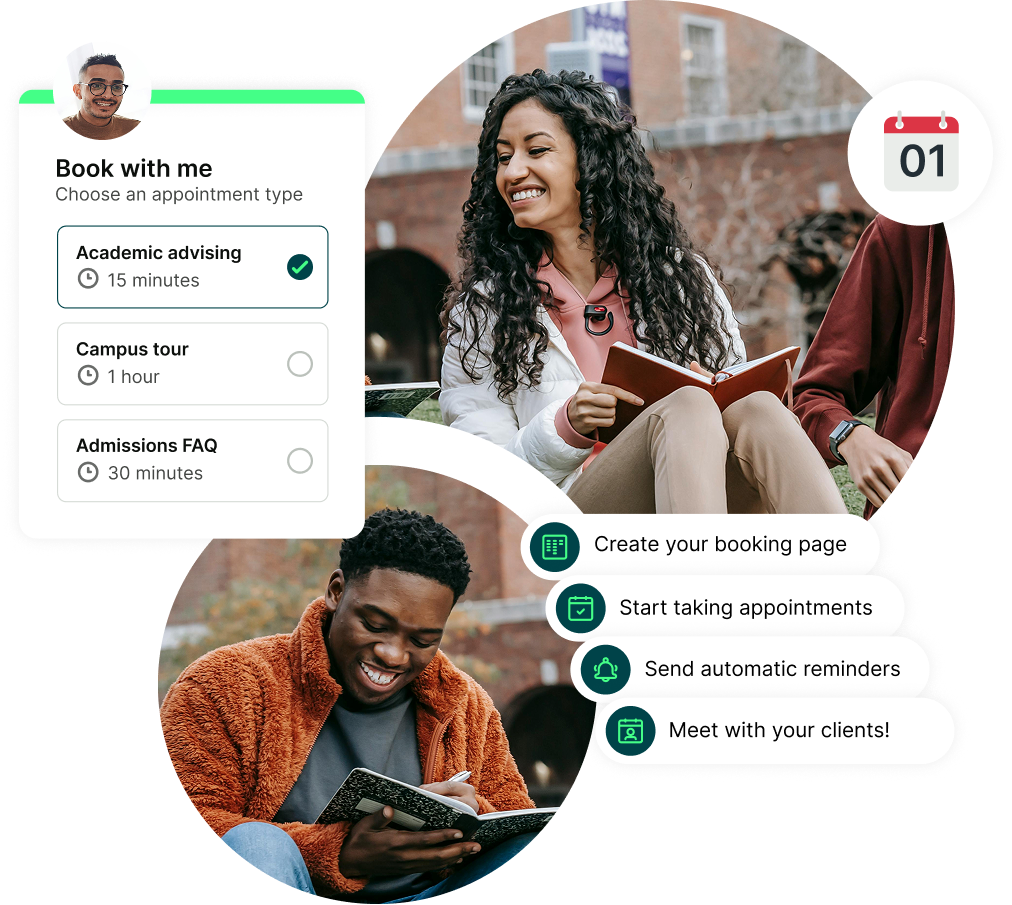
YouCanBookMe is a flexible and easy-to-use online scheduling tool for student appointments, tutoring sessions, parent-teacher meetings, office hours, admissions interviews, and academic advising. That versatility helps explain why thousands of educators across hundreds of institutions use it to schedule their meetings!
The free plan is actually generous: YCBM gives you one booking page connected to one calendar, with unlimited bookings. You can add your own logo and text, customize the booking questions and confirmation message, generate video meeting links automatically, and let attendees cancel or reschedule without contacting you directly.
That makes it a strong choice when you need one dependable, automated booking process that actually saves you time—for example, a single page for weekly office hours, tutoring, or student check-ins.
Pros ✅ |
Cons ❌ |
|
|
Booking page setup experience
Getting started with YouCanBookMe was quick and straightforward. It only took me a couple of minutes to get my booking page live, and the setup wizard gave useful guidance at each step.
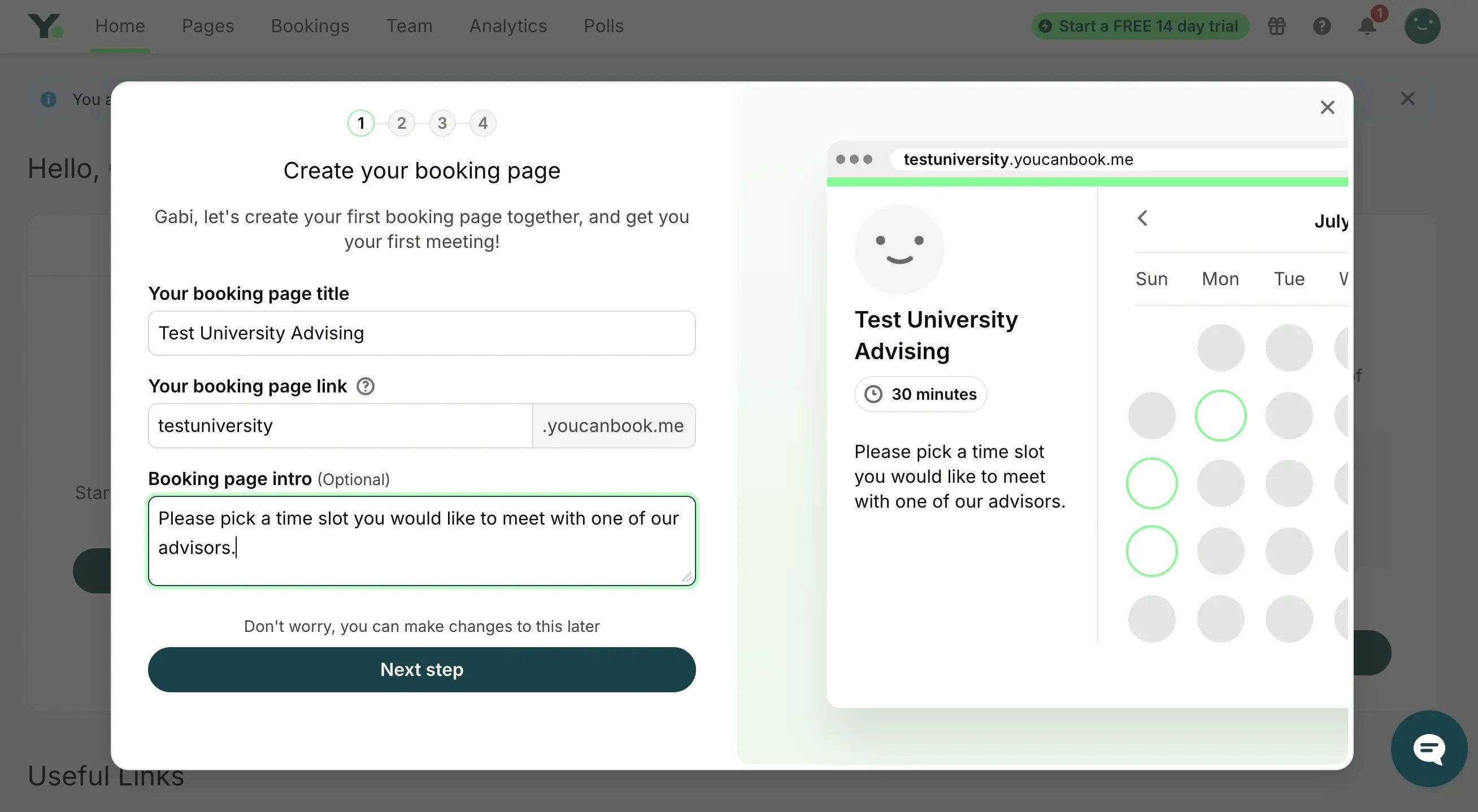
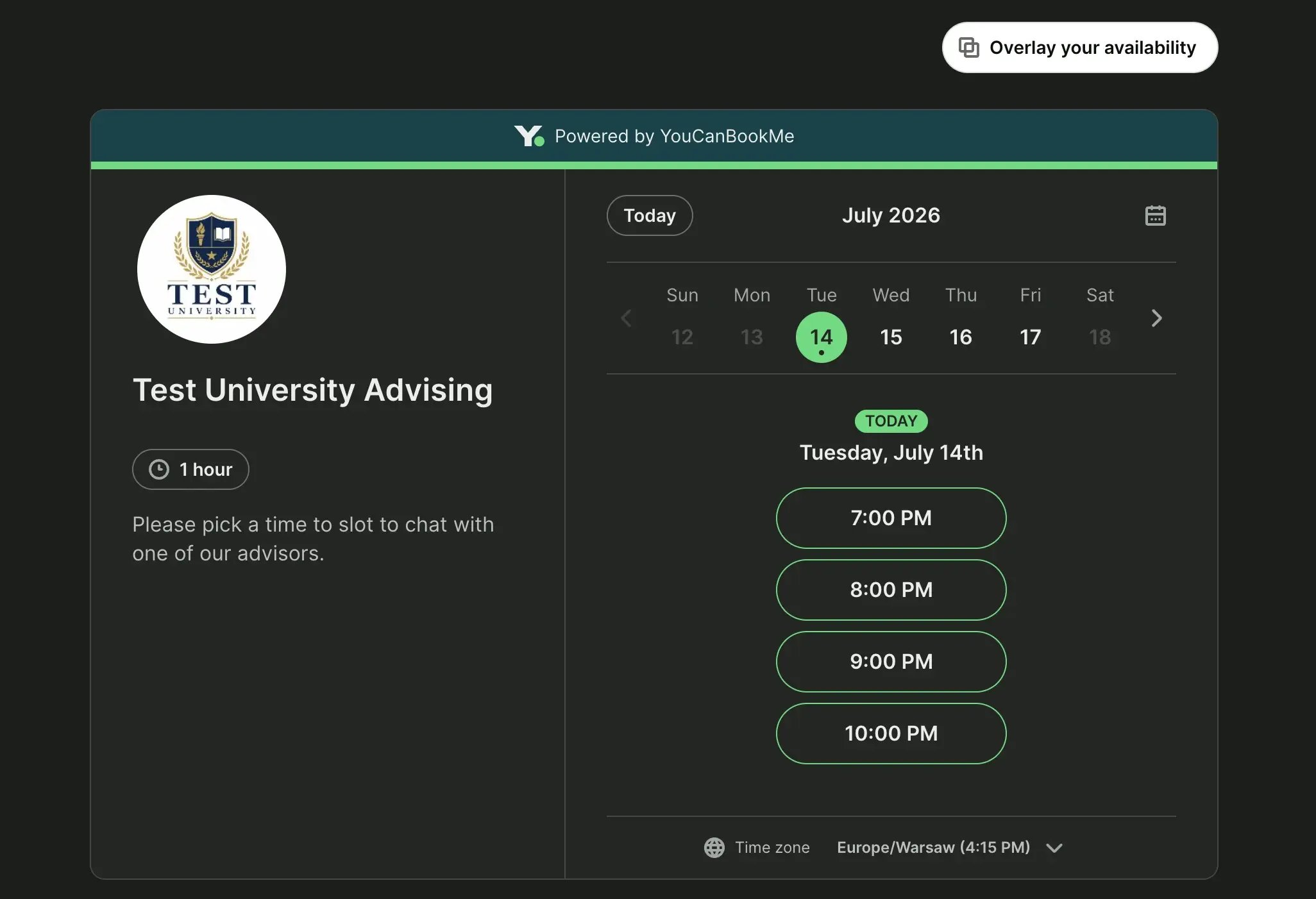
Below you’ll find the final result: a clean, easy-to-follow education booking page featuring my fake university’s name, logo, and custom message.
A standout feature that popped up was the Overlay your availability option. It lets the person booking view their own calendar on top of your availability, so they can immediately see the slots when you’re both free. That saves time not only for you, but also for the students, parents, and staff booking meetings with you.
YouCanBookMe was also the only tool I tested that automatically matched my device’s dark mode, which was a nice touch!
Key school use cases
-
Parent-teacher conferences: Set dedicated availability windows, such as evening-only appointments, collect the child’s name and discussion topics through the booking form, and include relevant information or resources in the confirmation email.
- Student office hours: Boost accessibility by offering virtual office hour appointments with instantly generated video links. Plus, add a QR code leading to your booking page directly to your syllabus or office door for easy access.
- Staff meeting coordination: Use meeting polls to find a time that works for the whole team without the usual back-and-forth.
- Tutoring sessions: Let students or parents book and pay in one step, then embed the booking page on your website for a more professional experience.
What’s included in the free plan?
Take a look at the chart below to see exactly YouCanBookMe’s free plan lets you do:

When to upgrade
It makes sense to choose one of YouCanBookMe’s paid plans (Individual, Professional, or Team), when you need:
- More than one booking page
- To sync more than one calendar
- Send custom email or SMS reminders or follow-ups
- Create more than one appointment type
- Schedule group sessions alongside one-to-one meetings
- To schedule resources (like meeting rooms, laptops, etc.)
- More control over your schedule—such as password-protected booking pages and buffer times between meetings
- Advanced control over your page’s appearance, such as adding custom colors (including duotone themes), backgrounds, and footers
Setmore is one of the strongest free options when several teachers, tutors, counselors, or admins need access to the same account.
Its free scheduling plan supports up to four users and 200 appointments per month. It includes a branded booking page, group classes, email confirmations, one email reminder, and a handy mobile app.
The main trade-off is calendar management. Two-way calendar sync is reserved for paid plans, so the free version is less reliable when staff already have busy external calendars that the booking system needs to check.
Pros ✅ |
Cons ❌ |
|
|
Booking page setup experience
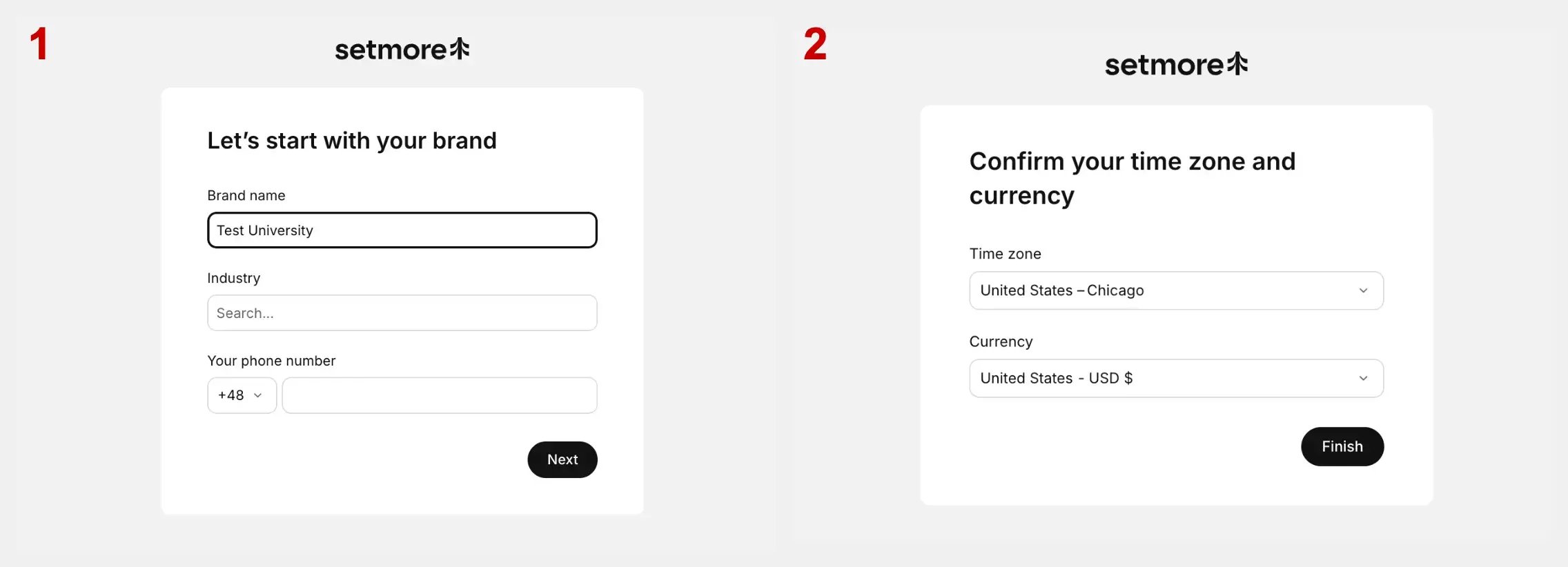
Setmore doesn’t guide you through building the booking page itself. Instead, the initial prompts focus on details such as your business name, phone number, and pricing, which made the setup feel more geared toward service businesses than educators.
Because there was no step-by-step setup wizard, I had to work out how to create and customize the booking page on my own. As a result, it took noticeably longer to get everything set up than it did with YouCanBookMe.
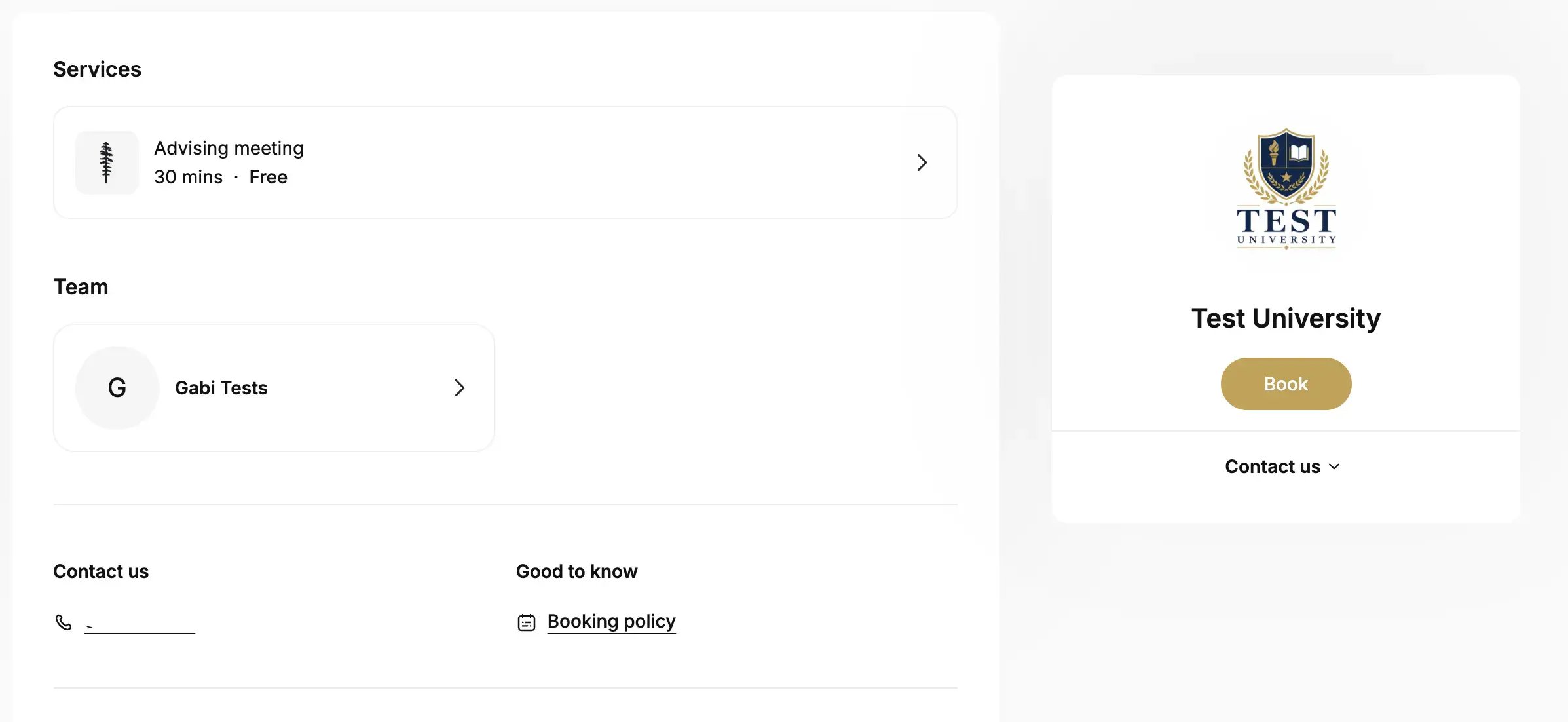
The finished page does look clean, though! It includes a prominent contact section where you can add a phone number, plus a useful space where you can link to any policies, instructions, or other information bookers may need.
Key school use cases
- Group revision sessions: Create a class, set the number of available places, and let several students reserve spots in the same session.
- Parent-teacher conferences: Create profiles for up to four teachers. Parents can then choose the right teacher and receive an automatic confirmation and email reminder.
- Tutoring teams: Let students or parents choose between different tutors and appointment types via the mobile app and pay upfront.
- Admissions and front-office appointments: Let prospective students or families choose the right team member or appointment type from your booking page.
What’s included in the free plan?
Here’s what you’ll get with Setmore’s free scheduling software for schools:
- Up to four users on one account
- 200 appointments per month
- Multiple appointment types on one booking page
- A branded booking page with your logo and colors
- One-to-one and group appointments
- Email confirmations
- One email reminder
- Online payments with PayPal, Stripe, Square, and LawPay
- Mobile and desktop apps
- Option to embed your booking page on your website
- One-way calendar sync (bookings appear in your connected calendar, but your calendar is not checked for existing meetings)
When to upgrade
Setmore’s free plan is pretty impressive, but it’s missing a few core features you might need:
- More than 200 appointments per month
- Two-way calendar sync to avoid double-bookings
- Virtual appointments through tools like Zoom or Google Meet
- More than one email reminder
- SMS reminders
- Recurring bookings
- A booking page without Setmore branding
Picktime is a practical option for schools and universities that schedule both one-to-one appointments and small group events.
Its free plan includes unlimited appointments, three users, two locations, three resources, and two classes on one booking page. That gives admissions or student-support teams a lot of flexibility. For example, you could use appointments for admissions interviews and counseling sessions, then use the two class slots for a campus tour and an applicant information session.
The main downside is the lack of two-way calendar sync. Picktime can add new bookings to your external calendar, but it can’t check that calendar for existing classes, meetings, or appointments before showing your availability. That leaves you more vulnerable to scheduling conflicts and double-bookings.
Pros ✅ |
Cons ❌ |
|
|
Booking page setup experience
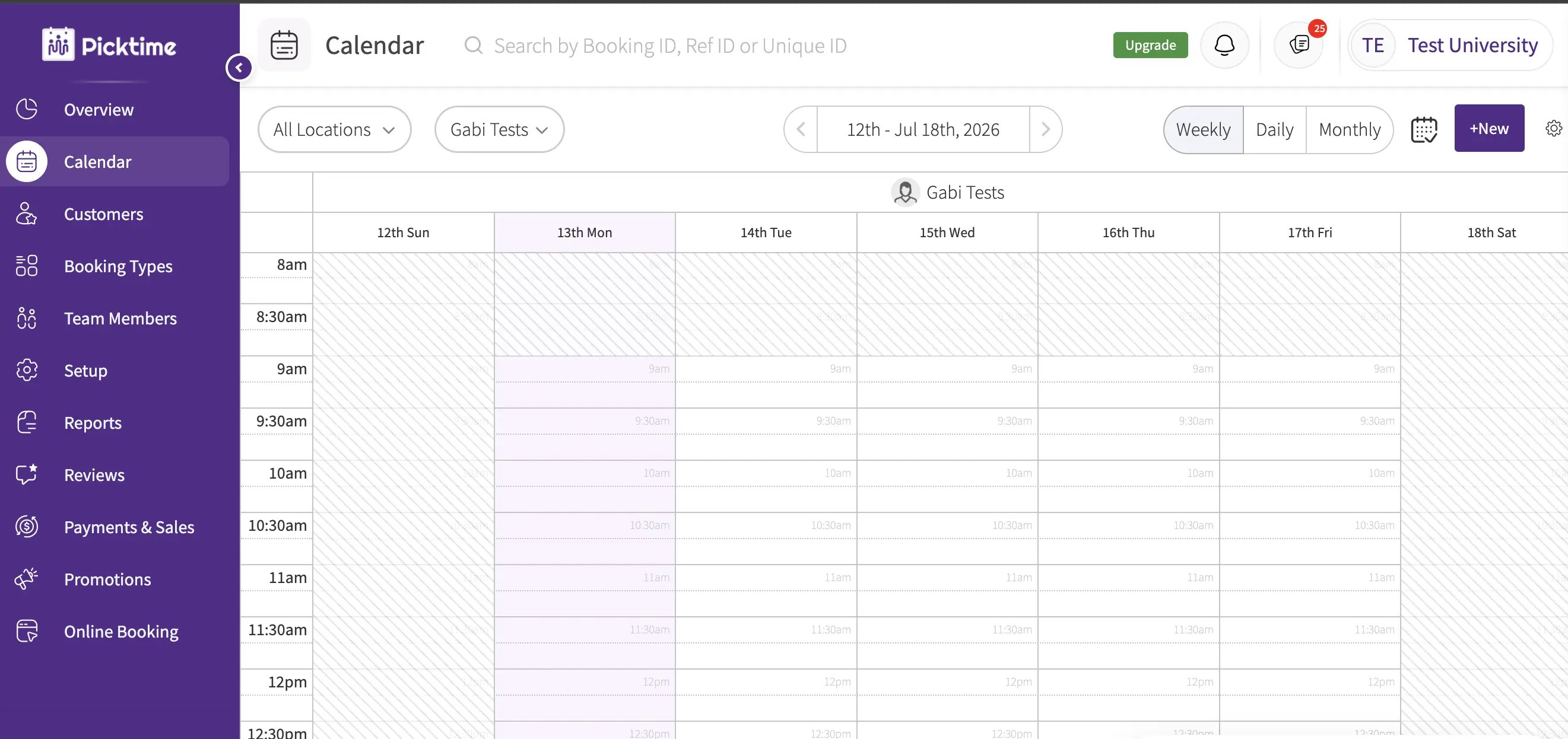
Picktime was the only tool on this list that dropped me straight into the full product dashboard without any sort of setup wizard! That felt a little overwhelming when all I wanted to do was create a booking page quickly.
As a result, the setup process felt more cumbersome than it did with the other tools. It was also the only platform where I had to search for instructions on how to change the booking page colors—and even after following them, I couldn’t get the customization to work. 🤷♀️
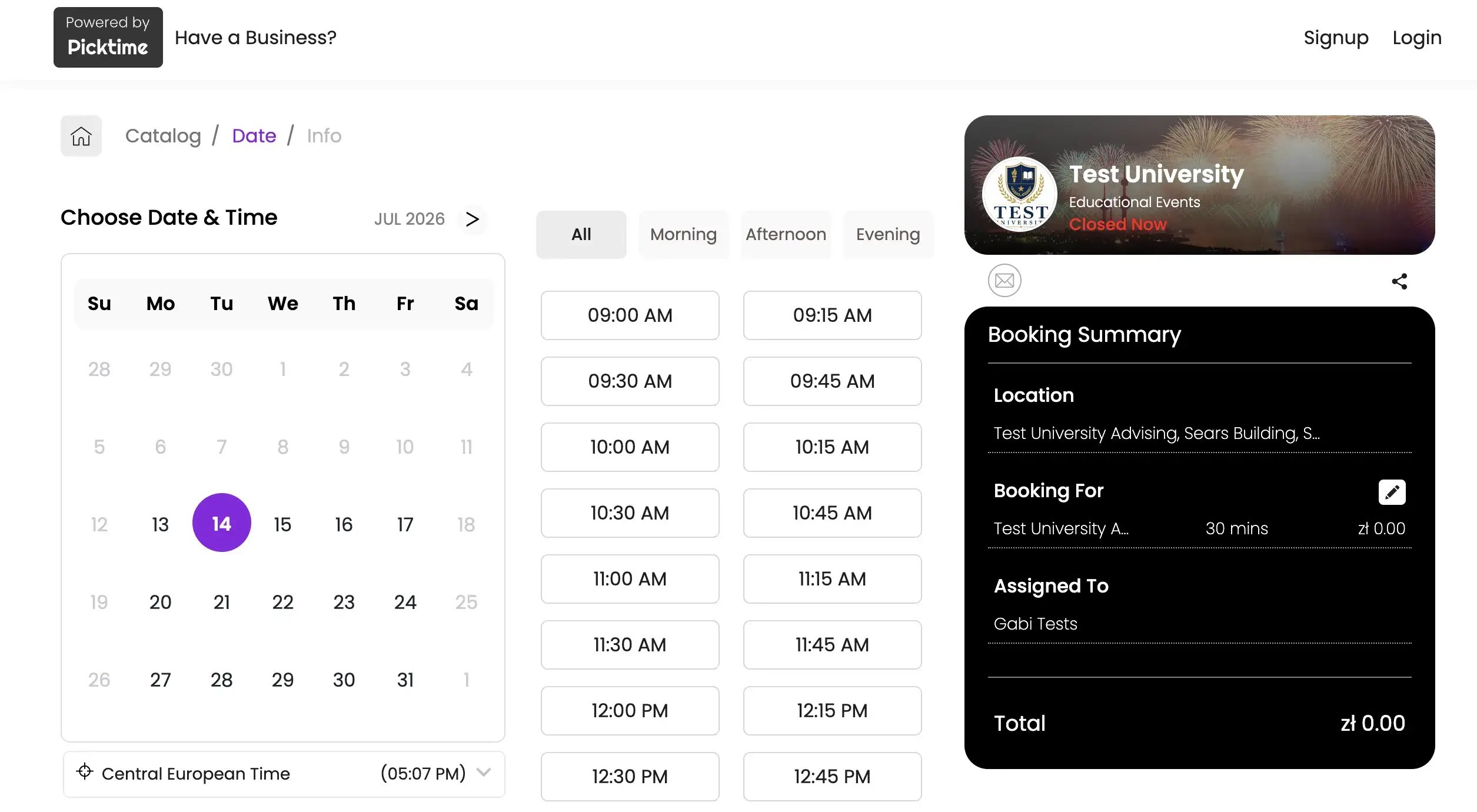
The finished booking page was still straightforward to use. One useful feature was the booking summary, which displayed the appointment details and cost together on the same page. The price field may be less relevant for schools offering free appointments—and could potentially confuse students or families—but it could be useful for paid tutoring, lessons, or other fee-based services.
Key school use cases
- Admissions interviews across campuses: Let applicants choose between different admissions team members and up to two school or campus locations from the same booking page.
- Campus tours and info sessions: Use the two included class slots to create group sessions.
- Study-room and equipment reservations: Add up to three bookable resources, such as interview rooms, music practice spaces, laptops, or specialist equipment.
- Student-support appointments: Allow students to book one-to-one sessions with up to three counselors, advisors, or support staff.
What’s included in the free plan?
Picktime’s free scheduling software for teachers includes:
- Unlimited appointments
- One booking page
- Three team members
- Two locations
- Three resources
- Two classes
- Email confirmations
- One-way calendar sync
- Online payments via PayPal
- Importing + exporting contacts
- Embedding your booking page on your website
When to upgrade
If you end up deciding on Picktime, you’ll want to opt for one of their paid plans if you need:
- Automatic timezone conversion
- Email and SMS reminders
- Recurring bookings
- Access to languages other than English (something to consider if you have bilingual students or parents)
- Two-way calendar sync
- Video conferencing via Zoom, MS Teams, or Google Meet
- Attendance monitoring
SuperSaaS is more configurable than most free scheduling software for schools. Alongside standard appointments, you can use it to manage classes, group events, meeting rooms, laboratories, equipment, and schedules that depend on several resources being available at once.
That flexibility comes with a steeper learning curve, though. SuperSaaS feels more like an administrative scheduling system than a simple booking link you can set up in a few minutes.
The free plan only lets you have 50 upcoming appointments at a time. That may work for a small club or pilot program, but it’s unlikely to be enough for a larger group—or even one teacher using it for a busy round of parent-teacher conferences. SuperSaas also doesn’t support calendar sync of any kind on the free plan (which can defeat the purpose of a booking tool altogether).
Pros ✅ |
Cons ❌ |
|
|
Booking page setup experience
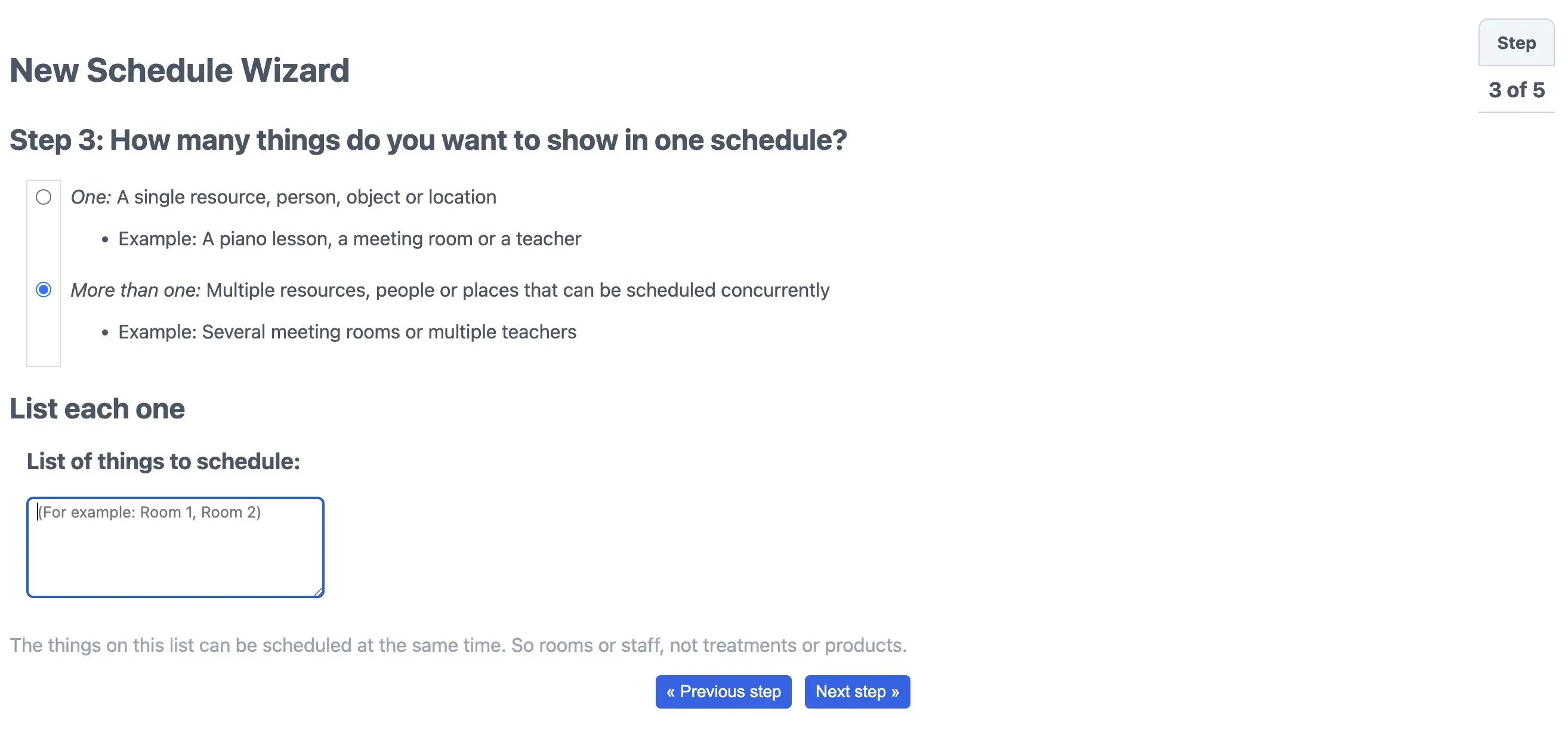
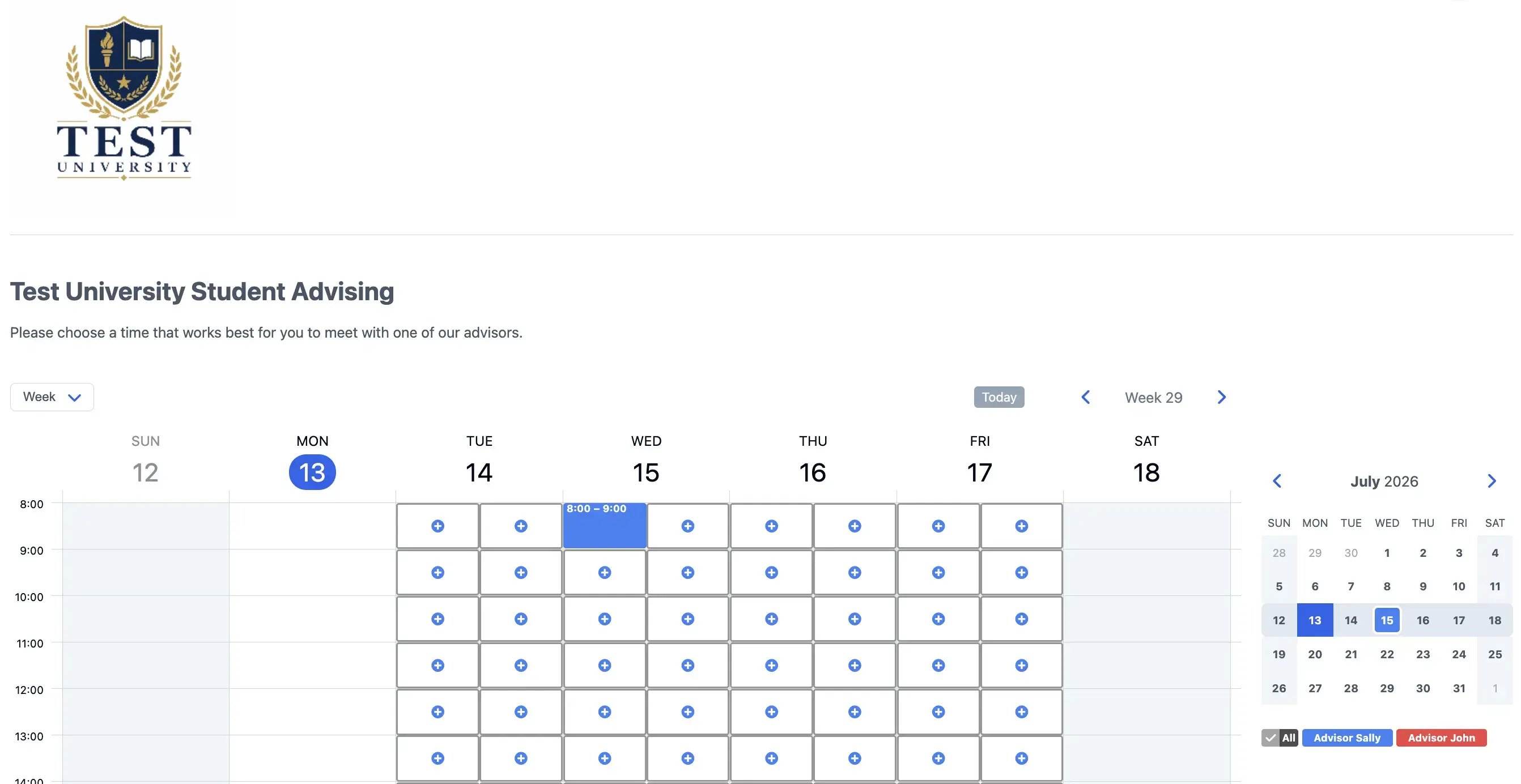
Compared with the other free scheduling software for schools I tested, SuperSaaS had the most outdated interface. It did include a setup wizard, but I didn’t find it particularly intuitive. At a few points, it was difficult to understand how the choices I was making would affect the final booking page.
The finished page also felt less polished and personalized than the others I tested. The logo appeared disconnected from the rest of the page, and the overall experience felt a bit generic.
🚩 More concerningly, the page initially allowed me to make a booking without entering any contact information. That means a student or parent could reserve a time without receiving a confirmation unless you manually adjust the settings first. It is fixable, but it adds another setup step and could be easy to miss, so keep an eye out for that.
Key school use cases
- Room, laboratory, and equipment reservations: Let students or staff reserve resources such as science labs, sports facilities, recording equipment, projectors, or 3D printers.
- School events: Set a capacity for each activity and let students sign up for a waiting list if it fills up.
- Assessment exams: Create bookable exam slots, collect student IDs in the booking form, and track attendance.
- Tutoring and mentoring programs: Collect information before each session, send confirmations and reminders, and follow up afterward with homework, resources, or next steps.
What’s included in the free plan?
SuperSaaS’s free plan includes:
- 50 registered users (people that are scheduling with you and create an account)
- 50 future appointments
- 500 past reservations
- Online payments via PayPal, Stripe, and more + invoicing
- Video conferencing via Zoom, MS Teams, or Google Meet
- Option to embed your booking page on your website
- Group, one-on-one, and resource scheduling
- Waitlists
- Booking confirmations, reminders, and follow-ups
- Support for 35 languages
- Custom booking form templates
- Attendance tracking
- Buffer time between meetings
When to upgrade
Although the free plan is hefty, you’ll quickly need to upgrade if you:
- Need more than 50 future appointments scheduled at once (Note: SuperSaas doesn’t offer unlimited bookings on any of its plans)
- Want more than 50 registered bookers on your profile
- Need to sync your calendars to avoid scheduling conflicts
Koalendar offers a pretty generous free scheduling plan. Free users get unlimited bookings, event types, scheduling links, and booking pages. The plan also includes two-way calendar sync, automatic timezone detection, basic booking notifications, video conferencing, website embeds, and support for more than 30 languages.
That makes it a strong choice when you need separate links for several types of meetings—or if you want different booking pages for parent-teacher conferences, admissions, tutoring, and office hours.
The main limitations appear when you need to use video conferencing tools other than Google Meet, add booking form questions that help you prepare for the meeting, or collect payments for bookings. Those features require a paid plan, which may be a drawback for private tutors, music teachers, or educators who want to collect information from students and parents in advance.
Pros ✅ |
Cons ❌ |
|
|
Booking page setup experience
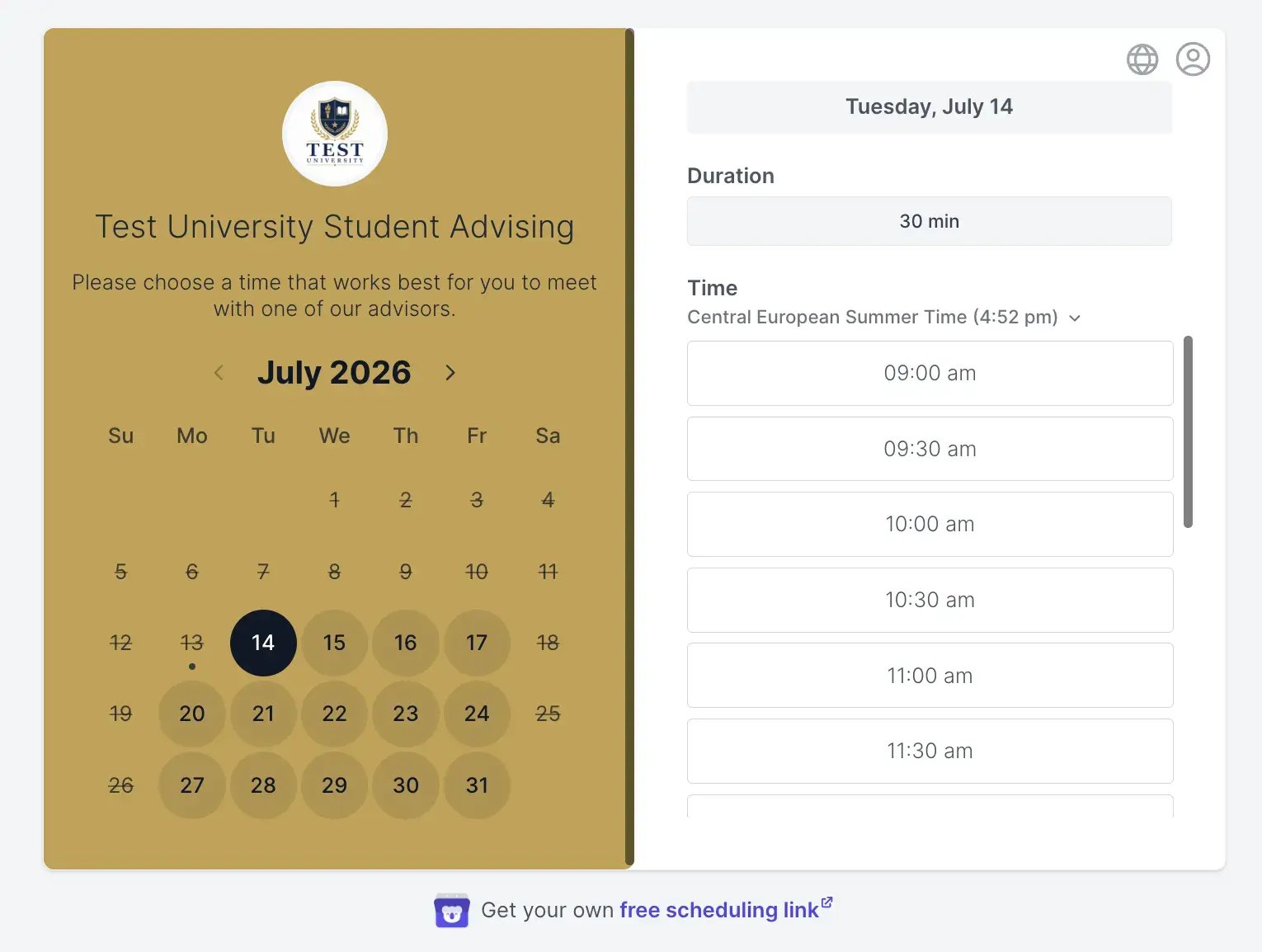
And we’re ending this roundup of scheduling software for schools like we started it, with another easy setup! Like YouCanBookMe, Koalendar had an intuitive setup experience, guiding me through the key customization options while showing a live preview of how the booking page would look on both desktop and mobile.
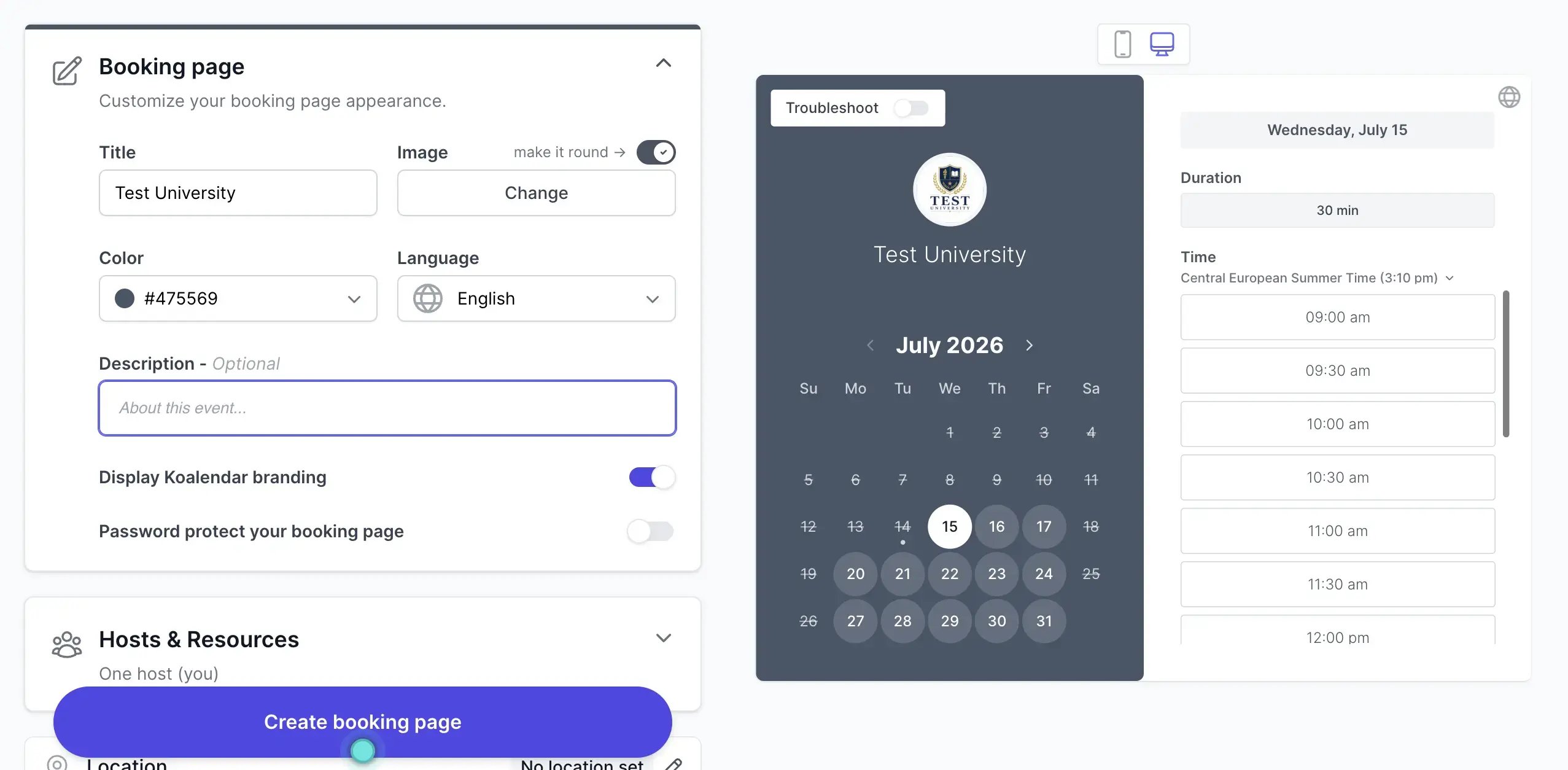
The finished page was clean, simple, and easy to navigate, with the most important appointment details shown upfront. Koalendar was also the only teacher scheduling software I tested that let me choose a custom background color on the free plan.
Key school use cases
- International admissions interviews: Let applicants book across time zones without calculating the difference themselves, then meet virtually through an automatically generated Google Meet link.
- Thesis and dissertation supervision: Create separate booking pages for progress reviews, draft feedback, and quick check-ins so students can choose the right type of meeting.
- Library and research consultations: Embed a booking page on the library or department website so students can schedule one-to-one help.
- Course-specific office hours: Create a separate booking page for each course or module, so students see only the availability and meeting details relevant to their class.
What’s included in the free plan?
Koalendar’s free plan lets educators:
- Accept unlimited bookings
- Create unlimited booking pages
- Embed booking pages on a school or personal website
- Sync up to two calendars
- Send an automatic confirmation email using Koalendar’s standard template
- Display booking pages in more than 30 languages
- Let bookers choose their preferred meeting location and duration
- Automatically detect each booker’s time zone
- Generate virtual meeting links via Google Meet
When to upgrade
You’ll need a paid plan if you want to:
- Generate Zoom or Microsoft Teams meeting links
- Run group sessions
- Offer multiple appointment types through one booking link
- Add team members or bookable resources
- Collect payments through Stripe
- Add custom questions to the booking form
- Send automated reminders and follow-up emails
- Offer recurring bookings
- Create single-use booking links
- Limit how many appointments can be booked each day, week, or month
Ready to take scheduling off your plate?
Create a free YouCanBookMe page for office hours, parent meetings, tutoring, or student appointments. Unlimited bookings, no credit card required.

Picking a tool and going live is only the first step! The real time savings come from building an automatic workflow around your bookings—that’s what actually reduces your workload.
Quick note: Not every tool on this list includes all the features in this section.
-
YouCanBookMe's free plan includes a booking form with up to seven custom questions; Koalendar's doesn't.
-
Setmore includes automated reminders on its free plan; Picktime doesn't.
-
YouCanBookMe and Koalander offer two-way calendar sync; Picktime, Setmore, and SuperSaaS don’t.
If a specific feature matters to you, check the "what's included in the free plan" section for each tool above. All five tools also offer paid plans with significantly more features for under $10 per month.
Here is what to configure before you share your booking link to get the most out of the tools on this list. 👇
❌ Don’t use your booking form solely to ask for a name and email address.
✅ Do use it to collect the info you'd otherwise spend the first few minutes of the meeting gathering.
For example:
- For a parent-teacher conference, that means: child's name, class, and what they would like to discuss
- For a student counseling session: student ID, what the appointment is about, and any relevant context
- For a tutoring session: subject, specific topic, and what they've already tried
|
Pro tip: Keep the form focused! You’ll want to remove repetitive questions, not make a student or parent complete another application. |
A useful meeting confirmation should answer:
- What did I book?
- When is it?
- Where will it happen?
- How do I join?
- What should I prepare?
- How can I cancel or reschedule?
👉 For an in-person meeting, include the building, room, entry instructions, and accessibility information.
👉 For a virtual meeting, include the video link and explain whether the attendee needs to install anything.
❌ Don't assume people will remember a booking they made two weeks ago.
✅ Do send at least one reminder before the meeting—24 hours out is a good default.
Reminders are one of the most effective ways to cut no-shows, especially for parent-teacher evenings. If your tool supports it, send a second reminder a couple of hours before.
A follow-up doesn't need to be long. For example:
- Parent-teacher conference: a brief summary of what was discussed and any agreed next steps
- Tutoring session: the topic covered, resources mentioned, and what to work on before the next session. You can even include your scheduling link to make booking easy
- Student counseling: a prompt to rebook if needed, with any relevant support links
In an academic advising or counseling context especially, that continuity matters. A student who gets a clear follow-up is more likely to act on it and less likely to need to rebook to repeat the same conversation.
While you're streamlining how you schedule, here are a few other tools that teachers and administrators find useful alongside their booking software.
AI note takers can help during the meeting itself by producing transcripts, summaries, and suggested action items.
🚨 Important: Before using one, check your school or university’s policies. Don’t record students, families, or colleagues without the appropriate notice and permission, and don’t upload confidential information to a platform your institution has not approved!
Some of our favorites:
- Otter.ai: Provides live transcription (records on your computer for video calls and on your phone for in-person) and searchable meeting notes. The free Basic plan includes 300 transcription minutes per month, with a 30-minute limit for each conversation.
- Fireflies.ai: Transcribes and summarizes meetings across platforms, including Zoom, Google Meet, and MS Teams. Its Free plan currently includes unlimited transcription and AI summaries, with storage and AI-credit limits.
- Fathom: Free forever for individual users with no recording or transcription caps. The upgrade to paid only kicks in if you need shared team workspaces.
Here's how these play out in practice:
- Parent-teacher conferences: Capture the discussion automatically, then email a summary to parents afterward. Keeps everyone aligned on next steps.
- Staff meetings: Automatic action item lists mean no one leaves unsure of what they committed to.
- Student progress check-ins: A searchable transcript means you can find what was discussed three months later without hunting through handwritten notes.
If you're a school administrator building master timetables rather than booking individual appointments, that's a different problem with different solutions! These AI-powered schedulers are worth knowing about:
- Timely Schools: Uses AI to build complex K–12 master schedules around staffing, student needs, and school priorities. Best for high schools managing complicated graduation pathways.
- aSc TimeTables: Generates school timetables from your rules and constraints, with AI-assisted edits and a substitutions tool for teacher absences. Best for schools that need to handle frequent timetable changes.
- TimeTabler: Helps secondary schools and colleges build complex curriculum timetables and export them to major SIS platforms. Best when the timetable itself is the main scheduling headache.
The best free scheduling software for schools is not necessarily the tool with the longest feature list. It’s the one that removes the most manual work from the appointments you already run.
For most teachers and administrators, YouCanBookMe is the strongest free option, with unlimited bookings, two-way calendar sync, intake forms, and automated confirmations. If you have a specific need the others handle better, here's where to look:
- Need multiple staff on one account? → Setmore
- Managing group sessions or bookable resources? → Picktime
- Scheduling rooms, labs, or equipment? → SuperSaaS
- Need multiple booking pages on the free plan? → Koalendar
Start with one clear use case: whether office hours, parent conferences, admissions interviews, or group advising. Build the booking page, add the questions you repeatedly ask, and improve the confirmations based on what happens in practice.
That is how you turn a simple booking link into a process that genuinely gives teachers, administrators, students, and families some time back.
And yes, full disclosure: we are YouCanBookMe, so we’d be delighted if you gave our free plan a try! It costs nothing, takes only a few minutes to set up, and you can decide for yourself whether we earned the top spot. 🙂
Frequently Asked Questions
What's the difference between a free trial and a free-forever scheduling plan?

A free trial gives you full access for a set period—usually 7 to 14 days—after which the account stops working or becomes restricted. A free-forever plan means the core features stay available indefinitely with no time limit and no credit card required. For schools, the difference matters: if you build your booking process around a trial feature and discover the paywall after sending your link to 200 families, you're starting over. Always check whether the features you actually need—calendar sync, confirmations, intake forms—are included on the free tier before going live.
What scheduling software works with Google Calendar for free?
YouCanBookMe offers free two-way Google Calendar sync, meaning it checks your existing calendar before showing availability and automatically prevents double-bookings—all on the free plan with no credit card required. Koalendar also includes two-way Google Calendar sync on its free plan. Setmore syncs with Google Calendar for free too, but only one-way—new bookings appear in your calendar, but the tool won't check for existing conflicts.
How many bookings can I take on a free scheduling plan?
YouCanBookMe offers unlimited bookings on its free plan with no monthly cap and no credit card required. Picktime and Koalendar are also unlimited on their free plans. Setmore caps free users at 200 appointments per month, and SuperSaaS limits you to 50 upcoming appointments at a time, which a single parent-teacher conference evening could easily exceed.
Can I use free scheduling software for parent-teacher conferences?
Yes—and YouCanBookMe is particularly well suited to it. You can set evening-only availability windows, collect the child's name, year group, and discussion topics via the booking form, and send automated confirmations with everything parents need before the meeting—all on the free plan. Setmore and Koalendar also support parent-teacher conference scheduling on their free plans. See our full parent-teacher conference scheduling guide for a step-by-step walkthrough.
Can I use scheduling software to reduce no-shows at school meetings?
Yes—automated reminders are the most effective way to cut no-shows. Sending one reminder 24 hours before and a second closer to the meeting makes a measurable difference, especially for parent-teacher evenings where a missed slot can't easily be filled. Setmore includes automated reminders on its free plan. YouCanBookMe, Picktime, Koalendar, and SuperSaaS all offer reminders on paid plans, all starting at less than $10/month.
Do AI note takers work for parent-teacher conferences?
Yes, but check your school's policies before using one. Tools like Otter.ai, Fireflies.ai, and Fathom can transcribe the conversation, generate a summary, and flag action items automatically—so you can send parents a clear follow-up without writing up notes afterward. Recording requires appropriate notice and consent from everyone in the meeting, and you should only use platforms your institution has approved for handling confidential information.
Is YouCanBookMe free for schools?
Yes—YouCanBookMe is free forever for schools, with unlimited bookings, two-way calendar sync, a booking form with up to seven custom questions, automated confirmations, and automatically generated Zoom, Google Meet, and Teams links, all at no cost and with no credit card required. The free plan is limited to one booking page and one connected calendar. You can read the full breakdown of what's included in YouCanBookMe's free plan here.
-min.png)
Written by
Gabriela Łaba
Gabriela is Editor-in-Chief at YouCanBookMe and a SaaS copy and content writer with over a decade of experience. Since 2021, she’s written 100+ articles on scheduling, personally tested and compared 38 booking tools, and helped businesses make sense of scheduling, automation, and productivity.
Get started today
Join thousands of coaches, consultants, and entrepreneurs who use YouCanBookMe to power their business. Get your first booking in a few minutes.


 4.7 / 5 — Trustpilot

