
7 Booking Page Availability Controls Every Educator Should Use

Create your free booking page
You've been teaching since 8 AM. Your last session ran long, your inbox has been building since Tuesday, and you have three minutes before your next meeting. Your booking page let this happen, and you didn't even know it could be any different.
Whether you're teaching, advising, or supporting students in another way, one thing is pretty much universal: there just aren't enough hours in the day. Yet although educators are chronically overscheduled, most booking pages are set up in 10 minutes and never revisited.
If your booking page is a free-for-all with no rules in place, it ends up adding to the problem instead of solving it. Every available slot fills up, meetings get booked back-to-back, and you have no room to breathe.
But a booking page isn't just a link. It's a set of rules, and you're the one who gets to write them.
In this blog, we'll walk you through YouCanBookMe's (YCBM) scheduling features for educators and show you how to set up your booking page so it protects your time as much as it fills it.
One of the easiest things you can do to protect your time as an educator who offers student consultations is to set a daily booking cap—one of several availability settings you can control in YouCanBookMe. In other words: decide the maximum number of meetings you're willing to accept in a single day, and let your booking page enforce it for you.
That number depends on your role. If you’re a tutor with teaching and marking commitments, you might only manage a handful of bookings a day. An academic advisor might comfortably handle eight, with time left over to type up notes and answer emails between sessions.
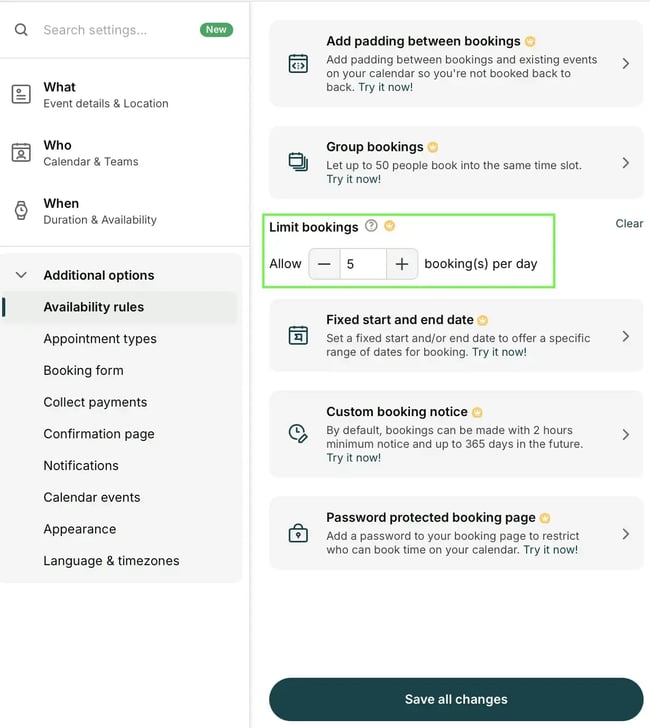
To set it:
- Go to Additional options → Availability rules → Limit bookings
- Use the + / – buttons to set your daily number
- Save your changes
Once you hit that number, YCBM automatically hides the remaining slots for the day—the rest of your week stays bookable as normal.
|
👉 This feature is available on Professional and Team plans |
A 30-minute office hours slot rarely lasts exactly 30 minutes. There's the student who asks one more question on the way out, the note you need to jot down while it's fresh, or the next student already waiting outside the door.
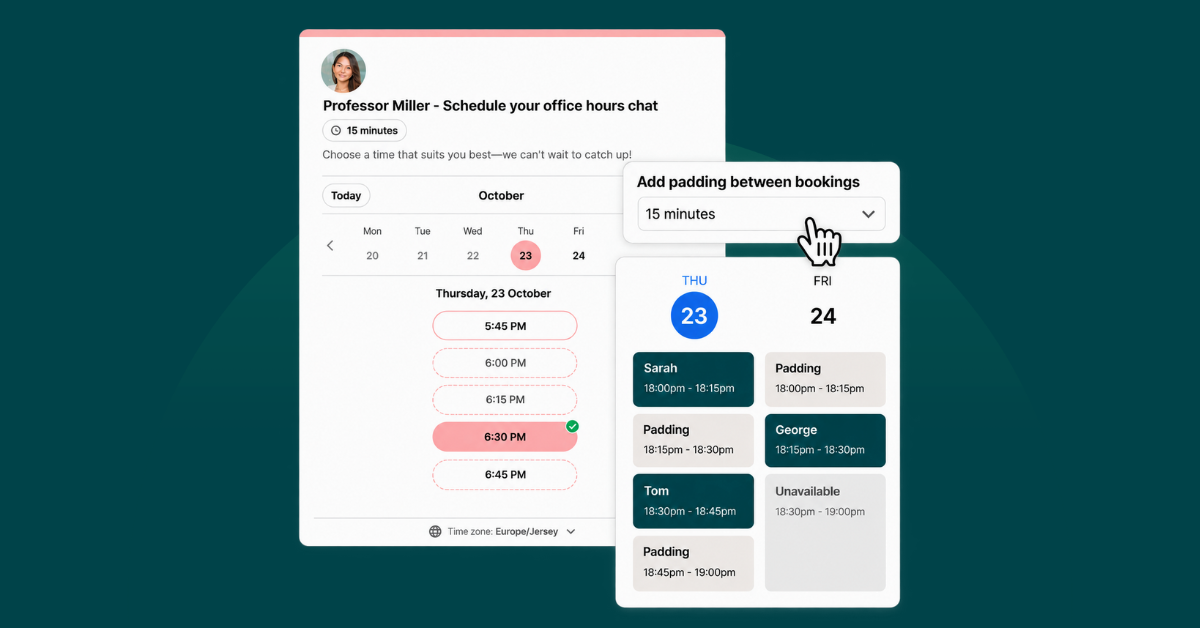
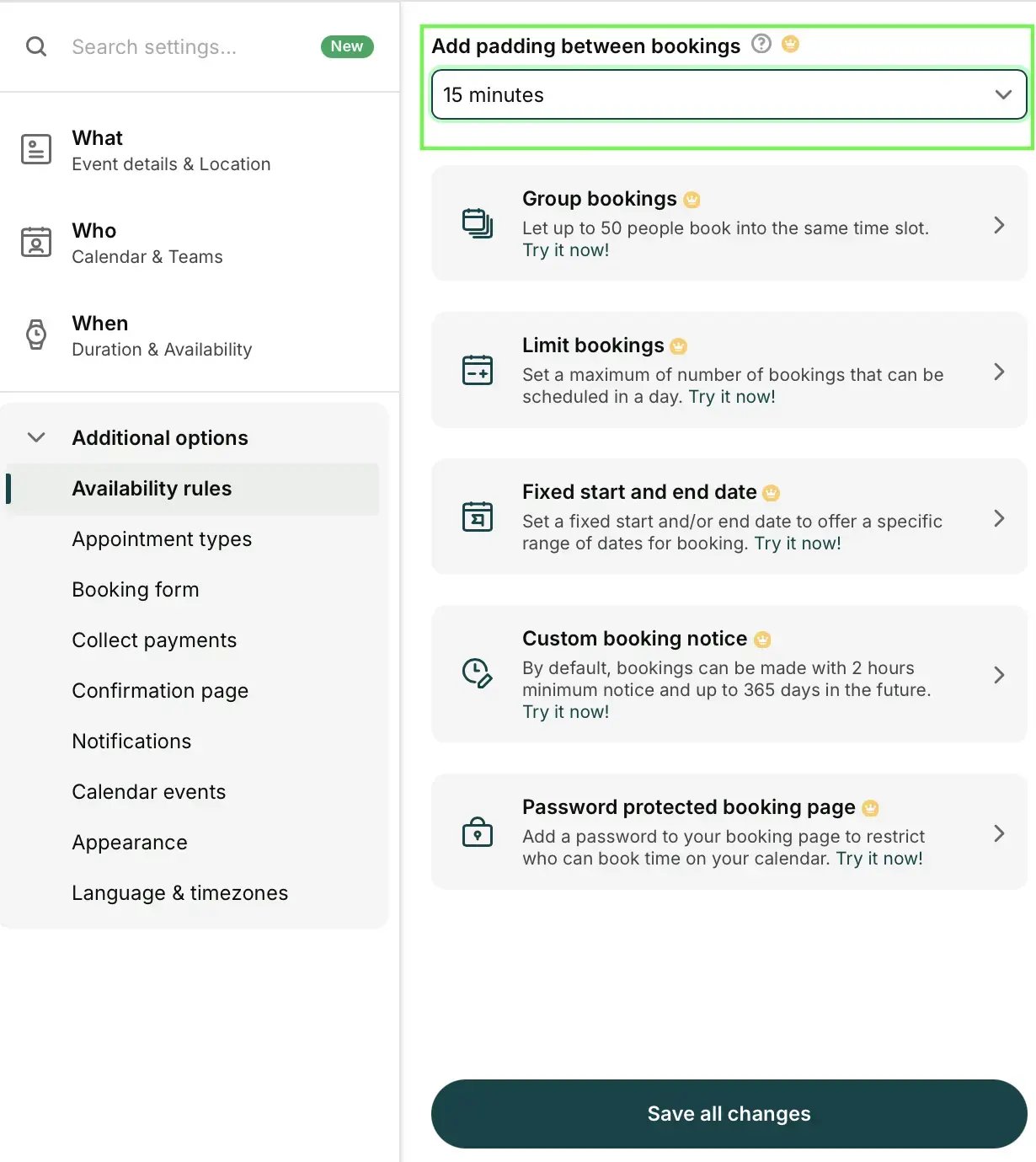
Buffer time, or as YCBM calls it, padding, solves this. Add padding between bookings, and YouCanBookMe will only show time slots that leave enough room for both the meeting and the buffer. It gives you breathing room between meetings, whether that's time to take notes or simply a chance to avoid rushing one student out because the next one is waiting.
There's also another reason for setting up buffers—getting from place to place. On a campus, the next meeting often isn't in the next room; it's in the next building. Up three flights of stairs and across two quads.

Adding padding between bookings is easy. Click Additional options → Availability rules → Add padding between bookings. Then choose how much buffer time you want. That’s it!
|
👉 This feature is available on all paid plans |
Another great education scheduling feature is minimum notice period. Picture this: you're finishing a lecture at 11 AM, and a student grabs an 11:15 AM slot before you've even packed up your notes. You haven't had a chance to do any meeting prep, in fact you haven't even made it back to your office, and now you're walking (or running 🏃) across campus into the meeting cold.
With a minimum notice period, you don’t have this problem. It's a simple rule that sets how soon someone can book a time with you, starting from right now. Say you set it to two hours: that same student's earliest option becomes 1:15 PM instead of 11:15 AM, which gives you enough time to get ready.
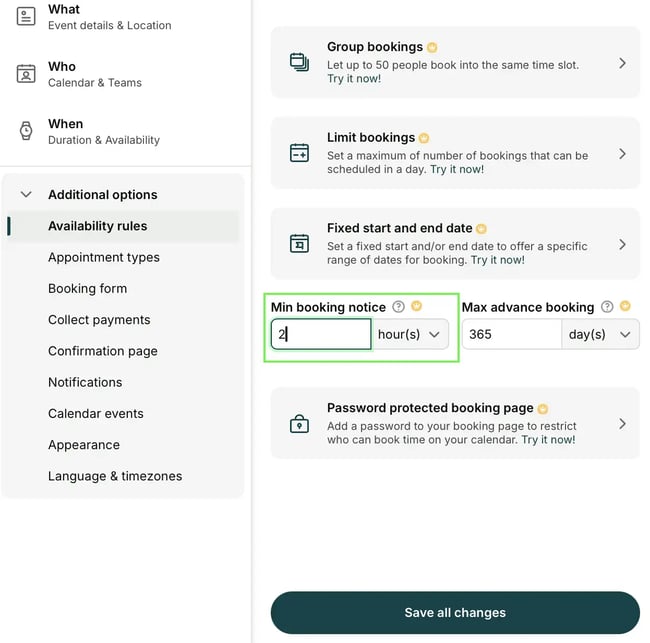
You’ll find this setting under Availability rules.
|
👉 This feature is available on all paid plans |
Speaking of preparation, it’s also a good idea to add a few fields to your booking form to gather information before the meeting. Even if you have a minimum notice period set, not knowing exactly what the student wants to discuss can waste precious time, as they’ll need to explain everything from scratch once the meeting starts.
Say a student has a question about a grade. They pick a time on your calendar, enter their name and email address, and that’s it. They show up to the meeting, and you have no idea they’re going to ask about a specific grade (and you certainly couldn’t do any prep to answer their questions).
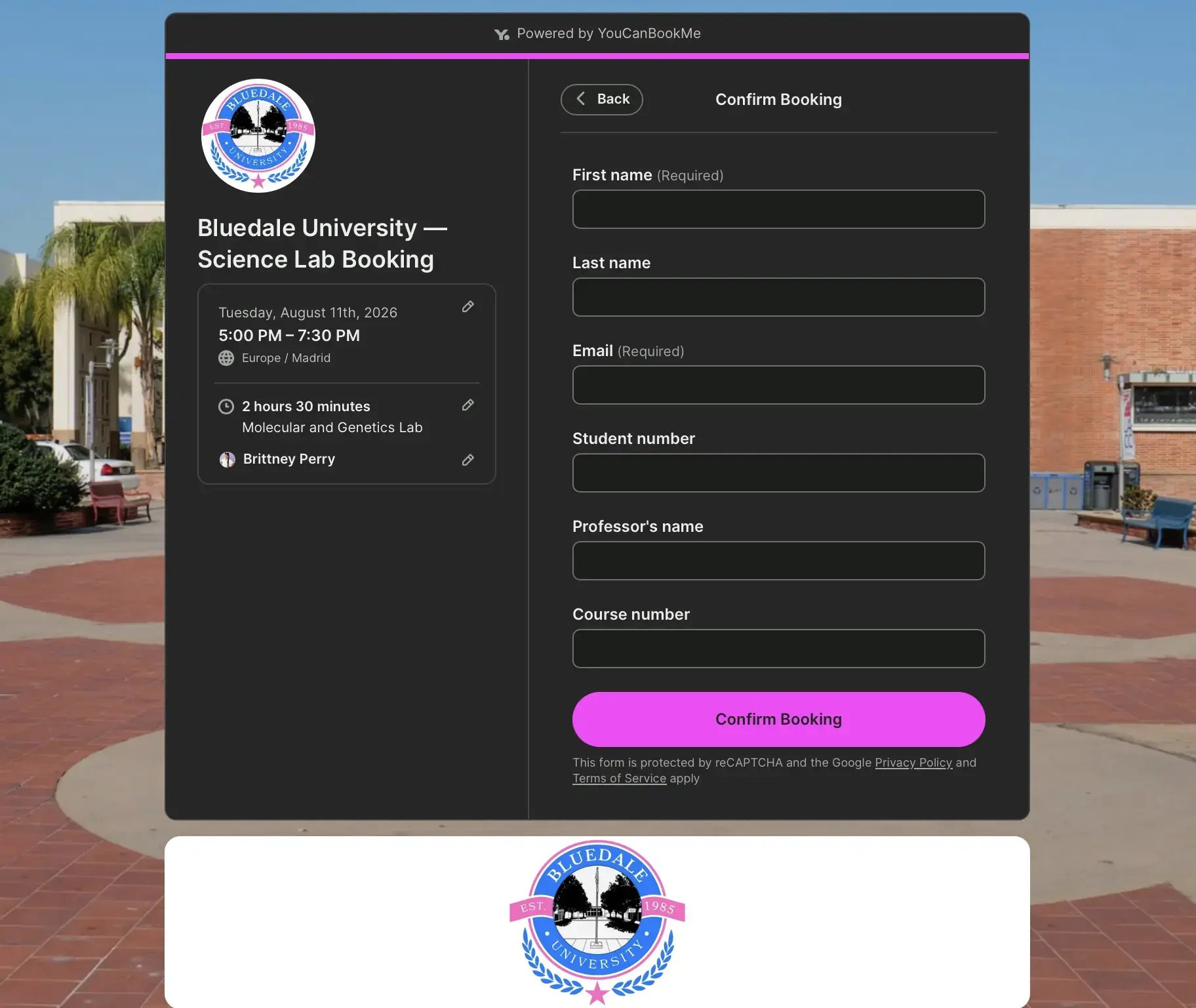
Or say you have a booking page for a science lab. Instead of collecting just the student's name and email address, you could ask for more: their student number, course number, and professor's or tutor's name. That way, whoever's running the session knows exactly who's coming, for which course, and under whose supervision, before the student even walks in.
|
💡 Pro tip: Looking for more booking page inspiration? Explore these real-world education scheduling setups for office hours, academic advising, parent-teacher conferences, campus tours, and more. |
Jeremy at Illinois College does exactly that. Students booking IT support are required to describe their issue, the room they're in, and what they've already tried. By the time Jeremy sees the booking, he often already knows the fix, and sometimes resolves it before the meeting even happens.
What's also handy is that with YCBM's booking forms, you can set up several types of fields depending on what you need:
- Multiple-choice: Dropdowns, checkboxes, or radio buttons for quick options like "Discuss a group project," "Clarify an assignment," or "Ask about a grade."
- Short or long answer: For more open-ended context, when a quick option won't cut it.
- Blocking questions: Stops someone from booking altogether if they don't meet a requirement—useful if, say, a lab session requires a safety orientation on file first.
|
👉 This feature is available on all YouCanBookMe plans, both free and paid |
Most educators share their booking link once—in a welcome email at the start of term, or buried somewhere in a course syllabus. Students miss it, forget it, or can't be bothered to go looking.
Your booking page can be embedded directly into Moodle, Canvas, or any LMS that supports iframes. Instead of sending students elsewhere, your booking page lives inside the course page itself, visible exactly when a student realizes they need support. That’s exactly what they do at Illinois College.
Jeremy Hommowun, Faculty Support and Educational Technology Specialist, describes it as a two-click experience:
Two clicks and a student can book an appointment with the writing center. They don't have to log in. They just pull the page up, click the button. Done."
The setup itself is simple. From your booking page, click the Share button in the top-right corner, then select Embed to copy the embed code.
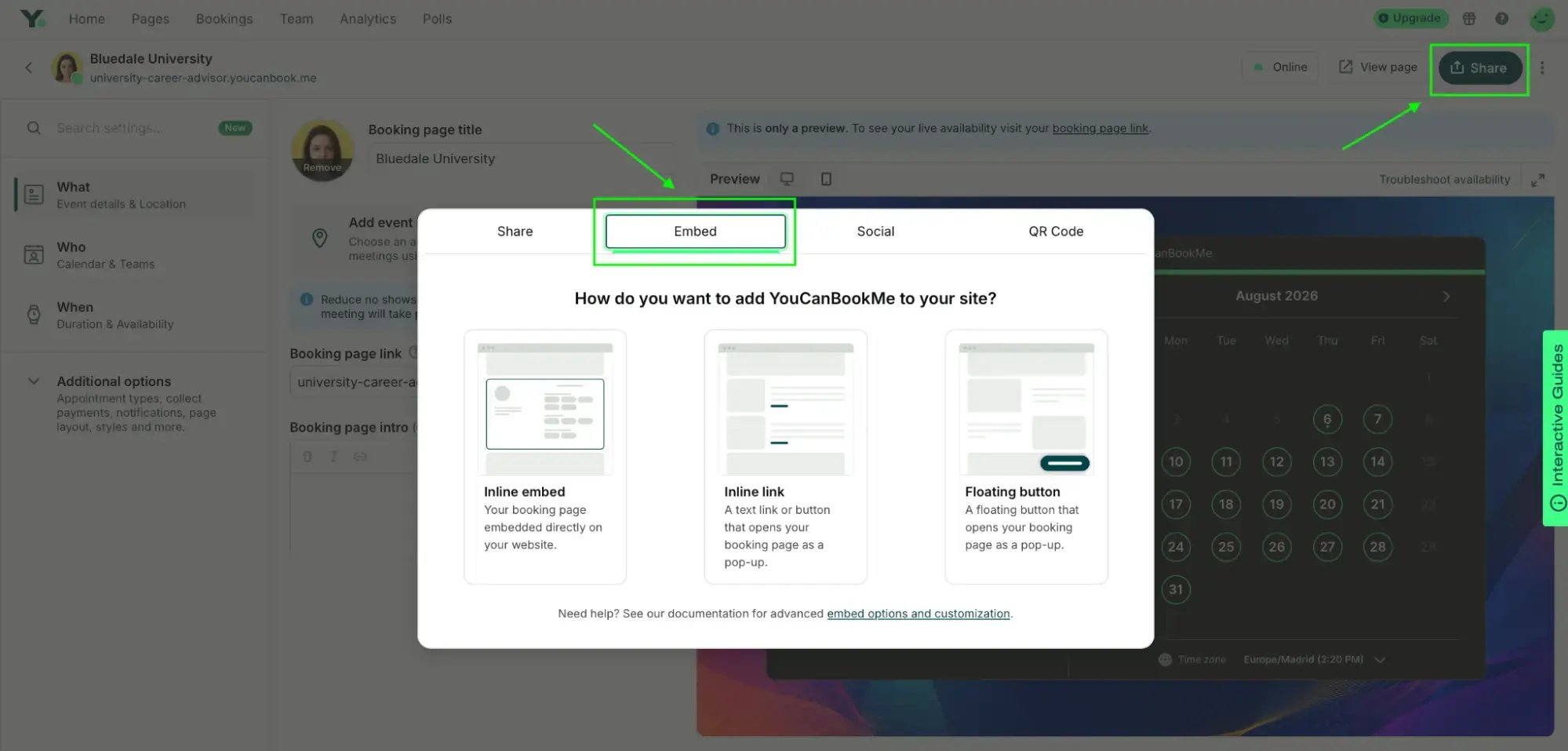
Paste that code into your LMS content block. Most LMS platforms have an option for adding custom HTML, or your institution’s edtech team can add it for you in just a few minutes.
|
👉 This feature is available on all YouCanBookMe plans, both free and paid |
Most educators assume YouCanBookMe only works for one-to-one appointments. It doesn't—group bookings let up to 50 people book the exact same time slot through a single link, which changes what your booking page can actually handle.
Think about the sessions that usually mean a separate event platform or chasing attendees one by one:
- Orientation talks
- Group academic advising sessions
- Curriculum nights
- Campus tours
- Writing center walk-ins
With a group booking, everyone books into the same slot and gets the same confirmation and reminder emails as any other appointment. You can also let one person reserve multiple seats in a single booking, so families or groups of students can sign up together.
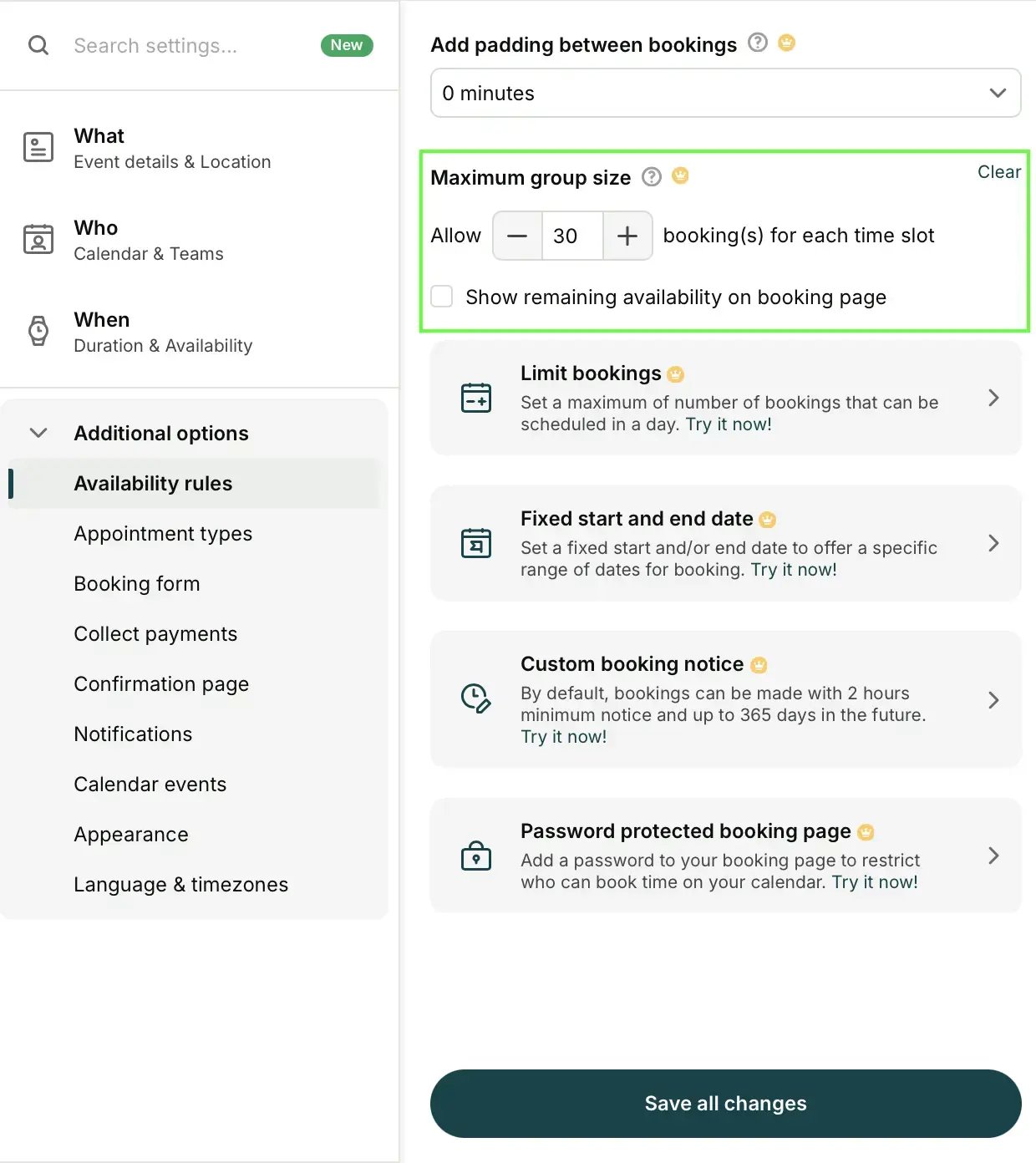
Again, you’ll find the group bookings setting under Availability rules.
|
👉 This feature is available on all paid plans |
Some students prefer meeting in person, for accessibility reasons or because they focus better face-to-face. Others need online, because of distance, illness, or simple preference. Sending a follow-up email to ask "Zoom or in-person?" adds exactly the kind of back-and-forth a booking page is supposed to eliminate.
YouCanBookMe lets you offer multiple location options on a single booking page. Students pick their preferred format when they book. Choose online, and a meeting link generates automatically; choose in-person, and the location address is provided instead. You’ll find your location settings under the What (Event details & Location) tab on the left side of your booking page settings.
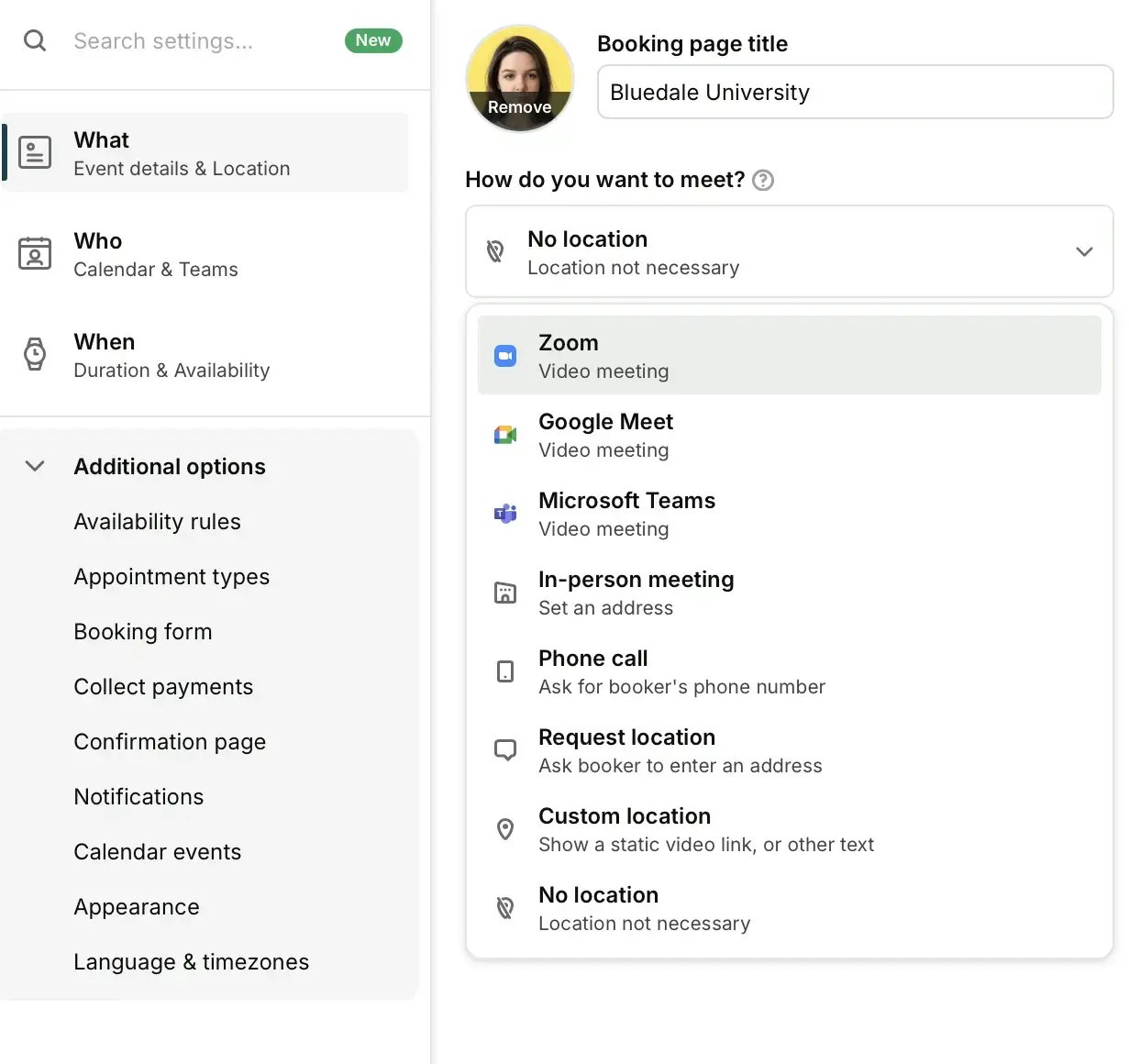
Offering both meeting formats is a practical accessibility measure, since not every student can always get to campus.
|
👉 This feature is available on all paid plans |
One thing you should also do when offering both in-person and online meetings is make sure the right details reach the right person automatically. Otherwise, either everyone gets a Zoom link (confusing for the people meeting in person), or you're manually editing confirmation emails one by one, which defeats the point of automating any of this.
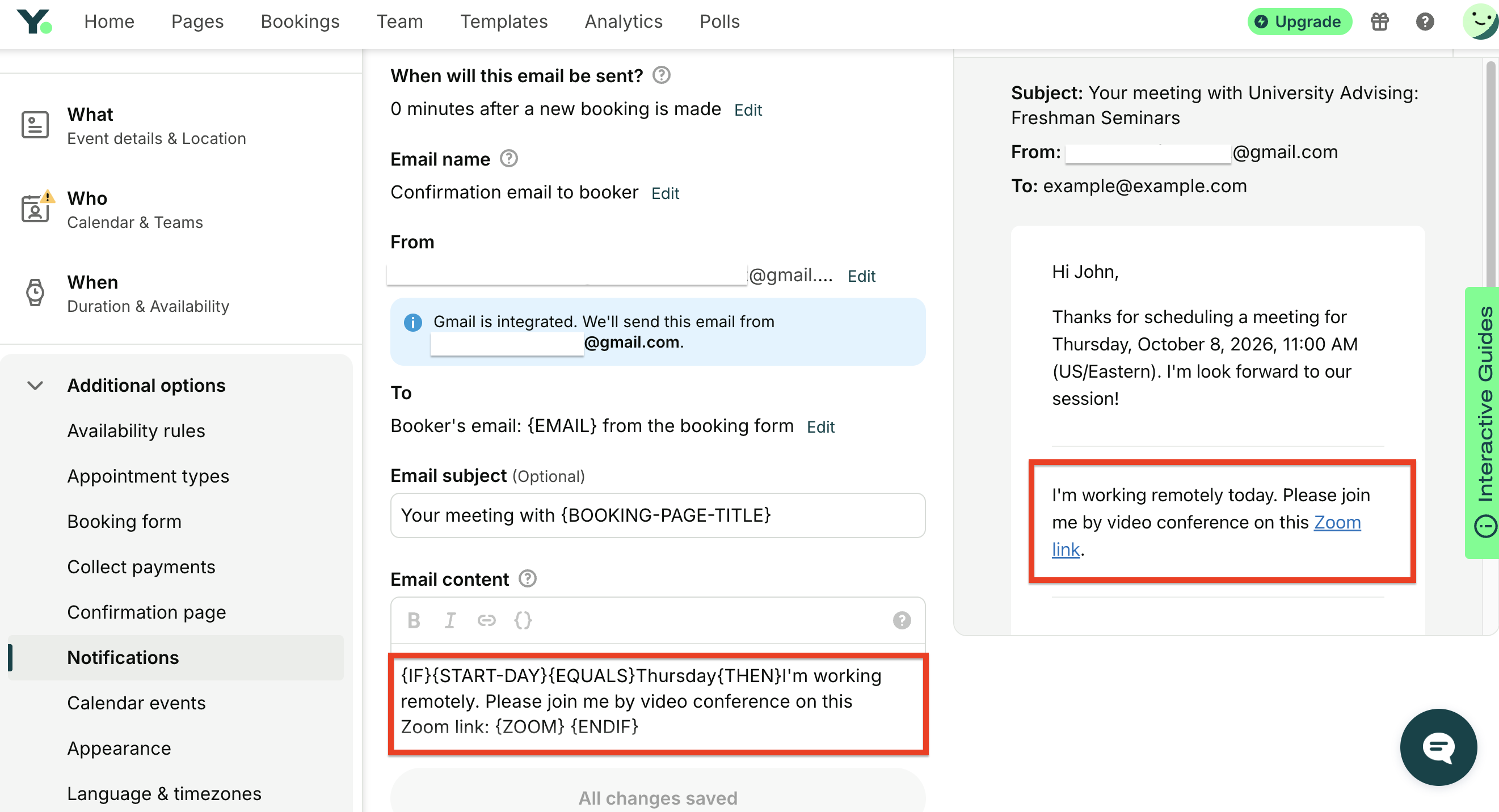
With YCBM's conditional statements, you can make that happen automatically. In plain English, a conditional statement is just a simple "if this, then that" rule. If the student picked online, show the Zoom link; if not, show the room details instead.
You can base that rule on a student's answer to a booking form question—for example, if they picked online, show the Zoom link; if not, show the room details instead. Or, if you follow a regular hybrid schedule, you can base it on the day of the booking: show virtual meeting details on your remote-work days and your office location on the days you're on campus.
You set these rules up once inside your student notification emails, and every future booking gets the relevant meeting details automatically.
|
🤔 Curious what else YouCanBookMe can do? Explore our guide to the must-have scheduling features for educators. |
Your calendar, your rules
And there you have it—seven different ways to give yourself a bit more breathing room in a job that rarely offers any. None of them are complicated to set up, but they can certainly give some real time back.
If you haven't looked at your booking page settings in a while, it's worth the ten minutes! The settings that protect your time are already there. Head to your account to switch them on.
FAQs
Is YouCanBookMe good for parent-teacher conferences (PTCs)?

Can I password-protect my booking page so only certain students can access it?
Can I add my scheduling link to my email signature?

Written by
Paulina Major
Paulina Major is a freelance B2B content writer with six years of experience. Since 2024, she has written 100+ articles on scheduling and personally tested and reviewed 30+ booking tools, helping small business owners choose software and simplify their booking processes. As a solopreneur managing her own clients and calendar, she brings firsthand experience to her advice on scheduling, time management, and running a business.
Get started today
Join thousands of coaches, consultants, and entrepreneurs who use YouCanBookMe to power their business. Get your first booking in a few minutes.


 4.7 / 5 — Trustpilot

